How to Import Contacts into Fireberry
Learn how to import contacts into Fireberry with our easy-to-follow instructions. Simplify your contact management and boost your efficiency now.
Sync leads from professional networks to Fireberry.
Save 4hrs per week on CRM data entry.
Learn more...Free Fireberry integration
Fireberry CRM offers a powerful and flexible import tool that allows users to seamlessly upload data from Excel or CSV files. Whether you’re migrating contacts, accounts, sales records, or product information, the process is straightforward and ensures your data remains organized and up-to-date.
This guide will walk you through the entire import process, covering everything from file preparation to managing the import log.
Preparing Your Data for Import
Proper preparation of your data is essential for a successful import. Here are some key tips:
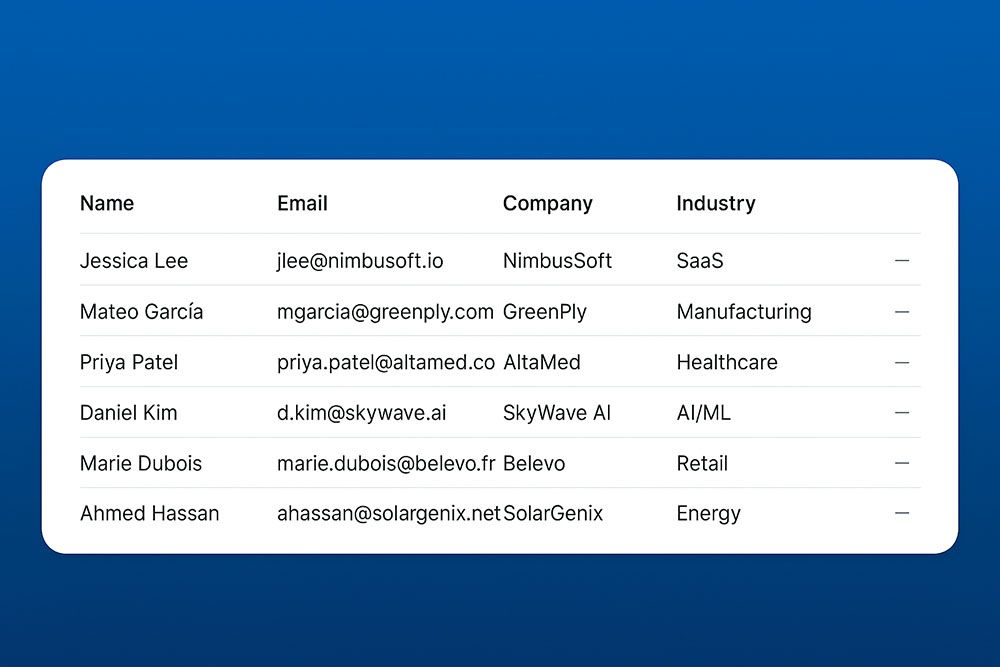
File Format: Ensure your file is saved in either .xls, .xlsx, or .csv format. Files that do not match these formats will not be accepted.
Header Row: Include a header row in your file, as Fireberry uses it to map fields during the import process. Make sure the headers clearly indicate the type of data in each column.
Data Types: Decide what type of data you are importing—such as contacts, accounts, or products—and ensure your file reflects this structure.
Permissions: Before importing, verify that you have the necessary permissions. You will need both the Settings and Import From a File action permissions to proceed. Learn more about permissions here.
Steps to Import Data
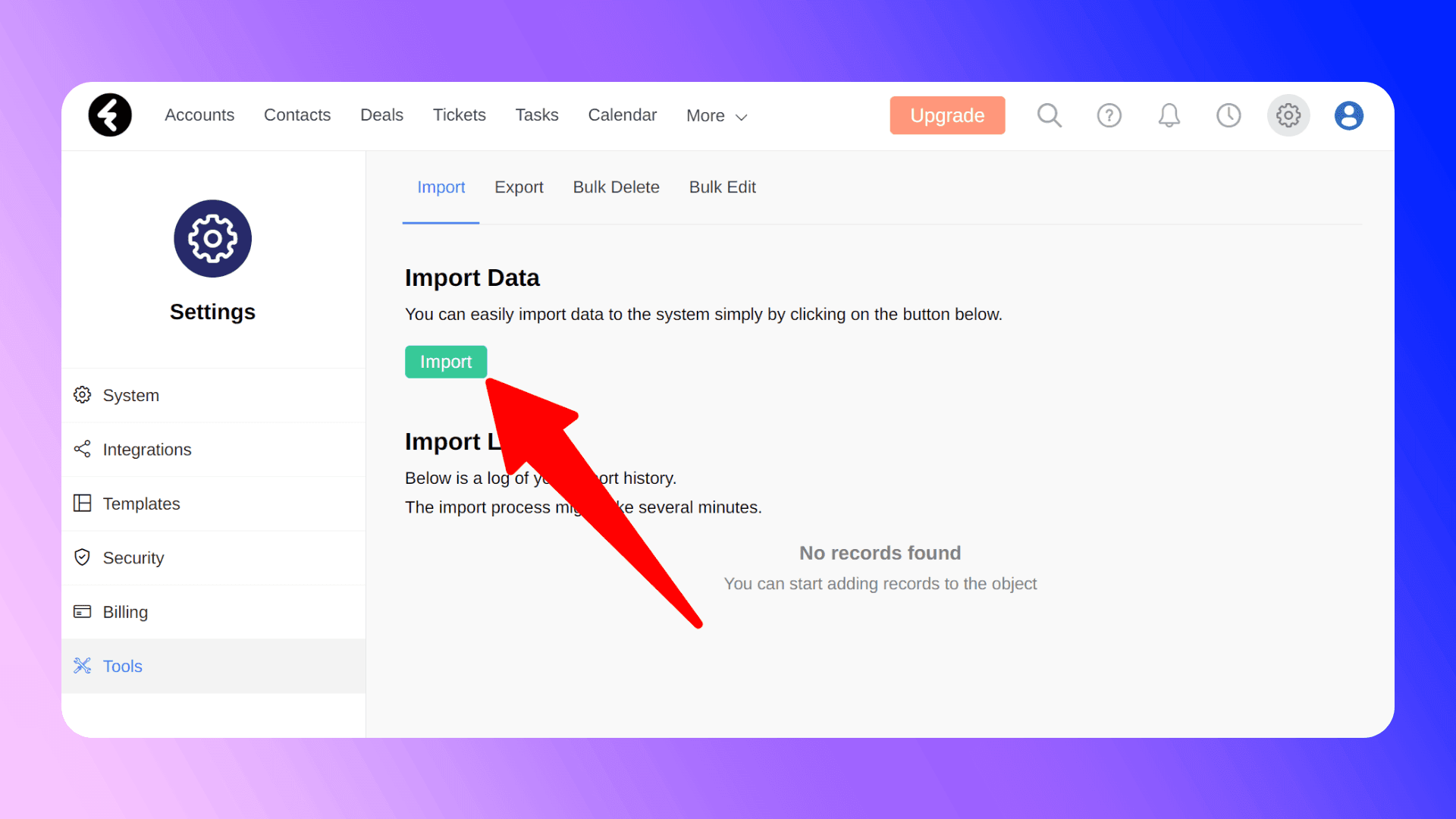
Step 1: Access the Import Tool
You can start the import process in two ways:
Via System Settings:
- Click the gear icon in the top right corner of the page.
- Select the Tools tab on the left, which will open the Import page.
- Click the green Import button under the “Import Data” heading.
Directly from Object Views:
- Open the view for the object you wish to import data into (e.g., Contacts or Accounts).
- Click the three-dot icon in the top right and select Import Data.
Step 2: Upload Your File
- Click Upload File and select your prepared Excel or CSV file.
- Once the file is uploaded, the filename will appear in blue. Click Next to proceed.
Step 3: Select the Data Type
- Choose the object type (e.g., Contacts, Accounts) where the data will be imported. Only objects you have the necessary permissions for will be displayed.
- Click Next after selecting the appropriate data type.
Step 4: Choose Import Type
Fireberry allows you to either import new records or update existing ones:
- Import New Records: Adds new entries to the system.
- Update Existing Records: Finds and updates existing records based on a specified ID field.
Activate Special Features: You can choose to activate automations, field trackers, and syncing with external systems during the import process by checking the Activate special features during import box.
Step 5: Map Your Fields
- Fireberry will display a table with two columns: File Titles and Software Fields.
- Match each column in your file to a corresponding field in Fireberry. If the column names in your file match Fireberry’s field names, the system will auto-map them.
- Leave the Software Fields column blank for any file columns you do not wish to import.
Tip: If your first row contains titles, check the The first row contains titles box to avoid importing them as data.
Step 6: Set the Owner Field
When importing new records, you must assign an owner. If the owner field is not specified in your file, you can set a default owner by selecting a user from the system.
Step 7: Start the Import
Click Import to begin the process. Depending on the file size, the import may take a few minutes. Once complete, you will receive an email notification.

Skip the CSV. Import contacts to Fireberry from LinkedIn®
Add to CRM enriches LinkedIn® profiles with verified emails and phone numbers, then syncs them to Fireberry instantly.
Start Free Trial


 Trusted by 2,500+ users4.7
Using the Import Log
The import log is a valuable tool for tracking and managing past imports.
Accessing the Import Log:
- Go to the Tools tab under system settings.
- The import log will display a list of all past imports, including details such as file name, import type, date, object, status, and result.
Reverting an Import:
- Within 24 hours of an import, you can revert it by clicking the blue Revert button next to the respective log entry.
- A pop-up will appear displaying the total number of records to be deleted. Type DELETE and click the red Delete button to confirm.
Handling Errors:
- If any errors occur during the import, Fireberry will provide a downloadable error report detailing the issues.
Best Practices for a Smooth Import
- Test with a Sample File: Start with a small sample file to ensure the import settings and field mappings are correct.
- Break Up Large Files: For large datasets, consider splitting them into smaller files to avoid errors and reduce processing time.
- Use Consistent Formatting: Ensure consistent formatting across all columns to minimize errors.
- Keep a Backup: Always keep a backup of your original file before starting the import.
Importing from LinkedIn
If you frequently import data or want to automate the process, consider using third-party tools like Add to CRM.
Add to CRM integrates directly with Fireberry CRM, enabling users to:
- Import contacts from external sources like LinkedIn with one click.
- Sync data from various platforms without manual intervention.
- Schedule regular imports to keep your CRM updated automatically.
By leveraging Add to CRM, you can save time, reduce manual errors, and maintain a clean and accurate database.

Verified emails, straight into Fireberry
Add to CRM enriches LinkedIn® profiles with verified emails and phone numbers, then syncs them to Fireberry instantly.
Start Free TrialTrusted by 2,500+ users4.7Conclusion
Importing data into Fireberry CRM is a simple yet powerful way to keep your business information organized and accessible. By following the steps outlined in this guide and adopting best practices, you can ensure a smooth and error-free import process.
Whether you’re migrating data for the first time or updating existing records, Fireberry’s import tool and third-party integrations like Add to CRM make the task easier and more efficient.
Happy importing!
How to import contacts into Fireberry directly from LinkedIn®, Gmail and Outlook

 Fireberry Integration
Add contacts to Fireberry from LinkedIn®
Enrich profiles with verified emails and phone numbers. Sync to Fireberry in one click.
Try Fireberry Extension7-day free trial · Cancel anytime
Save 4+ hrs / week on Fireberry data entry.
Find verified contact info for your prospects on LinkedIn®, Gmail, Outlook & company websites. Add them to your Fireberry with 1-click.
 Loading...Trusted by 2,500+ founders, SDRs & more