How to Import Contacts into Monday.com
Learn how to easily import contacts into Monday.com with our comprehensive guide. Optimize your project management and boost productivity now.
Sync leads from professional networks to Monday CRM.
Save 4hrs per week on CRM data entry.
Learn more...Free Monday CRM integration
Are you new to monday CRM or looking to centralize your lead data from multiple sources? Whether you have leads in Excel, on different platforms, or through forms, monday CRM offers several options to help you import and manage your data efficiently.
In this guide, we will walk you through the various ways to import your leads, highlight supported fields, and discuss some third-party tools that can streamline the process.
Preparing Your Data for Import
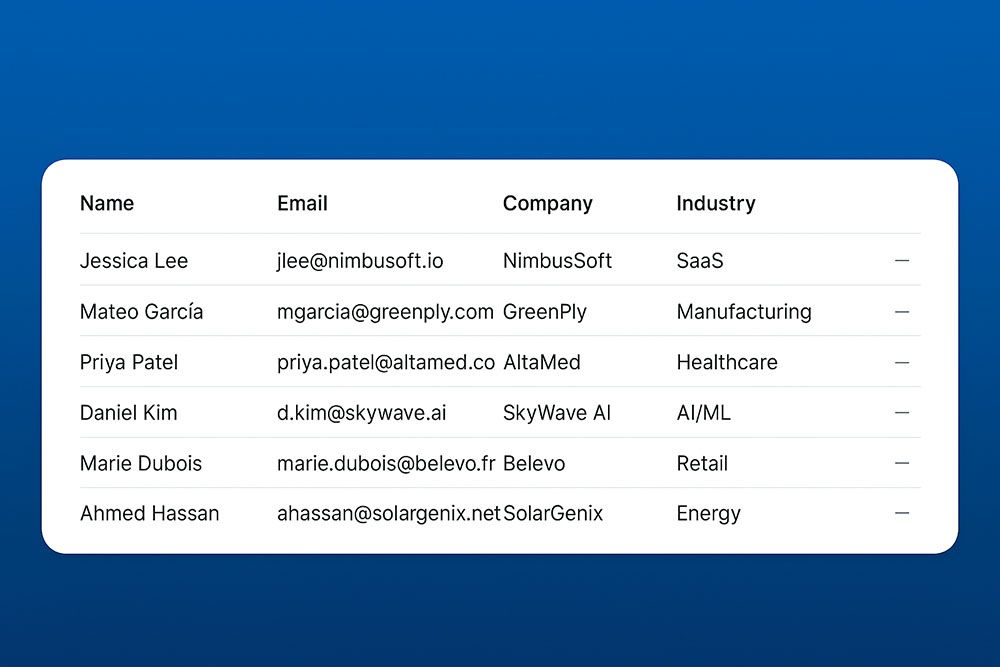
Before you begin the import process, ensure your data is properly formatted. Here are some tips to get started:
- Use a CSV or Excel format: Make sure your file is saved as a CSV or Excel spreadsheet.
- Include a header row: Your header row should clearly label each column, such as Name, Email, Phone, and Status.
- Clean your data: Remove duplicates, empty rows, and irrelevant columns to keep your import file organized.
Importing Leads from Excel
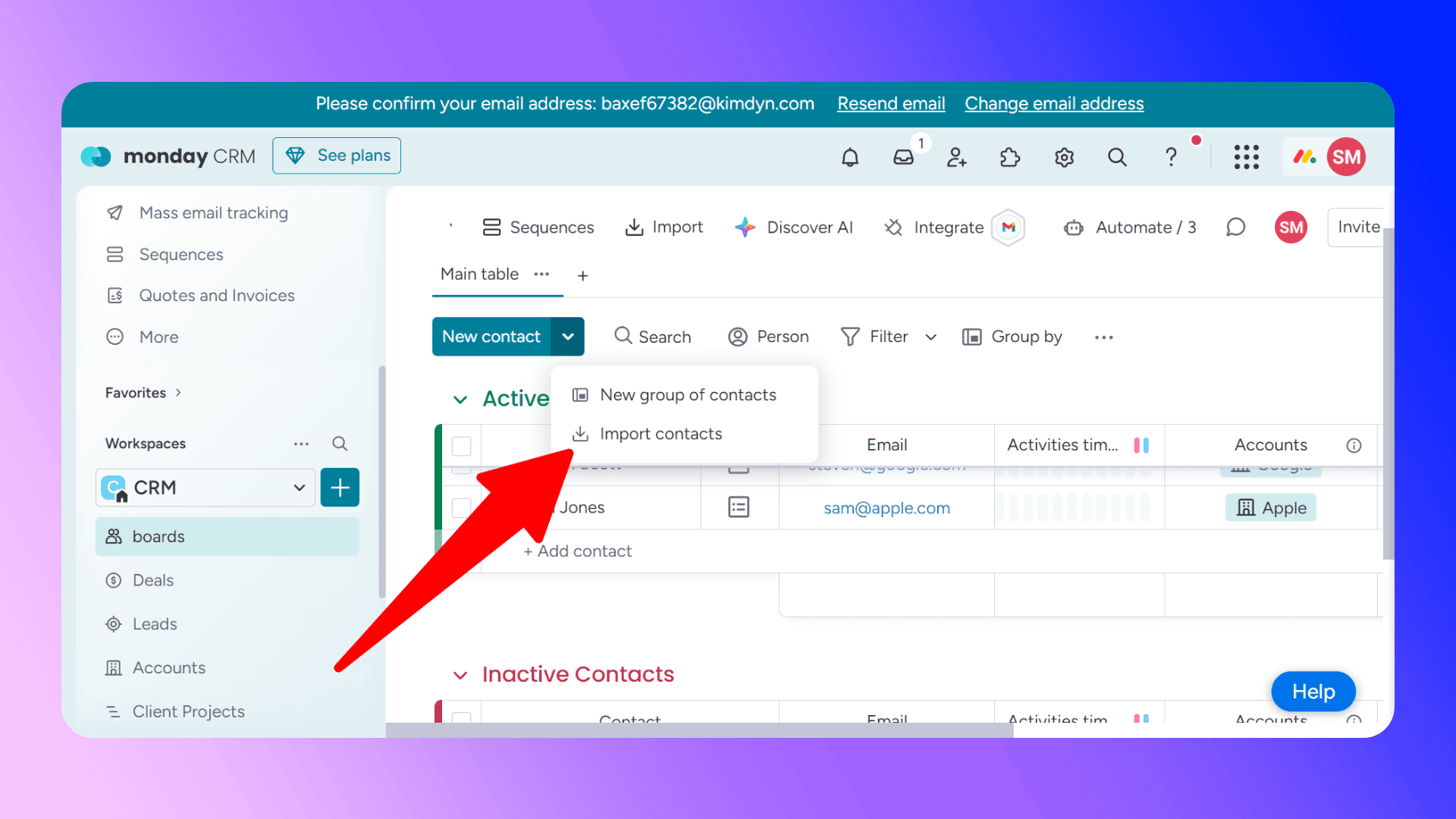
If your leads are listed in an Excel file, you can easily import them into your leads board:
- Open your leads board in monday CRM.
- Click the blue “Add” button and select “Import items”.
- Upload your file by either browsing your computer or dragging and dropping the file into the import window.
- Map your columns to existing fields in monday CRM. Use the dropdown next to each column header to match it with the corresponding field.
- Handle duplicates by selecting one of three options:
- Add as new: Adds all items as new leads.
- Skip: Skips any duplicates based on a selected column.
- Overwrite: Updates existing records based on a selected column.
- Start the import and monitor the progress in the bottom-right corner of your screen. You will receive a notification when the import is complete.
For more details on importing from Excel, check out this article.
Using monday Forms to Collect Leads
monday CRM allows you to create forms that can be shared with others. Once a form is submitted, the data automatically populates your leads board.
- Create a new form from your leads board by clicking the “+ Add View” button and selecting Forms.
- Customize your form by adding or removing fields.
- Share the form link with potential leads or embed it on your website.
- Once submitted, each form entry will be added as a new lead.
Learn more about setting up forms here.
Integrating Apps and Platforms
monday CRM supports various integrations that help you seamlessly import leads from other platforms:
- Facebook Ads: Use the Facebook Ads Integration to sync leads from your campaigns.
- HubSpot: Automatically sync contacts and companies from HubSpot into monday CRM. Learn more about the HubSpot Integration.
- PipeDrive: Sync your customer data using the PipeDrive Integration.
- Copper: Connect Copper CRM with monday.com using the Copper Integration.
- Salesforce: Bring your Salesforce data into monday CRM with the Salesforce Integration.

Skip the CSV. Import contacts to Monday CRM from LinkedIn®
Add to CRM enriches LinkedIn® profiles with verified emails and phone numbers, then syncs them to Monday CRM instantly.
Start Free Trial


 Trusted by 2,500+ users4.7
Adding Leads in Batches
If you prefer manual input but want to save time, you can add leads in batches:
- Copy your lead list to your clipboard.
- Paste the list into a new item on your leads board. Note that only the lead name will be imported, and other details will need to be filled in manually.
- Use batch actions to quickly update shared values across multiple leads.
For more information, check out this guide on batch actions.
Supported Fields
When importing leads, the following fields can be mapped:
- Name
- Status
- Link
- Email
- Long text
- Numbers
- Text
- Phone
- Date
Ensure your columns match these field types for a smooth import process.
Limitations
Here are a few limitations to be aware of when importing data into monday CRM:
- You can only upload one file at a time per board.
- A maximum of 100 files per account can be uploaded per hour.
- Your imported file must have fewer than 50 columns and 8,000 rows.
- The file size must not exceed 10 MB.
- Unmatched columns will be added as text fields.
- Active automations may change the status of imported leads to “New Lead.” Consider temporarily disabling automations before importing.
Importing from LinkedIn
For users who want more advanced import options or require regular data synchronization, third-party tools can be a game-changer.
Add to CRM is a third-party tool designed to enhance your monday CRM experience by allowing you to:
- Import leads directly from LinkedIn into monday CRM.
- Sync data from multiple sources without manual intervention.
- Save time and reduce errors with automated imports.
If you frequently import or update large datasets, Add to CRM can be an invaluable asset.

Verified emails, straight into Monday CRM
Add to CRM enriches LinkedIn® profiles with verified emails and phone numbers, then syncs them to Monday CRM instantly.
Start Free TrialTrusted by 2,500+ users4.7Best Practices for a Successful Import
- Test with a small batch: Always start by importing a small sample to ensure everything is mapped correctly.
- Break up large files: If you have a large dataset, consider splitting it into smaller files to avoid errors.
- Double-check your mapping: Ensure all columns are mapped to the correct fields before starting the import.
- Keep a backup: Save a copy of your original file in case you need to revert changes or re-import data.
Conclusion
Importing leads into monday CRM doesn’t have to be complicated. By following these steps, you can easily centralize your lead data, streamline your sales process, and ensure no opportunity slips through the cracks. Whether you’re using Excel, forms, integrations, or third-party tools like Add to CRM, monday CRM offers flexible solutions to suit your needs.
Happy importing!
How to import contacts into Monday CRM directly from LinkedIn®, Gmail and Outlook

 Monday CRM Integration
Add contacts to Monday CRM from LinkedIn®
Enrich profiles with verified emails and phone numbers. Sync to Monday CRM in one click.
Try Monday CRM Extension7-day free trial · Cancel anytime
Save 4+ hrs / week on Monday CRM data entry.
Find verified contact info for your prospects on LinkedIn®, Gmail, Outlook & company websites. Add them to your Monday CRM with 1-click.
 Loading...Trusted by 2,500+ founders, SDRs & more