How to Merge Duplicates in ActiveCampaign
Keep ActiveCampaign clean. Merge duplicate contacts easily and stop new ones with Add to CRM’s verified LinkedIn integration.
Sync leads from professional networks to ActiveCampaign.
Save 4hrs per week on CRM data entry.
Learn more...Free ActiveCampaign integration
Duplicate contacts are a silent drain on your sales productivity. They clutter your CRM, skew your data, and can lead to awkward interactions with prospects. While ActiveCampaign is great at preventing duplicates with the same email address, copies of contacts can still appear when people use different emails. We're here to guide you through not just cleaning up existing duplicates in ActiveCampaign, but also preventing them from ever being created.
Why Duplicates Hurt Your Sales Process
Duplicate records aren't just a minor annoyance; they actively undermine your sales and marketing efforts. They lead to inaccurate reporting, wasted time for your sales reps who might engage the same lead twice, and a fragmented view of your customer's journey. Common causes include:
- Manual data entry errors
- Importing contact lists from multiple sources
- Inconsistent data formats (e.g., "John Smith" vs. "J. Smith")
- Prospects using a personal email to sign up for a newsletter and a work email to purchase a product
Identifying Duplicates in ActiveCampaign
ActiveCampaign automatically prevents duplicate contacts that share an identical email address. The real challenge is identifying the same person who exists under two different email addresses. Since ActiveCampaign doesn't have an automated tool to flag these, identification is a manual process. We recommend periodically scanning your contact list for similar names or searching for variations of a prospect's name to spot potential duplicates.
Step-by-Step Merging Process
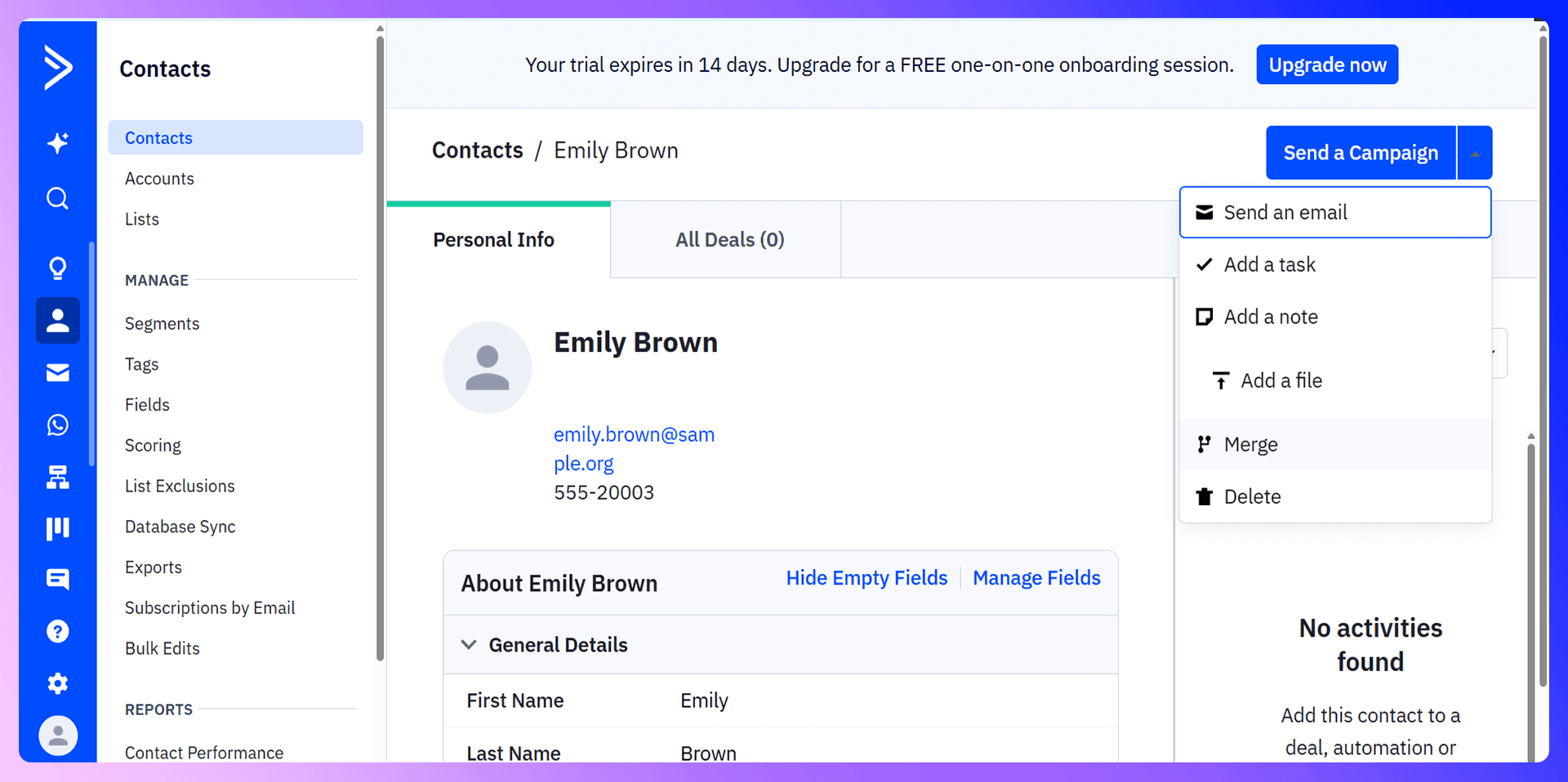
Once you've identified a duplicate pair, merging them is straightforward. Remember, this action is permanent and cannot be undone, so be certain before you proceed. Here’s how to do it:
- Navigate to Contacts: From your ActiveCampaign dashboard, go to the "Contacts" section.
- Choose Your Contacts: Identify the two contacts you want to merge. Decide which one will be the "source" (the record you'll merge and delete) and which will be the "destination" (the primary record you'll keep).
- Open the Source Contact: Click on the contact record you want to get rid of.
- Initiate the Merge: Click the gear icon at the top right of the contact profile and select the "Merge" option from the dropdown menu.
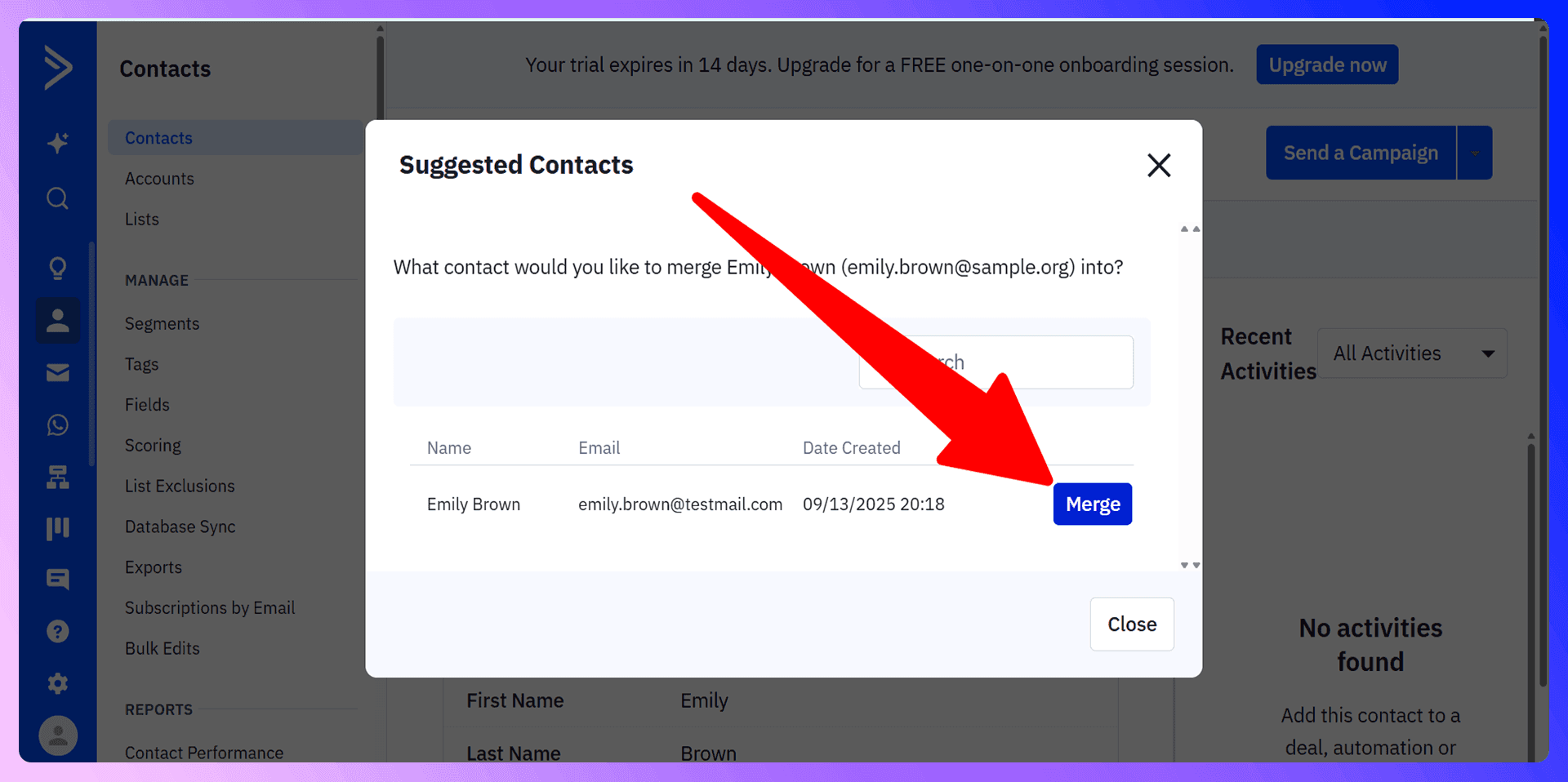
- Select the Destination Contact: A window will appear. Search for the destination contact's email address and click the "Merge" button next to their name.
- Resolve Conflicts: ActiveCampaign will ask you to resolve any conflicting data. You may have to choose which contact's field values or automation statuses to keep. We recommend keeping the data from the most complete or recently updated record.
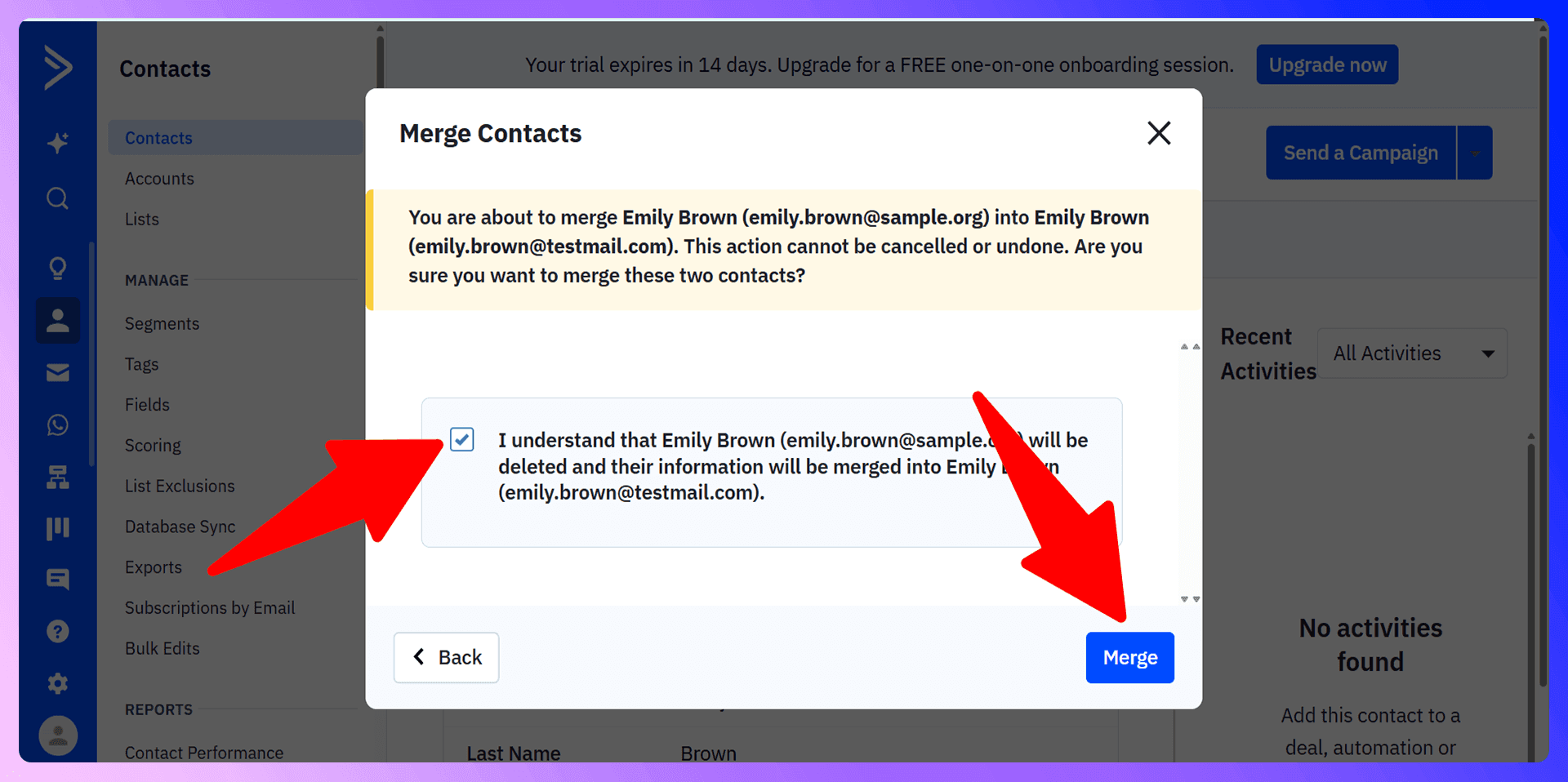
- Confirm the Merge: Review the final confirmation screen, check the boxes to acknowledge the changes, and click "Merge." The source contact's information will be combined into the destination contact, and the source record will be deleted.
Bulk Duplicate Management
It's important to note that ActiveCampaign does not offer a bulk duplicate merging feature. You can only merge two contacts at a time. This manual process can be incredibly time-consuming for businesses with large-scale duplicate issues, which highlights the importance of preventing them in the first place.

Keep ActiveCampaign clean with verified contact data
Add to CRM enriches contacts with 95%+ accurate data before adding them — so ActiveCampaign stays clean from day one.
Start Free Trial


 Trusted by 2,500+ users4.7
Preventing Duplicates with Add to CRM
Add to CRM is a Chrome extension that finds verified contact information from LinkedIn and adds standardized data to ActiveCampaign. It's the most effective way to prevent duplicates because it ensures the data entering your CRM is clean, accurate, and consistent from the very start. By automating data entry, you eliminate the human errors that cause most duplicate records.
Why Clean Data Beats Cleanup
Spending hours manually merging contacts is a reactive, inefficient process. It's a constant chore that pulls your team away from selling. In contrast, using a tool like Add to CRM is a proactive strategy. By ensuring every contact you add from LinkedIn is verified and properly formatted, you save countless hours of future cleanup and maintain the integrity of your sales data.
Getting Started with Add to CRM
It only takes a few minutes to start building a cleaner CRM:
- Install the Add to CRM extension from the Chrome Web Store.
- Navigate to any prospect's profile on LinkedIn.
- Click the Add to CRM button to find their verified email and other contact details.
- Click "Add to ActiveCampaign" to instantly sync the clean, standardized data to your CRM with a single click.
LinkedIn Integration for ActiveCampaign: Avoid Duplicates Before They Happen
One of the most powerful features of our tool is its ability to prevent duplicates in real-time. When you're browsing LinkedIn, Add to CRM automatically checks if a person is already in your ActiveCampaign account. This simple check stops you from accidentally creating a duplicate record of a lead or customer you're already engaged with.
Enriching Existing Contacts
If Add to CRM finds that a prospect is already in your CRM, it doesn't just stop you from creating a duplicate. It allows you to enrich the existing contact record with new, updated information from their LinkedIn profile. This ensures your data stays fresh and accurate without cluttering your database.
Real-Time Duplicate Prevention
This real-time check acts as a safety net for your entire team. While prospecting on LinkedIn, you get an immediate visual cue telling you who is already in your CRM. This allows your team to focus on net-new leads and avoid the wasted effort that comes with pursuing duplicate contacts.
Accurate data means fewer ActiveCampaign duplicates
Add to CRM enriches contacts with 95%+ accurate data before adding them — so ActiveCampaign stays clean from day one.
Start Free TrialTrusted by 2,500+ users4.7Best Practices for Duplicate Prevention
Beyond using the right tools, we recommend these best practices to maintain a clean database:
- Establish Data Standards: Create a clear data entry protocol for your team, defining how to format names, job titles, and company information.
- Audit Regularly: Schedule time each quarter to scan your contact list for potential duplicates that may have slipped through.
- Be Careful with Imports: Before performing a bulk import from a CSV file, scrub the list for potential duplicates and format it according to your standards.
- Standardize Your Tools: Make Add to CRM the standard tool for adding all new contacts from LinkedIn. This ensures consistency across your team.
Conclusion: Build Clean, Not Cleanup
While knowing how to merge duplicates in ActiveCampaign is a useful skill, the most effective strategy is to prevent them from ever being created. A clean CRM is the foundation of an efficient sales process. By focusing on prevention with a tool like Add to CRM, you empower your team to spend less time on data cleanup and more time building relationships and closing deals. At Add to CRM, we believe in working smarter, not harder.
Ready to stop cleaning up messes and start building a clean pipeline? Start your 7-day free trial of Add to CRM and see the difference for yourself.
How to merge duplicate contacts in ActiveCampaign

 ActiveCampaign Integration
Add contacts to ActiveCampaign from LinkedIn®
Enrich profiles with verified emails and phone numbers. Sync to ActiveCampaign in one click.
Try ActiveCampaign Extension7-day free trial · Cancel anytime
Save 4+ hrs / week on ActiveCampaign data entry.
Find verified contact info for your prospects on LinkedIn®, Gmail, Outlook & company websites. Add them to your ActiveCampaign with 1-click.
 Loading...Trusted by 2,500+ founders, SDRs & more