How to Import Contacts into Copper CRM
Learn how to efficiently import contacts into Copper CRM with our comprehensive guide. Simplify your data management and boost productivity effortlessly.
Sync leads from professional networks to Copper CRM.
Save 4hrs per week on CRM data entry.
Learn more...Free Copper CRM integration
If you’re moving your business data to Copper CRM or simply updating your database, importing data correctly is crucial for an efficient CRM experience. Whether you’re importing companies, contacts, or opportunities, this guide will walk you through the process step-by-step.
Preparing Your Data for Import
Before importing data into Copper, it’s important to format your data properly to avoid errors and ensure a smooth import process.
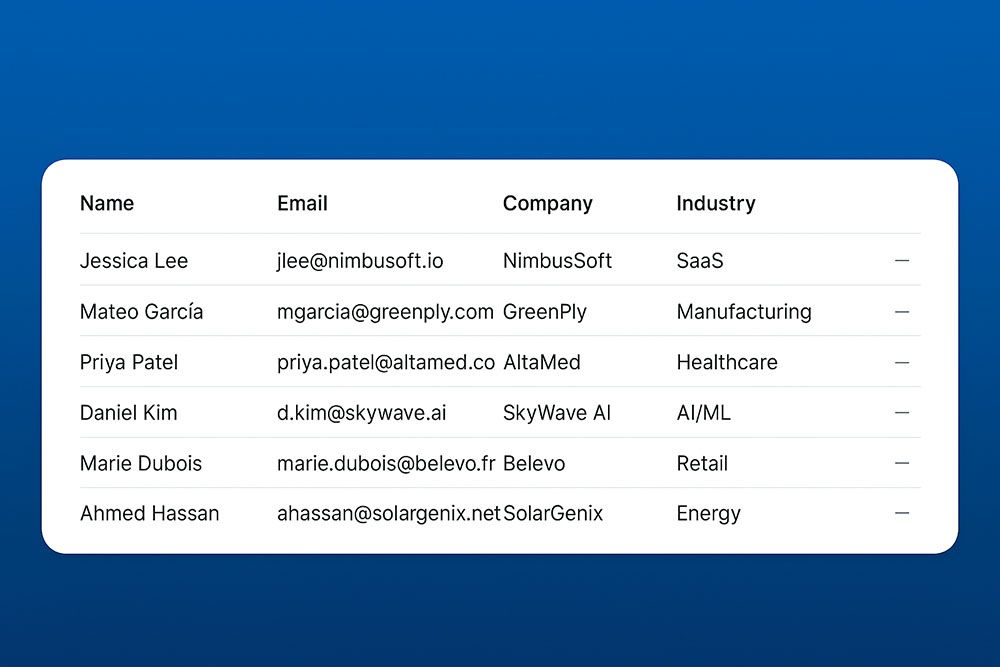
Data Formatting Tips
Set up custom fields:
- Create necessary custom fields in Copper before importing your data to ensure all information is correctly categorized.
File format:
- Ensure your file is in CSV or Excel format. Copper supports files up to 3MB in size.
Column headers:
- The first row of your file should contain clear and descriptive column headers.
Field compatibility:
- Make sure your data matches Copper’s field types. For example, date fields should be in MM/DD/YYYY format.
Importing Data into Copper CRM
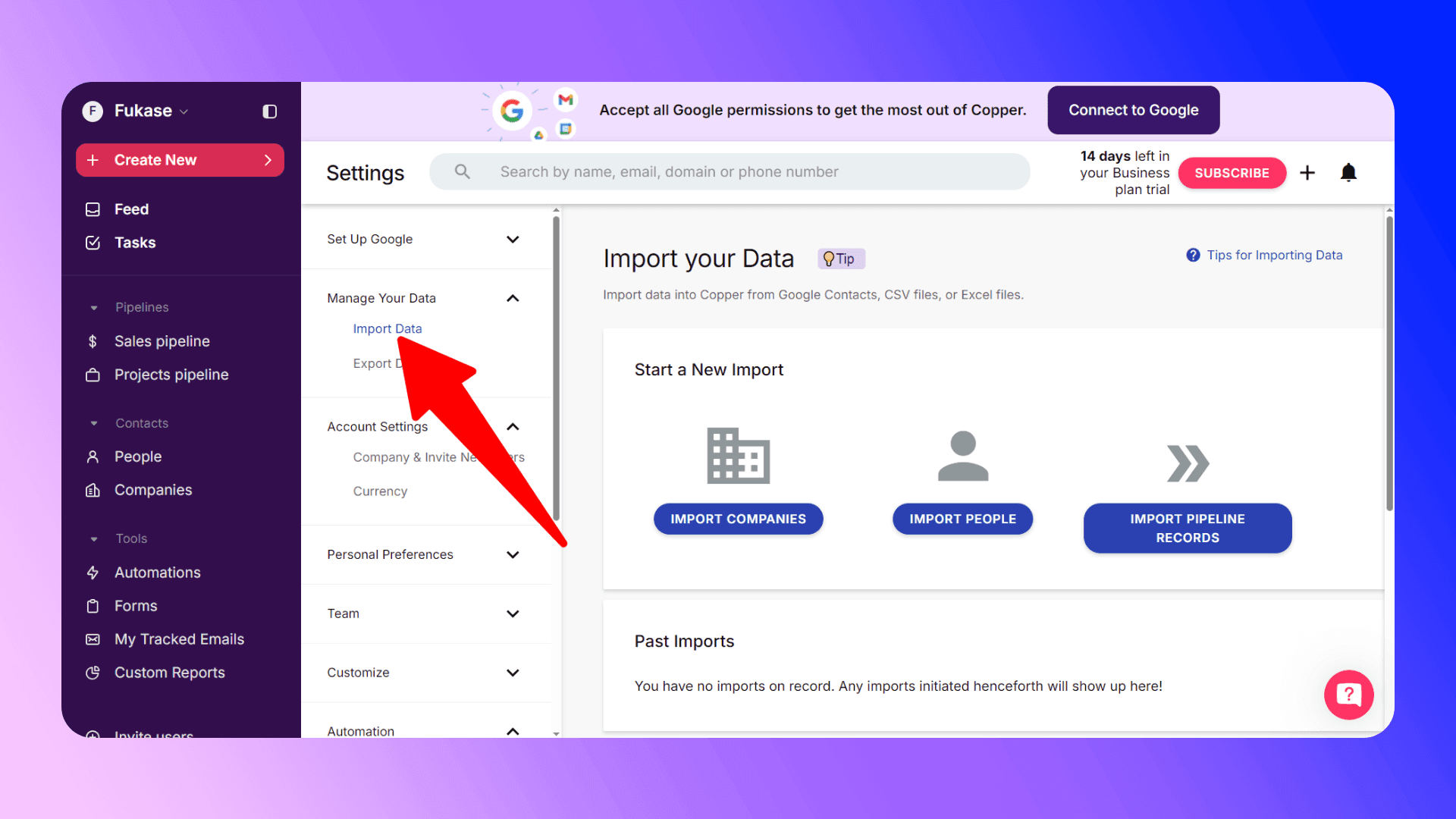
Step 1: Accessing the Import Tool
- Log in to your Copper account.
- Click the Menu icon in the top-left corner and select System Settings.
- Under Data Management, click Import Data.
Step 2: Selecting Data Type
- Choose the type of data you want to import: Companies, People, Leads, or Opportunities.
- Click the blue Import [Data Type] button.
Step 3: Uploading Your File
- Select your file by clicking Choose File or drag and drop your file into the import window.
- If you don’t have a file ready, download Copper’s pre-formatted template, fill in your data, and upload it.
Step 4: Mapping Fields
- Copper will display a preview of your data and prompt you to match each column to a corresponding Copper field.
- If a field doesn’t exist, create a custom field by clicking Create New Field.
- Ensure all required fields are mapped correctly.
Step 5: Handling Duplicates
Copper offers three options for handling duplicates:
- Add as new: Adds all entries as new records.
- Skip duplicates: Skips entries with duplicate data.
- Overwrite duplicates: Updates existing records with the new data.
Choose the appropriate option and click Continue Import.
Step 6: Completing the Import
- Once the import begins, you can track its progress on the import page.
- After completion, Copper will display a summary of the imported records.
Reverting an Import
If you notice errors after importing, Copper allows you to revert the process.
- Go to System Settings > Import Data.
- Find the import entry you want to revert and click Revert Import.
Note: Reverting an import will delete all records created during that import.
For more detailed guidance, check out Copper’s official import guide.

Skip the CSV. Import contacts to Copper CRM from LinkedIn®
Add to CRM enriches LinkedIn® profiles with verified emails and phone numbers, then syncs them to Copper CRM instantly.
Start Free Trial


 Trusted by 2,500+ users4.7
Importing from LinkedIn
For businesses seeking a faster and more streamlined import process, third-party tools like Add to CRM offer an alternative solution.
Add to CRM: Import Leads from LinkedIn
Add to CRM is a Chrome extension designed to simplify importing leads directly from LinkedIn into Copper CRM. With one click, users can fetch contact information and sync it directly into their Copper database.
Key benefits of using Add to CRM:
- Automated data capture: Instantly capture LinkedIn profile details and add them to Copper.
- Seamless integration: Ensure all leads are correctly categorized and synced in real time.
- Efficiency: Save hours of manual data entry, allowing your team to focus on building relationships and closing deals.

Verified emails, straight into Copper CRM
Add to CRM enriches LinkedIn® profiles with verified emails and phone numbers, then syncs them to Copper CRM instantly.
Start Free TrialTrusted by 2,500+ users4.7Conclusion
Importing data into Copper CRM doesn’t have to be a daunting task. By preparing your data carefully, following Copper’s import process, and leveraging tools like Add to CRM, you can ensure a smooth and efficient transition of your business data.
Ready to supercharge your Copper CRM experience? Start importing your data today!
How to import contacts into Copper CRM directly from LinkedIn®, Gmail and Outlook

 Copper CRM Integration
Add contacts to Copper CRM from LinkedIn®
Enrich profiles with verified emails and phone numbers. Sync to Copper CRM in one click.
Try Copper CRM Extension7-day free trial · Cancel anytime
Save 4+ hrs / week on Copper CRM data entry.
Find verified contact info for your prospects on LinkedIn®, Gmail, Outlook & company websites. Add them to your Copper CRM with 1-click.
 Loading...Trusted by 2,500+ founders, SDRs & more