A Guide to LinkedIn Search People and Find Quality Leads
Master the art of LinkedIn search people with this guide. Learn Boolean logic, Sales Navigator tips, and how to build a prospecting workflow that works.
Sure, you can type a name or a job title into the LinkedIn search bar and get some results. But if that’s all you’re doing, you’re leaving a mountain of opportunity on the table. Real prospecting isn't about random searches; it's about building a repeatable system to find the right people and get their details into your CRM without creating a mess.
Moving Beyond Basic Search to Strategic Prospecting
Too many sales and marketing pros treat LinkedIn like a digital phone book. They search, they find someone, they copy-paste. This isn’t just slow; it’s a recipe for disaster. This manual, haphazard approach clogs your CRM with duplicate entries, partial contact info, and a prospecting process that creates more chaos than qualified leads.
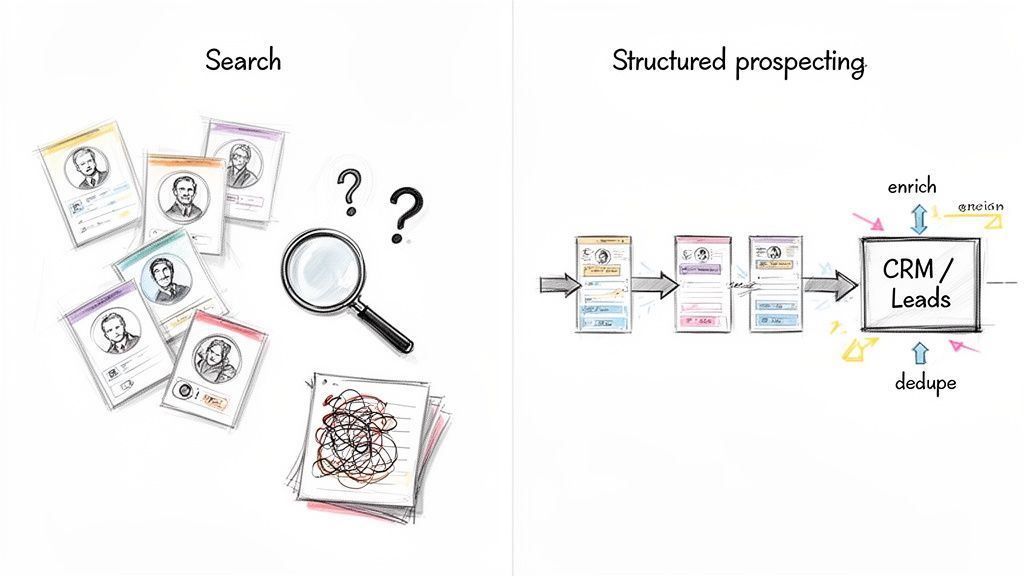
This guide is about flipping that script. We’ll show you how to turn LinkedIn from a simple search tool into the engine of a well-oiled lead generation machine. For a deeper dive into turning those connections into actual revenue, check out our complete guide on LinkedIn lead generation strategies.
The Pitfalls of Manual Prospecting
Without a system, you're just clicking around. And that leads to some very common, very painful problems:
- Duplicate Data: Manually adding contacts is the number one cause of duplicate records. Before you know it, your CRM is polluted with multiple entries for the same person.
- Incomplete Profiles: Copy-pasting a name and title is easy. Capturing all the other critical details? Not so much. This leaves huge gaps in your contact records.
- Wasted Hours: All that time spent manually searching, qualifying, and typing data is time you’re not spending on actual outreach and selling.
This is where you need to think smarter, not work harder. For instance, you can leverage specialized prospecting tools like Getprospect to pull and enrich contact data automatically, giving you back those precious hours.
The goal is simple: shift from aimless browsing to a structured workflow. It's about finding the right people, capturing their clean, enriched data, and syncing it perfectly to your CRM so it’s ready for meaningful outreach.
When you make this shift, you stop treating LinkedIn as just a place to search for people. It becomes the first, and most important, step in building a predictable and scalable sales pipeline.
Mastering LinkedIn's Core Search Filters
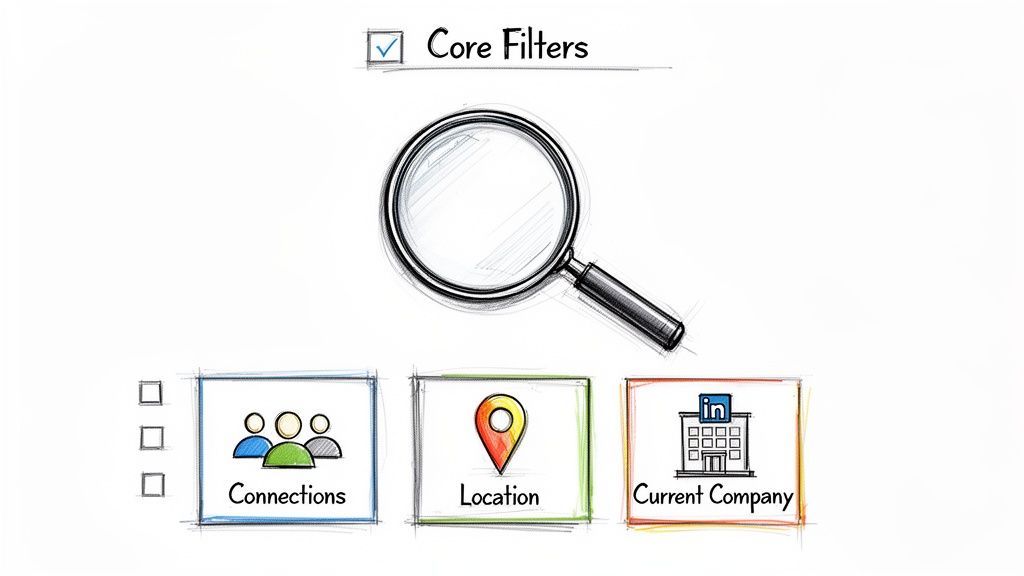
When it comes to prospecting on LinkedIn, the fundamentals are everything. Sure, there are plenty of advanced tricks, but the real power lies in mastering the core filters you’ll use every single day: Connections, Locations, and Current Company.
Think of these not as separate toggles, but as ingredients. The magic happens when you start combining them to turn LinkedIn’s massive network into a focused, manageable list of high-quality prospects.
This isn't just about finding people; it's about finding active people. More than 9,000 members apply for jobs on the platform every minute, and a whopping 82% of B2B buyers check out a profile before they even think about responding to outreach. Your searches are hitting a live, engaged audience, which is why getting these basic filters right is so critical. You can find more stats like these over at The Social Shepherd.
Combining Filters with Intent
The real skill here is learning how to layer these filters with a specific goal in mind. Each one you add sharpens your focus, slicing away the noise until you’re left with exactly who you need to talk to. Let’s see how this works in the real world.
Imagine you're a SaaS founder based in Austin, Texas, looking for local partnership opportunities. A blind search for "product manager" will dump thousands of irrelevant global results on you. That’s not helpful.
Instead, you can get strategic by layering the filters:
- Current Company: Target specific local tech giants like Oracle or Dell.
- Locations: Lock it down to the "Austin, Texas Metropolitan Area."
- Keywords: Throw in "Product Manager" or "Partnerships."
Just like that, a massive, useless list becomes a tight group of potential local partners you could actually grab coffee with. It's all about working smarter.
A Practical Scenario for Sales Development
Now, let's put ourselves in the shoes of an SDR. Your mission is to break into a major target account, let's call it "Acme Corporation," and find the department heads who hold the purse strings.
A generic search for all employees at Acme Corp is way too broad. Here’s the strategic play:
- Filter by Current Company: First, isolate everyone who works at "Acme Corporation."
- Add a Title Keyword: Next, search for titles like "Director" or "Manager" to find people with actual authority.
- Layer on Connections: Finally, filter by 2nd-degree connections. This is the secret sauce—it instantly shows you everyone who is just one introduction away, giving you a warm path in.
By layering these three simple filters, you’ve gone from a generic employee directory to a targeted, actionable list. You now have prospects who are not only relevant by title but are also accessible through people you already know. This is the bedrock of any solid LinkedIn search strategy.

Find verified contact data on LinkedIn®
Add to CRM finds verified emails, phone numbers, and job titles on LinkedIn® — then adds them to your CRM in one click.
Start Free Trial


 Trusted by 2,500+ users4.7
Finding Your Ideal Customer with Boolean Logic
Switching from basic filters to Boolean logic is like trading a flashlight for a laser beam. It lets you "speak" directly to LinkedIn's search algorithm, building hyper-precise queries that slice through the noise and deliver the exact prospects you’re after. This is where you stop sifting and start building truly targeted lists.
But before you start stringing together complex searches, you need to know who you’re looking for. A rock-solid B2B Ideal Customer Profile is the foundation of every good search. It’s what ensures you’re not just finding people, but the right people.
Mastering the Core Boolean Operators
So, what is Boolean search? It's just a way of using simple commands—we call them operators—to combine or exclude keywords in your search. Think of it as the grammar you use to tell LinkedIn exactly what you want.
You'll really only need to master three of them to get started: AND, OR, and NOT.
- AND: This operator narrows your search. A query like
Sales AND "SaaS"tells LinkedIn you only want to see profiles that contain both of those terms. - OR: This one broadens your search. It’s perfect when a job title has a few common variations. For example,
"Marketing Director" OR "Head of Marketing"will find people with either title. - NOT: The cleanup crew. This operator excludes keywords to tidy up your results. Searching for
Director NOT "Assistant Director"is a quick way to filter out more junior roles.
Getting this right is a game-changer on a platform with over 1.15 billion users. You're not just searching a database; you're navigating a massive professional ecosystem.
Tying It All Together with Parentheses
Just like in a math equation, you can use parentheses () to group your search terms and control the order of operations. This is how you build powerful, multi-layered queries that do the heavy lifting for you.
Let’s run through a real-world scenario.
Imagine you need to find senior sales leaders in the financial technology space. But, you want to make sure you filter out anyone in an entry-level or assistant position. A simple keyword search would be a mess.
But with a little Boolean logic, you can construct this:
("Head of Sales" OR "Sales Director") AND (Fintech OR "Financial Technology") NOT ("Entry Level" OR Assistant)
See what we did there? The query tells LinkedIn to first find people with either of the senior sales titles. Then, it makes sure they're also in the Fintech world. Finally, it removes anyone who has "Entry Level" or "Assistant" in their profile. It’s a sophisticated filter packed into a single line.
To give you a quick cheat sheet, here’s how the main operators work in practice.
Boolean Search Operators for LinkedIn
This table is a handy reference for building your own precise people searches on LinkedIn.
| Operator | Function | Example Query |
|---|---|---|
| AND | Narrows results by requiring all terms to be present. | SaaS AND "Sales Manager" |
| OR | Broadens results to include at least one of the terms. | "VP of Marketing" OR "Marketing VP" |
| NOT | Excludes results containing a specific term. | Developer NOT Intern |
| " " (Quotes) | Finds an exact phrase. | "Chief Technology Officer" |
| ( ) (Parentheses) | Groups terms to control the search order. | (CEO OR Founder) AND (Retail OR Ecommerce) |
Once you get comfortable with these, your search bar transforms from a simple text box into your most powerful prospecting tool.
For more hands-on examples and advanced techniques, be sure to explore our complete guide on mastering LinkedIn's advanced search capabilities.
Using Sales Navigator for Hyper-Targeted Prospecting
While a standard LinkedIn search with some smart Boolean logic gets you pretty far, Sales Navigator is where serious B2B prospecting happens. It’s the difference between casting a wide net and fishing with a laser-guided spear. You stop searching broadly and start building incredibly specific, qualified lead lists.
The impact here is huge. LinkedIn brought in $16.37 billion in revenue, largely because it's the B2B playground. For sales teams that jump in, Sales Navigator can boost sales outcomes by a massive 45%. It's a clear signal that investing in the right tools pays off. You can dig into more of these stats and what they mean for your strategy in our full breakdown of LinkedIn statistics.
Going Deeper with Exclusive Filters
Sales Navigator unlocks a whole new level of detail that a regular linkedin search people query can't even dream of. You get access to filters that align perfectly with buying signals and your ideal customer profile, letting you zero in on people who are actually ready to talk.
Some of the most powerful filters you won't find anywhere else include:
- Company Headcount Growth: Pinpoint companies that are actively hiring. Growth is one of the strongest indicators that they have a budget and a real need for new solutions.
- Years in Current Role: This one is subtle but brilliant. You can target decision-makers who are either fresh in a role (and eager to make a quick impact) or have been around long enough to have real purchasing power.
- Posted Content Keywords: This is a total game-changer. You can find prospects who have recently posted about specific topics like "artificial intelligence" or "supply chain optimization," which is about as warm a lead as you can get.
- Recent Job Changes: Get flagged when one of your contacts moves to a new company. This is the perfect excuse for a warm outreach call to an account you're already targeting.
Imagine you need to find VPs of Engineering at SaaS companies in North America with 100-500 employees. But you don't want just anyone—you only want the ones who have posted something about "AI" in the last 30 days. In Sales Navigator, building that exact list takes just a few minutes.
Turning Searches into a Proactive Pipeline
The real magic of Sales Navigator isn't just running one perfect search. It's about turning that search into an automated, lead-generation machine that works for you 24/7. This is where features like Saved Searches and Alerts come in, shifting your process from manual labor to a proactive system.
Once you’ve dialed in your ideal search query with all those advanced filters, you just save it. This does more than just remember your criteria; it creates a dynamic list that automatically adds new prospects who fit your profile as they pop up on LinkedIn.
From there, you set up alerts to get pinged about key buying signals:
- Job Changes: Instantly know when a champion of your product moves to a new target account.
- Company News: Get updates on funding rounds, acquisitions, or other major announcements.
- Content Shares: See when a prospect posts about a topic that’s directly relevant to what you sell.
This completely flips the script on prospecting. Instead of a reactive, time-sucking task, you get a consistent flow of high-quality, pre-qualified leads. You stop hunting for needles in a haystack because, with Sales Navigator, the needles are delivered right to your inbox.
Building an Efficient Prospect-To-CRM Workflow
Finding the right people on LinkedIn is a great start, but it's only half the battle. Real sales efficiency isn’t about who you find; it's about what you do next. A clunky process of manually copying and pasting contact details into your CRM is slow, riddled with errors, and a massive drain on your team's productivity.
To move from just searching to actually prospecting at scale, you need a repeatable workflow that bridges the gap between LinkedIn and your CRM. A solid system gets rid of manual data entry, keeps your database clean, and frees up your team to do what they do best: sell.
This flow chart breaks down a modern, structured approach to prospecting—moving from broad filtering to creating dynamic, automated lists and alerts.
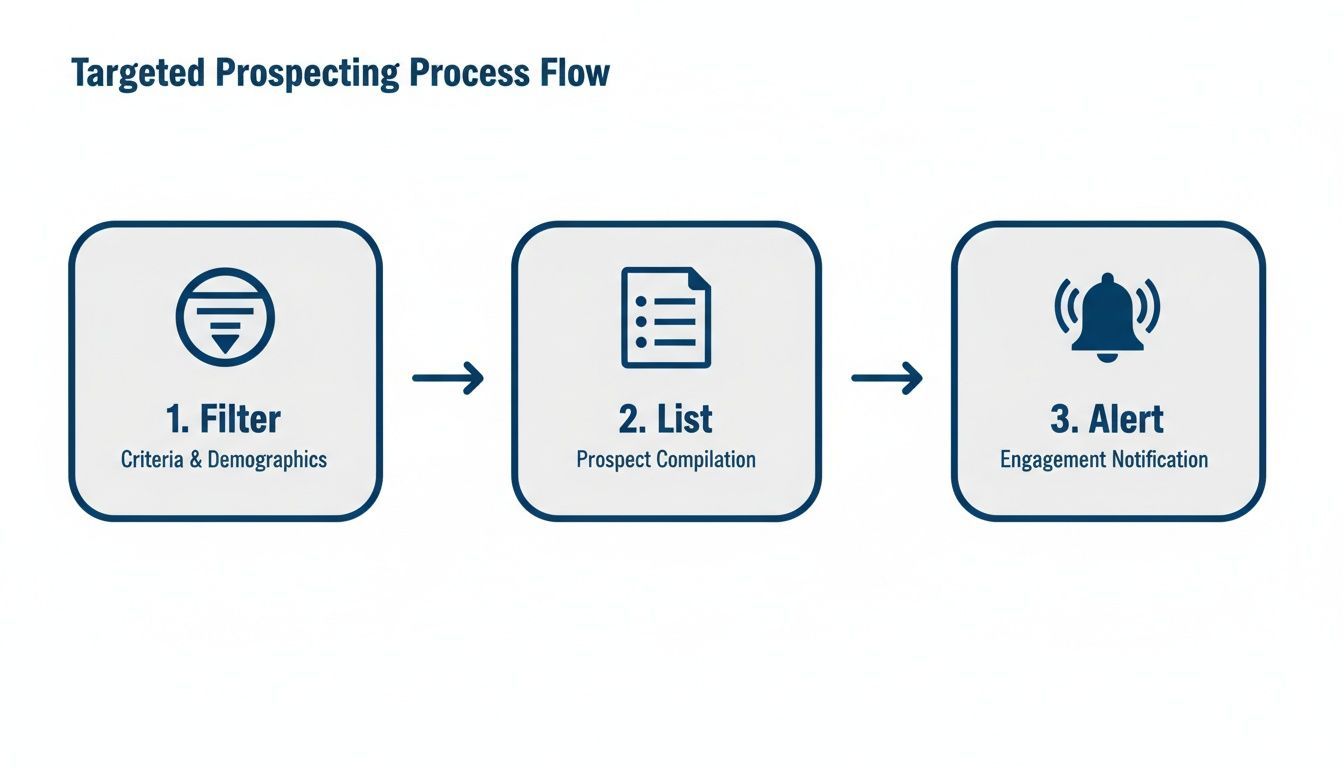
This workflow turns prospecting from a reactive chore into a proactive system, making sure you’re always engaging with the most relevant leads.
From Prospect to Actionable Record
The heart of an efficient workflow is the ability to instantly grab and enrich prospect data without ever leaving the LinkedIn results page. Modern tools, like a dedicated Chrome extension, can overlay right onto LinkedIn, letting you qualify prospects and pop them into your CRM in a single click. For more on this, check out our deep dive on effective CRM and LinkedIn integration.
This completely kills the tedious copy-paste routine. Instead of manually typing out a name, title, and company, you capture a complete, verified profile in an instant.
The real magic is the data enrichment that happens automatically. In one click, you're not just pulling a name and title. You're getting a verified email address, phone number, company size, industry, and other crucial data points you need for truly personalized outreach.
This screenshot shows how a tool can plug directly into LinkedIn, displaying CRM status and giving you one-click access to add or enrich a contact.
This direct integration turns a static profile page into an interactive part of your sales process, saving you a huge amount of time on every single prospect.
Maintaining Data Integrity and Accuracy
A fast workflow is useless if it just pollutes your CRM with bad data. To keep your database clean and organized, there are two features that are absolutely non-negotiable.
- Real-Time Duplicate Checking: The system must instantly check if a contact or company already exists in your CRM before you add them. This is critical for preventing duplicate records, which are the number one cause of messy data and wasted sales efforts.
- Custom Field Mapping: Your process needs to make sure the data you capture lands in the right place. Custom field mapping lets you align LinkedIn profile information with the specific fields in your CRM, ensuring consistency and making your data immediately useful for reporting and automation.
When you combine a targeted linkedin search people strategy with an automated capture and enrichment workflow, you build a powerful and sustainable lead generation engine. This approach doesn't just save you a few hours here and there; it transforms your prospecting into a scalable, data-driven system that actually works.
Works with 29+ CRMs
Add to CRM finds verified emails, phone numbers, and job titles on LinkedIn® — then adds them to your CRM in one click.
Start Free TrialTrusted by 2,500+ users4.7Common Questions About Searching for People on LinkedIn
Even with the best techniques in your back pocket, you're bound to run into some practical questions when you're deep in a LinkedIn search. Things like search limits, privacy settings, and tool capabilities are just part of the game.
Let's clear up a few of the most common hurdles you'll likely face. Think of this as the real-world Q&A that separates what you can do with a standard account versus what requires more specialized tools.
How Can I Search for People on LinkedIn Without an Account?
Technically, you can, but it’s not very effective. Your best bet is to use a search engine like Google with a specific query. For example, typing site:linkedin.com/in/ "Job Title" "Industry" will pull up public LinkedIn profiles that match those keywords.
But let's be real—this method is incredibly limited. You miss out on all of LinkedIn's powerful internal filters, you can't see full profiles, and you definitely can't connect with anyone. If you're serious about prospecting, even a free LinkedIn account is a must-have to get your foot in the door.
What Is the LinkedIn Search Limit?
If you're on a free LinkedIn account, you've probably heard of the "commercial use limit." It’s a cap that gets triggered when your activity looks like you’re doing heavy-duty recruiting or sales prospecting. LinkedIn is a bit secretive about the exact number, but the general consensus is that it kicks in after a few hundred searches per month.
Once you hit that invisible wall, your search functions get throttled until the first of the next month. The best way to stay under the radar is to craft smarter, more specific Boolean searches that get you the right results in fewer tries. The only way to remove the limit entirely is to upgrade to a premium plan like Sales Navigator, which gives you unlimited people searches.
Hitting the commercial use limit is actually a good sign. It means your prospecting volume is high enough to justify investing in a proper tool. It's LinkedIn's way of nudging serious users toward a premium subscription that's built for the job.
Can I Find Someone's Email with a LinkedIn Search?
Straight answer: no. A standard LinkedIn search won't reveal the email addresses of anyone who isn't a 1st-degree connection. While some people list their email in the contact info section of their profile, it’s usually private and only visible to their direct network.
This is exactly where third-party enrichment tools come into play. Once you’ve pinpointed a great prospect on LinkedIn, a specialized tool can step in to find and verify their professional email address. This lets you skip the manual digging and add a complete, outreach-ready contact directly into your CRM.
Stop wasting time on manual data entry. With Add to CRM, you can capture, enrich, and add verified contacts from LinkedIn to your CRM in a single click. Save over four hours a week and keep your data clean with automatic duplicate checks. Start building a better pipeline today.
Start saving time and closing more deals.
Find verified contact info for your prospects on LinkedIn®, Gmail and Outlook — and add them to your CRM with 1-click.

 Loading...Trusted by 2,500+ founders, SDRs & more