A Guide to Advanced Search in LinkedIn
Unlock LinkedIn's full potential with this guide to advanced search in LinkedIn. Learn expert Boolean queries and filter strategies that actually work.
If you're only using the main search bar on LinkedIn, you're leaving a ton of opportunity on the table. Going beyond simple keywords by combining powerful filters and Boolean logic is the real secret to pinpointing the exact professionals you need to find.
It’s the difference between shouting into a crowd of a billion users and having a direct, focused conversation with the right person.
Why Advanced Search Is Your LinkedIn Superpower

Let's be honest, the basic search is fine for finding someone you already know. But for discovery? It’s like trying to find a specific book in a library with no card catalog.
This is where mastering advanced search becomes less of a nice-to-have and more of a genuine professional superpower. It takes your approach from generic to surgically precise.
Instead of just searching for "Marketing Manager," you can find a "Marketing Manager" in the SaaS industry, working at a company with 50-200 employees, located in New York, who has posted about "SEO" in the last 30 days. That’s a level of granularity you just can’t get otherwise.
The Great Divide: Free vs. Premium Search
There's a night-and-day difference between what a free LinkedIn account can do and what's possible with a premium tool like Sales Navigator or Recruiter. The free version gives you a taste, but it’s deliberately limited.
- Free LinkedIn: You get some basic filters like location, industry, and current company. But you're mostly stuck seeing 1st and 2nd-degree connections and will quickly hit a commercial use limit if you're searching too much.
- Premium Tools (Sales Navigator & Recruiter): This is where the game changes. These tools unlock a full suite of 30+ additional filters, letting you target people by company headcount, seniority level, years in their current role, and even recent job changes.
For salespeople, this means building hyper-targeted lead lists of decision-makers who perfectly match your ideal customer profile. For recruiters, it means uncovering hidden talent pools that your competitors are completely missing.
The real value of advanced search isn't just finding people; it's about finding the right people at the right time. It allows you to filter for signals of intent, like a company's rapid growth or an executive's recent promotion.
Beyond People: Pinpointing Companies and Content
Advanced search isn't just for finding individuals. You can apply the same logic to uncover valuable company intelligence and industry trends.
For instance, you can identify all companies in a specific sector that are currently hiring. That’s often a huge signal of available budget and active growth.
You can also search through posts and articles to find professionals who are actively talking about topics relevant to your product or service. Engaging with their content gives you a natural, warm entry point for outreach. This simple shift moves you away from annoying cold messages and toward building genuine connections based on shared interests.
Ultimately, it’s about turning a massive, noisy professional network into a manageable and actionable database.
Unlocking Precision with Boolean Operators

If filters are the frame of your search, then Boolean operators are the engine. These are simple commands—like AND, OR, and NOT—that give you an incredible amount of control over who shows up in your results. Mastering them is the difference between hoping for the best and knowing you'll find the right people.
Instead of just typing a job title and scrolling for days, Boolean logic lets you build a command that tells LinkedIn exactly who you want. More importantly, it tells LinkedIn who to ignore. This is how you turn a generic, noisy search into a highly targeted list, saving you hours of sifting through irrelevant profiles. It's the core skill that separates the pros from the amateurs.
The Core Boolean Operators Explained
At its heart, Boolean search is surprisingly simple. It just comes down to five key operators. Once you get the hang of how each one works, you can start crafting some seriously powerful search strings.
- AND: This is your combo tool. It narrows your search by making sure both terms are in the results. For example,
Marketing AND SaaSwill only pull up profiles that mention "Marketing" and "SaaS." It's perfect for connecting a skill with an industry. - OR: Use this to broaden your search and catch variations. The OR operator finds profiles with at least one of your terms. A search for
Sales OR "Business Development"is great for finding people in similar roles who might use different titles. - NOT: Your exclusion filter. Stick NOT in front of a word to remove any profiles that contain it.
Director NOT "Vice President"helps you find directors while filtering out the more senior VPs. Just be careful with this one—you can accidentally exclude good fits if you're not specific enough. - Quotation Marks (" "): An absolute must-have for exact phrases. Searching
"Product Manager"guarantees you get that specific two-word title, not just profiles that happen to contain the words "product" and "manager" somewhere on the page. - Parentheses ( ): This is how you build complex queries, just like in a math equation. Parentheses let you group terms together so you can combine multiple operators in a single, controlled search.
When you start combining these simple commands, you're essentially building a custom filter on the fly. You're slicing through the noise to get a clean, relevant list of prospects or candidates every single time.
Crafting Powerful Search Strings with Real-World Examples
Theory is one thing, but this is all about practical application. Let's move past the definitions and look at how you can chain these operators together to solve real recruiting and sales challenges.
Imagine you're a recruiter looking for a mid-level software engineer with cloud experience. The catch? You need to filter out all the entry-level candidates flooding your results. A simple search for "software engineer" is going to be a nightmare.
Here’s how a pro would build it:
("Software Engineer" OR "Software Developer") AND (AWS OR Azure OR GCP) NOT (Intern OR Junior OR "Entry Level")
This one string does a ton of work for you. It looks for common job title variations, makes sure they have experience with at least one major cloud platform, and actively kicks out anyone with junior-level keywords. You simply can't get this specific without Boolean. It's a great example of how you can lean on LinkedIn's evolving search features to do the heavy lifting for you.
Putting It All Together: A Practical Cheat Sheet
To help you get started, I've put together a quick-reference table. Think of it as a cheat sheet for building your own search strings, with examples that SDRs and recruiters run into every single day.
Boolean Operator Cheat Sheet for LinkedIn Search
This table breaks down each operator, explaining its purpose and showing you exactly how to use it in a search string. Keep this handy when you're building your next prospect list.
| Operator | Purpose | Example Search String |
|---|---|---|
| AND | Narrows results to include multiple keywords | Founder AND Fintech |
| OR | Broadens results to include one of several keywords | "Chief Executive Officer" OR CEO OR Founder |
| NOT | Excludes specific keywords from results | Manager NOT Assistant |
| " " | Searches for an exact, multi-word phrase | "Vice President of Sales" |
| ( ) | Groups terms for complex, multi-operator searches | (Sales OR Marketing) AND (SaaS OR "Cloud Computing") |
The best way to get good at this is to just start experimenting. Build a simple query, look at the results, and then slowly add more operators to refine it. This iterative process is the key to mastering advanced search on LinkedIn and finding exactly who you're looking for, fast.

Find verified contact data on LinkedIn®
Add to CRM finds verified emails, phone numbers, and job titles on LinkedIn® — then adds them to your CRM in one click.
Start Free Trial


 Trusted by 2,500+ users4.7
Layering Filters: From Broad Strokes to Surgical Precision
Boolean operators are the backbone of any good LinkedIn search, but filters are what turn a giant, noisy crowd into a curated list of your perfect contacts. Think of it this way: Boolean logic builds the blueprint, and filters are the specialized tools you use to cut, shape, and refine the final product. Getting good at combining them is what separates the amateurs from the pros.
While the free version of LinkedIn gives you a decent starter toolkit, the real magic for serious prospecting and recruiting is locked away in the premium platforms. That’s where you graduate from basic demographics to targeting people based on their recent moves, career paths, and even their company's growth signals.
Getting the Most Out of the Essential Filters on Free LinkedIn
Don't have a premium subscription? Don't worry. You can still get a ton of value from the standard filters available to everyone. When you learn to layer them correctly, these workhorses can be surprisingly powerful for building initial lists.
Your go-to free filters are:
- Connections: Targeting 2nd-degree connections is almost always the sweet spot. You share a mutual contact, which gives you a perfect excuse for a warm introduction instead of a cold pitch.
- Location: This one’s a no-brainer for territory-based sales or local recruiting. Go beyond just the country—drill down into specific metro areas to get more granular.
- Current Company: Perfect for account-based strategies or when you need to pinpoint decision-makers at a specific organization.
- Industry: Helps you segment your search and ensures you're speaking the right language to the right audience.
Just by combining these, you can build a solid foundation. For instance, searching for 2nd-degree connections in the "Computer Software" industry within the "Austin, Texas Metropolitan Area" already gives you a fantastic starting point.
The key on the free platform is strategic layering. Never rely on just one filter. Combine location, industry, and connection degree to slice through the noise and build a manageable list of people who actually matter.
The Game-Changing Filters in Sales Navigator and Recruiter
This is where LinkedIn search truly comes alive. Sales Navigator and Recruiter unlock a whole new level of filters that let you zero in on prospects and candidates using incredibly specific, often time-sensitive criteria. These tools are built for pros who need to see beyond static job titles and tap into the dynamic signals of career and company changes.
Think about it. How would you find a marketing director who just joined a fast-growing startup using only free LinkedIn? It’s practically impossible. With Sales Navigator, it takes just a few clicks.
Some of the most powerful premium filters include:
- Company Headcount Growth: Pinpoint companies on a hiring spree. Rapid expansion is one of the strongest indicators of new budgets and buying intent.
- Years in Current Role: Target people who are new to a role (and looking to make a quick impact) or those who have been in their position for a while (and might be getting restless).
- Posted Content Keywords: Find professionals who are actively talking about topics relevant to your product or service. This is an absolute goldmine for starting warm, relevant conversations.
- Recent Job Changes: Get notified the moment a prospect starts a new job. It’s the perfect trigger for a congratulatory message that opens the door to a new relationship.
A Real-World Scenario: Layering Premium Filters
Let's walk through a quick example. Imagine you’re a recruiter tasked with finding a Senior Product Manager for a scaling B2B SaaS company. Your ideal candidate has experience at a direct competitor and has been in their current role for at least three years, making them ripe for a change.
Here’s how you could build that search in LinkedIn Recruiter:
- Job Titles:
("Senior Product Manager" OR "Lead Product Manager") - Industry:
Computer Software - Past Company:
[Competitor A Name] OR [Competitor B Name] - Years in Current Role:
3-5 yearsand5-10 years
This multi-layered approach instantly shrinks a network of millions down to a handful of high-potential candidates who are a perfect fit. The precision saves dozens of hours. The results speak for themselves, too—employees sourced through LinkedIn are 40% less likely to leave within their first six months, proving that better targeting leads directly to better retention. If you want to dive deeper, check out the latest LinkedIn statistics and their impact on professional networking.
But finding the right people is only half the battle. The final step is turning these highly-refined lists into actionable data in your CRM. Your workflow shouldn't hit a wall here. To bridge the gap, you can explore some of the best Chrome extensions designed for sales professionals that help export and enrich this data directly. This simple step transforms your search from a one-off research task into a repeatable engine for building pipeline.
Building a Repeatable Search Workflow
Finding the right person once is a victory. Building a system that continuously surfaces high-quality prospects? That’s a strategy.
One-off searches are a time sink. The real goal is to stop manually hunting and start creating a repeatable, automated workflow that feeds your pipeline while you focus on actually building relationships.
This means turning your meticulously crafted Boolean strings and filter combinations into a living, breathing lead-generation machine. Instead of starting from scratch every time, you’ll have a system that works for you in the background, making sure you never miss an opportunity when a new prospect matches your ideal profile.
Your Best Friend for Automation: Saved Searches
The single most powerful feature for building this workflow in Sales Navigator or Recruiter is Saved Searches. This simple but effective tool is the cornerstone of moving from reactive searching to proactive prospecting.
When you save a search, you’re essentially telling LinkedIn to keep an eye out for you.
You can set up alerts to get daily or weekly notifications whenever new people join the network who match your exact criteria. Imagine building the perfect search for "VPs of Engineering" at series B fintech startups in New York, then getting an email every Monday morning with a fresh list of people who fit that description. That's the power we're talking about.
Here’s why this is a non-negotiable part of any smart workflow:
- It saves incredible amounts of time: You build the perfect search once, then reap the benefits over and over.
- It captures fresh opportunities: You’re alerted to new leads the moment they appear, giving you a serious first-mover advantage.
- It keeps your prospecting consistent: You get a steady flow of potential contacts, which prevents the "feast or famine" cycle so common in sales and recruiting.
This flowchart breaks down how search capabilities evolve from the free platform to the more advanced tools where repeatable workflows become a reality.
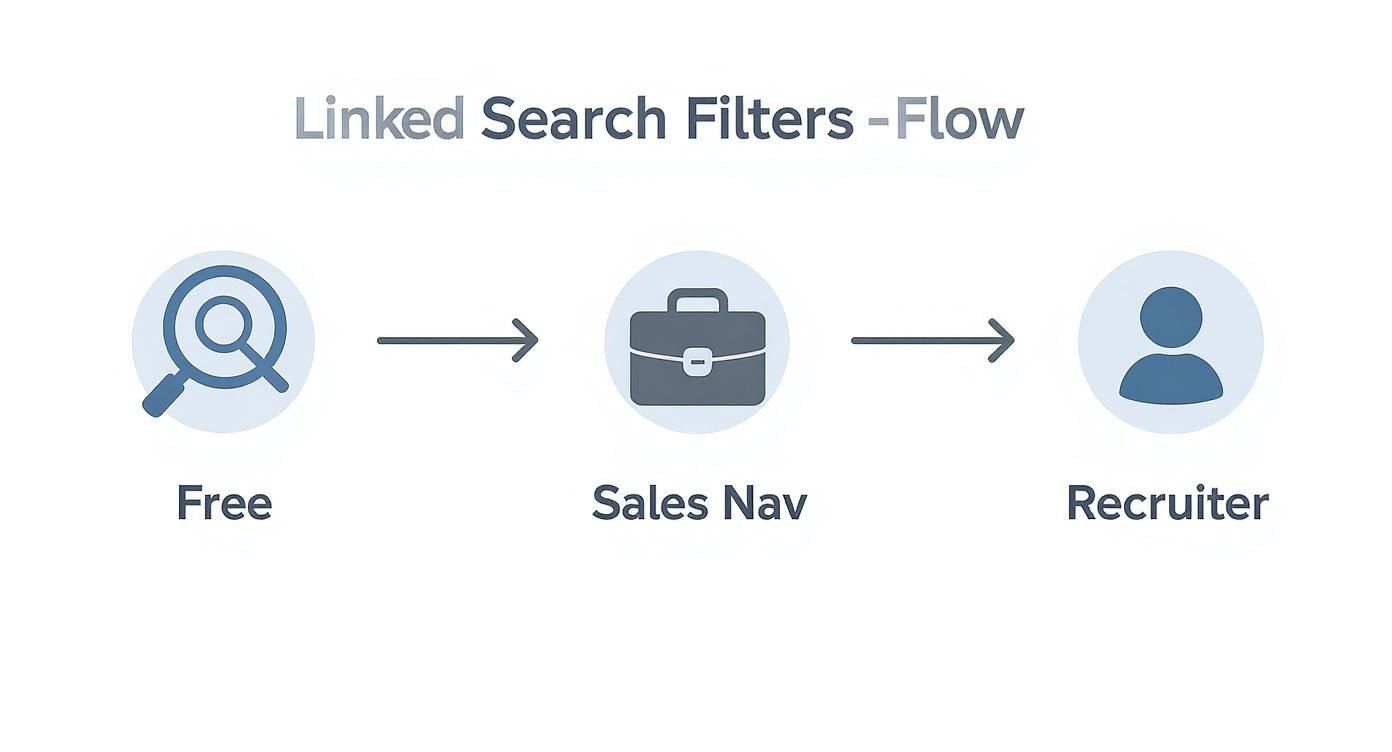
As you can see, each tier unlocks more sophisticated filtering, culminating in the ability to save and automate these complex searches for continuous lead generation.
Qualifying Leads Directly on LinkedIn
Once your saved searches start bringing in prospects, the next step is to qualify them efficiently. Before you even think about outreach, you need to quickly figure out if a contact is a genuine fit. Doing this directly on LinkedIn saves you from cluttering your CRM with unqualified leads down the line.
Go beyond the job title. A title tells you what someone does, but their profile activity tells you what they actually care about.
Look for these key qualification signals:
- Recent Activity: Have they posted or commented in the last 30 days? Active users are generally more receptive to outreach. Skim their posts for keywords to see if their priorities align with what you're offering.
- Group Memberships: Are they part of niche industry groups? Membership in groups like "SaaS Growth Hacks" or "Financial Technology Professionals" is a strong indicator of their professional interests and challenges.
- Recommendations & Endorsements: Look at the skills they're endorsed for. If you’re selling a marketing automation tool, seeing heavy endorsements for "demand generation" and "SEO" is a fantastic sign.
A profile is more than a resume; it’s a story. Reading between the lines of someone's activity, group affiliations, and shared content gives you the context needed to qualify them effectively and personalize your initial outreach.
From LinkedIn Search to CRM Action
The final, and most crucial, step in your workflow is moving qualified contacts from LinkedIn into your CRM. This is where many prospecting efforts break down into a mess of manual copy-pasting, messy spreadsheets, and lost data. A seamless transition is what makes your search efforts truly scalable.
Your goal is a simple, repeatable framework for this handoff. Start by organizing your findings within Sales Navigator using tags or lead lists. You might create lists like "Tier 1 Prospects - Q3" or "Warm Leads - NYC."
Once they're organized, the challenge is getting that data into your CRM without spending hours on manual entry. This is where tools designed to bridge that gap become invaluable. You need a way to move a contact from a search result to a CRM record in a single click, with all the relevant data mapped correctly. To make this process smoother, it helps to understand the fundamentals of how to efficiently export your LinkedIn contacts list.
This final step closes the loop. You move from finding prospects with advanced search, to qualifying them based on real profile signals, and finally to porting them into your system of record for structured follow-up. This transforms your advanced search in LinkedIn from a simple research task into a predictable, pipeline-building engine.
Advanced Strategies and Common Pitfalls to Avoid
Once you get the hang of Boolean operators and filters, you can start combining them in creative ways that most people on LinkedIn completely overlook. This is where you move beyond simple list-building and into strategic intelligence, finding not just qualified people, but genuinely engaged ones.
One of the most effective yet underused tactics is searching for content, not just people. Instead of plugging in a job title, try searching for a keyword or hashtag related to your industry within LinkedIn's "Posts" filter. This instantly uncovers individuals who are actively talking about the problems you solve, giving you a perfect, non-salesy reason to connect.
Uncovering Warm Leads Through Shared Connections
Another powerful strategy is tapping into shared backgrounds for warmer introductions. The "Alumni" search feature is an absolute goldmine for this. You can filter for professionals who went to the same university, creating an instant common ground that makes your outreach feel far more personal.
Similarly, don't sleep on the "People Also Viewed" sidebar that appears on a user's profile. When you find one perfect prospect, this feature essentially serves up a list of their peers—other people with similar titles, skills, and career paths. It’s like a built-in recommendation engine for your next lead.
Thinking beyond job titles is the key. When you focus on shared experiences, content engagement, and peer networks, your search transforms from a cold data-driven exercise into a more human, relationship-focused process. That shift is what really improves response rates.
Common Mistakes That Sabotage Your Search Results
Just as important as knowing what to do is knowing what not to do. I’ve seen countless promising searches get derailed by a few common and easily avoidable mistakes. Steering clear of these will save you hours of frustration and dramatically improve the quality of your results.
The most frequent error is building ridiculously complex Boolean strings. A search like ("VP" OR "Vice President") AND (Sales OR "Business Development") NOT (Assistant OR "Entry Level" OR Intern) AND (SaaS OR "Cloud Computing") might seem precise, but it can actually confuse LinkedIn's algorithm and spit back incomplete results.
Start simple. Check your results. Then, add just one operator at a time to refine your search. It’s a much cleaner process.
Another major pitfall is relying solely on job titles. In today's world of inflated or ambiguous titles, a "Head of Innovation" could be a key decision-maker or a junior employee. Always cross-reference titles with other data points like years of experience, seniority level filters, and their recent activity to get the full picture.
Thinking Strategically About Your Search Approach
To truly master advanced search on LinkedIn, you need to think like a strategist. That means understanding the sheer scale of the platform and why precision isn't optional. With over 1 billion members and 69 million companies registered, LinkedIn's database is massive. Kinsta's breakdown of user statistics really puts this into perspective and highlights why just typing in a keyword won't cut through the noise anymore.
Avoid these common traps to make sure your efforts pay off:
- Ignoring Negative Keywords: Forgetting to use the
NOToperator is a classic mistake. If you're looking for founders, you need to exclude titles like "Co-founder" or "Founding Member" if they aren't your target. - Neglecting Filter Combinations: The real power comes from layering filters. Don't just use one or two. Combine
Industry,Company Headcount, andGeographyto create a highly specific target segment. - Forgetting to Save Your Search: The best searches are the ones you don't have to repeat. Always use the "Save search" feature in Sales Navigator or Recruiter. This gives you alerts on new prospects who match your criteria, turning a one-time effort into a continuous lead flow. Tools that integrate with this workflow, like those explored in our article on alternatives to Surfe for CRM integration, can streamline this process even further.
By avoiding these pitfalls and getting a bit more creative, you’ll move from being a casual user to a true power searcher, consistently finding the exact people you need to connect with.
Works with 29+ CRMs
Add to CRM finds verified emails, phone numbers, and job titles on LinkedIn® — then adds them to your CRM in one click.
Start Free TrialTrusted by 2,500+ users4.7Answering Your Top LinkedIn Search Questions
Once you get past the basics of LinkedIn search, you start hitting the real-world roadblocks—the tricky situations that standard tutorials don't cover. This is where the pros separate themselves.
Let's tackle the most common questions head-on with some practical, field-tested answers.
How Can I Find Candidates Open to New Roles Without Recruiter?
This is a huge pain point on the free platform, but you just have to get creative. Since there's no dedicated "Open to Work" filter, your best bet is to search for the subtle language people use when they're quietly looking.
Think about what someone might put in their headline or summary to signal they're available.
Try running a Boolean search within the "Keywords" filter for phrases like:
"seeking new opportunities""looking for my next challenge""exploring new roles"
You'll want to combine this with your usual job title and industry filters. It’s not foolproof, but you'd be surprised how many people you can find who are actively signaling their interest without paying for premium features.
Another clever tactic is to search for recent posts where people announce layoffs at their company. A little empathy and a helpful offer can go a long way in connecting with great talent right when they need it most.
The secret is to think past the official filters and search for the human language of job seeking. People leave digital breadcrumbs all over their profiles when they're ready for a move; you just have to know what to look for.
What Is the Best Way to Search for Remote Talent?
This one trips a lot of people up. Just typing "Remote" into the location field gives you messy, unreliable results because LinkedIn's location data is still tied to physical places.
A much better approach is to combine broad geographic locations with specific keyword modifiers.
- Set Multiple, Broad Locations: Instead of a single city, plug in entire countries where you’re cleared to hire, like "United States," "Canada," and "United Kingdom." This widens your initial talent pool.
- Use Keyword Filters: Now, add terms like
remote,"work from home", or"fully remote"to your main search string. This specifically scans profiles for people who have explicitly mentioned their remote status in their headline, summary, or job descriptions.
This two-step method ensures you're targeting people who are actually based in your approved regions and self-identify as remote workers.
How Do I Get Around the 1,000-Result Search Limit?
Ah, the dreaded 1,000-result cap. It’s a common frustration when you're trying to build a big prospect list. LinkedIn does this to prevent scraping, but you can easily work around it by breaking your search into smaller, more focused chunks.
Stop trying to find everyone in one massive search. It just won't work.
If your search for "SaaS Account Executives in the United States" hits the limit, slice it up into smaller, more manageable searches:
- Search 1: "SaaS Account Executives" in California
- Search 2: "SaaS Account Executives" in New York
- Search 3: "SaaS Account Executives" in Texas
You can also segment by other filters like company size, years of experience, or specific industry sub-sectors. By splitting one big search into five or six smaller ones, you can easily pull thousands of relevant profiles without ever bumping into that frustrating cap.
Finding the right people on LinkedIn is just the beginning. The real bottleneck is getting their info into your CRM without spending hours on mind-numbing data entry. Add to CRM cuts out that friction, letting you turn any LinkedIn profile into a clean, enriched CRM record in a single click. Start saving time and building your pipeline faster by trying Add to CRM today.
Start saving time and closing more deals.
Find verified contact info for your prospects on LinkedIn®, Gmail and Outlook — and add them to your CRM with 1-click.

 Loading...Trusted by 2,500+ founders, SDRs & more