Your Guide to CRM LinkedIn Integration That Actually Works
Unlock sales productivity with our complete guide to CRM LinkedIn integration. Learn to sync contacts, automate prospecting, and win back hours every week.
A direct CRM LinkedIn integration does more than just connect two platforms. It creates a single, unified system where LinkedIn’s massive professional network feeds right into your CRM.
This is huge. It completely eliminates manual data entry, turning static LinkedIn profiles into rich, actionable sales intelligence. Your team gets to work with the most current information available, period.
Why Your Sales Team Needs a CRM and LinkedIn Integration
It's easy to say this kind of integration saves time, but the real value runs much, much deeper. It fundamentally changes how your sales team operates by creating a single source of truth for all prospecting and customer data.
This is what stops those embarrassing and costly mistakes—like a BDR reaching out to a warm lead an AE already has in a late-stage deal. We’ve all been there.
By connecting these two powerhouses, you improve data quality from the very first touchpoint. Instead of manually copying and pasting names, job titles, and companies—a process practically designed for human error—your team can sync accurate profile data with a single click.
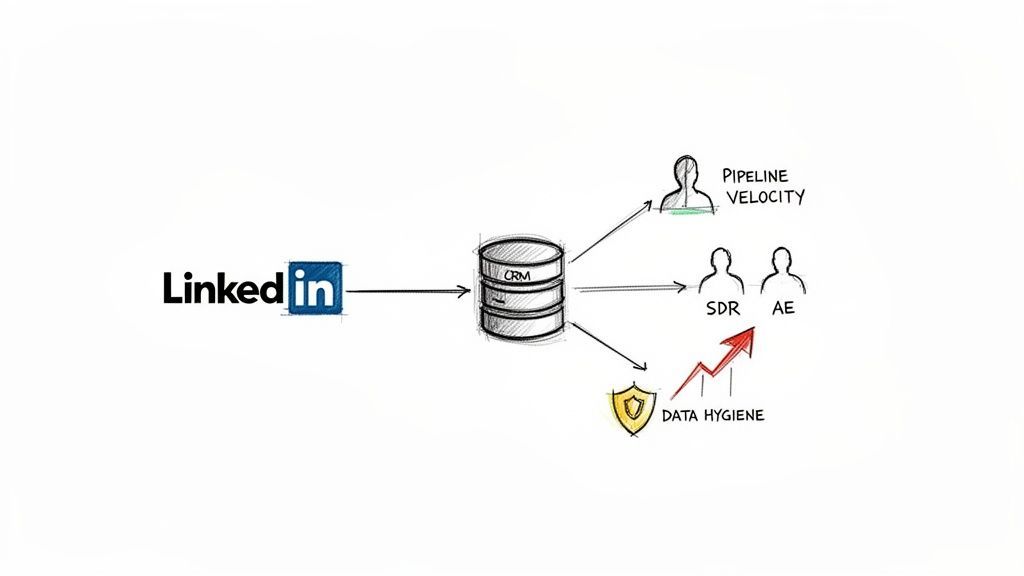
Unlocking Pipeline Velocity
A disconnected workflow is a recipe for friction. When your SDRs have to constantly switch between LinkedIn and your CRM, crucial moments get lost in the shuffle.
An integrated system, on the other hand, allows for faster, more personalized follow-ups because all the context is right there in one place. Imagine seeing a prospect’s recent posts, job changes, and mutual connections directly inside their CRM record. That kind of insight is pure gold for crafting outreach that actually resonates.
This direct data flow also transforms LinkedIn from a simple networking site into a dynamic, living extension of your CRM.
- Prevent Duplicate Outreach: Instantly see if a contact already exists in your CRM before you engage, guaranteeing a smoother customer experience.
- Improve Data Hygiene: Automated syncing keeps records clean and up-to-date, which is non-negotiable for accurate reporting and forecasting.
- Accelerate Prospecting: Teams can build targeted lists on LinkedIn and import them directly, slashing the time it takes to move from discovery to outreach.
The core benefit isn't just about efficiency; it's about intelligence. When your CRM reflects real-time LinkedIn data, every member of your revenue team—from SDRs to RevOps—is empowered to make smarter, faster decisions.
Turning Networking into Revenue
The numbers don't lie. Over 80% of B2B leads are sourced from LinkedIn, and salespeople who actively use the platform are 51% more likely to crush their quotas.
When you sync all this activity automatically, you turn every profile view and new connection into measurable pipeline momentum—without the soul-crushing copy-paste nightmare.
Ultimately, integrating these systems is a strategic move that directly boosts your pipeline velocity. It ensures everyone is working from the same playbook, armed with the best possible data. If you're looking to refine your approach, check out our complete guide on LinkedIn lead generation strategies.
Going deeper on LinkedIn prospecting? If your team uses LinkedIn Sales Navigator, read our companion guides on what Sales Navigator is and how to use it, getting Sales Navigator leads into HubSpot, Salesforce and Pipedrive, and exporting a Sales Navigator list to your CRM. To add any professional-network, Gmail, or Outlook contact to your CRM in one click, install the Add to CRM extension.
Choosing Your LinkedIn Integration Method
Picking the right way to connect your CRM and LinkedIn isn't a one-size-fits-all deal. The best approach really depends on your team's size, your budget, and the software you're already using. Getting this choice right from the start saves a ton of headaches and makes sure your team actually uses the tool.
There are three main ways to get these platforms talking to each other, and each comes with its own set of pros and cons. Understanding them is the key to building a prospecting workflow that doesn't leak leads. And this is more important than ever—the CRM market is expected to grow at a 13.9% CAGR through 2030, and a whopping 55% of companies now say integration is a must-have to stop wasting time on manual data entry.
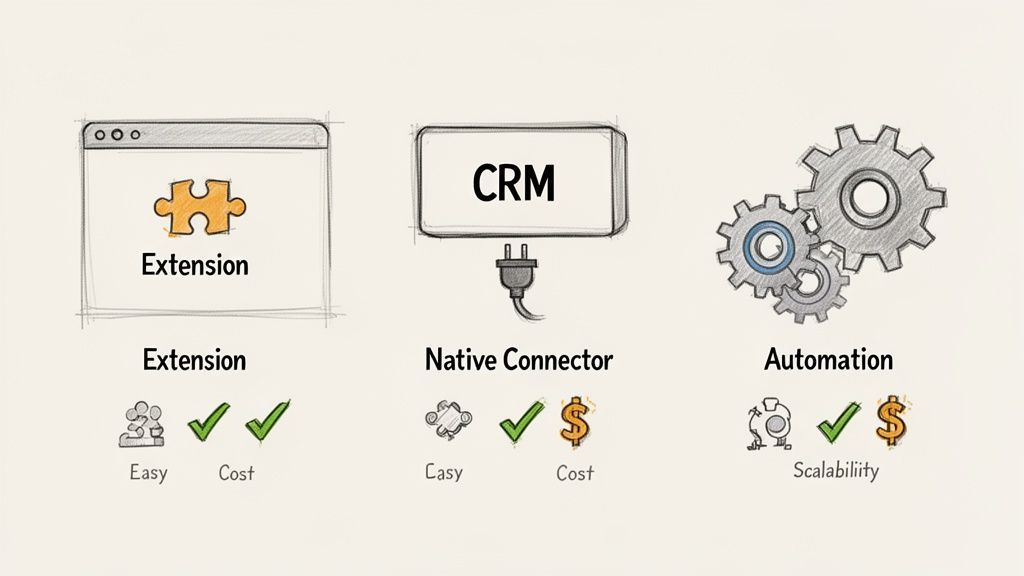
To make things easier, here's a quick rundown of the main options.
Comparing LinkedIn CRM Integration Methods
Choosing the best integration approach depends on your specific goals—whether you need speed, deep automation, or something in between. This table breaks down the three most common methods to help you decide.
| Method | Best For | Pros | Cons |
|---|---|---|---|
| Browser Extension | Startups & small teams needing speed and simplicity. | Easiest setup, most affordable, great for real-time data capture. | Less focused on complex, multi-step automations. |
| Native Connector | Teams heavily invested in Sales Navigator Advanced Plus. | Displays LinkedIn data directly inside the CRM. | Needs Sales Navigator Advanced Plus. Some apps only display data and do not import contacts. |
| Automation Platform | RevOps teams & tech-savvy users needing custom workflows. | Highly flexible and powerful for building specific processes. | Complex setup, can be brittle, requires ongoing maintenance. |
Each path has its place. Browser extensions are the go-to for most sales teams, native connectors serve a niche enterprise audience, and automation tools are for the process builders.
Browser Extensions
For most teams, browser extensions are the fastest and most user-friendly way to a CRM LinkedIn integration. They work by adding a small interface right on top of LinkedIn profiles, letting your reps add or update CRM contacts with a single click.
- Best For: Startups, small sales teams, and really anyone who values speed and simplicity.
- Pros: They're usually the cheapest and easiest to set up, often taking just a few minutes. They're fantastic for grabbing and enriching data in real time.
- Cons: Their functionality is typically geared toward capturing individual leads, not running complex, automated campaigns.
This method is perfect for teams that need to move quickly. An SDR can spot a great prospect, instantly check if they're already in the CRM, and sync the new contact without ever leaving their LinkedIn tab.
Native CRM Connectors
A few CRMs have a Sales Navigator integration that LinkedIn lists on its own pages. LinkedIn's Sales Navigator help article names HubSpot, Microsoft Dynamics, Oracle Sales and Salesforce as supporting CRM Sync, Embedded Profiles and Embedded Experiences, and it says: "Integration between Sales Navigator and your CRM is only available for Sales Navigator Advanced Plus users." Freshworks CRM and Zoho CRM have Sales Navigator apps too.
Some also need a plan on the CRM side. HubSpot's article asks for a Sales Hub Professional or Enterprise seat as well as Advanced Plus. What they do differs: HubSpot's Sales Navigator app shows LinkedIn data on records ("It is not possible to import contacts from LinkedIn using the integration"), while its separate CRM Sync app can create and update HubSpot contacts. We checked 26 CRMs against their own documentation in which CRMs integrate with business networks natively.
Third-Party Automation Platforms
Then you have tools like Zapier or Make, which act as a bridge between LinkedIn and your CRM. They use automated workflows (often called "Zaps" or "Scenarios") to connect the two. This route offers incredible flexibility but definitely comes with a steeper learning curve.
For example, you could build a workflow that triggers every time you tag a new connection on LinkedIn. That trigger could then automatically create a new contact in your CRM and assign a follow-up task to the right sales rep. This kind of custom-built process is a dream for RevOps teams.
The trade-off is that these setups can be more fragile and a pain to maintain. They're best for teams with technical folks or a dedicated operations person who can manage and troubleshoot the workflows. If you're exploring tools that specialize in this type of automation, our guide on LinkedIn automation tools is a great place to dig deeper.

Find verified contact data on LinkedIn®
Add to CRM finds verified emails, phone numbers, and job titles on LinkedIn® — then adds them to your CRM in one click.
Start Free Trial


 Trusted by 2,500+ users4.7
How to Connect LinkedIn and Your CRM
Alright, let's get into the nuts and bolts. You could build a custom CRM LinkedIn integration, but for most sales teams, the fastest path from A to B is a simple browser extension. We’ll walk through how to set one up using a popular tool as an example, just to show you how quick it is.
This approach works for everyone, from a founder who doesn’t code to a seasoned SDR who lives on LinkedIn. It’s all about a few clicks, not hours of complex configuration. The goal is to get you up and running in minutes.
Installing and Connecting Your Tools
First things first, you need to add the extension to your browser. You can usually grab it right from the Chrome Web Store or the tool’s website, just like any other extension you’d use. Once it's installed, a little icon will pop up in your toolbar, ready for action.
The next step is the important one: securely linking the extension to your CRM. Nearly every reputable tool uses a secure sign-in method called OAuth. This is key because it means you never have to hand over your CRM password.
Instead, a pop-up window will ask you to log into your CRM account (like HubSpot or Salesforce). When you authorize the connection, you’re simply giving the extension permission to read and write contact data for you. That’s what creates the bridge between LinkedIn and your database.
Key Takeaway: This secure OAuth connection is the secret sauce. It’s what lets the extension check for duplicates, pull existing info, and add new leads with one click, all without you ever leaving a LinkedIn profile.
Putting Your Integration into Action
With the extension installed and connected, it's time for the fun part. Head over to any LinkedIn profile. You should see a new button or a small sidebar pop up on the page—this is your new command center.
This screenshot shows what a typical browser extension looks like once it's layered on top of a professional networking profile.
See how it gives you instant intel? It shows whether the person is already in your CRM and gives you a clear button to add them if they aren't.
When you hit that "Add to CRM" button, a window appears with the profile’s data already filled in. This is where you see the real power. Before you even save the contact, you can:
- Run a Duplicate Check: The tool automatically scans your CRM to see if the contact or their company is already there. No more messy data.
- Enrich Contact Data: Most extensions will instantly find and verify a work email address for the contact—something that's almost never public on LinkedIn.
- Add Contextual Notes: You can jot down important details like "Met at the SaaS conference" so your team knows the backstory.
- Assign Ownership: Before the contact even hits the CRM, you can assign it to a specific SDR or account executive to ensure a fast follow-up.
Once you’ve looked everything over and added your notes, one final click pushes it all to your CRM. The new record is created (or an existing one is updated) with clean, accurate data, including a link back to their LinkedIn profile. This whole process—from spotting a prospect to having an enriched record in your CRM—takes less than 30 seconds.
Mastering Data Quality and Workflow Automation
Plugging your tools together is the easy part. The real magic of a CRM LinkedIn integration happens when you build smart, automated processes around it. This is how you go from just capturing data to creating a scalable system that keeps your CRM clean and tells your sales team exactly what to do next.
The goal is simple: get the right data into the right hands and trigger the right follow-up, every single time, without anyone lifting a finger. It all starts by teaching your integration how to handle the information it grabs from LinkedIn.
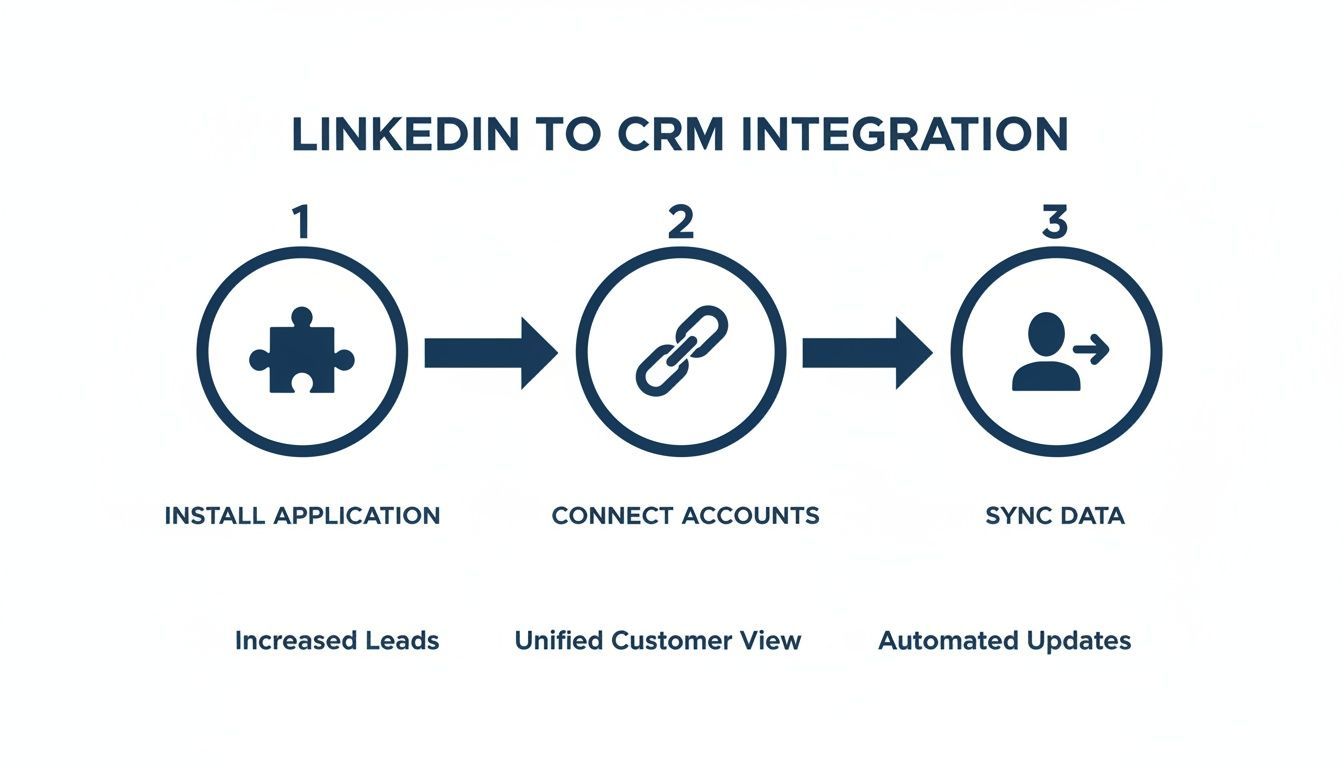
This diagram breaks it down beautifully—install, connect, and sync. What seems like a complex technical project is really just a straightforward workflow with huge business benefits.
Custom Field Mapping for Pristine Data
Here’s a rookie mistake I see all the time: letting new LinkedIn contacts dump into your CRM with default settings. It’s a fast track to messy records, with key details ending up in the wrong fields—or worse, not getting captured at all. Custom field mapping is your defense against this chaos.
This feature lets you create rules that tell your integration tool exactly where to put each piece of data. For instance, you can map the "Headline" from a LinkedIn profile to a custom "Job Title Detail" field you've created in your CRM.
- Standard Fields: Line up the essentials like First Name, Last Name, Company, and Job Title.
- Custom Fields: Create specific spots in your CRM for valuable data like Industry, Company Size, or even a direct link back to their LinkedIn profile.
- Ownership Rules: Automatically assign new leads to the right SDR or AE based on territory, industry, or company size.
Getting your mapping right from the start ensures every new record is complete and standardized the moment it’s created. It’s the bedrock of good data governance.
Setting Up Smart Workflows
Once your data is clean, you can start building some seriously powerful automations. This is where a good integration saves your team countless hours and stops leads from falling through the cracks.
Imagine an SDR adds a "VP of Marketing" to your CRM straight from LinkedIn. What happens next?
A well-configured workflow can instantly kick off a series of events. It could add the new contact to a specific email sequence, create a follow-up task for the SDR that’s due in 24 hours, and tag the contact by their industry for future marketing campaigns.
That level of automation guarantees consistent engagement and frees up your reps to focus on selling, not on admin. The trick is to walk through your sales process and pinpoint all the repetitive actions you can hand over to your tools. If you want to go deeper on this, we've put together a guide on how to automate data entry and build these kinds of efficient systems.
By combining precise field mapping with thoughtful workflow automation, your CRM LinkedIn integration evolves from a simple data-entry helper into an engine that drives your entire sales process forward.
Staying Compliant and Troubleshooting Common Issues
A powerful CRM LinkedIn integration is a huge time-saver, but pulling personal data into your system means compliance has to be front and center. Regulations like GDPR and CCPA aren't just suggestions—they come with serious penalties if you misuse contact information.
The good news is that reputable integration tools are built with these rules in mind. They're designed to be responsible data processors, making sure that when you source a contact from LinkedIn, you're doing it in a way that respects privacy laws. This usually means they provide clear sourcing information and process data only for legitimate business interests.
Navigating Data Privacy and Compliance
Staying compliant isn't just about the tool, though. It’s about your process. Your team needs to know exactly where the line is between professional outreach and data misuse.
Here are a few core principles to drill into your team's workflow:
- Purpose Limitation: Only collect and store data that is directly relevant to your sales process. Don't sync every personal detail just because you can.
- Data Minimization: Stop hoarding data. If a lead is unresponsive or clearly not a fit, have a process for removing their information from your active database.
- Transparency: Be ready to tell contacts exactly where you got their information if they ask. Good integration tools often log the source URL automatically, which makes this much easier.
The best practice is to treat every contact's data like it's your own. This mindset doesn't just keep you compliant; it helps you build trust with potential customers from the very first touchpoint.
Solving Common Integration Hiccups
Even the best tools hit a snag now and then. When your integration suddenly stops working, it’s usually one of a few common issues. Instead of getting frustrated, run through this quick checklist to get things back on track.
Authentication and Connection Errors
This is, by far, the most frequent problem and often the easiest to fix. If your tool suddenly can't see your CRM or push data, it’s a big clue that your connection token has expired or become invalid.
The solution is almost always straightforward:
- Head into the extension's settings.
- Find the section for your CRM connection.
- Click the option to re-authenticate or just disconnect and reconnect your CRM account. Nine times out of ten, this simple action resolves the issue instantly.
Another potential culprit? Conflicting browser extensions. If you've recently installed another tool that interacts with LinkedIn or your CRM, try disabling it for a moment to see if that solves the problem.
Incorrect Field Mapping
Ever sync a contact, only to find their job title landed in the "company notes" field? That's a classic field mapping error. It happens when the integration tool doesn't know where to put the data it's pulling from LinkedIn.
To fix this, you'll need to dive into your tool’s mapping settings. Carefully review how each LinkedIn field (like "Headline" or "Company") is linked to a corresponding field in your CRM. You'll want to adjust these settings to perfectly match your CRM's specific layout, ensuring every piece of data lands exactly where it belongs.
Works with 29+ CRMs
Add to CRM finds verified emails, phone numbers, and job titles on LinkedIn® — then adds them to your CRM in one click.
Start Free TrialTrusted by 2,500+ users4.7Got Questions About CRM LinkedIn Integration?
Even with the best game plan, a few questions always pop up when you're trying to connect powerful tools like LinkedIn and your CRM. Let's tackle the most common ones I hear from sales teams so you can get the most out of your setup.
Can I Integrate LinkedIn with Any CRM?
The short answer is almost always yes, but it depends on how you do it.
While not every CRM has a direct, native hookup with LinkedIn, third-party tools fill the gap beautifully. LinkedIn's own pages list a Sales Navigator integration for only a few CRMs, and it needs Sales Navigator Advanced Plus. See which CRMs integrate with business networks natively for the 26 we checked, with sources.
For everyone else, browser extensions are your best bet. They’re far more flexible and often connect to a much wider range of CRMs, including HubSpot, Pipedrive, Zoho, and dozens more. Just make sure to check the tool's integration page before you commit to confirm it plays nice with your specific CRM.
Will This Automatically Update Contacts If They Change Jobs?
This is a huge question, and the answer comes down to the tool you choose.
Most browser extensions are built for one-time lead capture. They're fantastic at creating clean, enriched contact records the moment you find a prospect on LinkedIn. What they generally do not do is automatically monitor those contacts and update them if they change jobs six months later.
Some high-end, enterprise data platforms might offer that kind of ongoing sync, but it’s a different beast entirely. For most sales teams, the real win is getting perfect data from the start, which cuts out manual errors and messy records from day one.
My Advice: Don't count on automation to track job changes. Instead, build a simple process. When your reps spot a job change on a prospect's LinkedIn profile, they can use the integration tool to quickly refresh that contact's record in the CRM in just a couple of clicks.
Is It Safe to Use a Chrome Extension for This?
Security is everything, and any reputable extension is built with that top of mind. The good ones operate under strict data privacy rules and are totally transparent about their compliance with regulations like GDPR and CCPA.
One key security feature to look for is OAuth. It’s a secure handshake that lets the extension talk to your CRM without ever seeing or storing your password. Always review an extension’s permissions before installing it, and stick with vendors who have a solid security reputation and plenty of positive user reviews.
How Much Does a CRM LinkedIn Integration Cost?
The price tag for a CRM LinkedIn integration can swing pretty wildly depending on the route you take.
- Native Connectors: LinkedIn says its Sales Navigator CRM integration is only available to Advanced Plus users, and HubSpot's also needs a Sales Hub Professional or Enterprise seat.
- Automation Platforms: Tools like Zapier use tiered pricing based on task volume. If you're syncing a lot of contacts, the costs can add up quickly.
- Browser Extensions: These offer the most bang for your buck. Many have free plans for light use and really affordable monthly subscriptions for growing teams, making them a fantastic, cost-effective choice for almost any business.
Ready to stop the copy-paste grind and sync leads in seconds? Add to CRM is a powerful Chrome extension that connects LinkedIn to your CRM with one click, saving your team hours every week. Start your 7-day free trial and see how it works.
Start saving time and closing more deals.
Find verified contact info for your prospects on LinkedIn®, Gmail and Outlook — and add them to your CRM with 1-click.

 Loading...Trusted by 2,500+ founders, SDRs & more