A Guide to Using a Chrome LinkedIn Extension for Prospecting
Discover how a Chrome LinkedIn extension can save your team hours weekly. This guide covers setup, CRM integration, and advanced prospecting workflows.
For any modern sales team, a solid Chrome LinkedIn extension isn't just a nice-to-have; it's the critical bridge between prospecting on LinkedIn and the data living in your CRM. It completely automates the soul-crushing task of transferring contact info, saving you hours of mind-numbing work while keeping your data clean.
Why Your Team Needs a Chrome LinkedIn Extension
Ever find yourself staring at a perfect prospect's LinkedIn profile, dreading the copy-paste marathon required to get their details into your CRM? It’s a huge bottleneck. Founders, SDRs, and sales managers all know the pain of clunky prospecting and manual data entry. It doesn't just slow down outreach; it clogs your pipeline with errors.
Every minute you spend toggling between browser tabs is a minute you're not actually selling. This admin overload is more than just a time-waster—it’s a breeding ground for human error. You end up with incomplete records, outdated info, and those embarrassing duplicate entries that make your team look disorganized. When you can't trust your CRM data, follow-ups get missed, personalization falls flat, and forecasting becomes a total guessing game.
Moving From Tedious Tasks to High-Value Activities
This is exactly the problem a dedicated Chrome LinkedIn extension like Add to CRM was built to solve. It seamlessly connects your social selling efforts to your system of record, turning a multi-step manual chore into a one-click action.
Instead of meticulously copying names, job titles, and company details, your team can instantly create clean, enriched records in your CRM straight from a prospect's profile. This is more than a convenience—it's a strategic upgrade to your entire sales process.

By eliminating manual data transfer, you unlock some serious benefits:
- Boosted Productivity: Reps get hours back every single week, freeing them up to focus on what actually matters—building relationships and closing deals.
- Enhanced Data Accuracy: Automation kills the risk of typos and incomplete entries, making sure your CRM stays a reliable source of truth.
- Prevention of Duplicates: A smart extension checks if a contact already exists, preventing cluttered data and stopping reps from accidentally stepping on each other's toes.
The real win with a LinkedIn extension is turning administrative time back into selling time. When data entry is off their plate, your team can focus on what they do best: engaging prospects and generating revenue. That shift is absolutely fundamental to scaling a modern sales operation.
To really see the difference, let’s compare the old way of doing things with the new, automated approach. The time savings add up incredibly fast.
Manual Prospecting vs. Automated Prospecting with an Extension
| Task | Manual Method (Time per Lead) | With Add to CRM Extension (Time per Lead) | Key Benefit |
|---|---|---|---|
| Finding Contact Info | 1-3 minutes | < 5 seconds | Instantly finds verified emails and phone numbers. |
| Creating CRM Record | 2-4 minutes | < 5 seconds | One-click creation of a contact and company record. |
| Checking for Duplicates | 30-60 seconds | Instant | Automatically flags existing records before you import. |
| Data Enrichment | 5-10 minutes | < 10 seconds | Pulls in 20+ data points, like company size and funding. |
| Total Time per Lead | 8-18 minutes | ~20 seconds | Reclaims over 95% of prospecting time. |
The numbers don't lie. What used to take up a significant chunk of an SDR's day can now be done in the time it takes to sip your coffee.
LinkedIn Chrome extensions have completely changed the game for B2B prospecting. Take tools like Surfe, which connect LinkedIn directly to major CRMs like HubSpot and Salesforce, allowing users to add contacts in a single click. Add to CRM operates on the same principle, eliminating that copy-paste drudgery to instantly create clean records with 95%+ email verification accuracy and 20+ data points per professional.
Ultimately, integrating a Chrome extension is about empowering your team to work smarter, not harder—a core principle in any effective LinkedIn lead generation strategies.
Getting Started Installing and Configuring Your Extension
Turning your browser into a lead-generating machine starts with a quick install, but the real power gets unlocked when you configure the extension to match your workflow. Nailing the setup from day one is the key to a smooth process, letting you go from finding a great prospect to adding them to your CRM in seconds.
The installation itself is dead simple—just one click from the Chrome Web Store. Once you've added it, you'll see the extension's icon pop up in your browser's toolbar. The next, most important step is connecting it to your CRM. We've made this part both easy and secure, using industry-standard protocols that protect your data without ever storing your CRM passwords.
Connecting Your CRM and Initial Setup
After you install the extension, the first thing it'll ask you to do is link it to your primary CRM. We built it to be super flexible, with support for 29+ platforms, including the big ones like HubSpot, Salesforce, and Pipedrive. The extension walks you through a secure sign-in, establishing a safe connection in less than a minute.
Once you’re connected, it’s time to dive into the settings. This is where you really customize the tool to fit how you work and get the most out of it.
Here are the key settings I always tell people to review first:
- Default Behaviors: Decide what you want the extension to do automatically. For example, you can tell it to always check for duplicates the moment you land on a profile. Game-changer.
- User Interface Personalization: Adjust the look and feel. Maybe you prefer a minimal view, or perhaps you want specific data points to be visible at all times. Your call.
- Notification Preferences: Take control of your alerts. You can choose when you get pinged, like when a new contact is added successfully or if a duplicate is flagged.
Think of this initial setup as programming your own personal prospecting assistant. Spending a few minutes customizing these settings now will save you thousands of clicks and hours of mind-numbing manual work down the line. It ensures every lead gets captured exactly the way you want it.
If you really want to understand how these browser tools work under the hood, it's helpful to see how similar ones operate. For example, checking out a guide on a good email extractor Chrome extension can give you some great context on how data is pulled and processed safely within the browser. Knowing this helps you appreciate how your information is being handled securely.
Taking the time to get these settings right means your extension isn't just another tool you've installed—it's a genuine part of your sales process. That’s the difference between having more software and having a true extension of your workflow, ready to capture and enrich leads without you even thinking about it.
To see all the different platforms we work with, you can explore the full list of our supported chrome extensions and find the perfect match for your tech stack.
Mastering Your CRM Connection and Field Mapping
Connecting your Chrome LinkedIn extension to your CRM is way more than just a technical handshake. It's the foundation for all your data. A solid integration means every bit of information from a profile lands exactly where it belongs in your CRM, preventing the messy, untrustworthy records that bring your whole team to a halt.
Think of it this way: the tool needs to know how to translate data into your system's language. This critical step is called field mapping. It’s how you ensure a prospect's "Job Title" on their profile actually populates the "Job Title" field in your CRM—not some random custom notes field. Get this right, and your data stays clean from day one.
Setting Up Your Custom Field Mapping
Every business is unique, and so is its CRM. A generic, one-size-fits-all import just creates more work down the line. This is exactly why custom field mapping is so important—it lets you set the rules for how data flows from LinkedIn into your specific CRM properties, including any custom fields you’ve built.
For example, a RevOps admin might need to map a field that tracks the specific search that sourced a lead. An SDR, on the other hand, might want to map a "Seniority Level" field to automatically segment prospects for different outreach sequences.
Here’s a practical look at how different roles can map profile data to their CRM to support their specific goals.
| Profile Data Point | SDR Mapping (HubSpot) | Founder Mapping (Pipedrive) | RevOps Mapping (Salesforce) |
|---|---|---|---|
| Job Title | Maps to "Role" field to trigger targeted email sequences. | Maps to standard "Title" field for quick contact reference. | Maps to "Title" to ensure data consistency for reporting. |
| Industry | Maps to "Vertical" field to segment outreach by industry. | Maps to "Industry" for market analysis and trend spotting. | Maps to "Industry" to enforce lead routing rules. |
| Company Size | Maps to "Company Size" to qualify leads for specific plays. | Maps to "Employee Count" to identify potential investment targets. | Maps to "Account Size Tier" for territory alignment. |
| HQ Location | Maps to "City/State" for regional personalization. | Maps to "Location" to find local partnership opportunities. | Maps to "Billing Country" to ensure accurate territory reports. |
| Profile URL | Maps to a custom "Profile URL" field for quick access. | Maps to "Notes" for easy reference during networking. | Maps to a custom "Source URL" field for attribution tracking. |
As you can see, the same profile data can serve entirely different strategic purposes depending on how it's mapped.
This simple flowchart breaks down the entire process. You install, you connect, and then you configure. It's that last step where the real magic happens.
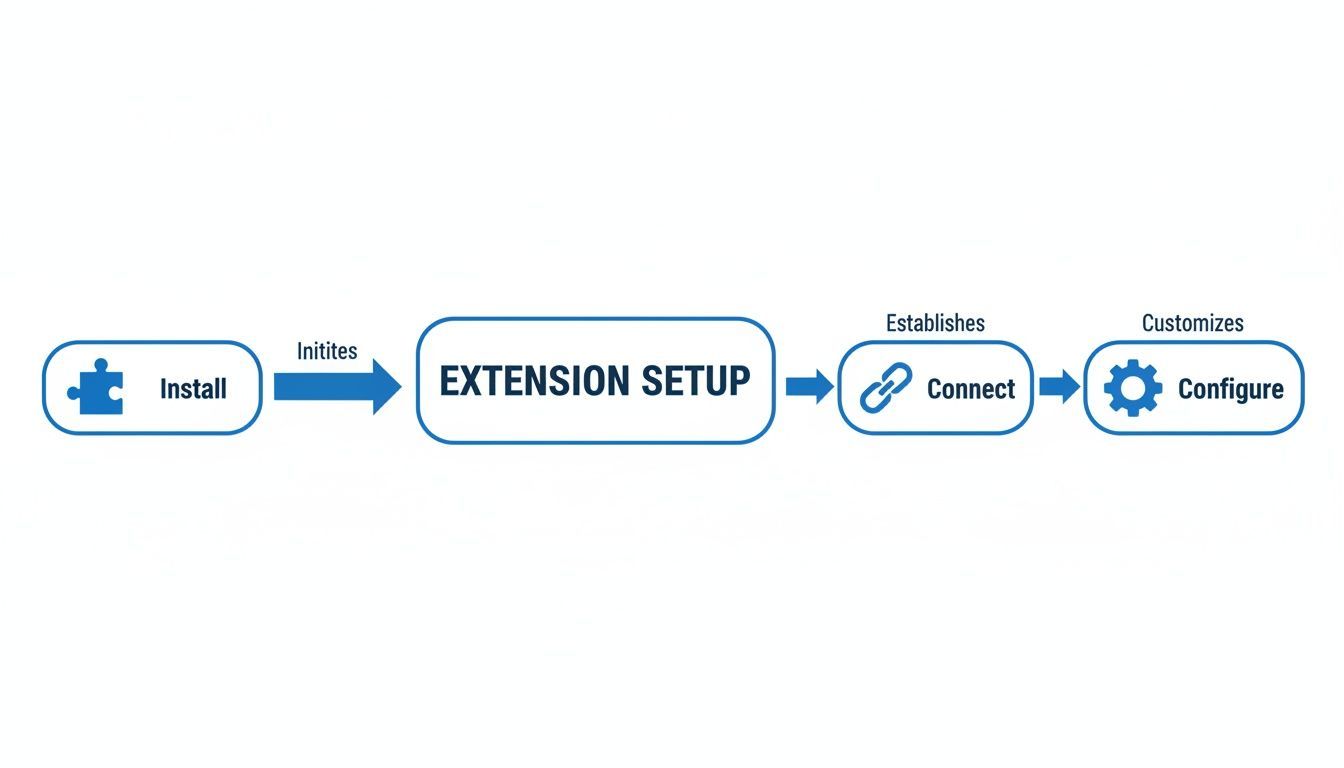
Configuration is where you tailor the tool to your team's exact workflow, turning a simple extension into a core part of your sales engine.
Taking 10 minutes to properly map your fields is the single best investment you can make in your team's long-term productivity. Clean data from day one prevents months of cleanup later and ensures your CRM remains a valuable asset, not a chaotic data graveyard.
Ultimately, mapping fields correctly is the heart of a strong CRM LinkedIn integration. It ensures every new lead you source is complete, clean, and ready for action the moment it hits your system.

Find verified contact data on LinkedIn®
Add to CRM finds verified emails, phone numbers, and job titles on LinkedIn® — then adds them to your CRM in one click.
Start Free Trial


 Trusted by 2,500+ users4.7
Advanced Prospecting Workflows with Your Extension
Okay, you’ve got the extension installed and configured. Now for the fun part. This is where we move beyond basic setup and start turning your browser into a lead generation machine. A powerful Chrome LinkedIn extension doesn’t just grab contact details; it completely overhauls how you find and manage prospects.
This is about prospecting smarter, not just faster.
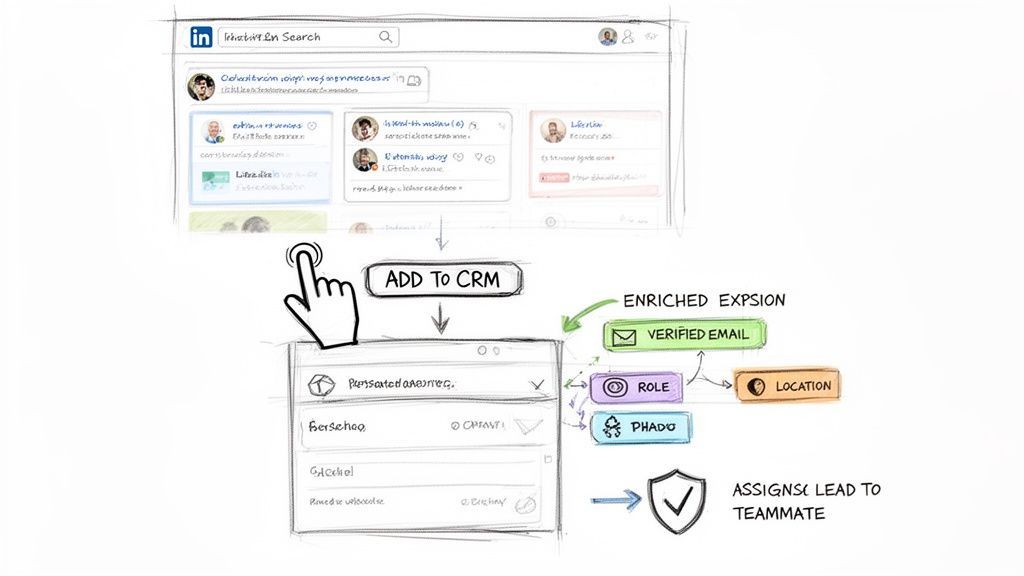
The first big win is one-click lead enrichment. You land on a promising profile, click once, and instantly pull in 20+ data points. We're talking verified emails with 95%+ accuracy, direct-dial phone numbers, company revenue, employee count—you name it.
Suddenly, you have a complete picture of your prospect without ever leaving their profile page.
Preventing Dirty Data with Duplicate Checks
A messy CRM is a sales team's worst nightmare. Duplicate records create confusion, waste hours of everyone's time, and lead to those awkward moments when two reps reach out to the same person. Your extension should act as a bouncer for your CRM, keeping the bad data out.
Before you add a new contact, the built-in duplicate check instantly scans your system. It flags if the person already exists and even tells you who on your team owns the record. It's a simple, automated step that keeps your data clean and your team coordinated.
This automatic check is your first line of defense for data hygiene. It stops you from wasting enrichment credits on existing contacts and prevents the embarrassing "I think my colleague already reached out" email.
For any team that values speed and coordination, this immediate feedback is a game-changer.
Building Targeted Lists from Search Results
Picture this: you run a search and come back with 50 perfect prospects. In the old days, you'd be looking at a soul-crushing hour of manual copy-pasting. With a proper workflow, you can build that entire list right from the search results page.
As you scroll, the extension lets you:
- Quickly add prospects to a specific list or campaign in your CRM.
- See who is already in your system without clicking into each profile.
- Assign new leads to different team members directly from the browser.
For an SDR, this means building an entire week’s outreach list in under an hour. For a sales manager, it means running a search for a new market and distributing leads across your team on the fly. To get the most out of this, check out this practical guide to prospecting on LinkedIn.
The explosion of LinkedIn Chrome extensions shows just how vital these workflows have become for B2B teams. Kaspr, for example, has over 100,000 users and is known for its verified European contact data. Octopus CRM serves 60,000 users by automating connection requests. Tools like Lusha and Saleshandy Connect 2.0 focus on in-place enrichment and high-deliverability emails, proving the massive demand.
These advanced features turn your browser into a command center for prospecting, enabling smarter, faster, and more collaborative outreach.
Troubleshooting Common Extension Issues
Even the best Chrome LinkedIn extension hits a bump in the road now and then. Don't worry, it happens to everyone. Whether it's a finicky connection or a simple user mistake, most problems are a quick fix.
Knowing what to look for will keep your prospecting engine humming along without missing a beat.
A classic issue is the CRM connection dropping out. Before you start digging through settings, try the oldest trick in the IT book: a hard refresh of the page. Just hit Ctrl+Shift+R on Windows or Cmd+Shift+R on a Mac. This clears the page's cache and usually snaps the connection right back into place.
Still no luck? Check if your CRM session timed out in another browser tab. It's an easy one to forget. Just log back into your CRM, then hop back to the profile and refresh. That almost always does the trick.
Fine-Tuning Your Extension for Peak Performance
Another common headache is wonky field mapping. You add a new lead, and suddenly their job title is sitting in the "Notes" field. This is a dead giveaway that your mapping rules need a little TLC.
Just pop into the extension's settings and take a look at your field mapping configuration. It's smart to give this a once-over every few months anyway, especially if your team adds new custom fields to your CRM. A couple of minutes of prevention saves hours of mind-numbing data cleanup later.
Pro Tip: I always tell teams to set a recurring calendar reminder—once a quarter—to audit their CRM field mappings. It's a simple habit that keeps your data clean as your sales process changes, stopping messy records before they even start.
Pro Tips for Power Users
Okay, once you have the basics down, it's time to unlock some real efficiency. These are the little tricks that separate the casual users from the true prospecting pros.
- Keyboard Shortcuts Are Your Friend: Seriously, learn them. Creating a new lead with a quick key combo instead of clicking around might only save a few seconds per person. But when you're processing hundreds of leads, those seconds add up to real, tangible time back in your day.
- Be Smart with Your Credits: If your plan includes monthly enrichment credits, don't just burn them on everyone. Create a simple team rule, like only enriching leads who hit certain MQL criteria. This stops you from wasting valuable credits on prospects who were never a good fit to begin with.
- Prospect Where Others Aren't: Don't just stick to individual profiles. Your Chrome LinkedIn extension is a secret weapon on Group member lists or event attendee pages. This is an incredible way to build super-targeted lead lists from niche communities where your ideal customers are already gathered.
By getting ahead of these small issues and weaving these power-user tips into your workflow, you'll make sure your team is squeezing every ounce of value out of your extension.
Works with 29+ CRMs
Add to CRM finds verified emails, phone numbers, and job titles on LinkedIn® — then adds them to your CRM in one click.
Start Free TrialTrusted by 2,500+ users4.7Measuring the ROI of Your Chrome LinkedIn Extension
So, how do you actually know if a productivity tool is paying for itself? For sales leaders and founders, connecting a Chrome LinkedIn extension to real business outcomes is what matters. It's not just about shaving a few minutes off a task; it's about turning that reclaimed time into pipeline you can see and revenue you can bank.
The most obvious return on investment (ROI) is pure time savings. Think about it: if an SDR saves just four hours a week on grunt work like manual data entry, that’s 16 hours a month back in their hands. What could they do with two extra days? That’s hundreds more emails, dozens of extra calls, and a serious lift in demos booked.
From Time Saved to Pipeline Generated
Let’s get real and do the math. You don't need a complicated spreadsheet to see the value.
Here's a simple framework I use:
- Calculate Weekly Time Savings: (Time per lead manually) - (Time per lead with the extension) x (Leads per week) = Total Hours Saved
- Put a Price on It: Multiply those saved hours by your employee's hourly cost.
- Track the Real Output: Now, measure the increase in demos booked or deals influenced with that extra time.
This quick calculation gives you a hard number to show the direct financial impact, making it a no-brainer to justify the tool to anyone watching the budget.
But it goes deeper than just efficiency. The impact on your data quality is massive. Better data from enrichment and smart duplicate checks directly leads to higher conversion rates. When your data is clean, your sales forecasts are actually reliable, and your outreach feels far more personal and effective.
The real ROI isn’t just about doing the same things faster. It's about freeing up your team to focus on high-value work that drives revenue, all backed by data you can finally trust.
This is exactly why the best extensions are blowing up. Tools like Surfe and Lusha are popular because they make saving to a CRM a one-click affair and deliver high-quality contact data. We're seeing the same thing with tools like Octopus CRM, which has 60,000 users who rely on its automation to scale outreach without feeling robotic. Even newer tools like Breakcold are getting noticed for pulling in prospect activity to make engagement feel more natural.
There's a clear reason these tools are winning: they deliver tangible, measurable results. If you're interested, you can dig into more insights on what makes the best extensions for sales teams so effective.
Got Questions? We've Got Answers
Jumping into a new sales tool, especially a Chrome LinkedIn extension that plugs into your daily grind, always brings up a few questions. We hear a lot of the same ones from founders, SDRs, and sales managers, so let's clear the air on the most common queries.
Getting these details right means you can prospect with total confidence.
Are These LinkedIn Extensions Actually Safe to Use?
Absolutely, but you have to pick the right one. Reputable tools like Add to CRM are built with security as a non-negotiable. We connect to your CRM using secure authentication methods like OAuth, which is just a fancy way of saying we never see or store your CRM password. Your credentials stay with you.
On top of that, data privacy is a huge deal. Add to CRM is fully GDPR compliant, so every enrichment and contact-gathering process is designed to respect major privacy laws. The takeaway? Stick with trusted developers who are upfront about how they handle your data.
A good extension is a responsible layer that sits on top of your browser—it enhances what you do without trying to automate actions in a way that violates platform rules. That’s how you boost your workflow without putting your accounts at risk.
Will This Work with My CRM?
It’s a fair question, and the best tools are built to be flexible. Add to CRM, for example, connects with 29+ CRMs and other popular sales tools. That covers all the big names you'd expect—Salesforce, HubSpot, Pipedrive, Zoho—plus a ton of others.
Before you even install, you can usually check the extension’s website or its Chrome Web Store page for a full list of integrations. It’s a quick way to make sure the tool will slot perfectly into your existing tech stack, no headaches involved.
How Do the Data Enrichment Credits Work?
Most enrichment tools run on a simple credit system. Here’s how it works with Add to CRM: one credit gets you one contact enrichment. That means you use a credit when you click to find verified info like a work email or a direct-dial phone number.
Just adding a contact to your CRM without enriching them? That usually doesn't cost a credit.
Our plans are built around this idea.
- A 7-day free trial is your test drive.
- Paid plans offer bigger bundles (250 credits/month on Standard, 1,000 on Pro) to keep active sales teams prospecting without interruption.
Ready to stop copy-pasting and start selling smarter? Add to CRM turns profiles into clean, enriched CRM records in one click, saving your team over four hours every week. Start your 7-day free trial!
Start saving time and closing more deals.
Find verified contact info for your prospects on LinkedIn®, Gmail and Outlook — and add them to your CRM with 1-click.

 Loading...Trusted by 2,500+ founders, SDRs & more