How to Import Contacts into Agile CRM
Learn how to easily import contacts into Agile CRM with our comprehensive guide. Boost your productivity and manage your relationships effectively.
Sync leads from professional networks to Agile CRM.
Save 4hrs per week on CRM data entry.
Learn more...Free Agile CRM integration
Importing contacts into Agile CRM can streamline your sales and marketing processes by consolidating your customer data in one place. Agile CRM offers multiple ways to add contacts, including manual entry, importing CSV files, syncing with external apps, and integrating web forms. This guide will walk you through these options, focusing primarily on importing contacts from a CSV file.
Preparing Your CSV File for Import
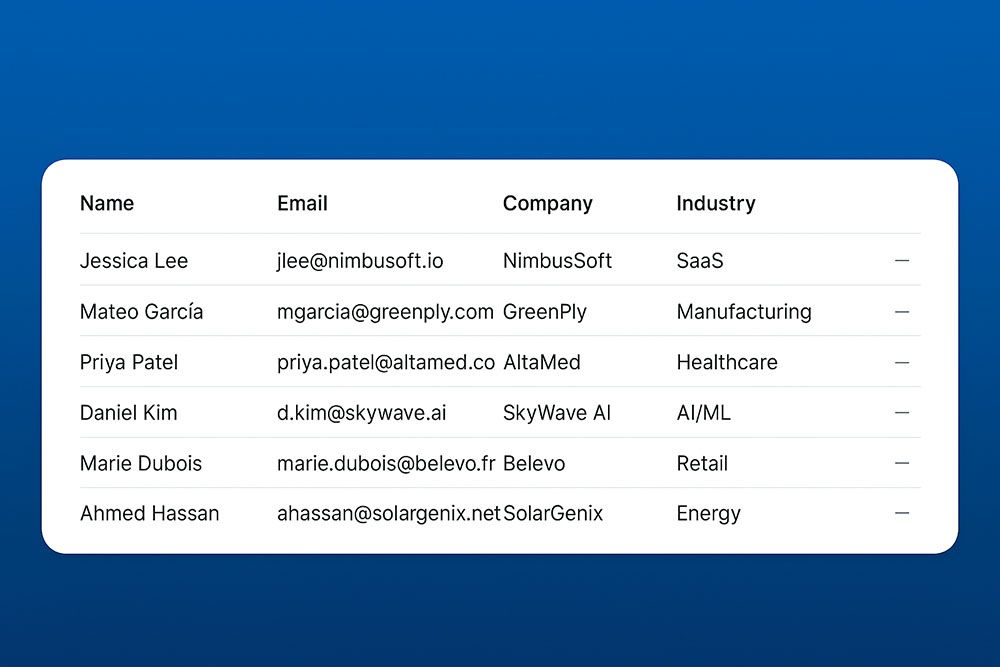
Before importing contacts, it’s crucial to ensure that your CSV file is correctly formatted:
Use a Compatible Format:
- Ensure your file is saved in CSV format.
- Each column should have a header in the first row.
Include Required Fields:
- First name and email are mandatory fields. Ensure your spreadsheet includes columns labeled “First Name” and “Email.”
Format Custom Fields:
- If your file contains data that does not match Agile CRM’s default fields, you’ll need to create custom fields in Agile CRM before importing.
Remove Extra Spaces:
- Ensure there are no unnecessary spaces before or after values in your file.
Check Date Formats:
- All date fields should be formatted as MM/DD/YYYY.
Prepare Tags:
- If your contacts have tags, include a column for tags. Separate multiple tags using commas and enclose them in quotation marks (e.g., “tag1,tag2”).
Importing Contacts from a CSV File
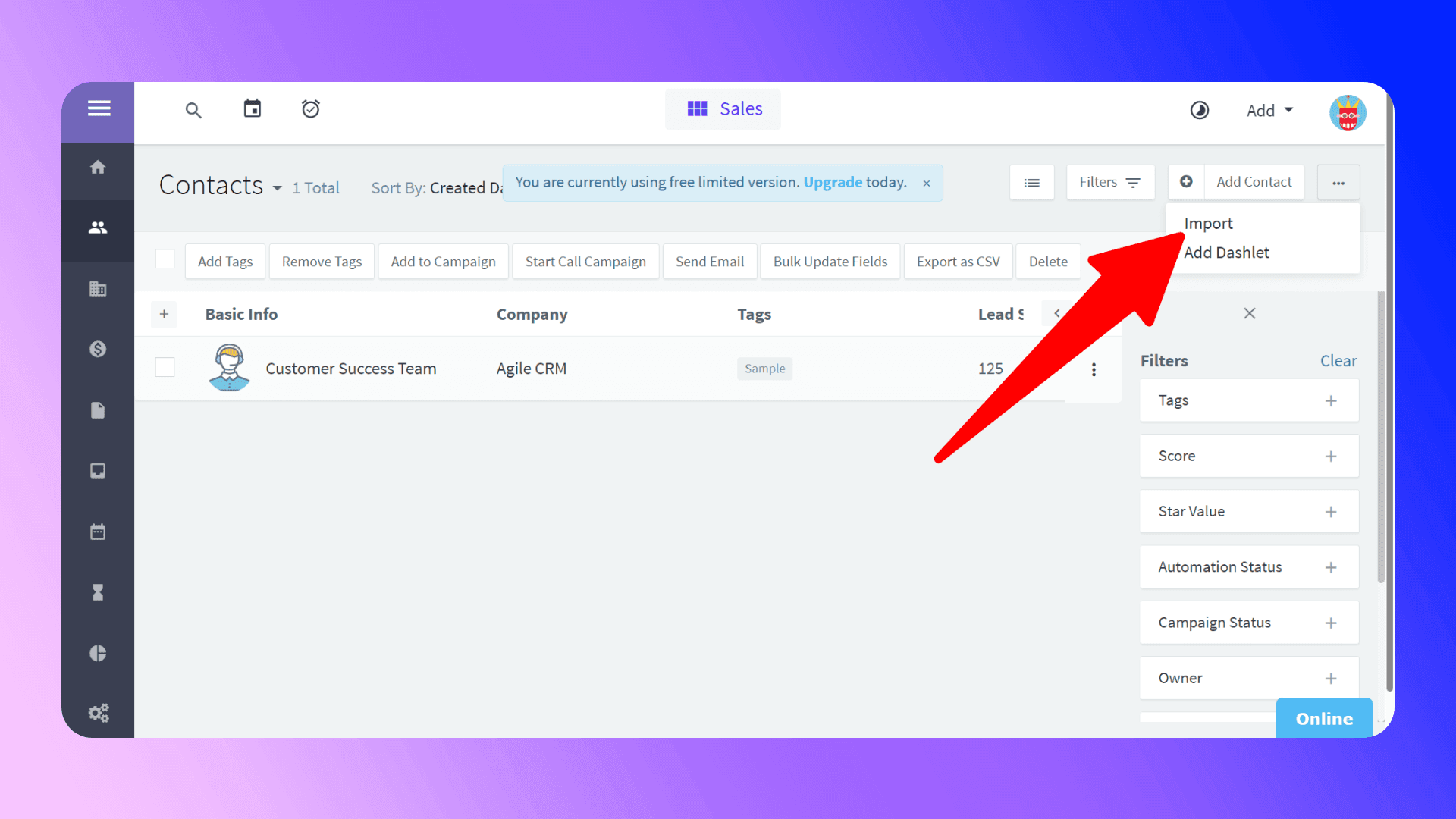
Once your CSV file is ready, follow these steps to import contacts:
Log into Agile CRM:
- Go to your Agile Dashboard and navigate to the Contacts page.
Select Import Option:
- Click on the Add Contact drop-down menu and select Import from CSV.
Choose Data Type:
- Select whether you are importing contacts or companies.
- Note: Agile CRM allows up to 10,000 contacts or companies per file.
Upload Your CSV File:
- Click Select File and choose the CSV file you prepared.
Map Fields:
- A field mapping window will appear. Ensure each column in your CSV file is correctly mapped to a corresponding field in Agile CRM.
- For unmatched columns, either map them to existing custom fields or create new custom fields.
Start Import:
- Once all fields are mapped, click Start Import. Agile CRM will process your file and notify you upon completion.
Adding Contacts from Web Forms
Agile CRM integrates with several web form tools, including Wufoo, Unbounce, Gravity Forms, and LeadPages. Additionally, it offers a built-in Form Builder to create custom web forms that sync directly with your CRM.
Using Agile Form Builder:
- Go to Admin Settings > Integrations > Form Builder to design web forms.
- Place these forms on your website to capture leads directly into Agile CRM.
Integrating Third-Party Web Forms:
- Visit Agile CRM’s Integrations page for setup instructions on integrating popular form tools.
Using the JavaScript API:
- If you’re using custom forms, you can leverage Agile CRM’s JavaScript API for automated contact creation.

Skip the CSV. Import contacts to Agile CRM from LinkedIn®
Add to CRM enriches LinkedIn® profiles with verified emails and phone numbers, then syncs them to Agile CRM instantly.
Start Free Trial


 Trusted by 2,500+ users4.7
Syncing Contacts from External Apps
Agile CRM allows syncing contact data from external apps, such as Google Contacts, Stripe, Shopify, FreshBooks, and QuickBooks.
Navigate to Sync Settings:
- Go to Preferences > Data Sync in your Agile Dashboard.
Select the App:
- Choose the app you want to sync with and follow the setup instructions provided.
Refer to Plugin Guides:
- Visit the Plugins and Integrations page for detailed guides on syncing specific apps.
Common Issues and Troubleshooting
Here are some common issues you may encounter during the import process and how to resolve them:
File Not Recognized:
- Ensure your file is correctly formatted. Refer to the sample import template available on the import page.
Duplicate Records:
- Agile CRM does not automatically merge duplicates. Review your data to remove duplicates before importing.
Import Size Limit:
- Each import file should not exceed 1MB in size. Split larger files into multiple smaller files if necessary.
Missing Mandatory Fields:
- Ensure that your CSV file includes columns for first name and email, as these are required fields.
Verified emails, straight into Agile CRM
Add to CRM enriches LinkedIn® profiles with verified emails and phone numbers, then syncs them to Agile CRM instantly.
Start Free TrialTrusted by 2,500+ users4.7Importing from LinkedIn
If you frequently gather leads from LinkedIn or other online platforms, consider using third-party tools like Add to CRM, our Chrome extension for Agile CRM. With Add to CRM, you can:
Capture Verified Emails:
- Extract verified contact details directly from LinkedIn profiles.
Add Contacts in One Click:
- Quickly add contacts to Agile CRM without manual data entry.
Save Time:
- Streamline your lead generation process by automating contact creation.

Learn more about Add to CRM and how it can improve your workflow.
Conclusion
Importing contacts into Agile CRM is a straightforward process that can greatly enhance your productivity. By properly preparing your CSV file and following the steps outlined in this guide, you can ensure a seamless import experience.
For advanced lead generation, consider using Add to CRM to capture and add leads from LinkedIn effortlessly. Need more help? Visit Agile CRM’s Support Center or contact their customer support team for assistance.
Happy importing!
How to import contacts into Agile CRM directly from LinkedIn®, Gmail and Outlook

 Agile CRM Integration
Add contacts to Agile CRM from LinkedIn®
Enrich profiles with verified emails and phone numbers. Sync to Agile CRM in one click.
Try Agile CRM Extension7-day free trial · Cancel anytime
Save 4+ hrs / week on Agile CRM data entry.
Find verified contact info for your prospects on LinkedIn®, Gmail, Outlook & company websites. Add them to your Agile CRM with 1-click.
 Loading...Trusted by 2,500+ founders, SDRs & more