How to Use Close CRM in 2026: Setup & Sales Guide
Master Close CRM for calls, emails, and pipeline management. Use Add to CRM to add verified LinkedIn leads to Close in one click.
Sync leads from professional networks to Close CRM.
Save 4hrs per week on CRM data entry.
Learn more...Free Close CRM integration
Close.com is a fast, intuitive CRM designed to keep sales teams focused on selling—not wrestling with clunky software. With its unified inbox, real-time collaboration, and streamlined calling, texting, and email features, it helps solo reps and large teams manage every deal in one place.
Want to import LinkedIn contacts into Close with one click? Check out Add to CRM—a simple Chrome extension that eliminates manual copy-paste and keeps your pipeline full.
1. Why Close.com?

Designed for Speed
There’s a reason many high-velocity sales teams choose Close.com.
Unlike legacy CRMs that bog you down with endless menus and complicated setups,
Close.com is built to keep reps selling, not clicking around.
Its interface is intuitive, letting you place calls, send SMS messages, and log emails from
a single dashboard without flipping between windows.
Unified Inbox
A big standout feature is the unified inbox. Picture this: every email, SMS,
phone call record, and user-assigned task related to a specific lead or opportunity lives in
one place. No more hunting for that email from last week or sifting through your phone log
to confirm you followed up.
Real-Time Collaboration
Close.com also makes it easy for team members to collaborate.
You can assign leads to different owners, use tags to mark which reps are responsible for
specific follow-ups, and rely on built-in reminders (activities, tasks, calls) so nothing slips
through the cracks.
2. Getting Started: Basic Setup
Signing Up
First things first: head over to the Close.com site and sign
up for an account. They typically offer a trial period long enough to let you explore and see
if the CRM meets your needs. During the sign-up process, you’ll be prompted to connect your
email (Google, Office 365, or others). Doing this early means:
- Outbound emails sent via Close.com will show up in your usual Sent folder.
- Inbound emails you receive from leads are automatically synced to their corresponding record.
Choosing the Right Plan
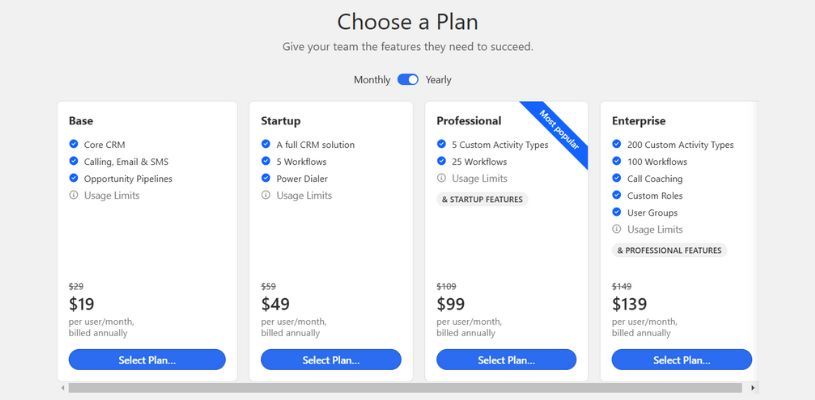
Close.com often has multiple tiers (Startup, Professional, Enterprise, etc.).
When you’re starting out, it can be tempting to go for the cheapest plan. Keep in mind that
certain advanced features—like unlimited workflows, custom activities, or in-depth reporting—
may only be available in higher tiers. If you’re serious about using automation or running
large-scale phone campaigns, it’s wise to review each tier’s feature set carefully.
Verifying Your Phone Numbers
If you plan to use Close.com’s built-in calling or texting features,
you’ll need to register your phone numbers. A2P 10DLC regulations require businesses
in certain countries to provide details about the nature of their text communications. Follow
the prompts in Close.com’s Phone & Voicemail
settings to verify your numbers.
Setting Up Your Calendar
Close.com can sync with Google Calendar or Office 365 to centralize
tasks, calls, and appointments. Within your Settings → Accounts & Apps,
you should see an option to connect your calendar. This is highly recommended for ensuring you
never miss that crucial follow-up call or meeting.
3. Lead vs. Contact vs. Opportunity
Leads
In Close.com, a “lead” often represents a company or business
entity—though some teams use it for individuals as well. Either way, it’s the highest level
in the data structure. Think of a lead as “Acme Corp.”
Contacts
Contacts are the people who work at or are associated with that lead. So, if
your lead is Acme Corp., the contacts might be “Taylor Jones” and “Chris Morgan,” who both work
at Acme Corp. Each contact record can store phone numbers, email addresses, roles, and more.
Opportunities
An “opportunity” captures a specific potential deal. You might have multiple opportunities
under a single lead—say, if you’re selling two different services or products to different
departments at Acme Corp. Each opportunity can have a distinct value, an expected close date,
and a status (e.g., Open, Won, Lost).
Key Takeaway: Keep track of these three levels. The structure looks like this:
Lead → Contacts → Opportunities
4. User Roles and Permissions
Team Management
If you have a sales organization with multiple reps, the next step is to invite them into your
Close.com account. You can do this under Settings →
Team Management.
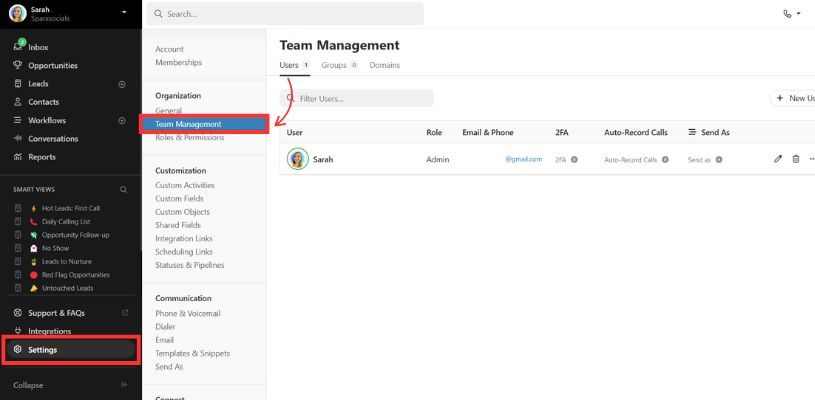
Each invited user can be assigned different roles and permissions:
- Admin: Full control, including the ability to add/remove users and change system-wide settings.
- Manager: Access to most features, but can have restricted administrative powers.
- Sales Rep: Typically has permission to view, create, edit leads and opportunities, but can be denied advanced options like bulk data imports or deletions.
Groups and Roles
Close.com also lets you group users. For instance, if you have
two teams—Setters and Closers—you can organize them into separate user groups. You might want
to create custom roles with specific abilities, like preventing certain reps from bulk-deleting
leads, or restricting who can change pipeline stages. These settings are crucial for data
integrity: you don’t want someone accidentally mass-updating your entire lead database!
5. Customizing Your Pipelines
What is a Pipeline?
A pipeline in Close.com is essentially a visual representation of
the sales journey. Each pipeline has multiple stages—like New Lead, Discovery,
Proposal Sent, Negotiation, Won, Lost, or any custom labels that suit your process.
Creating and Editing Stages
- Go to Settings → Statuses & Pipelines.
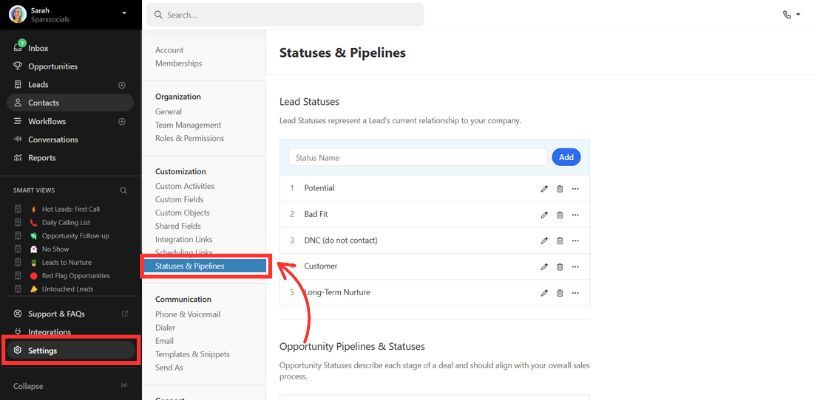
- Select New Pipeline or click Edit on the default one.
- Rename stages and drag them to the desired order.
Note: If your business handles multiple types of deals (like software subscriptions vs.
one-off consulting gigs), you can create separate pipelines. But keep an eye on complexity: too
many pipelines can lead to confusion, especially if your deals overlap in nature.
Monitoring Pipeline Health
Close.com offers both a kanban-style view (visual columns of
stages) and a list view for each pipeline. The kanban view is perfect for quickly seeing how
many deals sit in each stage, while the list view can help with large-scale sorting or exporting
data.

Find verified emails and enrich Close CRM contacts
Add to CRM finds verified emails, phone numbers, and job titles on LinkedIn® — then adds them to Close CRM in one click.
Start Free Trial


 Trusted by 2,500+ users4.7
6. How to Stay Organized with Activities and Tasks
Activities: The Lifeblood of Follow-Up
Close.com provides a robust feature called Activities
(or sometimes Custom Activities if you upgrade) that allows you to log every call,
meeting, or interaction with a lead. It’s your paper trail for the entire account, so you can see
if a lead was emailed last Tuesday, called two days ago, and so forth.
Depending on your needs, you can create custom activity types—for instance,
Product Demo Completed or Webinar Attended. This makes it easy to filter out or
track big milestones in your sales cycle.
Tasks and Reminders
If you want to nudge yourself (or someone else on the team) to perform a specific action later,
create a task. A task might be “Follow up with Emily about the contract,” due next
Tuesday. Tasks go straight to your Inbox—a unified feed where you see all calls,
SMS, tasks, and more.
Pro Tip: Always leave a next step or scheduled reminder on every open deal. The
second you mark an activity as complete, schedule the next follow-up. This ensures you don’t lose
track of potential deals in an ever-growing list of to-dos.
7. Call, SMS, and Email Integration
In-App Calling
Close.com integrates with a built-in dialer. Once you’ve registered
a number, you can call leads directly from their profile in the CRM. If you have call recording
enabled, recordings will appear in the lead’s activity feed—handy for training, QA, or reference.
- Power Dialer: Some Close.com plans include
a “Power Dialer” that automatically calls down a list of leads. This can be a huge time-saver
if you’re doing large volumes of outreach. - Predictive Dialer: For bigger teams, predictive dialing can ring multiple
numbers simultaneously across your reps, optimizing talk time.
SMS and Texting
Texting is extremely powerful for certain industries—especially if you find that leads respond
faster to text than email. You can send and receive SMS from the same lead profile, so everything’s
logged. Just keep an eye on consent and compliance: add “Reply STOP to unsubscribe” or similar
disclaimers to meet regulations.
Email Sync
When you connect your email account, any messages you send or receive from a lead’s email address
appear in that lead’s record. You can also compose emails directly inside Close.com
and track opens or clicks on many plans. Keep an arsenal of templates for fast
follow-up: “Thanks for your interest,” “Proposal attached,” or “Meeting confirmation” templates
can shave off hours of typing every week.
8. The Power of Workflows (Sequences)
Workflows Explained
Workflows (formerly called “Sequences” in some versions of Close.com)
let you automate multi-step outreach. For example, you might want a “New Leads” workflow that does:
- Send an immediate welcome email.
- Wait 1 day.
- Send an SMS.
- Wait 2 days.
- Assign a follow-up call to a rep.
- Wait 1 day.
- Send a final nudge email.
The idea is to drip relevant touchpoints without manually scheduling each one. And because
workflows can be triggered automatically (say, when a lead enters the status Potential),
you can scale outreach drastically.
Setting Up a Workflow
- Go to Workflows in your left-hand sidebar (or under Settings,
depending on your version).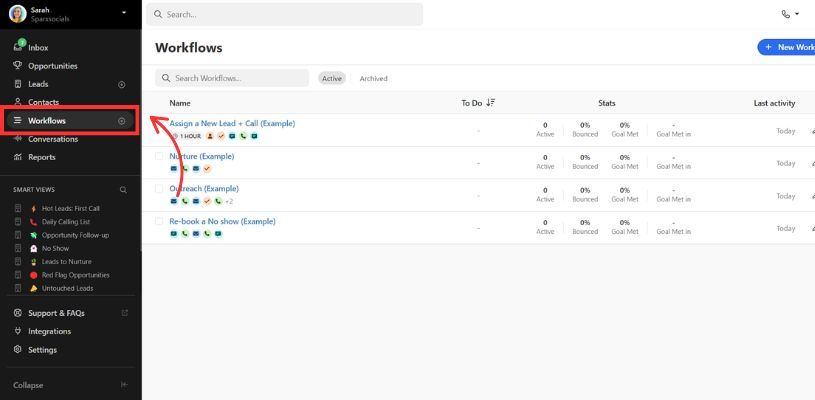
- Select New Workflow → Manual or Automated Trigger.
- Create steps: calls, emails, texts, or tasks.
- Assign delays between steps, choose the appropriate templates, and decide if a call step must
be completed before continuing (required) or if you can skip it (optional).
Pro Tip: Keep your messages short, personal, and conversation-driven. The goal
is to prompt a response, not to broadcast an ad.
Watch for Overkill
While it’s tempting to blast new leads with a flurry of emails and texts, remember that less can
sometimes be more. Keep track of open rates, replies, and unsubscribes. If your workflow is too
aggressive, you could burn leads who might have converted with a gentler approach.
9. Using Automations and API Integrations
Zapier and Beyond

Even with Close.com’s built-in workflows, there might be times you
need advanced automation logic. That’s where tools like Zapier or Make
come in. You can easily connect Close.com to other apps—Google Sheets,
Slack, Typeform, or your invoicing software.
For instance:
- Typeform to Close.com: When someone fills out
a form, automatically create a new lead with the right fields. - Calendly to Close.com: Once a prospect books a
meeting, trigger an opportunity or log the activity automatically. - LinkedIn to Close.com: add LinkedIn prospects
directly into your CRM using the
Add to CRM chrome extension.
API Keys
If you’re more developer-savvy, you can integrate directly via Close.com’s
RESTful API. You’ll need your API key, which you can generate in the
Settings → Developer. For a quick step-by-step on retrieving it, see:
How to Find Your API Key in Close CRM
With the API, you can do fancy things like pulling call transcripts for AI analysis or building
real-time dashboards that combine data from multiple sources. You can
find your Close.com API keys here.
10. Close CRM LinkedIn Integration
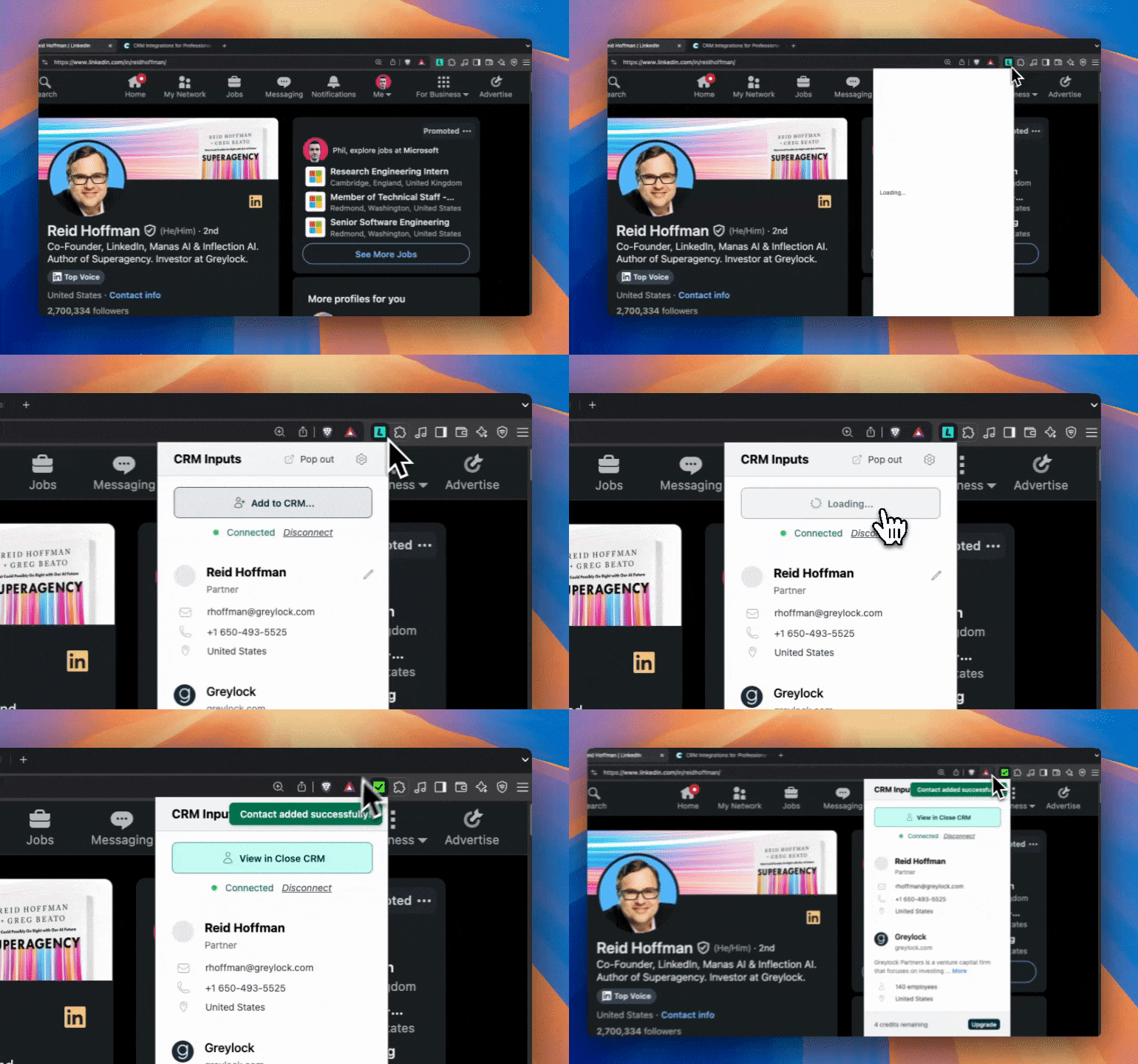
If your main hunting ground for prospects is LinkedIn, prepare to save an insane amount of time.
Add to CRM is a simple Chrome extension designed to port
contact data from a LinkedIn profile straight into your Close.com account.
Key Benefits:
- No More Copy-Paste: Grab names, job titles, and other contact info in one click.
- Accurate Data: Avoid typos or missing fields when you manually transfer data.
- Consistent Process: Everyone on your team follows the same standard for pulling
leads from LinkedIn.
If you want to test it out, just install Add to CRM, open a LinkedIn profile, and click the extension
button. Next time you check your Close.com leads, you’ll see that new
contact already in the system.
Save hours on Close CRM data entry
Add to CRM finds verified emails, phone numbers, and job titles on LinkedIn® — then adds them to Close CRM in one click.
Start Free TrialTrusted by 2,500+ users4.711. Useful Resources
– Official guide to finding your API key
– Add to CRM for LinkedIn
12. Daily Best Practices
1. Zero Out Your Inbox
At least once per day, clear new messages, calls, tasks, or SMS notifications in your
Close.com inbox. If you won’t have time to address them, reschedule
tasks to a future date so they don’t linger as overdue.
2. Keep Pipelines Accurate
If you know a deal is effectively closed or lost, mark it as such! Stale deals clutter your
pipeline and distort your metrics.
3. Always Assign Next Steps
When you complete a call, log your notes, and immediately schedule the next activity (call, email,
or meeting). Deals without future tasks are likely to get lost in a busy pipeline.
4. Don’t Over-Tag
Use tags consistently, but sparingly. Over-tagging each lead with a laundry list of labels can
make searching chaotic. Instead, rely on statuses, pipeline stages, or custom fields for deeper
segmentation.
5. Leverage Email and SMS Templates
Save a set of frequently used templates. When you or your reps are crunched for time, it’s easier
to send (and personalize) a template than to write from scratch.
13. Conclusion and Next Steps
Close.com strikes a sweet balance between functionality and
simplicity. It’s an excellent fit if you want a no-frills CRM that doesn’t sacrifice power.
With straightforward pipelines, a clean workspace, and unified communication features, you can
devote more attention to actually closing deals instead of wrestling with your CRM.
What should you do next?
- Tweak your pipelines until they match your actual sales process.
- Experiment with workflows to see how automation can save your team hours
of tedious follow-up. - Integrate Add to CRM to effortlessly import LinkedIn leads without the copy-paste headache.
- Master your data by exploring how to import old records and set up advanced reports.
For a big impact on your day-to-day sales motions, try these immediate steps:
- Set Up a Basic Workflow: Automate your initial email and SMS follow-ups for new leads.
- Connect Your Calendar: Make sure calls or tasks appear in your daily schedule.
- Grab Your API Key: If you’re building an ecosystem with other apps, you’ll need it soon.
- Stay Curious: Explore the help resources or official blog for the newest features.
If you’re ready to transform the way you manage prospects, give these tips a try and watch your
team’s productivity skyrocket. There’s no better time than now to refine your sales process and
leave no deal behind.
Interested in speeding up your LinkedIn prospecting? Check out
Add to CRM for that one-click direct import to
your CRM. It’s the perfect sidekick if you’re on a mission to never let a hot lead slip away.
Happy closing, and here’s to your success with Close.com in 2025 and beyond!
This app will save you hours using Close CRM

 Close CRM Integration
Add contacts to Close CRM from LinkedIn®
Enrich profiles with verified emails and phone numbers. Sync to Close CRM in one click.
Try Close CRM Extension7-day free trial · Cancel anytime
Save 4+ hrs / week on Close CRM data entry.
Find verified contact info for your prospects on LinkedIn®, Gmail, Outlook & company websites. Add them to your Close CRM with 1-click.
 Loading...Trusted by 2,500+ founders, SDRs & more