How to Find Your API Key in Salesflare
Learn the simple process to find your API key in Salesflare. Follow our comprehensive guide to optimize your sales and marketing integrations effectively.
Watch this 45 sec video on how to Find Your Salesflare API Key

To integrate Salesflare CRM with tools like the Add to CRM Chrome extension, you’ll need your API Key. This guide will help you locate your Salesflare API key and complete the integration setup.
Steps to Access Your API Key in Salesflare CRM
Log into Your Salesflare CRM Account
Go to Salesflare and log in using your account credentials.Navigate to Settings
In the bottom-left corner of your Salesflare dashboard, click on your profile picture or initials to open the menu. From there, select Settings.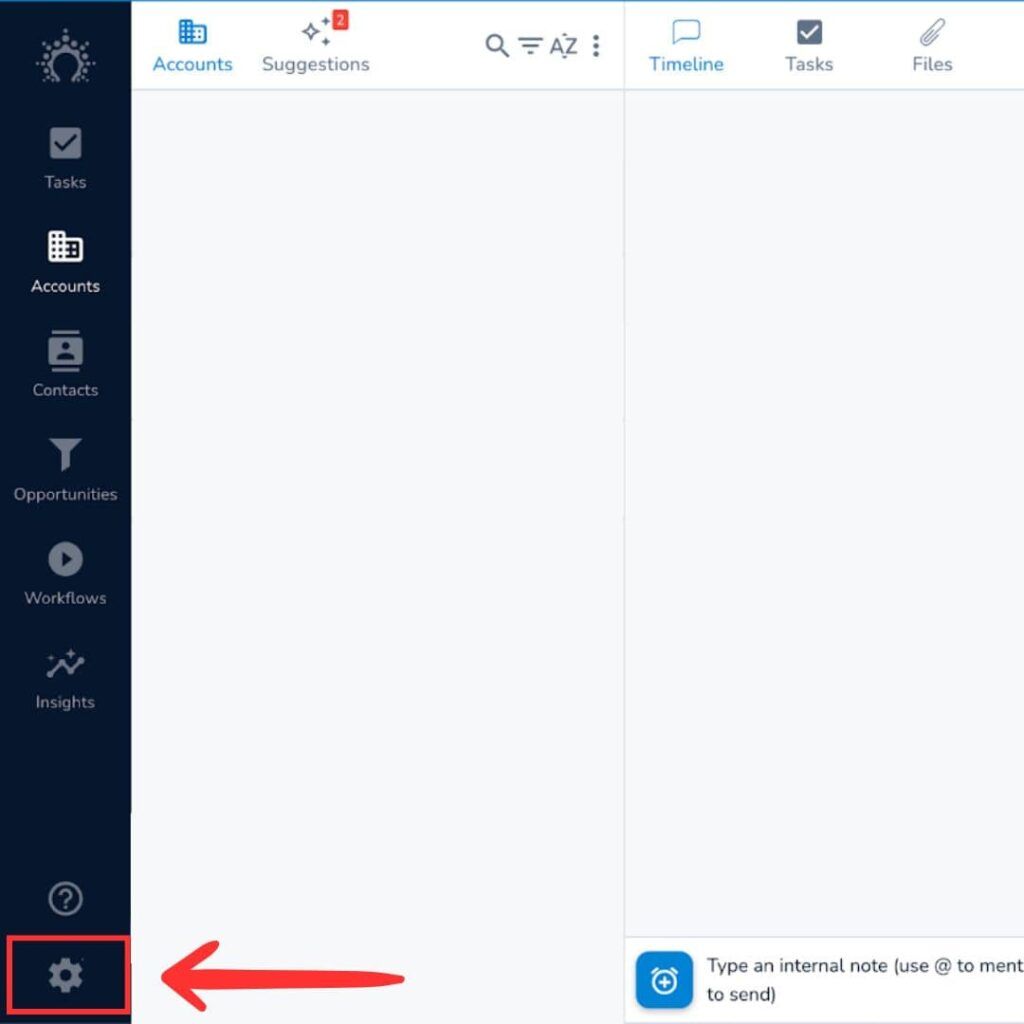
Go to the API Key Section
In the Settings menu, find and click on the API Key tab. This section allows you to generate and manage API keys for third-party integrations.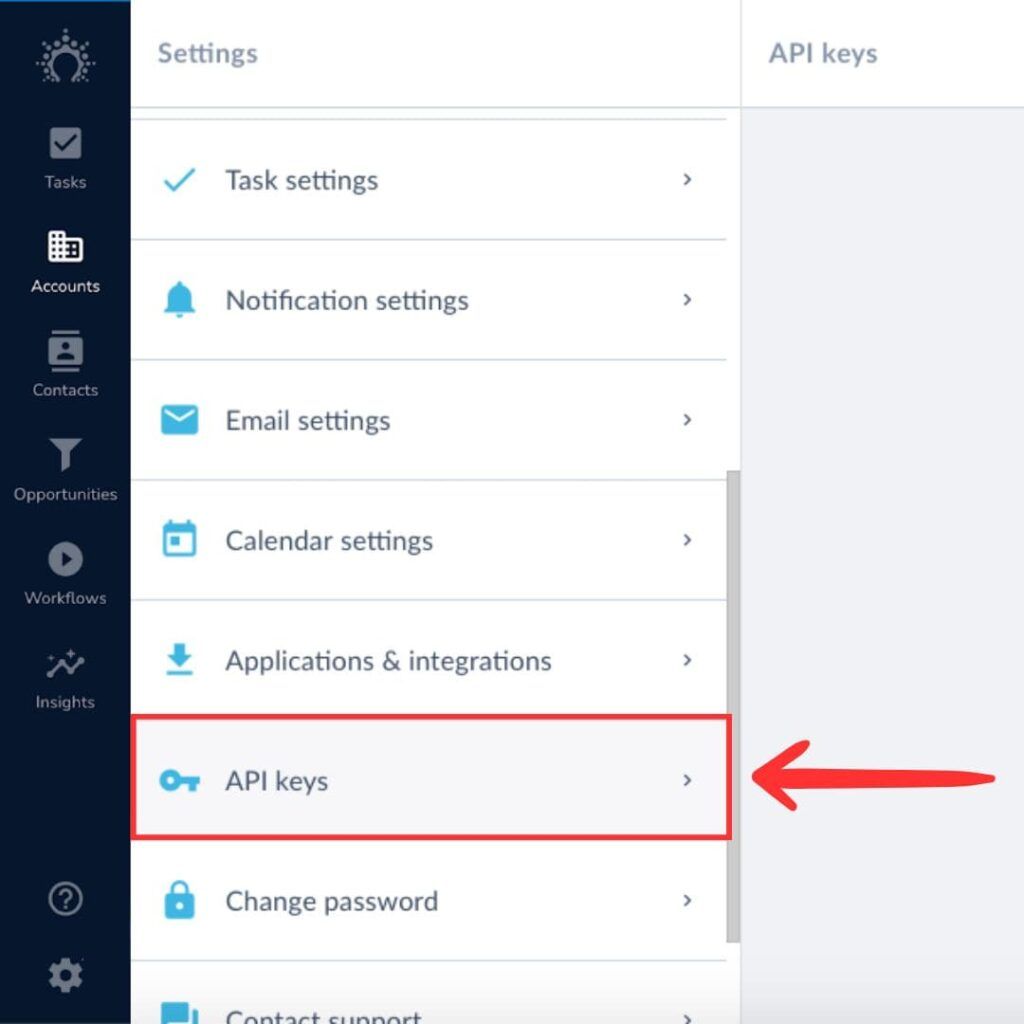
Generate a New API Key
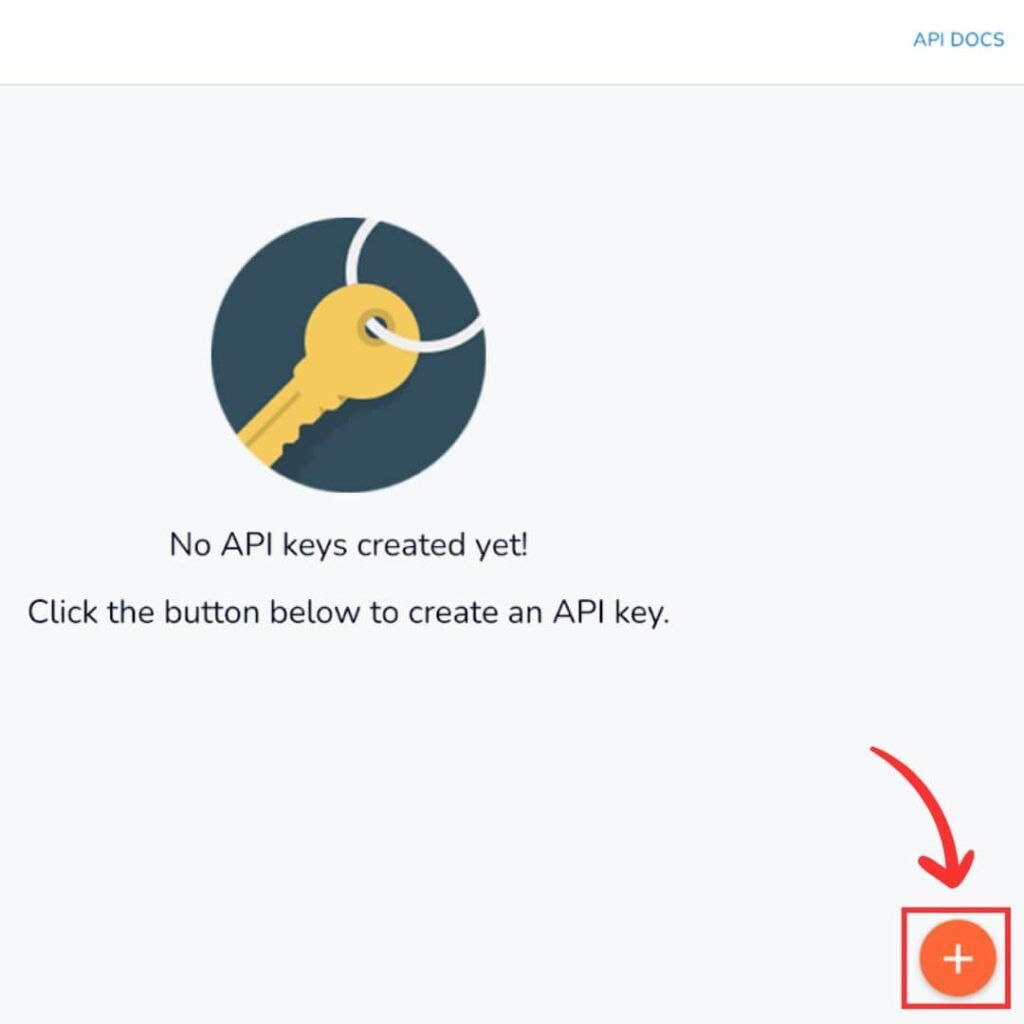
- If you don’t already have an API key, click Generate New API Key.
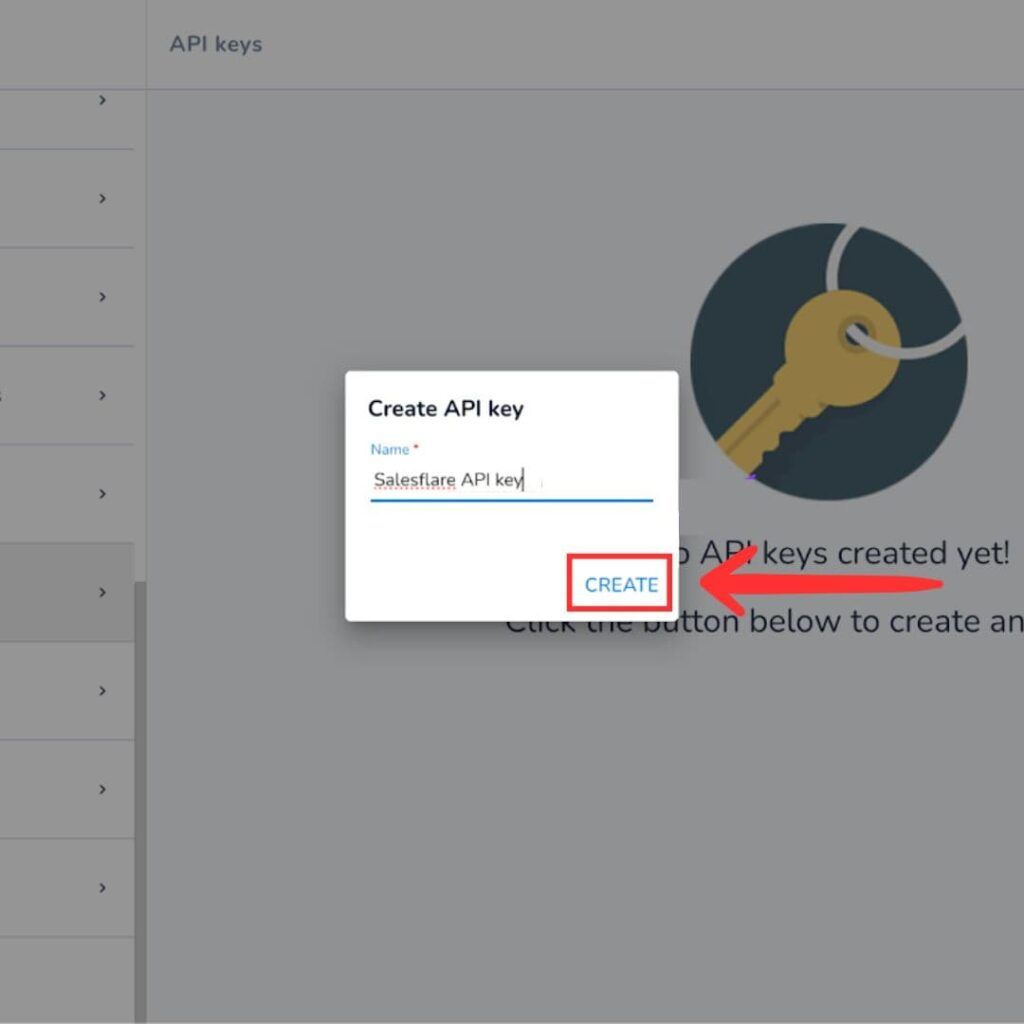
- Assign a name to the key (e.g., “Add to CRM Integration”) for easy identification.
- Save the key, and it will be displayed.
Copy the API Key
Click Copy next to the newly generated API key to copy it to your clipboard.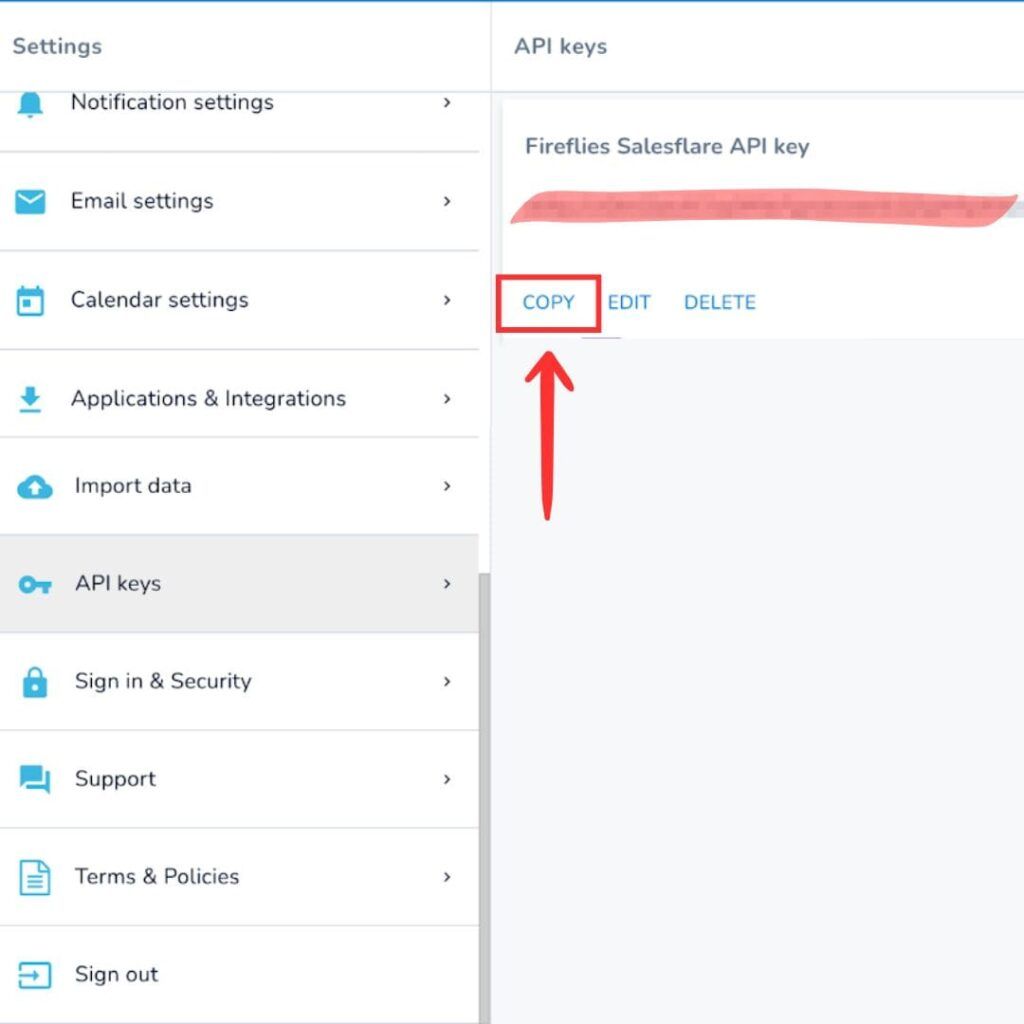
Enter the API Key in Add to CRM Extension
- Open the Add to CRM Chrome extension settings.
- Paste the copied API key into the appropriate field.
- Click Save to finalize the integration setup.
Verify the Integration
Now, when you visit a LinkedIn profile, you’ll see the Add to CRM button for new contacts. Clicking this button will populate the contact’s details, including their verified email address, into your Salesflare CRM. If the contact is already in your CRM, you’ll see a View in CRM button.
Example Usage
Click Add to CRM to seamlessly create new leads or contacts in your Salesflare CRM without manual data entry.
That’s it! You’re ready to streamline your workflow and save hours every week.
For direct access to the API settings, you can visit: https://app.salesflare.com/settings/api-key.
 Salesflare Integration
Add contacts to Salesflare from LinkedIn®
Enrich profiles with verified emails and phone numbers. Sync to Salesflare in one click.
Try Salesflare Extension7-day free trial · Cancel anytime
Save 4+ hrs / week on Salesflare data entry.
Find verified contact info for your prospects on LinkedIn®, Gmail, Outlook & company websites. Add them to your Salesflare with 1-click.
 Loading...


 Trusted by 2,500+ founders, SDRs & more