A Guide to LinkedIn HubSpot Integration for Sales Teams
Unlock the power of a LinkedIn HubSpot integration. Learn how to sync leads, enrich data, and automate workflows to supercharge your sales pipeline.
So, what exactly is a LinkedIn HubSpot integration?
Think of it as the ultimate bridge between your sales team's favorite prospecting playground (LinkedIn) and their home base (HubSpot). It automates the flow of data, cutting out the soul-crushing copy-paste work that turns a hot lead into a cold CRM entry. This connection stops the endless tab-switching and transforms scattered social selling into a measurable, predictable part of your revenue engine.
Why Your Sales Team Needs a LinkedIn HubSpot Integration
We’ve all seen it. An SDR spends their morning digging for gold on LinkedIn, finding one perfect-fit prospect after another. They meticulously copy names, job titles, and company details from profiles into new HubSpot contact records. It's a grind.
Later, a manager asks about the ROI from all that LinkedIn activity. The answer? A shrug. There’s no hard data, just a collection of manual notes and a gut feeling that it’s working. This chaotic process isn’t just a massive time sink—it’s a breeding ground for bad data and missed opportunities.
This is exactly the problem a LinkedIn HubSpot integration was built to solve. It turns that clunky, inefficient workflow into a smooth, automated system where critical info flows seamlessly right where you need it.
From Manual Drudgery to Automated Efficiency
The most immediate win? You kill manual data entry. Dead.
Sales reps can spend up to a third of their day bogged down in admin tasks instead of actually selling. Manually creating CRM records from LinkedIn is one of the worst offenders.
A solid integration automates that entire process. Imagine your SDR finds a high-value lead on LinkedIn. With a single click, they can:
- Create a new contact in HubSpot instantly.
- Enrich that record with verified data like job title, company, industry, and location.
- Stop creating duplicates by checking if the contact already exists.
This simple shift frees up hours every week. Suddenly, your team is focused on what truly matters: building relationships and closing deals. And if you're looking for new ways to fill that pipeline, you'll find plenty of LinkedIn lead generation strategies on addtocrm.com that become far more potent with automation in your corner.
Gaining Clear Visibility and Proving ROI
Without an integration, tracking the real impact of your LinkedIn outreach is a shot in the dark. All those InMails, connection requests, and messages are happening in a silo, completely disconnected from the contact's actual journey in your CRM.
A proper integration solves this by logging LinkedIn activities directly onto the HubSpot contact timeline. This creates a complete, chronological history of every single interaction, giving sales managers a crystal-clear view of what's working and what isn't.
This visibility is everything when it comes to proving ROI.
When you can directly attribute new deals and pipeline growth to specific LinkedIn campaigns, you can finally justify your team's efforts with cold, hard numbers. It helps you make smarter decisions about where to invest your time and resources, turning LinkedIn from just another social network into a powerful, measurable lead source for your business.
Choosing Your Integration Path: A Comparison of Top Methods
Connecting LinkedIn and HubSpot isn't a one-size-fits-all deal. The right approach really depends on your team's goals, budget, and what you’re trying to fix. For some, a simple, built-in connection is plenty. For others, a more powerful third-party tool is the only way to get the speed and automation they need.
Figuring out the differences between these methods is the first step toward building a smarter, less manual sales process. Each option has its own trade-offs, whether you're a marketer running ad campaigns or an SDR hunting for new accounts.
This visual decision tree makes the initial choice pretty clear: stick with manual data entry or finally embrace an automated strategy.
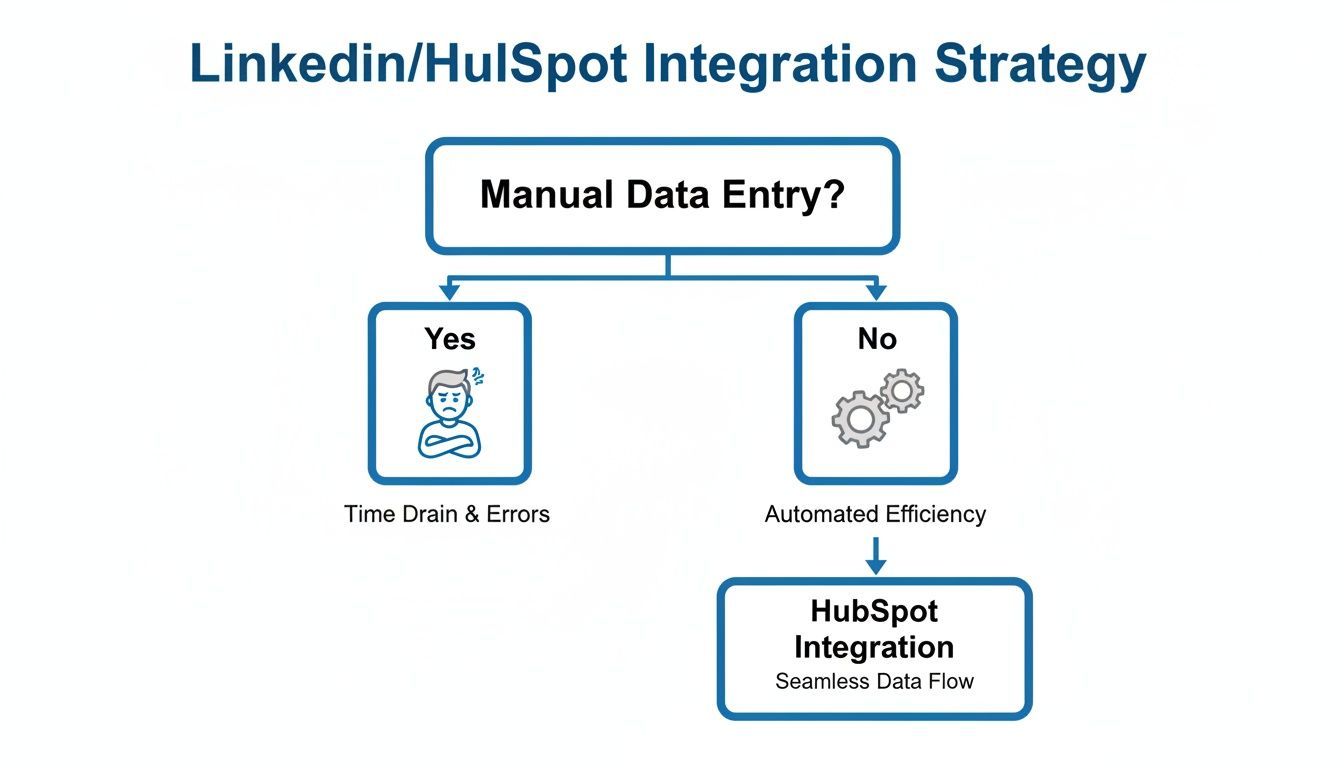
As the flowchart shows, manual data entry is a direct path to frustration. Automation, on the other hand, opens the door to a much smoother and more productive workflow.
To help you decide, here’s a quick comparison of the three main integration paths.
LinkedIn HubSpot Integration Methods Compared
| Integration Method | Best For | Key Benefit | Main Limitation |
|---|---|---|---|
| Native HubSpot Integrations | Marketing teams using Lead Gen Forms and sales reps with high-tier Sales Navigator subscriptions. | Official, secure, and seamless within the HubSpot ecosystem. No extra tools to manage. | Limited functionality—doesn't cover standard LinkedIn prospecting and often requires expensive subscriptions. |
| Middleware (Zapier/Make) | Tech-savvy teams needing highly specific, custom workflows that go beyond simple contact creation. | Unmatched flexibility to connect thousands of apps and build unique "if this, then that" automations. | Can be complex to set up and maintain. Costs can escalate quickly based on usage (tasks per month). |
| Third-Party Browser Extensions | Sales teams focused on efficient prospecting directly from any LinkedIn profile. | The fastest way to add, enrich, and deduplicate contacts in real-time without leaving LinkedIn. | A specialized tool that adds another subscription to your tech stack. |
Each of these methods solves a different piece of the puzzle. Let's dig into the details of what each one actually does.
HubSpot's Native Integrations
HubSpot offers a couple of official, built-in integrations that are a great starting point for many teams. They’re reliable, secure, and designed to work right inside the HubSpot platform.
The two main native tools are for LinkedIn Lead Gen Forms and LinkedIn Sales Navigator.
- LinkedIn Lead Gen Forms: This is a lifesaver for marketing teams. When a prospect fills out a form on one of your LinkedIn ads, this integration automatically zaps a new contact into HubSpot. No more exporting and importing CSVs. It's a clean, direct line from ad spend to lead capture.
- LinkedIn Sales Navigator: Built for sales teams, this integration embeds a Sales Navigator window directly on HubSpot contact and company records. Reps can send InMails and see shared connections without constantly switching tabs, which is a huge time-saver.
The catch? These native tools have their limits. They often require specific, pricier subscriptions (like Sales Hub Professional and Sales Navigator Advanced Plus) and don't help at all with prospecting on standard LinkedIn profiles.
Middleware Platforms like Zapier or Make
When you need more customization, middleware platforms act as a powerful go-between. Tools like Zapier and Make let you build custom "if this, then that" workflows connecting thousands of apps, including LinkedIn and HubSpot.
For example, you could build a "Zap" that automatically creates a new HubSpot task for a BDR to follow up with every new LinkedIn connection. That level of flexibility is their greatest strength—you can design very specific automations that fit your sales process perfectly.
The downside is complexity and cost. Building and maintaining these workflows requires some technical comfort, and the price can climb fast based on how many tasks you run each month. They also struggle to pull rich profile data directly from LinkedIn due to API restrictions.
Third-Party Browser Extensions
This category offers the most direct and efficient solution for prospecting. Browser extensions, like our own Add to CRM, are built specifically to bridge the gap between a LinkedIn profile and your HubSpot CRM in real-time.
With a single click, an SDR can add a prospect from any LinkedIn profile (free, Premium, or Sales Nav) directly to HubSpot. These tools are packed with powerful features that native solutions just don't have:
- Instant Duplicate Checking: The extension checks if a contact already exists in HubSpot before creating a new one, which is absolutely vital for keeping your data clean.
- Data Enrichment: They often pull in verified email addresses, phone numbers, and detailed company info, creating a much richer contact record from the get-go.
- Custom Field Mapping: You can ensure data like "Job Title" from LinkedIn lands in the correct custom property in your HubSpot portal every single time.
Choosing the right integration isn't just a technical decision; it's a strategic one. The data backs this up—HubSpot reports that customers using integrations close 8x more deals compared to those who don't. Specifically, LinkedIn leads synced directly into HubSpot deliver a 277% higher effectiveness in lead generation than other social platforms. You can read more about these HubSpot marketing statistics to understand the full impact.
Setting Up HubSpot's Native LinkedIn Integrations
Alright, let's get into the weeds. Activating HubSpot’s official integrations is your fastest route to a more connected sales and marketing engine. These native tools are built to be reliable and are the perfect starting point for any team sick of manually transferring data between platforms.
We'll cover two key connections. First up is the LinkedIn Lead Gen Forms integration, a must-have for automating lead capture from your ad campaigns. Then, we’ll tackle the LinkedIn Sales Navigator integration, which puts valuable prospect data right where your sales reps need it.
Connecting LinkedIn Lead Gen Forms
If you're running paid ads on LinkedIn, this integration will feel like magic. It creates a direct pipe from your ads right into your CRM, so every prospect who fills out a form is instantly added to HubSpot. No more exporting CSVs and praying the import works. It just saves time and kills the risk of human error.
To kick things off, head to the HubSpot App Marketplace and find the LinkedIn integration.
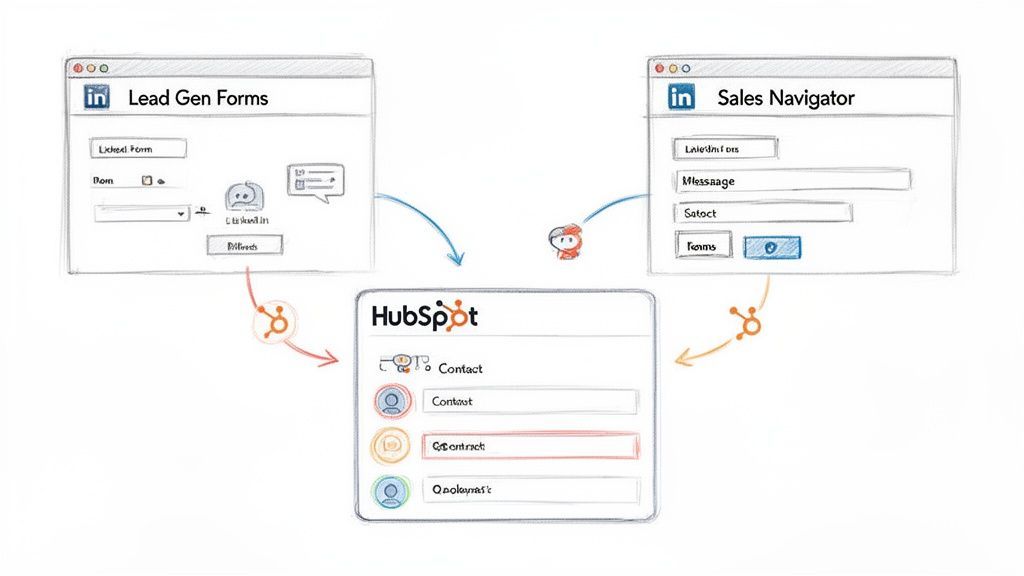
This diagram shows you exactly what's happening behind the scenes—data flows from your ads straight into HubSpot, creating contacts and kicking off automations without you lifting a finger.
Once you install the app, HubSpot will ask you to authorize the connection by logging into the LinkedIn account that manages your company's ad campaigns.
After that comes the most important part: field mapping. This is where you tell HubSpot exactly where to put the information your lead form collects.
- Standard Fields: Match obvious fields like
First Name,Last Name, andEmailto their corresponding HubSpot properties. - Custom Fields: If you ask custom questions (e.g., "What's your biggest marketing challenge?"), you need to create a matching custom property in HubSpot first to catch that answer.
- Hidden Fields: Use these to automatically stamp properties like
Lead Sourcewith "LinkedIn Ads" for clean attribution.
Pro Tip: Don't skip this. Always create a test lead form and submit it yourself after setting up the integration. This five-minute check ensures your mapping is correct and contacts land in HubSpot as expected before you put real ad spend behind it.
Activating the LinkedIn Sales Navigator Integration
While the Lead Gen Forms integration is built for marketers, the Sales Navigator connection is pure sales fuel. It does have some prerequisites: you'll need a Sales Hub Professional or Enterprise seat in HubSpot and a LinkedIn Sales Navigator Advanced Plus account. If you've got both, this integration brings a ton of LinkedIn insight directly into your HubSpot contact and company records.
Unlike the ads integration, this one is connected on a user-by-user basis. Each rep who wants to use it will need to connect it themselves from the HubSpot Marketplace, linking their personal Sales Navigator account to their HubSpot profile.
Once that’s done, a new "LinkedIn Sales Navigator" card appears on the right-hand panel of contact and company records.
Key Features of the Sales Navigator Integration
This native hookup adds several powerful widgets inside HubSpot, which means your reps spend less time flipping between browser tabs.
- View Profile Data: See a contact's LinkedIn job title, company, and how long they've been in their role, all without leaving the CRM. HubSpot cleverly uses the contact's name, email, and company to find the right profile.
- Send InMails Directly: A "Send InMail" button lets reps fire off messages from within HubSpot. The conversation is visible in the pop-up, but be aware: these messages do not automatically log to the contact's timeline.
- Find Related Leads: The "Related Leads" tab is a goldmine for account-based selling. It helps reps quickly spot other potential prospects at the same company, making it easy to map out an account.
- Leverage Icebreakers: This feature is brilliant for personalization. It surfaces shared connections, experiences, and interests, giving your reps the perfect angle for a cold outreach message that feels warm.
For company records, the integration pulls in key firmographic data like industry and employee count, plus tabs to find key people and see recent company news. It’s all about giving reps instant context to prep for calls and tailor their outreach. While powerful, remember this integration is focused on enriching existing HubSpot records, not creating new ones from scratch.

Find verified contact data on LinkedIn®
Add to CRM finds verified emails, phone numbers, and job titles on LinkedIn® — then adds them to your CRM in one click.
Start Free Trial


 Trusted by 2,500+ users4.7
Supercharge Your Workflow with Third-Party Tools
While HubSpot’s native integrations give you a solid starting point, they often leave sales teams wanting more, especially when it comes to the daily grind of prospecting. This is where third-party tools come in, turning a good workflow into a great one by unlocking speed and custom automation that native options just can't touch.
We'll look at two powerful methods that go beyond the basics. First up are middleware platforms that let you build unique, custom automations. Then, we’ll dive into specialized browser extensions built to make adding prospects to your CRM faster than ever before.
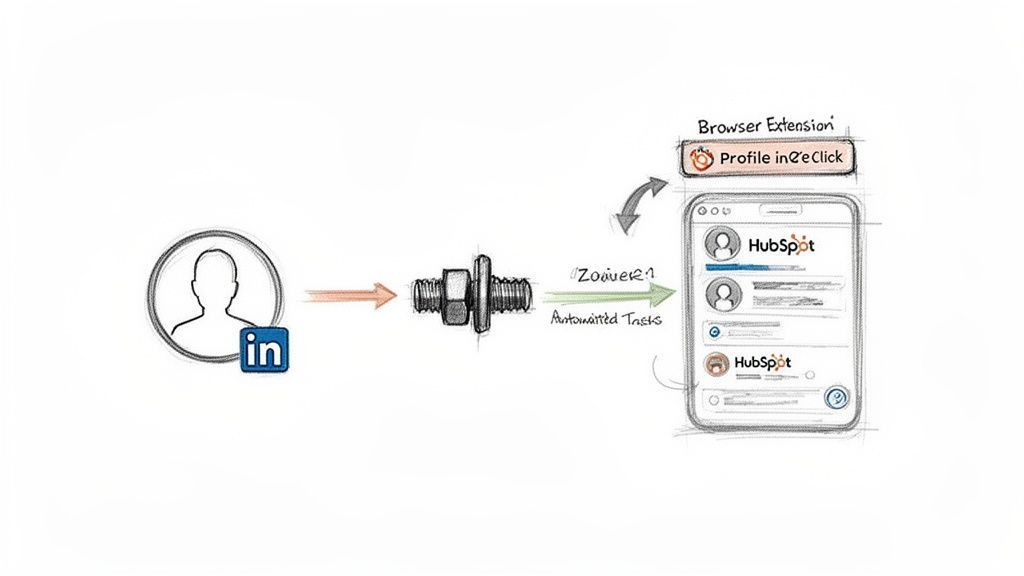
As you can see, these tools act as a powerful bridge. They turn manual actions on LinkedIn into automated updates in your CRM, saving your team a ton of valuable time.
Automating Custom Actions with Middleware
Platforms like Zapier and Make are the Swiss Army knives of the integration world. They connect thousands of apps, letting you create custom "if this, then that" recipes that fire off actions based on specific triggers. For a creative team, this opens up a world of possibilities for a truly tailored LinkedIn HubSpot integration.
Imagine your sales process requires an immediate follow-up task the moment a high-value prospect accepts your connection request. A native integration won’t help you there, but this is exactly where middleware shines.
You could build a simple automation where:
- The Trigger: A new connection is added on your LinkedIn account.
- The Action: Zapier or Make automatically creates a new task in HubSpot.
- The Details: The task gets assigned to the right sales rep with a 24-hour due date and includes a note like, "Follow up with [New Connection's Name] about our recent connection."
This isn't just about saving a few clicks; it's about building a systematic and repeatable process that ensures no opportunity falls through the cracks. It turns a manual checklist into an automated safety net for your sales pipeline.
The main limitation here is that middleware tools are often restricted by what LinkedIn's API allows. They are fantastic for triggering tasks but struggle to pull rich, detailed profile information like job history or specific skills directly into HubSpot. For that, you need a more specialized approach.
One-Click Prospecting with Browser Extensions
For pure prospecting speed, nothing beats a dedicated browser extension. These tools are designed to do one job and do it exceptionally well: get a prospect's information from their LinkedIn profile into your CRM as quickly and cleanly as possible. They sit right inside your browser, acting as a real-time bridge between platforms.
This approach solves the single biggest gap left by native integrations—the inability to easily grab prospects from standard LinkedIn or Sales Navigator profiles with a single click. For any team doing active outreach, this is a genuine game-changer.
Think about a typical SDR workflow. A rep finds a perfect lead on LinkedIn. Without an extension, they're stuck in a tedious cycle of copy-pasting the person's name, job title, and company into HubSpot, then manually checking for duplicates and enriching the record.
With a good extension, that entire sequence is condensed into a single click.
How Browser Extensions Transform Prospecting
These tools add an overlay directly onto LinkedIn profiles, giving you instant CRM context and functionality right where you work. Here’s what that looks like in practice:
- Instant Duplicate Detection: Before you even click "add," the extension scans your HubSpot account and flags if the contact already exists. This is the number one defense against a messy CRM.
- One-Click Contact Creation: One button press is all it takes. The extension automatically creates a new contact in HubSpot, pre-filling key fields like name, title, company, and location.
- Data Enrichment: Many extensions go a step further by finding and verifying the prospect's professional email address and phone number, adding that info directly to the new HubSpot record.
- Custom Field Mapping: You can make sure data from LinkedIn populates the exact HubSpot properties you need for reporting and segmentation, keeping your data hygiene perfect from day one.
This method delivers incredible time savings. It's not uncommon for teams to save 4+ hours per rep each week on manual data entry alone. For a deeper look at this technology, our guide on LinkedIn automation tools explores how these extensions can seriously boost your sales efforts.
Ultimately, these tools free up your team to focus on what they do best: building relationships and closing deals, not fighting with administrative tasks.
Data Management and Compliance: Keeping Your CRM Clean
A powerful integration is only as good as the data flowing through it. Without a clear strategy, your shiny new workflow can quickly turn your HubSpot portal into a messy, unreliable database. To make sure your LinkedIn HubSpot integration is a trusted asset, you have to focus on data hygiene and compliance from day one.
This isn't about setting restrictive rules; it's about building a solid foundation of clean, accurate data that your sales and marketing teams can actually depend on. Following a few key practices will save you from massive headaches down the road and ensure you get real value from every prospect you add.
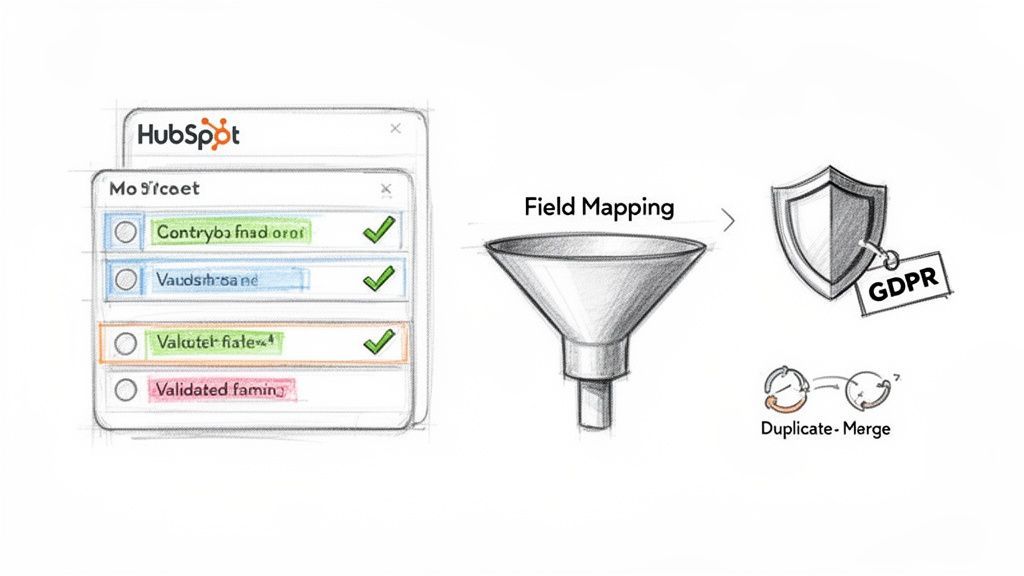
Nail Your Field Mapping Strategy
First things first: you need to tell your data where to go. Field mapping is simply the process of connecting specific data points from a LinkedIn profile to the right properties in HubSpot. Get this wrong, and you’ll end up with job titles in the "Company Name" field or a total mess in your custom properties. It happens more than you'd think.
Before you sync a single contact, map out your rules:
- Standard Properties: Make sure the basics like
First Name,Last Name, andCompany Namefrom LinkedIn line up perfectly with their default HubSpot counterparts. - Custom Properties: Do you track specific data like "Seniority Level" or "Industry Sub-category"? Create those custom properties in HubSpot first, then map the LinkedIn data straight to them.
- Data Formatting: Decide on a consistent format. Should all job titles be capitalized? Should country names be abbreviated? A little standardization goes a long way for clean reporting.
A thoughtful mapping strategy is your first line of defense against a chaotic database. It ensures that every piece of information you import is immediately useful for segmentation, personalization, and reporting.
Prevent and Manage Duplicate Contacts
Duplicates are the silent killer of CRM efficiency. They lead to embarrassing outreach mistakes ("Didn't I just talk to your colleague?"), skewed reporting, and a ton of frustration for your team. When you're adding contacts from multiple sources like LinkedIn, the risk of creating duplicates skyrockets.
Proactive prevention is always better than a reactive cleanup. Most quality third-party browser extensions have built-in duplicate detection that checks HubSpot in real-time before creating a new contact. This is a must-have feature that stops the problem at the source.
Of course, some duplicates will inevitably slip through. Your team needs a clear process for handling them. HubSpot’s own deduplication tool is a great start, but it's crucial to set a regular schedule for reviewing and merging records. For a deeper dive, you can learn how to merge duplicates effectively in our guide.
Uphold Data Privacy and GDPR Compliance
Adding prospect data to your CRM comes with serious responsibilities, especially under regulations like the General Data Protection Regulation (GDPR). The moment you add a contact from LinkedIn to HubSpot, you become the data controller—you're responsible for how that information is stored and used.
Your compliance checklist should include:
- Lawful Basis: You must have a legitimate reason for processing someone's data. For most B2B outreach, this is "legitimate interest," but you have to be ready to justify it.
- Data Minimization: Only collect the data you actually need. Resist the urge to pull in every single personal detail from a LinkedIn profile.
- Transparency: Be ready to tell contacts how you got their information and what you plan to do with it. Your first outreach message should be clear and provide an easy way to opt-out.
For founders, SDRs, and RevOps admins, staying on top of GDPR-compliant data hygiene is non-negotiable. It also saves a surprising amount of time—often 4+ hours weekly in administrative cleanup. This focus on efficiency is a big reason LinkedIn remains a B2B marketing powerhouse (59% effectiveness rate), where users favor short-form video and webinars for generating leads. By integrating and tracking this activity, you can better optimize your marketing spend.
Works with 29+ CRMs
Add to CRM finds verified emails, phone numbers, and job titles on LinkedIn® — then adds them to your CRM in one click.
Start Free TrialTrusted by 2,500+ users4.7Troubleshooting Common Integration Issues
Even the most reliable tech hits a snag now and then. When your LinkedIn and HubSpot integration suddenly goes on the fritz, it can throw your whole prospecting workflow into chaos. The good news? Most issues are pretty common and surprisingly easy to fix yourself, no support ticket required.
One of the most frequent frustrations is when leads from your LinkedIn Lead Gen Forms just stop showing up in HubSpot. Before you panic, check the simple stuff. Did the LinkedIn user who originally set up the integration change their password? Or maybe their permissions were adjusted? This is the #1 cause of a broken connection, hands down.
Another classic problem is seeing data land in the wrong place—like finding a job title filed under "Industry" in HubSpot. That’s a dead giveaway of a field mapping error. You'll need to pop back into your integration settings and make sure every field from LinkedIn is pointed to the right property in your CRM.
Diagnosing Connection and Data Sync Failures
Sometimes, the connection just seems to drop without any warning. This can happen with both the native integrations and third-party tools. Your first move should always be to just re-authenticate the connection.
For Native Integrations: Head over to the HubSpot App Marketplace, find the LinkedIn integration, and look for an option to reconnect or manage your settings. Often, simply logging out and back into your LinkedIn account through HubSpot will do the trick.
For Third-Party Extensions: Check the extension's settings panel right in your browser. Most have a clear status indicator (like a little green dot) and a button to re-establish the link to your HubSpot portal.
If a fresh login doesn’t fix it, permissions are the next place to look.
A user's access level in HubSpot can directly impact what an integration is allowed to do. If a team member can no longer create or edit contacts in HubSpot, the integration will fail for them. Double-check that they have the necessary permissions assigned to their role.
Finally, remember that APIs are always being updated. A change on either HubSpot's or LinkedIn's end can temporarily mess with the flow of data. Before you spend hours trying to fix a problem that isn't on your end, check the tool’s official status page or community forums for any announcements about maintenance or known issues.
Got Questions? We've Got Answers
Even with the best guides, a few common questions always seem to pop up. Here are the quick, no-nonsense answers to the things people usually ask about connecting LinkedIn and HubSpot.
Can I Just Sync All My LinkedIn Connections to HubSpot at Once?
In short, no. LinkedIn’s rules are pretty strict here—they don't allow for a bulk export of your personal connections directly into a CRM. It's a measure to protect user privacy and cut down on spam.
You can, however, add connections one by one using a third-party browser extension. This is a much more intentional approach, ensuring you’re only adding relevant prospects to your CRM. Some middleware tools can also create a task in HubSpot when you connect with someone new, but they won't pull in all their profile details automatically.
Does This Integration Work with a Free LinkedIn Account?
It really depends on which method you're using.
- The official LinkedIn Lead Gen Forms integration requires an active LinkedIn Ads account.
- HubSpot’s native Sales Navigator integration needs a paid Sales Navigator plan (specifically, Advanced Plus).
But if you're using a free, standard LinkedIn account, you're not out of luck. Many third-party browser extensions are built to work perfectly with the free version. They let you grab profile info and create new HubSpot contacts without needing a pricey LinkedIn subscription, making them a super flexible option.
How Do I Stop Creating Duplicate Contacts in HubSpot?
Keeping your CRM clean is non-negotiable, and duplicates are the enemy. Luckily, HubSpot’s native integration for Lead Gen Forms is smart enough to use email addresses to automatically deduplicate any new leads that come in.
For prospecting and adding contacts manually, the best browser extensions have built-in duplicate detection.
These tools will check HubSpot in real-time and flash a warning if a contact with the same name, email, or company already exists—before you hit "create." As a golden rule, get your team in the habit of always searching for a contact before adding a new one. It's the simplest way to keep your data pristine.
Stop wasting hours on manual data entry. Add to CRM is a Chrome extension that adds any LinkedIn profile to HubSpot in one click, complete with enriched data and duplicate checks. Save your team 4+ hours per week and start prospecting faster. Get started for free on https://addtocrm.com.
Start saving time and closing more deals.
Find verified contact info for your prospects on LinkedIn®, Gmail and Outlook — and add them to your CRM with 1-click.

 Loading...Trusted by 2,500+ founders, SDRs & more