CRM Integration With Gmail Your Guide to Better Sales Workflows
Unlock peak sales productivity with our guide to CRM integration with Gmail. Learn to automate workflows, sync data seamlessly, and close deals faster.
A solid CRM integration with Gmail is your ticket out of the tedious, error-prone world of manually copying contact info from your inbox. It’s not just a connector; it embeds your CRM’s most important functions right into the Gmail interface you already know and love, turning your email into the true hub for all sales activity.
Why Your Sales Team Is Wasting So Much Time
Let’s be real. The constant tab-switching between Gmail and your CRM is a silent productivity killer.
Every time a sales rep manually highlights a name, email, and company from a signature, a little piece of their focus dies. Over a week, those tiny moments add up to hours of wasted time—hours that could have been spent on what actually moves the needle: talking to customers and closing deals.
This friction isn't just about lost time; it's about lost data and missed opportunities. When conversations live in Gmail and contact details live in the CRM, the risk of embarrassing mistakes skyrockets. Imagine a rep following up with a lead, completely clueless that a colleague had a critical conversation with them yesterday. This disjointed approach creates incomplete contact records, dropped follow-ups, and a messy, fragmented view of the customer.

The Real Cost of Manual Data Entry
Manual data entry doesn't just drain your team's energy; it actively poisons your pipeline. I’ve seen these scenarios play out countless times:
- Incomplete Lead Profiles: A prospect mentions a key decision-maker in an email, but that gold nugget never makes it to the CRM. The next rep who engages has zero context and looks unprepared.
- Delayed Follow-ups: An SDR has to finish their current task, switch tabs, find the right contact, log the interaction, and then set a reminder. That small delay can be the difference between a warm lead and a cold one.
- Duplicate and Dirty Data: Typos happen. Someone enters "Jon Smith" instead of "John Smith," instantly creating a duplicate record and polluting your entire database.
This problem is only getting bigger. Gmail isn't going anywhere—it dominates with over 2.5 billion active users, and something like 90% of U.S. startups run their business on it. By failing to integrate where your team already spends their day, you’re just building unnecessary bottlenecks into your process.
To give you a clearer picture, here’s what daily life looks like for a sales team before and after they get this right.
Daily Sales Tasks Before and After Gmail CRM Integration
| Sales Task | The Old Way (Manual Process) | The New Way (Integrated Workflow) |
|---|---|---|
| Adding a New Lead | Open CRM in new tab. Copy-paste name, email, company. Hope for no typos. | Click "Add to CRM" button inside Gmail. Done in 2 seconds. |
| Logging an Email | Forward email to CRM BCC address or copy-paste the content into a note. | Email is automatically logged to the contact record. No clicks needed. |
| Scheduling a Follow-Up | Switch to CRM. Find contact. Create task. Set due date. Switch back to Gmail. | Create task directly from the Gmail sidebar while reading the email. |
| Checking Contact History | "Hold on, let me check the CRM..." (Switches tabs, searches, scrolls). | All past emails, notes, and deals are visible in the Gmail sidebar. |
| Updating a Deal Stage | Open CRM. Find the deal. Update the stage. Add a note. | Change the deal stage from a dropdown in the Gmail sidebar. |
This isn't just about small conveniences; it's a fundamental shift in how your team operates, freeing them up to focus on high-value work instead of tedious admin.
A CRM is supposed to be the single source of truth. But when your team's main communication tool isn't connected to it, you end up with two competing, incomplete sources of truth. And that helps no one.
The solution is to bring the CRM to the inbox. A proper CRM integration with Gmail transforms a simple messaging app into a context-aware sales machine. It lets your team see CRM data, add new contacts, and log activities without ever leaving their workflow.
This unified system kills the friction, guarantees data accuracy, and gives your team back their most valuable asset: time. If you're new to this, you can learn more about how to use CRMs effectively in our detailed guide.
Laying the Groundwork for a Flawless Integration
Jumping into any tech project without a solid plan is a recipe for failure, and a CRM integration with Gmail is no different. Before you connect a single thing, you have to get brutally honest about what you're trying to achieve. Vague goals like "improve efficiency" just won't cut it.
You need to get specific and measurable. Your objectives should sound a lot more like this:
- Slash new lead entry time from 5 minutes of manual copy-pasting down to 30 seconds with a one-click tool.
- Bump follow-up response rates by 25% by making sure every single email is logged and visible to the whole team.
- Push data accuracy to 95% by killing manual typos and standardizing how you capture info.
These kinds of clear targets give you a real benchmark for success. They ensure the project delivers tangible value right out of the gate.
Audit Your Current Data and Processes
Once your goals are locked in, it’s time to look inward. You can't build a clean, automated system on a foundation of messy data. Trying to migrate a disorganized mess of duplicated or incomplete contacts will only pour gasoline on your existing problems.
Start by auditing your current CRM and sales processes. Ask the tough questions: How many duplicate contacts are lurking in our system right now? Do we have standard naming conventions for deals and companies? Are reps actually logging their activities, or is the data full of holes?
Understanding your starting point is non-negotiable for a smooth transition. For RevOps teams looking to get a handle on this, the right tools can be a game-changer. You can find out more about how certain Chrome extensions can help manage CRM data right from your browser.
A successful integration isn't just about connecting two platforms; it's about connecting them with a clear purpose. Without stakeholder alignment, even the best technology will fail to get adopted.
Get Everyone on the Same Page
Ultimately, tech projects fail because of people, not software. Before you flip the switch, you need total buy-in from the sales team on the front lines and the management team signing the checks.
Be crystal clear about the upcoming changes and—more importantly—the benefits. Show your SDRs how the new workflow will save them hours of soul-crushing data entry each week. Demonstrate to managers how real-time data visibility leads to more accurate forecasting and better coaching opportunities.
When everyone understands the "why" behind the change, they stop being resistant observers and become active participants. This proactive alignment is what ensures your new CRM integration with Gmail runs smoothly, gets adopted fast, and starts delivering immediate, measurable value to your business.

Find verified contact data on LinkedIn®
Add to CRM finds verified emails, phone numbers, and job titles on LinkedIn® — then adds them to your CRM in one click.
Start Free Trial


 Trusted by 2,500+ users4.5
Connecting Your CRM and Gmail The Right Way
With your strategy locked in, it’s time to actually connect your CRM and your inbox. This is where the planning stops and the real work begins, and the technical "handshake" you choose is a huge deal for both security and reliability down the line.
A lot of older or simpler tools still run on basic API keys. You can think of an API key as a simple password that gives a program access to your data. It works, sure, but it’s a bit like leaving a key under the doormat—if someone finds it, they have full access. It's a risk, and that’s why modern, trusted platforms have moved to a much safer standard.
Understanding OAuth 2.0 vs. API Keys
Today, the gold standard for this kind of connection is OAuth 2.0. Instead of a static, vulnerable password, OAuth uses a secure, token-based process. It lets one app (like a Gmail extension) talk to another (your CRM) without ever sharing your actual login details.
This method is far superior for any CRM integration with Gmail because it gives you pinpoint control. You can grant specific permissions—and, more importantly, revoke them anytime.
From Email Signature to CRM Record in One Click
Let's walk through a real-world example. A hot new lead, Sarah, pings your inbox. Her email signature is a goldmine: name, title, company, and phone number.
The old way? Meticulously highlighting, copying, and pasting each field into your CRM. It’s slow, tedious, and a perfect recipe for typos.
But with a proper integration, you just click a single "Add to CRM" button right inside Gmail. The tool intelligently parses the signature, instantly grabbing "Sarah," "VP of Marketing," and her company details. It then pops up a clean, pre-filled contact form, ready to save. What used to take minutes now takes seconds.
The process below visualizes the groundwork—Define, Audit, and Align—that makes these one-click actions not just possible, but effective.
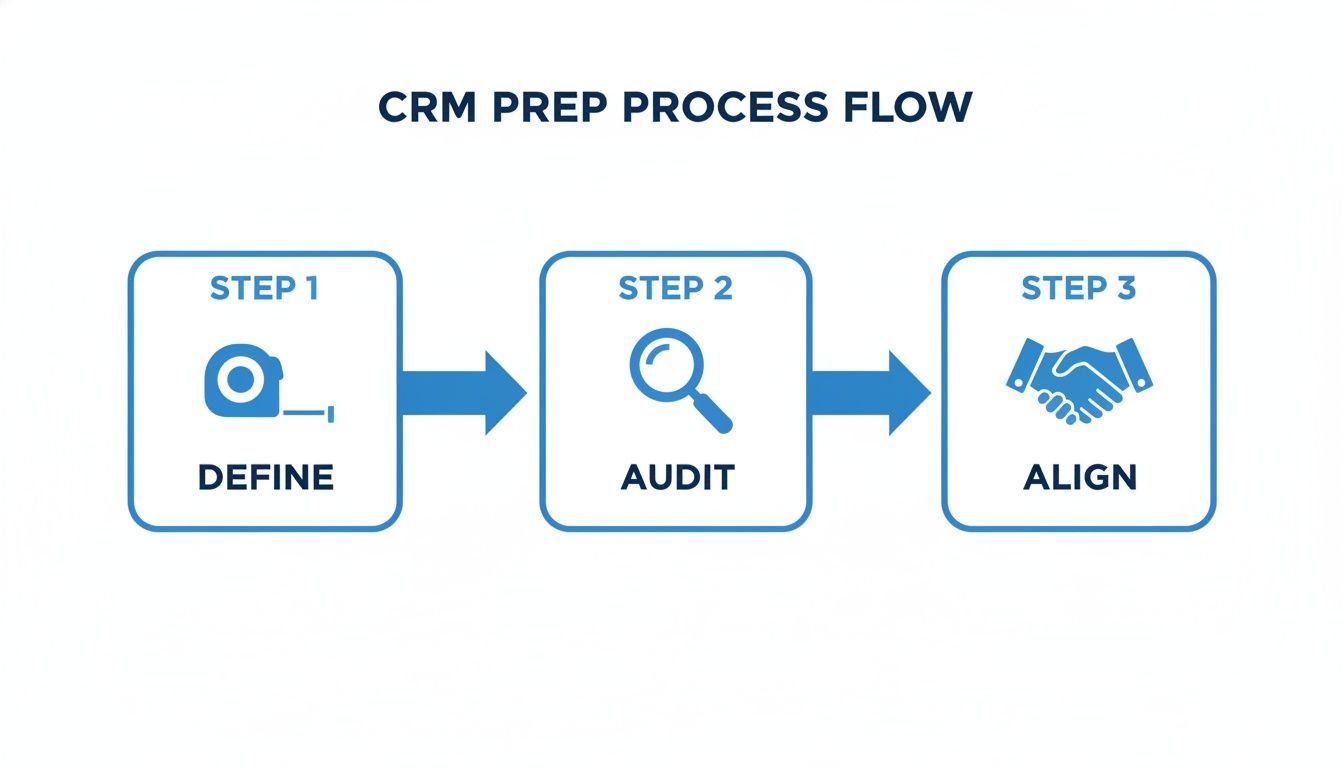
This highlights a key point: a great integration doesn't start with the tech. It starts with a clean house and clear goals.
The Critical Role of Field Mapping
Grabbing the data is just step one. You need to make sure it lands in the right place, and that’s where field mapping is essential. This is simply the process of telling your integration where to put each piece of information.
For example, you map the "Company" from the email signature to the "Account Name" field in your CRM. You make sure "Title" goes straight to the "Job Title" field. It sounds basic, but getting this right is non-negotiable for keeping your data clean and usable.
A great integration doesn't just dump data; it organizes it. Proper field mapping ensures that the information you capture is immediately actionable for your sales team, fueling workflows and accurate reporting.
This kind of clean data is more valuable than ever. The global CRM software market is projected to blow past $112 billion and more than double to $262 billion by 2032. This explosive growth is fueled by the 87% of businesses that have already moved to cloud-based CRM platforms. You can dig into more of these CRM market insights and statistics on Kixie.com.
Preventing Duplicates and Enriching Data
The last piece of a truly smart connection is building in some intelligence. A good tool won't just blindly add new contacts; it will check if they already exist first.
Think about adding Sarah from our earlier example. A smart integration will automatically search your CRM for her email address. If it finds a match, it will prompt you to update the existing record instead of creating a messy duplicate. Problem solved.
The best tools even go a step further with data enrichment. After capturing the basics, the system can automatically pull in other key details like company size, industry, or even social media profiles. This turns a simple contact into a rich lead profile without any extra work on your part, transforming your integration from a simple connector into an intelligent pipeline-building machine.
For those managing more technical setups, our guide on how to find API keys for various integrations might come in handy.
Supercharging Your Sales with Smart Automation
Once you've connected your systems, the real magic of a CRM integration with Gmail begins with smart automation. This is where you graduate from simply creating contacts to building an efficient sales machine that shaves hours off your team's manual, repetitive workload.
You're essentially transforming your inbox from a reactive tool for just answering messages into a proactive engine for driving revenue. By setting up smart workflows, you can make sure no lead ever falls through the cracks and your sales team stays laser-focused on the highest-impact activities.
Triggering Actions Based on Prospect Emails
Let's walk through a real-world scenario. A hot prospect sends an email with the subject line, "Pricing info for your pro plan." Without automation, that email just sits there until a sales rep gets around to it, manually switches over to the CRM, and creates a task to follow up. Precious time is lost.
With smart automation, you can build a trigger that instantly spots keywords like "pricing info" or "demo request." The second that email lands, your integration can:
- Automatically create a high-priority task in your CRM.
- Assign the task to the right sales rep based on territory rules.
- Set a due date for the same day to ensure a lightning-fast response.
This single workflow guarantees your hottest leads get immediate attention, dramatically slashing your speed-to-lead time without anyone lifting a finger.
Building a Perfect Communication History
Another huge win is automatically logging every single email you send and receive. When a rep sends out a proposal or just answers a quick question, that entire conversation is instantly and silently synced to the contact's record in the CRM.
This creates a complete, real-time communication timeline that's accessible to your whole team. A customer success manager can instantly see the full sales history, and a sales leader can review interactions without having to bug their reps for forwarded emails. It completely tears down information silos and gives everyone the full context, every time.
The goal of automation isn't just to do things faster; it's to create a system that intelligently manages a prospect's journey. When your sequences can adapt to real human behavior, you're not just sending emails—you're having a conversation.
Advanced Automation Tactics for RevOps
Beyond basic logging and task creation, you can roll out more advanced plays that directly pump up your pipeline.
- Lead Scoring from Email Engagement: Set up rules that bump up a lead's score based on how they interact with your emails. If they open a message three times or click a link to your pricing page, their score automatically jumps, flagging them as a highly engaged prospect for the sales team.
- Intelligent Email Sequences: Create automated nurture sequences that are smart enough to stop on their own. For instance, if a prospect replies to any email in the sequence, the automation automatically pauses. This prevents those awkward, robotic overlaps and lets a sales rep jump in with a personal response.
The impact here is massive. Research shows that automated email campaigns managed through a CRM see open rates 52% higher and click-through rates 332% higher than standard emails. Even more impressively, conversion rates for these campaigns can be over 2,300% higher, turning your email marketing into a true revenue driver. You can dig into more of these stats on the power of email automation on amraandelma.com.
These are the kinds of automations that turn your CRM integration with Gmail from a simple convenience into a core pillar of your entire sales and revenue operations strategy.
Keeping Your Customer Data Secure and Compliant
Let's be blunt: when you connect your CRM and your inbox, you're mixing sensitive customer information across two major platforms. This makes security a non-negotiable, foundational piece of your CRM integration with Gmail. A slip-up here isn't just embarrassing; it can be incredibly expensive. GDPR fines, for instance, can hit 4% of your global annual revenue.
This all starts with controlling who sees what. You wouldn't hand every employee a master key to the building, and the same logic applies to your data.
Implement Granular User Permissions
The principle of least privilege is your best friend. It’s a simple idea: each person on your team should only have access to the data they absolutely need to do their job. Nothing more.
A properly configured integration lets you get really specific with these permissions. For example:
- Sales Reps: They can view and edit the contacts and deals they personally own. This is crucial for preventing them from accidentally stepping on a colleague's pipeline or seeing information they don't need.
- Sales Managers: They get a wider view, letting them see their entire team's activity. This is essential for monitoring performance, forecasting, and coaching effectively.
- RevOps Admins: They hold the keys to the kingdom—full administrative access to manage the integration itself, tweak field mappings, and run system audits.
This tiered approach dramatically cuts down the risk of both accidental data loss and intentional misuse. It’s about making sure sensitive information stays in the right hands.
A secure integration isn’t just about keeping bad actors out. It’s about ensuring the right people have the right level of access internally. Solid permissions are the bedrock of a responsible data strategy.
Maintain Compliance with GDPR and CCPA
Data privacy laws like Europe's GDPR and California's CCPA aren't just suggestions—they are strict, legally binding requirements. A good CRM integration with Gmail actually becomes a powerful tool for staying on the right side of these regulations.
When you automatically log every email, you're creating a centralized, auditable record of all your customer interactions. This is a game-changer for proving consent and handling data subject access requests (DSARs). If a customer asks for a copy of their data, you can pull a complete history right from the CRM instead of digging through dozens of individual inboxes.
On a technical level, any integration handling personal data absolutely must use robust data encryption. This applies both in transit (while data is moving between Gmail and your CRM) and at rest (when it's stored on servers). Regularly auditing your access logs is another critical habit. It lets you see who is accessing what data and when, adding another layer of accountability.
This proactive approach means your team can work efficiently without ever putting your security posture or regulatory duties at risk.
Works with 29+ CRMs
Add to CRM finds verified emails, phone numbers, and job titles on LinkedIn® — then adds them to your CRM in one click.
Start Free TrialTrusted by 2,500+ users4.5Got Questions? We've Got Answers
Even the slickest integration strategy comes with a few "what ifs." It's totally normal. Getting straight answers to common questions is the fastest way to get past the technical setup and back to what actually matters: selling smarter.
Here are the questions we hear most often from teams connecting Gmail to their CRM for the first time.
What's the Difference Between a Native Integration and a Third-Party Connector?
Think of a native integration as something purpose-built for the job. It’s created by your CRM provider or a specialist tool (like us) to live inside a specific environment, like Google Workspace. The connection is deep, fast, and feels like it’s part of the app because it was designed that way from day one.
A third-party connector, on the other hand, is more like a universal adapter. It acts as a go-between for two systems that weren’t built to talk to each other. They’re flexible, for sure, but that translation layer can sometimes introduce small delays or lack the polished, in-app features of a truly native solution.
Will This Actually Slow Down My Gmail?
This is probably the number one concern we hear, and it's a fair one. The good news is that modern, well-designed integrations are incredibly lightweight. All the heavy lifting—the data processing and syncing—happens on the server, not in your browser.
The little sidebar or add-on you see in Gmail should have zero noticeable impact on its speed. The only time you might see a slowdown is if you're running dozens of browser extensions at once, which can sometimes cause conflicts. It's always a good idea to do a little spring cleaning and disable any extensions you're not using anymore.
A great integration feels like a natural part of the application it lives in. It should enhance your workflow, not get in the way. The goal is to be invisible yet indispensable.
How Do I Keep My Personal Emails Out of the CRM?
Nobody wants their lunch plans with a friend accidentally logged against a multi-million dollar sales deal. Professional-grade integrations are built with this exact problem in mind, giving you total control over what data goes where.
Typically, you get a couple of options:
- Manual Control: You decide what gets logged, email by email. A simple "Add to CRM" button lets you push only the relevant business conversations.
- Smart Rules: You can set up automation to only sync emails to or from specific company domains, while automatically ignoring anything from personal addresses like @gmail.com or @yahoo.com.
This keeps a clean, clear line between your work life and your personal life.
Can I Sync My Google Calendar and Contacts, Too?
Yes, and you absolutely should. A true CRM integration with Gmail is more than just email—it's about creating a single source of truth for every customer touchpoint.
Syncing your Google Calendar automatically logs your meetings as activities in the CRM, attaching them to the correct contact or opportunity record without you lifting a finger. Likewise, syncing Google Contacts keeps your databases perfectly aligned, so you never have to wonder which system has the most up-to-date phone number. It’s all about building that complete 360-degree view of your customer.
Ready to stop wasting time on manual data entry? Add to CRM is the one-click Chrome extension that connects Gmail to your CRM, letting you create and enrich contacts without ever leaving your inbox. Try it for free and see how much time you can save.
Start saving time and closing more deals.
Find verified contact info for your prospects on LinkedIn®, Gmail and Outlook — and add them to your CRM with 1-click.

 Loading...Trusted by 2,500+ founders, SDRs & more