How to Import Contacts into Capsule CRM
Learn how to seamlessly import contacts into Capsule CRM with our comprehensive guide. Boost your productivity and manage your relationships effectively.
Sync leads from professional networks to Capsule CRM.
Save 4hrs per week on CRM data entry.
Learn more...Free Capsule CRM integration
Getting started with Capsule CRM or migrating from another platform? Whether you’re new to Capsule or simply updating your existing database, importing contacts and opportunities is an essential part of keeping your CRM up-to-date.
In this guide, we’ll provide step-by-step instructions on how to import your contacts and opportunities from spreadsheets, highlight key data hygiene practices, and explore third-party tools that can simplify the process.
Preparing Your Data for Import
Properly formatting your data before importing into Capsule CRM can save time and reduce errors.
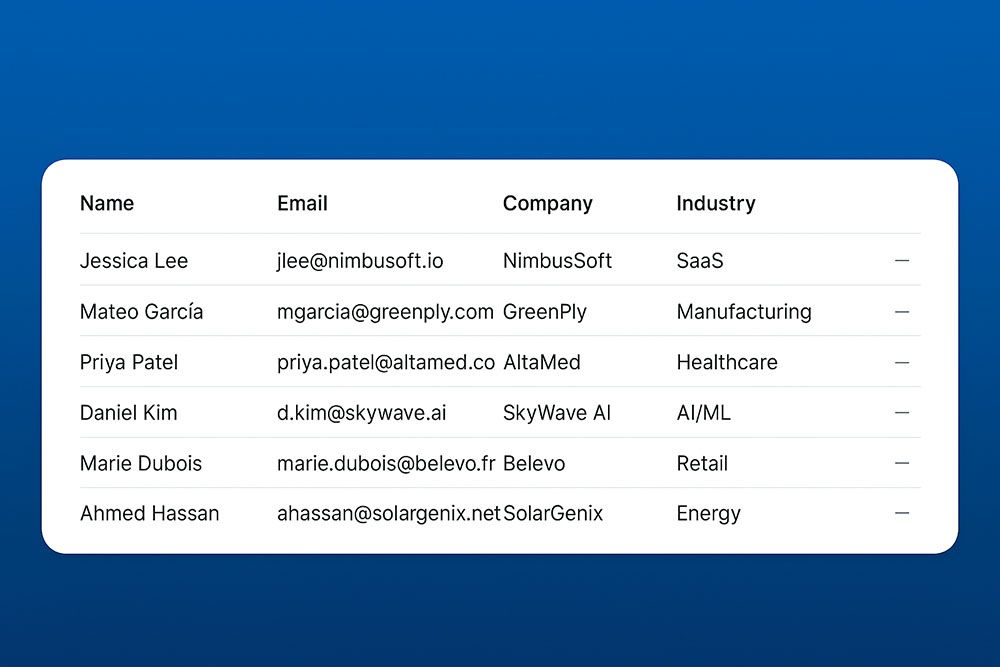
Data Hygiene Tips
Review your data:
Ask yourself: Do you need to import all existing contacts and opportunities? Exclude outdated or irrelevant data to keep your CRM clean.Format your spreadsheet:
Use column headers that match Capsule’s fields:- For contacts: Include fields such as First Name, Last Name, Email, Phone Number, Address, and Organization.
- For opportunities: Ensure fields like Opportunity Name, Pipeline, Milestone, Expected Close Date, and Value are properly labeled.
Custom Fields:
If you have specific data not covered by Capsule’s default fields, create custom fields before importing. Only system administrators can create custom fields.Check for duplicates:
Capsule offers an option to handle duplicate entries during import. Decide whether you want to update existing records or skip duplicates.
Importing Contacts into Capsule CRM
Once your data is ready:
- Log in to Capsule CRM.
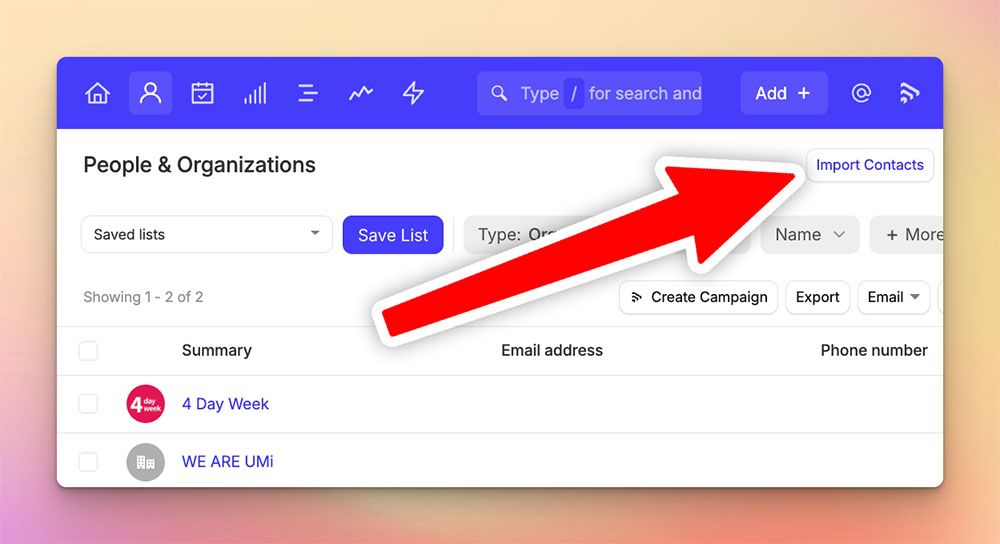
- Go to the "People and Organizations" page and click "Import Contacts " in the top right
- Select ‘Contacts’ and upload your CSV or Excel file.
- Map your columns to Capsule’s fields. You can also create new custom fields at this stage.
- Preview the data to ensure everything looks correct.
- Click ‘Import Now’. Capsule will notify you via email once the import is complete.
Importing Opportunities into Capsule CRM
Before importing opportunities, make sure your contacts have already been imported. Capsule requires each opportunity to be linked to an existing contact.
Steps to import opportunities:
- Click ‘Add +’ and select ‘Import’.
- Choose ‘Opportunities’ and upload your prepared spreadsheet.
- Map your fields, ensuring the Contact Name or ID field correctly links opportunities to existing contacts.
- Handle duplicates:
- Import all as new opportunities.
- Ignore duplicates.
- Update existing opportunities by including the Opportunity ID in your file.
- Preview your data and click ‘Import Now’.

Skip the CSV. Import contacts to Capsule CRM from LinkedIn®
Add to CRM enriches LinkedIn® profiles with verified emails and phone numbers, then syncs them to Capsule CRM instantly.
Start Free Trial


 Trusted by 2,500+ users4.7
Migrating Contacts from Google Sheets or Google Contacts
If you’re using Google tools, Capsule makes it easy to migrate your data.
Exporting from Google Sheets
- Open your spreadsheet in Google Sheets.
- Click ‘File > Download > Comma-Separated Values (.csv)’.
- Follow the contact import steps outlined above.
Exporting from Google Contacts
- Go to Google Contacts and select the contacts you want to export.
- Click the three-dot menu and choose ‘Export’.
- Select ‘Outlook CSV’ and download the file.
- Follow the contact import steps to upload the data into Capsule.
Importing from LinkedIn
For users who prefer automation or require frequent data synchronization, third-party tools can streamline the import process.
Add to CRM is a powerful third-party tool designed specifically for Capsule CRM users. It allows you to:
- Import contacts directly from LinkedIn into Capsule with one click.
- Sync data from other sources into Capsule without manual formatting.
- Save time by reducing repetitive tasks and ensuring data accuracy.

If you’re managing a large number of contacts and opportunities or regularly updating your database, Add to CRM can be an invaluable tool.
Best Practices for a Successful Import
Test with a small batch:
Import a small sample of data first to ensure everything is correctly mapped and formatted.Use tags for segmentation:
Apply tags during import to categorize your contacts for better organization and targeted outreach.Break up large files:
For large datasets, consider splitting them into smaller files to prevent errors and speed up the import process.Review your data post-import:
Once your data is imported, double-check key records for accuracy.
Verified emails, straight into Capsule CRM
Add to CRM enriches LinkedIn® profiles with verified emails and phone numbers, then syncs them to Capsule CRM instantly.
Start Free TrialTrusted by 2,500+ users4.7Conclusion
Importing contacts and opportunities into Capsule CRM is straightforward if you follow the right steps. By preparing your data carefully, using Capsule’s built-in import tools, and leveraging third-party solutions like Add to CRM, you can keep your CRM clean, organized, and ready for action.
Happy importing!
How to import contacts into Capsule CRM directly from LinkedIn®, Gmail and Outlook

 Capsule CRM Integration
Add contacts to Capsule CRM from LinkedIn®
Enrich profiles with verified emails and phone numbers. Sync to Capsule CRM in one click.
Try Capsule CRM Extension7-day free trial · Cancel anytime
Save 4+ hrs / week on Capsule CRM data entry.
Find verified contact info for your prospects on LinkedIn®, Gmail, Outlook & company websites. Add them to your Capsule CRM with 1-click.
 Loading...Trusted by 2,500+ founders, SDRs & more