How to Import Contacts into ActiveCampaign
Learn how to import contacts into ActiveCampaign with our comprehensive guide. Enhance your marketing strategy and boost engagement now!
Sync leads from professional networks to ActiveCampaign.
Save 4hrs per week on CRM data entry.
Learn more...Free ActiveCampaign integration
Importing contacts into ActiveCampaign is a critical step in setting up your marketing and sales automation. Whether you’re migrating from another platform or starting fresh, this guide will walk you through the process of importing contacts via CSV files and API, ensuring a smooth and error-free experience.
Preparing Your CSV File for Import
Before importing, ensure your CSV file is correctly formatted to avoid errors:
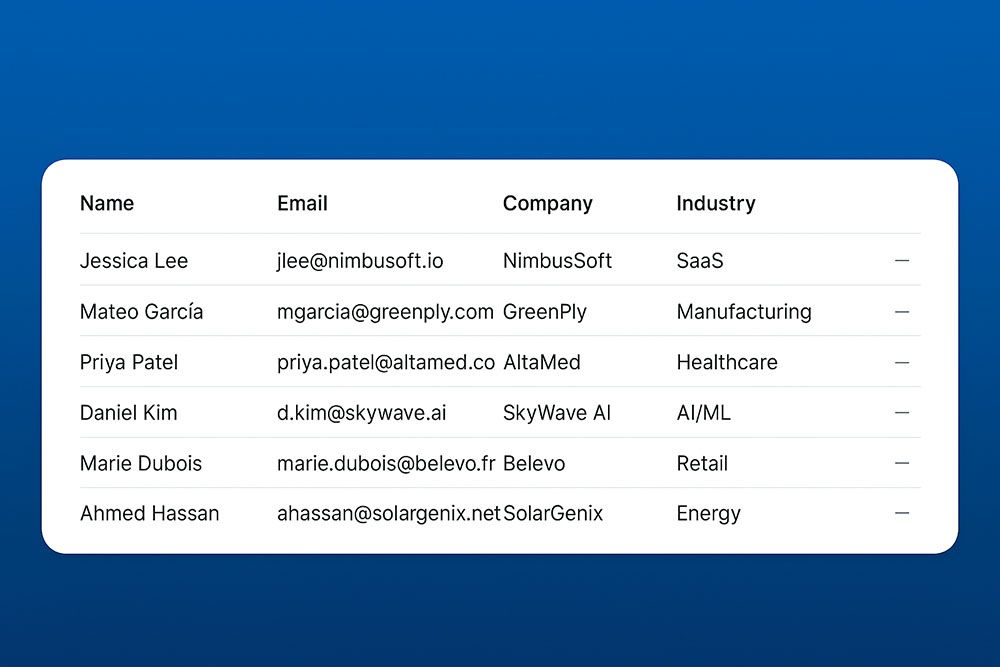
File Format:
- Save your contact list as a CSV file. Other formats like Excel files must be converted to CSV.
Required Fields:
- Each contact must have an email address.
- Ensure there are headers for each column, such as “First Name,” “Last Name,” and “Email.”
Field Formatting:
- Use the proper date format: YYYY-MM-DD.
- For tags, separate multiple tags with commas.
- For fields with multiple values (like checkboxes), use the double-pipe (||) delimiter.
Remove Unnecessary Data:
- Delete any empty rows or columns.
- Ensure there are no line breaks or emojis in the fields.
For more details on how to prepare your CSV file, check out ActiveCampaign’s guide on preparing CSV files.
Importing Contacts from a CSV File
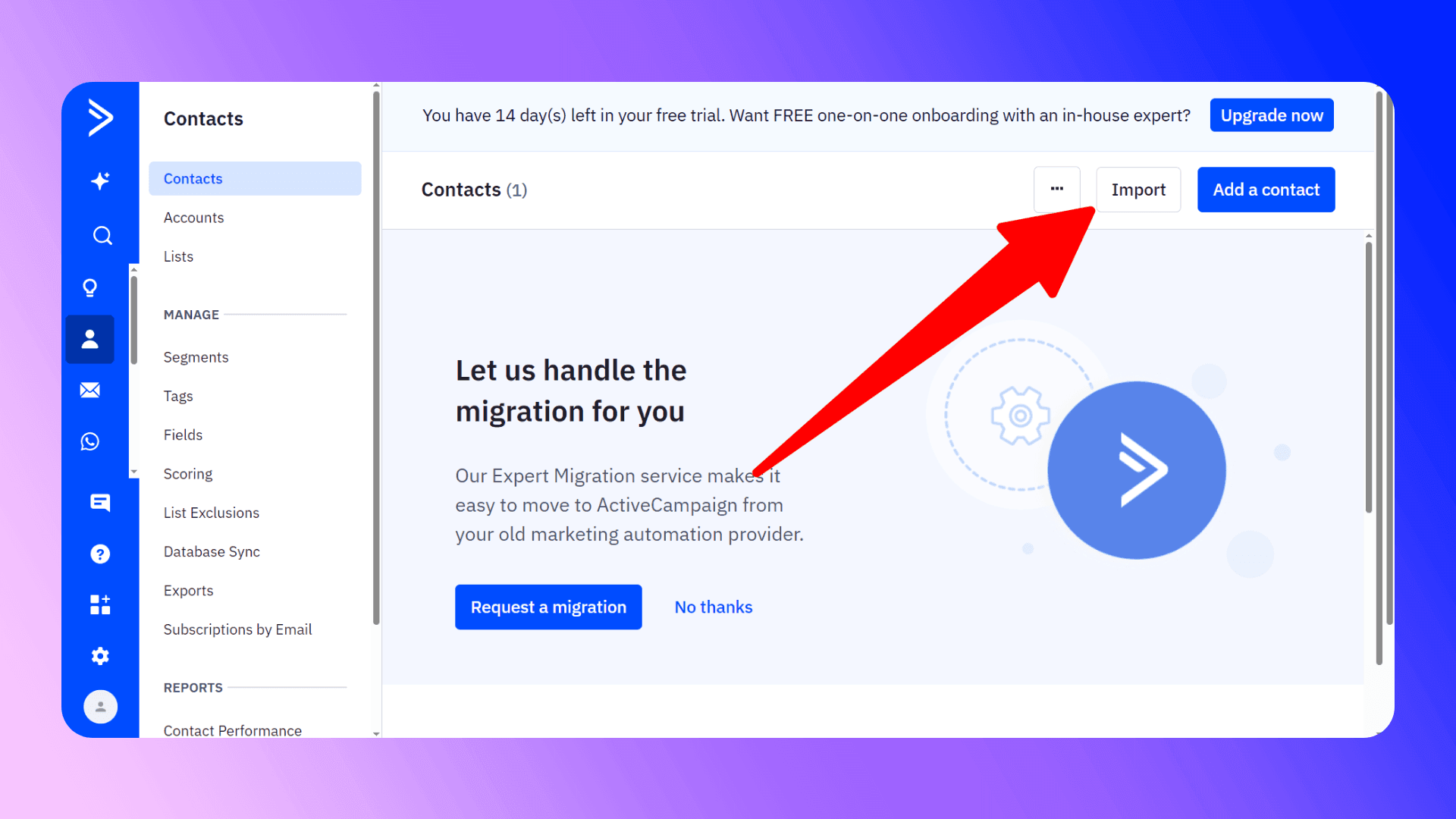
Follow these steps to import your CSV file:
Access the Import Tool:
- Log in to your ActiveCampaign account.
- Click “Contacts” in the left-hand menu.
- Click the “Import” button, then select “Import from File.”
Upload Your File:
- Choose your prepared CSV file.
Map Fields:
- Map the columns from your file to the fields in ActiveCampaign. If a column doesn’t match an existing field, you can create a new custom field directly from the import screen.
- Ensure no fields are mapped twice to avoid errors.
Select Lists and Tags (Optional):
- Choose the list(s) to which you want to add the contacts.
- Add tags to help categorize the imported contacts. Tags can indicate the source of the contacts for easier segmentation later.
Import Options:
- Choose how to import the contacts:
- Import as Contact: Adds the contacts to your account without assigning them to a list.
- Import as Active Contact: Adds the contacts to a selected list with an “Active” status.
- Import as Unsubscribed Contact: Adds the contacts with an “Unsubscribed” status.
- Import as Excluded: Adds the contacts to your exclusion list.
Advanced Options (Optional):
- Trigger Automations: Decide whether imported contacts should trigger automations. Turn this off if you don’t want automations to start upon import.
- Trigger Webhooks: Configure webhook triggers for the import.
- Update Existing Contacts: Check this box to update existing contacts with new information from the import.
Start the Import:
- Click “Import Now” to begin.
For a detailed walkthrough, visit ActiveCampaign’s CSV import guide.
Importing Contacts via API
For advanced users and developers, ActiveCampaign provides an API endpoint to import and sync contacts programmatically. This is ideal for integrating contact management with your existing systems.
Steps to Import via API
Create an API Key:
- Go to your ActiveCampaign account settings.
- Navigate to the “Developer” section and generate an API key.
Use the API Endpoint:
- Method: POST
Request Format:
{
  "contact": {
    "email": "johndoe@example.com",
    "firstName": "John",
    "lastName": "Doe",
    "phone": "123-456-7890",
    "tags": "imported,api"
  }
}
Response Handling:
- A successful import returns a 201 status code.
- Handle errors such as 404 (not found) and 422 (unprocessable entity) in your integration.
For complete API documentation, refer to ActiveCampaign’s API reference.

Skip the CSV. Import contacts to ActiveCampaign from LinkedIn®
Add to CRM enriches LinkedIn® profiles with verified emails and phone numbers, then syncs them to ActiveCampaign instantly.
Start Free Trial


 Trusted by 2,500+ users4.5
Importing from LinkedIn
If you frequently gather leads from LinkedIn or other online sources, consider using third-party tools like LinkActive, our Chrome extension for ActiveCampaign. With LinkActive, you can:
Get Verified Email Addresses:
- Collect verified contact information directly from LinkedIn profiles.
Add Contacts in One Click:
- When viewing a LinkedIn profile, click the “Add to CRM” button to instantly create a new contact in ActiveCampaign.
Save Time:
- Eliminate manual data entry and streamline your contact management process.

Learn more about LinkActive and how it can improve your workflow.
Best Practices for Importing Contacts
Start Small: Test the import process with a small batch of contacts (5-10) to ensure everything works as expected.
Use Tags: Apply tags during import to segment your contacts easily.
Break Up Large Files: If your contact list is large, break it into smaller files to speed up the import process and reduce errors.
Check for Duplicates: Ensure your list is free from duplicates before importing. ActiveCampaign matches contacts by email address.
Verified emails, straight into ActiveCampaign
Add to CRM enriches LinkedIn® profiles with verified emails and phone numbers, then syncs them to ActiveCampaign instantly.
Start Free TrialTrusted by 2,500+ users4.5Common Issues and Troubleshooting
Import Errors: If you encounter errors, check your CSV file for incorrect formatting, missing email addresses, or duplicate fields.
Slow Imports: Large files may take time to process. Consider breaking them into smaller files.
Contacts Not Triggering Automations: Ensure the correct lists, tags, or fields are associated with the automation triggers.
Conclusion
Importing contacts into ActiveCampaign is a crucial step for effective email marketing and automation. By following the steps outlined in this guide—whether using the import tool or the API—you can efficiently manage your contacts and streamline your marketing efforts.
Need help? Check out ActiveCampaign’s support page or contact their customer support for assistance.
Happy importing!
How to import contacts into ActiveCampaign directly from LinkedIn®, Gmail and Outlook

 ActiveCampaign Integration
Add contacts to ActiveCampaign from LinkedIn®
Enrich profiles with verified emails and phone numbers. Sync to ActiveCampaign in one click.
Try ActiveCampaign Extension7-day free trial · Cancel anytime
Save 4+ hrs / week on ActiveCampaign data entry.
Find verified contact info for your prospects on LinkedIn®, Gmail, Outlook & company websites. Add them to your ActiveCampaign with 1-click.
 Loading...Trusted by 2,500+ founders, SDRs & more