How to Use Pipedrive in 2026: Setup & Pipeline Guide
Set up Pipedrive step by step: pipelines, leads, deals, fields, email, automations, plan requirements and limits, from Pipedrive's own help pages.
Sync leads from professional networks to Pipedrive.
Save 4hrs per week on CRM data entry.
Learn more...Free Pipedrive integration
TL;DR
- Our setup order for Pipedrive: company and users, a pipeline, data fields, email and calendar, then your first people.
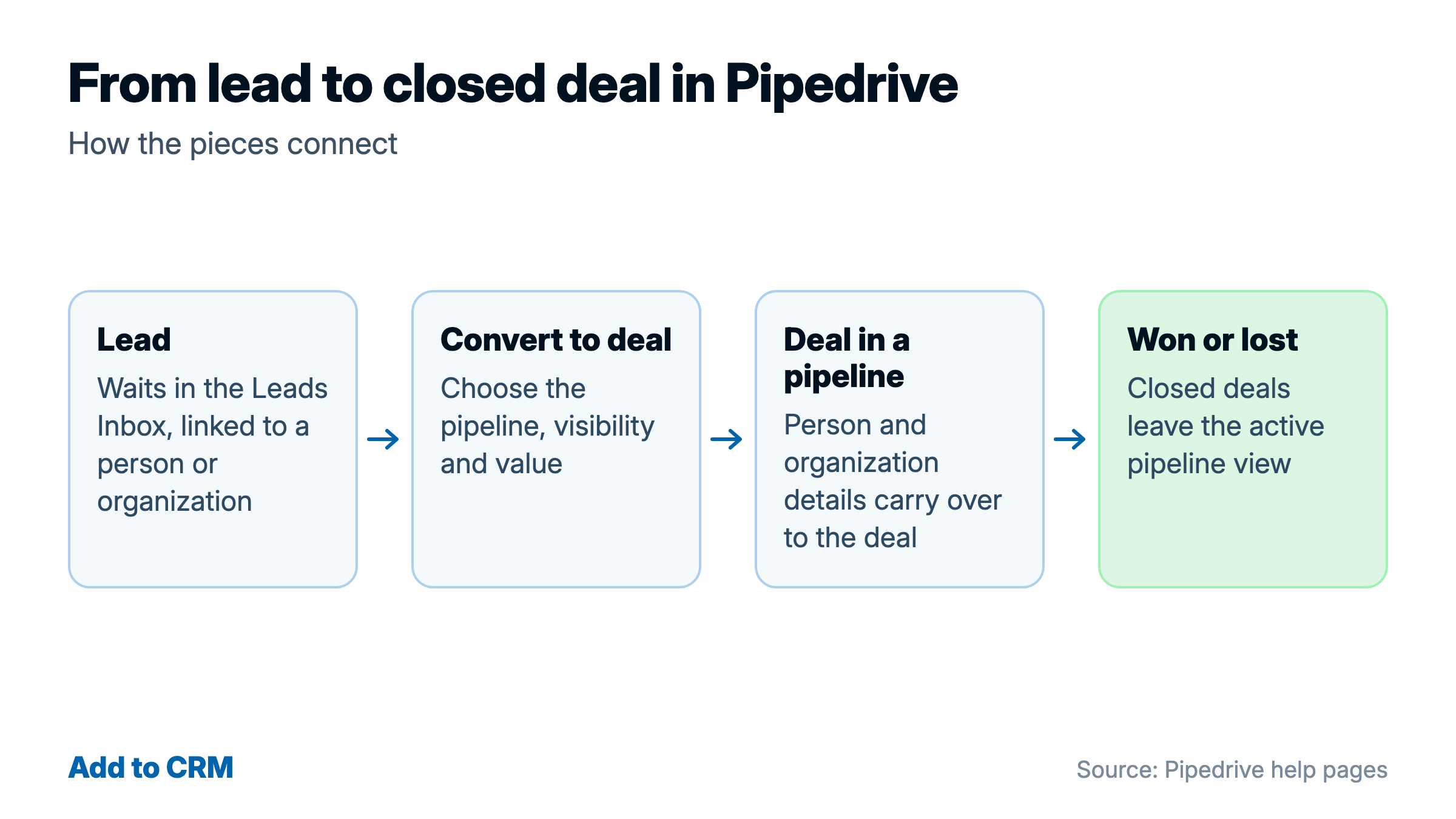
- A lead waits in the Leads Inbox. You convert it to a deal, and the deal moves through the stages of a pipeline. See leads, people, organizations and deals.
- Some features need a higher plan: email sync and automations need Growth or higher, so Lite has neither. See what each Pipedrive plan includes.
- Add to CRM, a Chrome extension, adds a person to Pipedrive in one click.
To use Pipedrive, start the trial and follow our suggested setup order in the table below. The table gives the menu path for each step, who can do it and a short note. Menu paths, plan requirements and limits come from Pipedrive's own help pages, checked in October 2026, so a menu may have moved.
Your first steps in Pipedrive
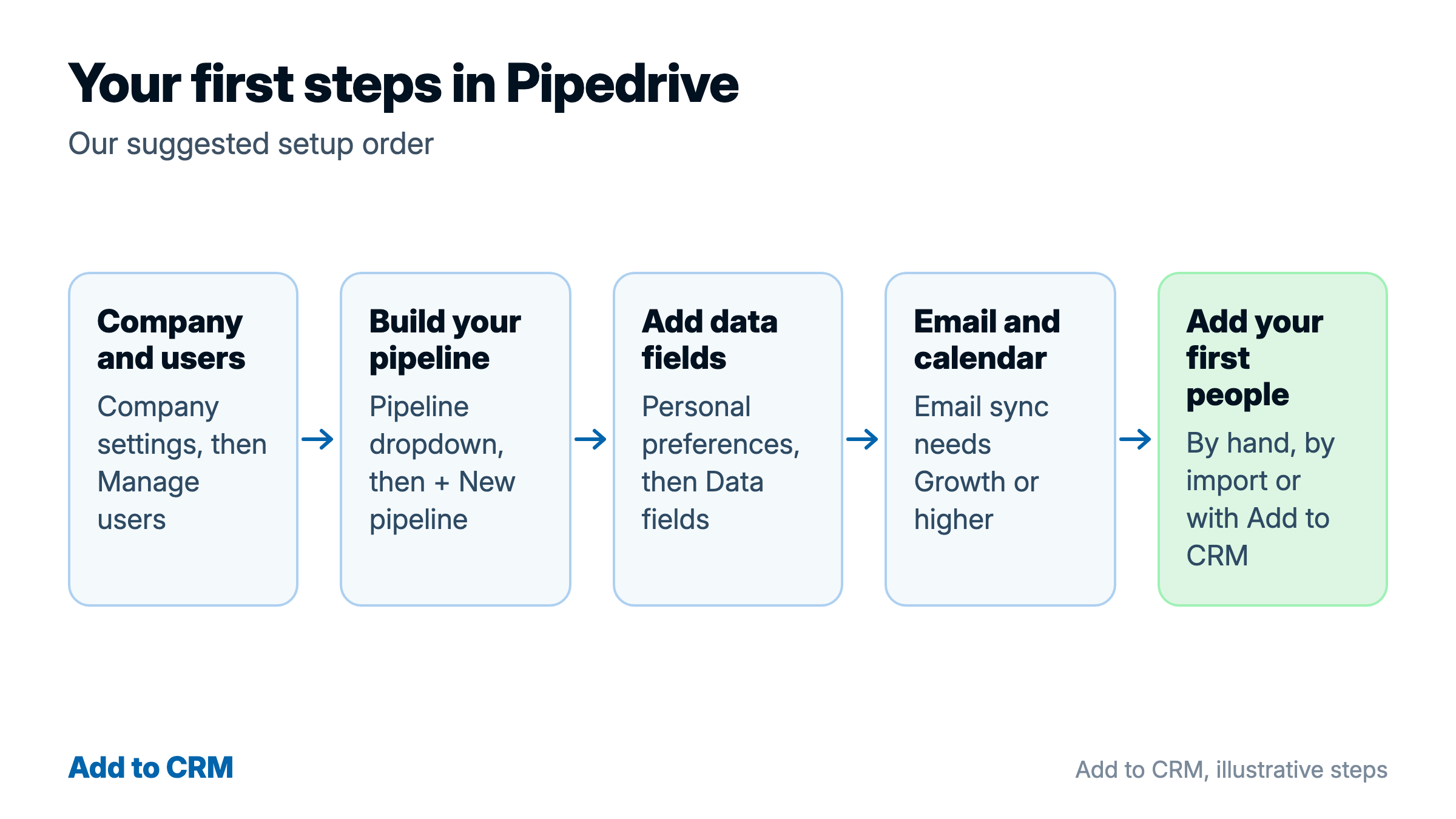
| Step | Where in Pipedrive | Who | Note |
|---|---|---|---|
| 1. Company and users | Open the account menu in the top-right corner. Choose Company settings (company name and domain are in General). For users, choose Manage users in the same menu and click + User | A user with account settings access | Pipedrive bills on active seats, so an added user can raise the cost. To add several users, enter their email addresses separated by commas and click Preview |
| 2. Build your pipeline | On the Deals tab, click the pipeline name, then choose + New pipeline. Pipedrive opens a sample five-stage pipeline to edit (see the pipeline design article) | A user with deal admin permissions | Deleting a stage also deletes the deals in it, so move them first. More in pipelines, stages and probability |
| 3. Add data fields | Account menu, then Personal preferences, then Data fields. Choose lead/deal, person, organization, product or project, then + Custom field (see the custom fields article) | Users with the right global permissions | A field's type cannot be changed after you create it. Pipedrive's required fields article writes the path as Settings, then Data fields |
| 4. Email and calendar | Personal preferences, then Email sync (see the email sync setup article). For your calendar, Personal preferences, then Calendar sync, then Connect account (see the calendar sync article) | Each user, because calendar sync covers only activities that user owns | Email sync needs Growth or higher |
| 5. Add your first people | The Contacts list view, then + Person. Other ways: contact sync with Google or Microsoft, a spreadsheet import (see where to go next) or Add to CRM (see the last section) | Contact sync needs the add people and add organizations permissions | Contact sync is at Settings, then Personal preferences, then Contact Sync. From a person's page, link an organization with + Link an organization |
Our advice: do steps 1 and 2 before you add people, so that new deals go into your own stages.
Start the trial and choose a plan
Which Pipedrive plan do you need? Lite has no email sync or automations, so choose Growth or higher if you need either. The plan section below shows what each plan includes. Pipedrive's article on how pricing works names four plans: Lite, Growth, Premium and Ultimate. For current prices, use the pricing page on Pipedrive's website.
On its homepage and sign-up page, Pipedrive offers a 14-day free trial that does not need a credit card. The trial starts with the LeadBooster, Smart Docs and Projects features, subject to supplemental terms. If you add no billing details, access to the account is restricted when the trial ends, and the trial account and its data are deleted shortly after, according to Pipedrive's trial-expiry article. Export your data before the trial ends.
Pipedrive charges per seat, whether or not a seat is assigned to a user. You can pay monthly, on the same day each month, or yearly, with the whole year paid at the start and a discount. To see or change your subscription, open the account menu and choose Billing.
The main screens and shortcuts in Pipedrive
The Pipedrive user interface has a left-hand navigation that shows the tabs you use. You choose up to ten icons for it. Pipedrive's help pages name these: Leads (then Leads Inbox), Deals, Contacts, Activities and Insights.
Press the number key of a tab in the left-hand navigation to open it. Press / to open search. Search finds deals, leads, contacts, activities, projects, products and attachments. You can find a person by name, phone number, email address, notes and custom fields. A regular user searches only their own activities.
To add an item, press the period key (.) or the plus key (+) to open the quick add menu. Then use the letter for the item:
- L for a lead
- D for a deal
- A for an activity
- P for a person
- O for an organization
- N for a note
Go to Personal preferences, then Interface preferences to choose light or dark mode, a default landing page and your navigation icons. These settings are personal, not shared.
Leads, people, organizations and deals
How the pieces fit
A person is someone you sell to. An organization is the company where people work. A lead is a possible sale that has not been qualified yet. A deal is a sale that you move through the stages of a pipeline until it is won or lost.
A lead must be linked to a person or an organization. A deal must be linked to a person, an organization or a project. A lead does not go into a pipeline stage and cannot link to products or projects. A deal goes into a pipeline stage and can link to products and projects.
In a deal's detail view, the Summary is the first section of the sidebar. The History section contains notes, activities, emails, files, documents and invoices. The Focus section shows the activities, email drafts and pinned notes that need your attention. A Changelog tab under History records changes such as stage, value, label and contact.
Add a person
To add a contact, open the Contacts list view and click + Person. You can also type a name that is not yet a contact in the Add deal or Add lead dialog, and Pipedrive creates the contact. To link an organization, open the person and click + Link an organization.
Add to CRM adds a person to Pipedrive in one click. The last section shows how it connects.
Turn a lead into a deal
In Pipedrive's leads feature, leads wait in the Leads Inbox. Open the leads tab in the left sidebar and choose Leads Inbox. To create a lead, click the green + Lead button.
To convert a lead, open it and click Convert to deal at the bottom left. This opens a dialog where you define the pipeline, the visibility and the value of the new deal. Pipedrive moves the linked person and organization details to the deal, along with the lead's notes, mentions, comments and activities. The lead is then deleted from the Leads Inbox, and you follow the deal in the pipeline you chose.
To convert several leads at once, select them and click Convert to deals. A deal can also be converted back into a lead.
Pipelines, stages and probability
Build a pipeline
A pipeline is a set of stages. Each stage is a step that a deal passes through before it is won or lost.
On the Deals tab, click the pipeline name to open the dropdown and choose + New pipeline. Pipedrive shows a sample five-stage pipeline that you can edit. To add a stage, point to a stage and click + to insert one between existing stages. To edit a pipeline later, open the dropdown and click the pencil icon next to it.
Deleting a stage also deletes the deals in it. You can recover accidentally deleted deals from the Restore data section within 30 days.
A deal can exist in only one pipeline at a time, and you cannot view all pipelines on one combined board.
Probability, rotting and lost deals
Stage probability is 100% for each stage unless you change it. You set it from the pencil icon next to the pipeline dropdown. A deal's own probability overrides the stage probability when both are on. When a deal has no probability of its own, the weighted value is the total value times the stage probability divided by 100.
In the pencil editor, switch on the Rotting in (days) toggle for a stage and set the number of inactive days. A deal that stays inactive that long becomes rotten, and it shows red in the pipeline view. Marking an activity as done and adding notes or files to a deal reset the inactive-day count. Scheduling a new activity or editing a detail of the deal makes a rotten deal normal again. Rotting ignores the next activity date, so a deal with an activity far in the future can still become rotten.
A deal ends as Won, when the deal was successful, or Lost, when it was not. Won and Lost are outcomes that you mark on a deal. They are not stages. Closed deals leave the active pipeline view. Pipedrive uses freeform lost reasons by default and allows up to 100 lost reasons. Setting predefined lost reasons needs the Deals admin permission.

Find verified emails and enrich Pipedrive contacts
Add to CRM finds verified emails, phone numbers, and job titles on LinkedIn® — then adds them to Pipedrive in one click.
Start Free Trial


 Trusted by 2,500+ users4.8
Pipedrive best practices from its own help pages
Pipedrive's help articles give these best practices. The table lists each one with its source article.
| Practice | Where Pipedrive says it |
|---|---|
| Name stages after actions, such as "Meeting scheduled" or "Proposal sent", not "In progress" | Pipeline design article |
| Create fewer stages, so that the pipeline is easy to manage | Pipeline design article |
| Make one pipeline for each sales process, not for each salesperson, because the owner field already covers that | Pipeline design article, and the multiple pipelines article |
| Avoid moving a deal through several pipelines, because it can affect reporting in Insights | Pipeline design article |
| Move deals to the correct stage regularly, and archive or delete lost or irrelevant deals | Pipeline view article |
| Start with quick filters for your daily needs | Filtering article |
| Require only the one or two activity fields you report on | Activities customization article |
Our advice: pick two of these habits and check them weekly.
Activities and a daily routine in Pipedrive
Plan the day
For daily use of Pipedrive, start with activities. Activities are the actions you take to advance a deal. The default types are call, meeting, task, deadline, email and lunch, and you can add custom types.
To add an activity, click the activity icon on a deal card in your pipeline. You can also click + Activity in the calendar or the activities list view. An activity linked only to a deal is automatically linked to that deal's contact person and organization. You can mark an activity as done from the list view, the calendar view, a detail page or the contacts timeline.
The pipeline view sorts deals by their next activity date, and each deal card carries an arrow. A red arrow means an overdue activity. A green arrow means an activity is due today. A yellow warning means no activities. A grey arrow means future activities. The arrows belong to the deal cards, not to the Activities list.
Our advice: each morning, open the pipeline view and Activities, then schedule the next activity on each of your open deals.
Sync your calendar
Go to Personal preferences, then Calendar sync, and click Connect account. Calendar sync works with Google, Exchange, Outlook and Office calendars. Two-way sync updates activities and events in both directions. One-way sync sends activities from Pipedrive to your calendar only. Only future events and activities from your calendar are synced to Pipedrive. IMAP and POP setups are not supported.
Email in Pipedrive
To use email sync, open Personal preferences, then Email sync. Pipedrive's own email sync works with Gmail, Office 365 or Outlook, Microsoft Exchange and any email account that supports IMAP.
During setup you choose a personal account (Growth and higher) or a team account (Premium and higher). Emails from a personal account are Private, visible only to you, or Shared, visible to others when linked to items.
Email is handled in the Sales Inbox. Click + New email to start a message. Before each send, you can choose whether to track the email. Pipedrive allows up to 40 email actions a minute within a company account. If you email someone who is not in Pipedrive, the email creates a new person and links the thread to them.
Smart Bcc works on every plan, including Lite. Copy your address from the Email sync page in your settings and add it to the Bcc line. The message then appears in Pipedrive. The Smart Bcc article says the copy appears under the Mail tab, while the email sync article uses the name Sales Inbox. Smart Bcc needs DKIM or SPF to be configured for your sending domain. A message must be under 20 MB, including attachments.
Automations: a first one to build
An automation is a trigger plus an action. Automations need Growth or higher, and only global admins and regular users with the right permission can create one. Open them from the account menu, then Tools and apps, then Automations, and click + Automation (see the automations article).
Here is an example built from Pipedrive's own steps. It adds a follow-up activity when a deal reaches a stage.
- Trigger: choose Event trigger, the item Deal and the event Updated. Then pick the field to monitor, Deal stage, and click Apply trigger.
- Condition: add "Deal stage has changed to" and pick the stage that should start the follow-up, such as "Proposal sent" if your pipeline has one. In Pipedrive's automation conditions article, the example is "Deal stage has changed to proposal".
- Action: add an action on the Activity item that creates an activity.
- Due date: choose a relative date such as "In one day". An activity action with no date is set for the same day.
- Save, then Active: click Save and set the automation to Active.
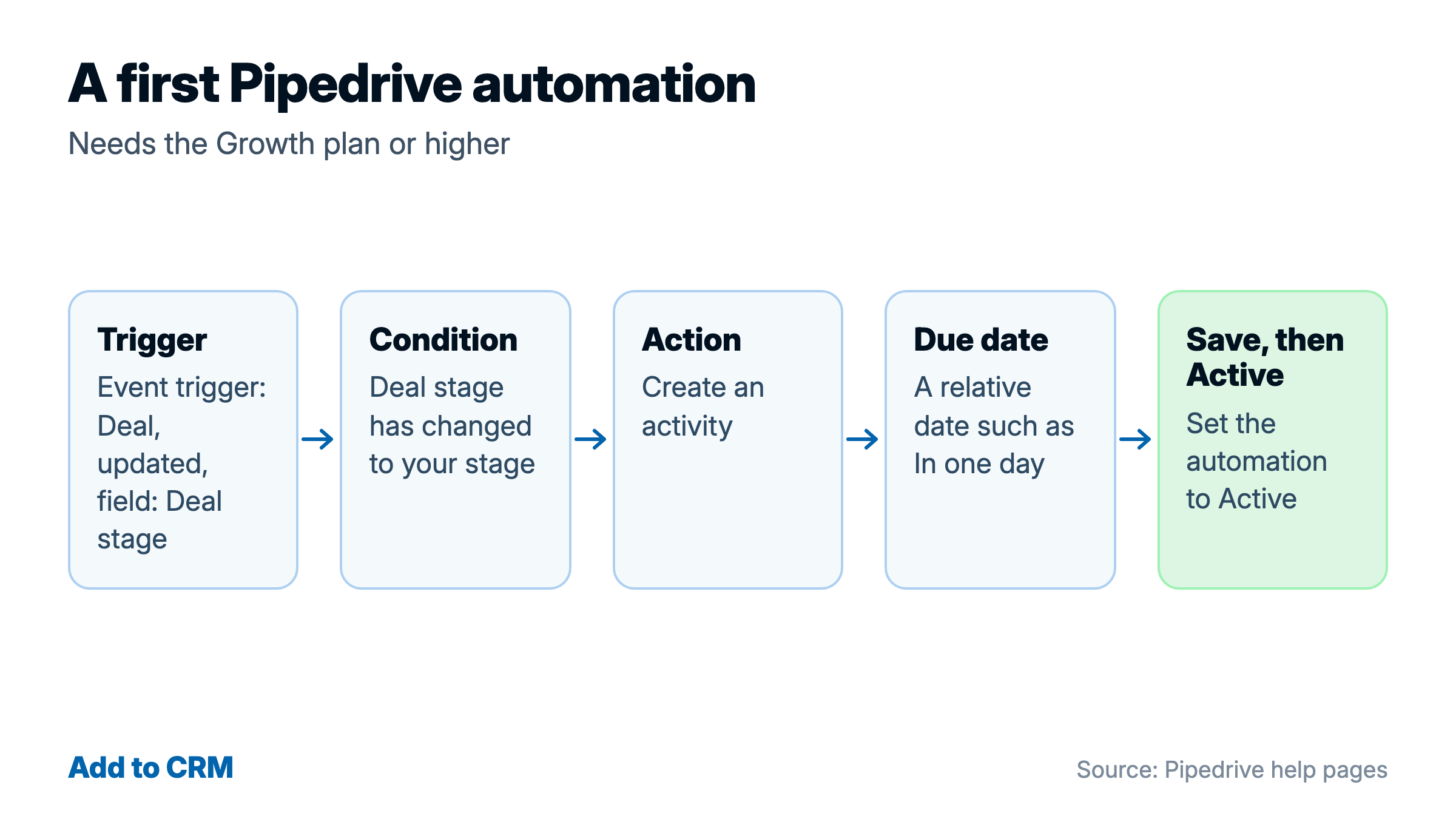
To test it, move a deal into that stage. Also check these points. A condition of the wrong type may stop it from running, so for a stage change use "has changed to". Moving a deal forward and moving it backward both trigger the automation.
Deactivated automations do not count toward the active automation limit in the limits table. An automation can have ten actions per path (Pipedrive's usage-limits article). An email action can use only the address synced through email sync.
Users, permissions and visibility
Permissions
Pipedrive normally has two user types, regular and admin. An admin can access all permissions and data. Permission sets set what users can do. Visibility groups set what users can see.
Find permission sets at Manage Users, then Permission sets. Custom permission sets need Premium or higher. Pipedrive's user types article still names older plans for them, while its permission sets article names Premium.
Who sees what
Visibility groups are at Settings, then Manage Users, then Visibility groups. Lite and Growth have one default group for all users. The choices there are Item owner, where an owner can see and edit an item, or All users, where everyone in the company can. Premium and Ultimate can add groups and sub-groups. A user with deals admin access sees all deals and leads, regardless of the group.
Save hours on Pipedrive data entry
Add to CRM finds verified emails, phone numbers, and job titles on LinkedIn® — then adds them to Pipedrive in one click.
Start Free TrialTrusted by 2,500+ users4.8What each Pipedrive plan includes, and the limits that matter
The features table below comes from Pipedrive's plan-comparison article, last updated 3 September 2026. Its table for current plans uses four plan names: Lite, Growth, Premium and Ultimate. Some help articles still use older plan names, such as Essential, Advanced, Professional and Power, so an article can name an older plan.
| Feature | Lite | Growth | Premium | Ultimate |
|---|---|---|---|---|
| Pipelines, custom fields, Leads Inbox, data import and export, Smart Bcc, contact sync, calendar sync | Yes | Yes | Yes | Yes |
| Email sync | No | Yes | Yes | Yes |
| Email templates, signatures, and open and click tracking | No | Yes | Yes | Yes |
| Automations and sequences | No | Yes | Yes | Yes |
| Important fields, contacts timeline | No | Yes | Yes | Yes |
| Required fields, formula fields, pipeline-specific fields | No | No | Yes | Yes |
| Team inbox, multiple email accounts, automatic assignment, custom visibility groups, custom permission sets | No | No | Yes | Yes |
| Contact data enrichment | No | No | No | Yes |
| LeadBooster, Projects and Smart Docs | Paid add-on | Paid add-on | Included | Included |
The limits table below comes from Pipedrive's usage-limits article. Limits are per company unless the row says per user.
| Limit | Lite | Growth | Premium | Ultimate |
|---|---|---|---|---|
| Leads and deals | 2,500 per seat | 5,000 per seat | 15,000 per seat | 20,000 per seat |
| Custom fields | 30 | 100 | 300 | 500 |
| Insights reports, per user | 15 | 50 | 250 | 500 |
| Active automations | not available | 50 | 150 | 250 |
| If/else conditions, per automation | not available | 3 | 10 | 20 |
| Sequences | not available | 5 | 25 | 50 |
| Email accounts synced, per user | not available | 1 | 3 | 5 |
| Custom visibility groups and custom permission sets | not available | not available | 15 | 25 |
Notes on the figures:
- Each leads and deals figure is the number shown times your number of seats, up to 300,000. The count is active leads plus open, won or lost deals that are not archived or deleted.
- The leads and deals limit applies to new accounts created from May 2025, and to existing accounts at their next renewal date from October 2025.
- Pipedrive has no usage limits for contacts, but if you use contact sync, your contact provider can have its own limit.
- If you go over a limit, Pipedrive keeps your existing data but stops you from adding more by hand. Deals that automations, forms or imports create go on a waiting list (imports can also go to an import skip file), and leads that are created automatically are discarded. You see your usage at Settings, then Company, then Usage. Admins are notified at 80% and 100% of a limit.
One drawback of Pipedrive is its Lite plan: it has no email sync, automations or sequences, and it allows only 30 custom fields.
Add people to Pipedrive with Add to CRM
Add to CRM is a Chrome extension that finds verified contact details for a person and adds that person to Pipedrive in one click, from LinkedIn, Gmail and Outlook. An enriched profile has 20+ data points. A credit is used only when contact details are found. Credits are per seat and do not roll over.
To connect Pipedrive, first find your personal API key in Pipedrive, under Settings, then Personal preferences, then API. If it is not there, your permission set may not allow it, so ask an admin. Do not share the key with anyone you would not share your Pipedrive data with.
Then open the Add to CRM web app, not the extension. Add to CRM connects to Pipedrive with your personal API key, not a sign-in. The Connect step calls the key a token: enter it in the field Pipedrive Personal API Token and click Connect Pipedrive. A later reconnect shows Reconnect Pipedrive. We store your credentials encrypted on our servers.
Setup then shows a field-mapping review called Your Pipedrive fields. It shows where each data point goes. Add to CRM adds the person to Pipedrive as a contact. By default it also creates their company as an organization. That is the Create company records setting, on the Settings page of the web app, and it is on unless you turn it off. With it off, Add to CRM links the person only to organizations that already exist in Pipedrive.
Start a 7-day free trial of Add to CRM (card required, cancel any time).
Read more about adding people to Pipedrive. Other ways to add people: Gmail and Outlook.
Where to go next
- Import contacts into Pipedrive: import a spreadsheet.
- Export contacts from Pipedrive: export your data.
For anything else, use Pipedrive's help center and its glossary.
This app will save you hours using Pipedrive

 Pipedrive Integration
Add contacts to Pipedrive from LinkedIn®
Enrich profiles with verified emails and phone numbers. Sync to Pipedrive in one click.
Try Pipedrive Extension7-day free trial · Cancel anytime
Save 4+ hrs / week on Pipedrive data entry.
Find verified contact info for your prospects on LinkedIn®, Gmail, Outlook & company websites. Add them to your Pipedrive with 1-click.
 Add to ChromeTrusted by 2,500+ founders, SDRs & more