How to Cancel Sales Navigator (Without Losing Your Leads)
Cancel LinkedIn Sales Navigator the right way: the step-by-step path, what you lose, and how to save your leads before access ends.
To cancel LinkedIn Sales Navigator, go to Settings & Privacy, hover over your Premium or Sales Navigator subscription, click Manage subscription, then Cancel — ideally at least 24 hours before your renewal date. Your access runs to the end of the current billing period, there's usually no partial refund, and your free LinkedIn account stays active.
TL;DR: Cancelling is quick — but your saved lists, searches, and notes live inside Sales Navigator, so move the leads you care about into your CRM before you cancel and your pipeline survives the switch.
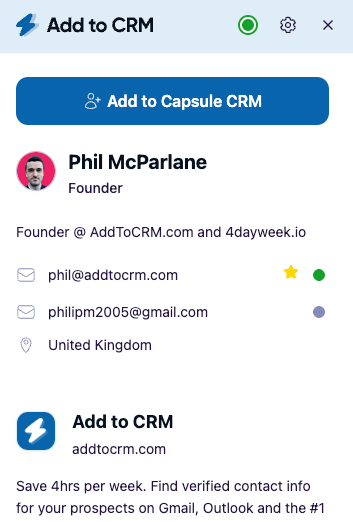
Most guides to cancelling Sales Navigator stop at "click here, then click there." That's the easy part. The part that actually costs people is what happens to the months of lead lists, saved searches, and notes they built inside the tool — because that work doesn't automatically come with you when the subscription ends. This guide covers both: the exact cancellation steps, and how to keep your leads so cancelling saves you money instead of costing you pipeline.
How to cancel Sales Navigator, step by step
Cancelling on the web is the most reliable route. LinkedIn updates this flow from time to time, so treat the labels below as a guide and confirm the exact wording in your own account:
- Sign in to LinkedIn on a desktop browser. The web billing flow is clearer than the mobile app, and it's where most Sales Navigator subscriptions are managed.
- Open Settings & Privacy. Click your profile photo ("Me") in the top-right, then choose Settings & Privacy.
- Find your subscription. Look for your Premium or Sales Navigator plan and hover over it to reveal the management options.
- Click Manage subscription. You may be prompted to re-enter your password, or taken into the Sales Navigator billing area in a new tab.
- Select Cancel subscription. It's sometimes labelled Cancel plan. Follow the prompts — LinkedIn usually asks for a reason and tries to offer a discount or a pause before it lets you confirm.
- Confirm, then check for confirmation. You should see a confirmation screen and receive an email. If you don't, the cancellation may not have gone through — repeat the steps or contact LinkedIn support.
Subscribed through the App Store or Google Play? If you bought Sales Navigator inside LinkedIn's iOS or Android app, Apple or Google is handling the billing — and LinkedIn can't cancel it for you. You have to cancel through the app store: on iOS, Settings → your name → Subscriptions; on Android, Play Store → Subscriptions. Cancelling in LinkedIn's web settings won't stop an app-store charge, so check where you actually signed up.
One timing rule matters: cancel at least 24 hours before your renewal date. LinkedIn processes cancellations right up to the renewal, and leaving it to the last hour is how people get charged for another month by accident.
What happens when you cancel Sales Navigator?
Cancelling is less dramatic than it sounds — and, in one important way, less generous than you'd hope. Here's what to expect:
- You keep access until the end of your billing period. Cancelling doesn't cut you off immediately. You can keep using Sales Navigator until the date you'd otherwise have renewed, which matters for the "save your leads" step below.
- There's usually no partial refund. LinkedIn generally doesn't refund the unused portion of a billing period, so cancelling three weeks into a month doesn't get you three weeks back. Since you've already paid, use the seat right up to the end date.
- Your free LinkedIn account stays. Sales Navigator (and Premium) sits on top of a normal LinkedIn account. Cancel it and you simply drop back to free LinkedIn — your profile, connections, messages, and posts are untouched.
- You lose the Sales Navigator features — advanced search filters, lead and account recommendations, InMail allowances, and, most importantly, the workspace where your saved lists, searches, and notes live.
That last point is the one that bites.
What you actually lose: your saved lists, searches, and notes
Here's the thing nobody warns you about at signup: your saved lead lists, saved searches, and notes are stored inside Sales Navigator. They're a feature of the paid seat, not something that travels with your free LinkedIn account. When your access ends, so does the tidy, filterable workspace you spent months building.
And getting that data out cleanly is famously fiddly. Sales Navigator is designed to keep your lists inside the platform — as of mid-2026, there's no simple one-click "export all my leads to a spreadsheet" option, and reviewers have long flagged this as a limitation. So unless you deliberately preserve your leads first, cancelling can quietly erase your most valuable prospecting asset.
| What you built in Sales Navigator | Survives cancellation? | How to keep it |
|---|---|---|
| Saved lead lists | No — they end with the paid seat | Add the leads to your CRM before you cancel |
| Saved searches | No — stored inside Sales Navigator | Note the filter criteria; add the current results to your CRM |
| Notes on leads and accounts | No — attached to the Sales Navigator record | Copy the ones that matter into your CRM contact records |
| InMail threads | Tied to the paid seat | Save any important conversations before access ends |
| Your 1st-degree connections | Yes — part of free LinkedIn | Nothing required (but move key ones to your CRM anyway) |
| Your free LinkedIn account | Yes — profile, network, messaging remain | Nothing required |

Turn LinkedIn® profiles into CRM contacts
Add to CRM finds verified emails, phone numbers, and job titles on LinkedIn® — then adds them to your CRM in one click.
Start Free Trial


 Trusted by 2,500+ users4.7
Before you cancel: the 5-step checklist to keep your leads
Do this before you hit cancel — ideally while you still have a week or two of paid access left:
- Decide what you can't afford to lose. Open your saved lists and separate real pipeline (people you're working, or plan to) from names you saved once and forgot. You only need to preserve the ones that matter.
- Get those contacts into your CRM. This is the durable, compliant way to keep your leads working after Sales Navigator is gone. There are two safe routes, covered in the next section.
- Copy over the notes that matter. The context you wrote on a lead — "met at the conference," "budget confirmed for Q3" — is often worth more than the lead's name. Don't let it evaporate.
- Record your saved-search criteria. Screenshot or write down the filters behind your best saved searches so you can rebuild them later in your CRM, in an alternative tool, or in a future subscription.
- Time it right. Cancel at least 24 hours before renewal, but because there's no partial refund, keep using the seat until the end date to move every lead you need.
How to keep your Sales Navigator leads (the compliant way)
There's a right way and a risky way to get your leads out.
Avoid the risky way. Bulk "scraper" tools that promise to harvest an entire Sales Navigator list in one go violate LinkedIn's Terms of Service and put your account at risk of restriction or a ban. It is not worth losing your network to save an afternoon — steer clear of anything that mass-extracts profiles automatically.
The compliant options are:
- Move leads into your CRM through your own connected account. Add to CRM's Pro tier connects your own LinkedIn account, so you can take a lead — or the leads you choose from a Sales Navigator search — and add them to your CRM, enriched with a verified email, phone, and 20+ data points, in one click. Because it works through your account on the profiles you actually choose, it's the compliant route, not a bulk harvester. This is the fastest way to rescue a list before you cancel.
- The manual native way. Open each lead in Sales Navigator and copy their name, title, company, and any contact details into your CRM by hand. It's free and entirely native — fine for a handful of contacts, genuinely painful for hundreds.
For most people the honest answer is: use your connected account to move the leads that matter, and don't bother trying to preserve the long tail you were never going to call anyway.
You don't need a Sales Navigator seat to keep filling your CRM
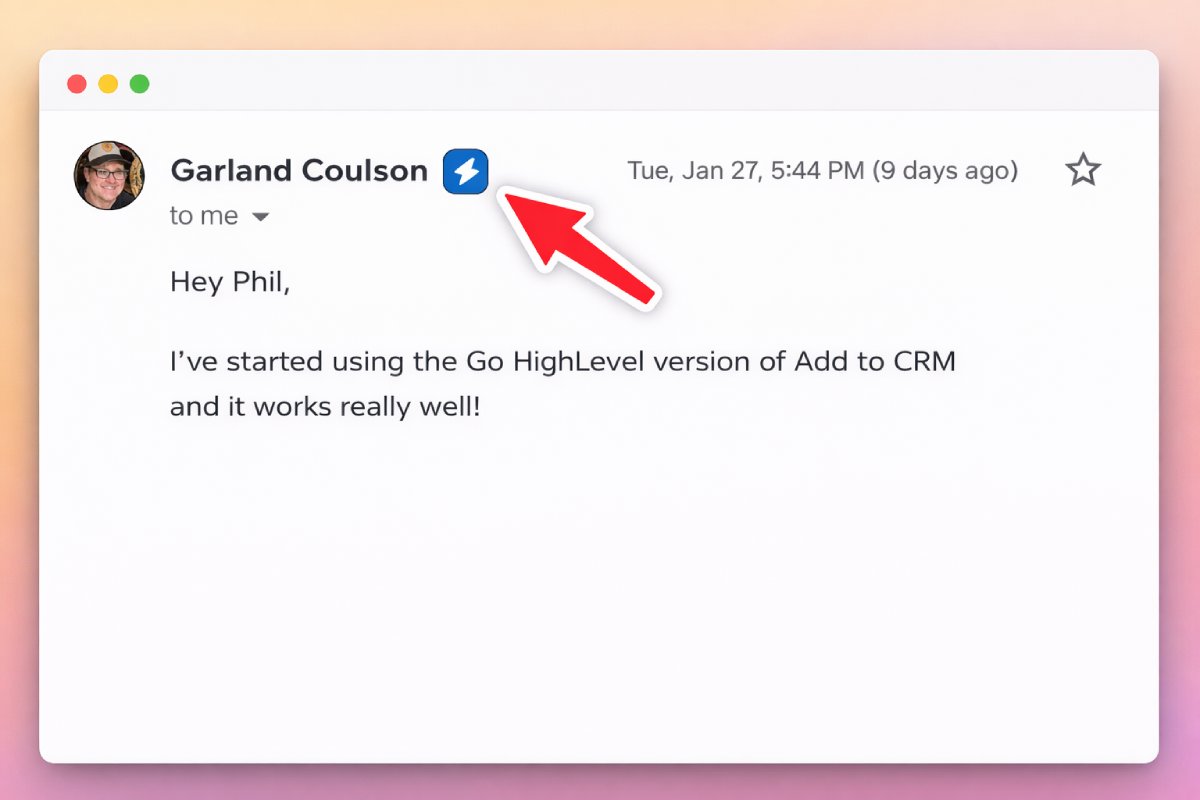

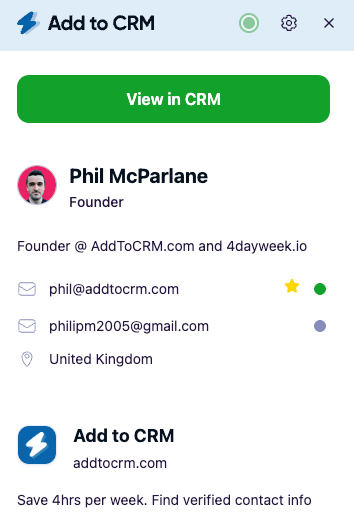
Here's the reassuring part, and the reason cancelling doesn't have to slow your prospecting: the Add to CRM extension also works on regular LinkedIn, Gmail, and Outlook profiles — no Sales Navigator seat required. Once you've cancelled and dropped back to free LinkedIn, you can still open a prospect's profile, pull a verified email (our data carries a 96% email verification accuracy rate) plus 20+ data points, and add them to any of 29+ CRMs in one click. You can do the same from a sender sitting in your inbox.
So the workflow most people actually used Sales Navigator for — find a relevant person, capture their details, get them into the CRM — keeps running on a free LinkedIn account plus a browser extension. See how it works on the Add to CRM extension page.
29+ CRMs supported. Try free for 7 days
Add to CRM finds verified emails, phone numbers, and job titles on LinkedIn® — then adds them to your CRM in one click.
Start Free TrialTrusted by 2,500+ users4.7Should you cancel — or is there a cheaper way to get what you need?
If the renewal price is what pushed you toward cancelling, it's worth separating what you paid for from what you actually used. Plenty of people buy Sales Navigator for its advanced search and relationship intelligence, then in practice use it mostly to find and save contacts. If that's you, a lightweight enrichment extension plus your CRM covers that job at a fraction of the cost — and if you genuinely rely on the advanced filtering and InMail, a full alternative may fit better than paying the Sales Navigator premium.
Before you decide, two quick reads: our breakdown of how much Sales Navigator costs so you know exactly what the renewal is, and our roundup of the best Sales Navigator alternatives if you want a cheaper tool for the same work. (Prices change often — check the vendor's site for current pricing.)
| Reason you're cancelling | Best next move |
|---|---|
| Too expensive at renewal | Compare the pricing against a lighter tool, then browse alternatives |
| Only used it to find and save contacts | Move those leads to your CRM and keep adding new ones with a browser extension |
| Not using it enough to justify the seat | Cancel, keep free LinkedIn, and enrich contacts ad hoc from profiles and your inbox |
| Switching to another tool | Export your leads to your CRM first so nothing gets stranded in the old platform |
Frequently asked questions
Does cancelling Sales Navigator delete my LinkedIn account? No. Sales Navigator (and Premium) sits on top of a standard LinkedIn account. When you cancel, you drop back to free LinkedIn — your profile, connections, messages, and posts all stay exactly as they were.
Will I get a refund if I cancel Sales Navigator? Generally no. LinkedIn typically doesn't refund the unused portion of your current billing period. Your access continues until the renewal date you'd already paid for, so the practical move is to keep using the seat until then. Check LinkedIn's current terms for your specific plan.
What happens to my saved lists and leads when I cancel? They live inside Sales Navigator, so you lose access to them when your subscription ends. There's no clean one-click export, which is why you should add the leads you care about to your CRM before you cancel, while you still have access.
How do I cancel Sales Navigator if I subscribed through the app on my phone? Cancel through the app store, not LinkedIn. If you subscribed via the iOS app, go to Settings → your name → Subscriptions; on Android, open the Play Store → Subscriptions. Cancelling in LinkedIn's web settings won't stop an App Store or Google Play charge.
When should I cancel to avoid being charged again? Cancel at least 24 hours before your renewal date. Leaving it until the last moment risks the next charge going through before the cancellation processes.
Can I still add LinkedIn contacts to my CRM after cancelling? Yes. The Add to CRM extension works on regular LinkedIn, Gmail, and Outlook — no Sales Navigator seat needed. You can keep enriching profiles and adding contacts to your CRM on a free LinkedIn account.
Cancel the subscription, keep the pipeline. Before your Sales Navigator access ends, use Add to CRM Pro to connect your own LinkedIn account and move the leads you care about — enriched with a verified email, phone, and 20+ data points — into any of 29+ CRMs in one click. Start a 7-day free trial and rescue your list before the renewal date, then keep adding contacts from everyday LinkedIn, Gmail, and Outlook without paying for a seat you no longer need.
Start saving time and closing more deals.
Find verified contact info for your prospects on LinkedIn®, Gmail and Outlook — and add them to your CRM with 1-click.

 Loading...Trusted by 2,500+ founders, SDRs & more