How to Export a Sales Navigator List to Excel or Your CRM
Sales Navigator has no native export button. The compliant ways to get your leads into Excel or a CRM - plus a one-click, account-native route.
Sales Navigator has no built-in "export to Excel" or "download CSV" button — LinkedIn deliberately blocks bulk lead downloads. The two compliant ways to get leads out: copy each lead by hand, or use a tool like Add to CRM Pro that connects your own account and adds a Sales Navigator search straight to Excel or a CRM.
TL;DR: There is no native export button in Sales Navigator. You can copy leads by hand (always allowed), you should avoid Terms-of-Service-violating bulk-scraper tools, or you can add a Sales Navigator search to Excel or your CRM in one click with Add to CRM Pro — using your own connected account, with a sensible daily limit.
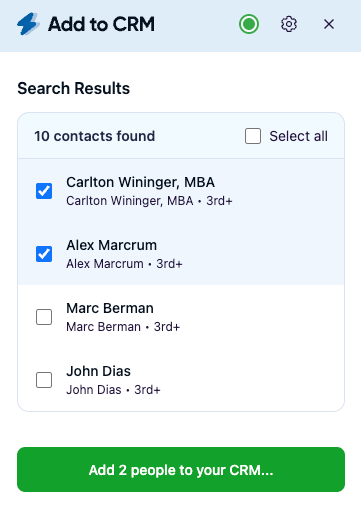
You have just built the perfect search — 240 heads of sales at Series A SaaS companies — and you want that list in a spreadsheet or CRM so you can work it. So you hunt for the export button, and keep hunting, because it is not there. This guide covers every honest way to get your leads out: the manual method, the compliant one-click method, and the risky one to avoid.
Why there is no "Export to Excel" button in Sales Navigator
LinkedIn Sales Navigator is built for prospecting inside the platform, not for exporting lead lists out of it. There is no "Download CSV", no "Export to Excel", and no bulk "save all to CRM" control anywhere in the interface. This is a deliberate product decision, not an oversight or a feature LinkedIn simply forgot to build.
The reason is straightforward: LinkedIn treats the data in member profiles as belonging to its members and its platform. A one-click file of everyone in your search would let anyone drain that data at scale, so LinkedIn does not offer one. Even inside Sales Navigator, the "Save to CRM" integrations that exist are limited to a small set of enterprise CRMs — not a general "give me a spreadsheet of these 240 people" button.
That constraint catches almost everyone out. But understanding why it exists is the key to getting your leads out the right way instead of the risky way. You have two fully compliant routes, plus one to avoid. Let us go through all three honestly.
The three ways to get Sales Navigator leads into Excel or a CRM
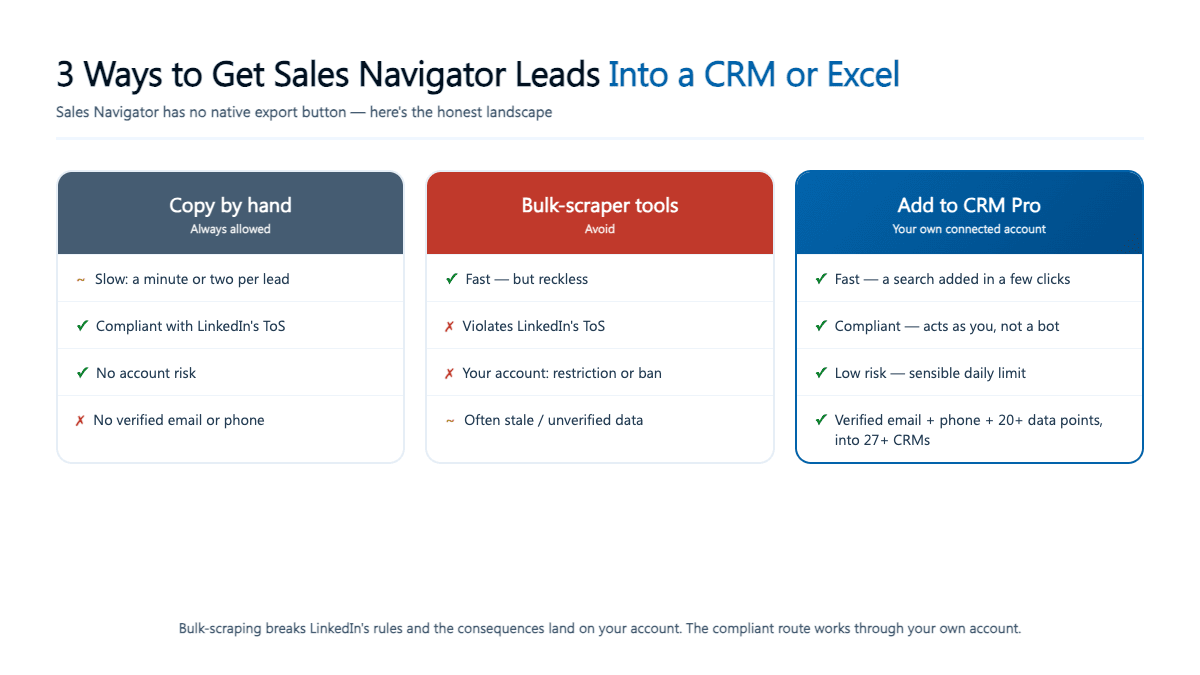
Here is the honest landscape, side by side.
| Copy by hand | Bulk-scraper tools | Add to CRM Pro | |
|---|---|---|---|
| What it is | Open each lead, copy the fields you need into a sheet or CRM | Third-party bots that mass-auto-download search results | Connect your own account; add a Sales Navigator search to a CRM or Excel |
| Speed | Slow — minutes per lead | Fast, but reckless | Fast — a search added in a few clicks |
| Verified email + phone | Only what shows on the profile (often neither) | Varies; frequently unverified | Verified work email + phone + 20+ data points |
| LinkedIn's Terms of Service | Allowed | Violates them | Compliant — your own account, no scraping |
| Account risk | None | High — restriction or ban | Low — account-native, sensible daily limit |
| Cost | Free (your time) | Paid, plus the risk | Paid tool; 7-day free trial |
| Ideal for | A handful of leads | Not recommended | Turning searches into CRM-ready contacts |
Method 1: Copy each lead by hand (slow, but always allowed)
The manual method is the one nobody can argue with. You open a lead in Sales Navigator, read what is on their profile, and type or paste the details you need into a spreadsheet or straight into a CRM record — name, title, company, location, whatever the profile shows and you are entitled to use for legitimate B2B outreach.
To do it in Excel:
- Open a lead from your Sales Navigator search or saved list.
- Add a row with the columns you care about (name, title, company, location, profile URL).
- Copy each visible field across, one at a time.
- Repeat for the next lead.
It is completely within the rules because you are only handling data you are already looking at, one profile at a time, at human speed — no tool acting on your behalf, no bulk harvesting.
The downside is that it is slow — realistically a minute or two per lead. For five or ten priority prospects that is fine. For 240, it is a lost afternoon. And it has a quieter limitation: a Sales Navigator profile does not show a verified work email or a direct phone number, so the spreadsheet you build by hand is a list of names and titles, not a list you can actually email or call. You still have to find and verify contact details separately.
That is the gap the account-native method closes — but first, the shortcut everyone reaches for.
Method 2: Bulk-scraper tools — why to avoid them
Search for how to export Sales Navigator leads and you will quickly find third-party tools that promise to mass-download an entire search into a CSV in seconds. It is tempting. It is also a genuinely bad idea, and we will not tell you how to use one.
Here is the honest reason: bulk-scraping Sales Navigator violates LinkedIn's Terms of Service. Tools that auto-harvest search results at scale operate against LinkedIn's rules, and LinkedIn actively detects and acts on that behaviour. The consequences land on your account, not the tool's — a warning, a temporary restriction, or a permanent ban of the profile you have spent years building. In some cases LinkedIn has pursued the companies behind these tools directly.
There is a data-quality problem on top of the account risk: scraped exports frequently include stale or unverified emails, because the data is grabbed in bulk rather than checked contact by contact. You take on real risk for a list you cannot fully trust.
The good news is that you do not have to make that trade. There is a route that is fast and compliant, because it works through your own account rather than around LinkedIn — the difference between an account-native tool and a scraper.

Turn LinkedIn® profiles into CRM contacts
Add to CRM finds verified emails, phone numbers, and job titles on LinkedIn® — then adds them to your CRM in one click.
Start Free Trial


 Trusted by 2,500+ users4.7
Method 3: Add a Sales Navigator search to your CRM or Excel — with your own account
This is the compliant, fast route, and it is what Add to CRM Pro is built for. Instead of downloading data around LinkedIn, you connect your own account and act through it — the same account you already log in with every day.
Here is how it works:
- Connect your account once. Add to CRM Pro uses a secure, one-time hosted wizard to connect your LinkedIn account. Your password goes straight to LinkedIn, not to us — we never see it. This is what makes the whole thing account-native rather than a third-party data grab.
- Run your Sales Navigator search. Build the search that defines your target segment — title, seniority, geography, company size, industry — exactly as you normally would.
- Add the results to your CRM (or Excel). From the search, Add to CRM enriches and adds the leads to any connected destination, from within the app, using your account. It also works lead by lead on an individual Sales Navigator lead page if you prefer to be selective.
Crucially, this is not a raw dump of names. As it adds each person, Add to CRM enriches them with a verified work email and phone number plus 20+ data points — job title, seniority, department, company, industry, size, location, and more — mapped to the right fields automatically. The email verification runs at 96% verification accuracy, so what lands in your CRM is a contact you can email today, not a half-empty row to clean up.
Because you act through your own account and add results at a sensible daily limit — rather than a bot hammering LinkedIn at machine speed — this stays on the right side of the line. The cap is deliberate: it keeps the volume human and your account safe. It is the honest middle ground between typing out 240 leads by hand and gambling your account on a scraper.
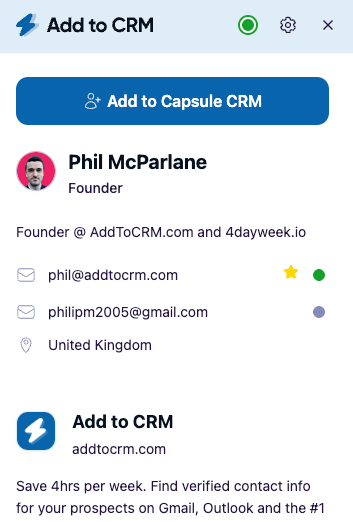
"Lead list" versus "search": what you actually add
One precise point, because it trips people up. In Sales Navigator you can save leads into a named lead list, and you can also run a search that returns a results page of matching people. They feel interchangeable, but there is a distinction worth knowing.
Add to CRM works from a Sales Navigator search — the results of a search you run — rather than reading a saved lead list directly. In practice this covers the same ground: you build the search that describes your ideal segment and add those results. If your prospects already live in a saved lead list, you re-run the equivalent search to get them back as a results page, then add from there. So when people ask how to "export a Sales Navigator list", the workable answer is: turn it into a search, and add the search.
How to export a Sales Navigator list to Excel, specifically
If your destination is a spreadsheet rather than a full CRM, you are covered. Excel / Microsoft 365 is a supported Add to CRM integration, so you connect it the way you would any CRM, and a Sales Navigator search flows straight into a spreadsheet with the enriched fields as columns. Google Sheets works the same way.
So "export sales navigator list to excel" has an answer that does not involve a scraper: connect Excel as your destination, run your search, and add the results. Each row arrives with the name, title, company, verified email, phone, and the rest of the 20+ data points already filled in — an export that is ready to work, not a bare list of names you then enrich by hand.
Which CRMs (and spreadsheets) can you send Sales Navigator leads to?
One advantage of doing this with a dedicated tool rather than a CRM-specific integration is breadth. Add to CRM works with 29+ CRMs, not just the enterprise names a handful of native integrations support:
- Popular picks: Pipedrive, HubSpot, Zoho, Salesforce, Copper, Close, monday, Attio, Capsule, Nutshell, Salesflare, Freshworks, and more.
- Spreadsheets too: Excel / Microsoft 365 and Google Sheets, for teams that prefer a sheet to a CRM.
- One connection, any destination. Connect your destination once, then add Sales Navigator leads to it from inside the app.
That breadth counts if your CRM is not one of the two or three every tool supports — the long-tail CRMs, which rarely have a slick native importer, are exactly where a one-click add pays off.
29+ CRMs supported. Try free for 7 days
Add to CRM finds verified emails, phone numbers, and job titles on LinkedIn® — then adds them to your CRM in one click.
Start Free TrialTrusted by 2,500+ users4.7Is it worth it? A note on Sales Navigator's cost
Sales Navigator is not cheap — our breakdown of Sales Navigator pricing walks through the real numbers. When you are paying that much, the leads only pay you back once they are in a system where you can sequence, task, and follow up — not while they sit trapped inside a search.
Frequently asked questions
Can you export a Sales Navigator list to Excel? Not with a native button — Sales Navigator has no "export to Excel" or "download CSV" option. The compliant ways are to copy leads by hand, or to connect your own account with a tool like Add to CRM Pro and add a Sales Navigator search straight into an Excel / Microsoft 365 spreadsheet.
Does Sales Navigator have a CSV export? No. LinkedIn deliberately does not offer a bulk CSV or Excel download of leads from a search or saved list. The absence is by design, to prevent data being drained from the platform at scale.
Is it against the rules to export Sales Navigator leads? Bulk-scraping — using automated tools to mass-download search results — violates LinkedIn's Terms of Service and can get your account restricted or banned. Copying leads manually, and adding them through your own connected account, are the compliant alternatives.
How does Add to CRM add Sales Navigator leads without scraping? You connect your own LinkedIn account through a secure, one-time hosted wizard (your password goes to LinkedIn, never to us), and Add to CRM adds a search's results through that account, at a sensible daily limit. It acts as you, not as a bot working around LinkedIn.
Can I send Sales Navigator leads straight to a spreadsheet? Yes. Excel / Microsoft 365 and Google Sheets are supported Add to CRM integrations, so a Sales Navigator search can flow into a spreadsheet with the enriched fields — verified email, phone, and 20+ data points — as columns.
Do I need Sales Navigator to use Add to CRM? No. Add to CRM works on regular business-network profiles, Gmail, and Outlook out of the box. Working from a Sales Navigator search — using your own connected account — is a Pro feature.
Turn a Sales Navigator search into pipeline. Add to CRM Pro connects your own account and adds a Sales Navigator search to any of 29+ CRMs — or straight into an Excel sheet — in one click, compliantly, with verified emails and phone numbers on every contact. Start a 7-day free trial and add your first search in minutes.
Start saving time and closing more deals.
Find verified contact info for your prospects on LinkedIn®, Gmail and Outlook — and add them to your CRM with 1-click.

 Loading...Trusted by 2,500+ founders, SDRs & more