CRM Data Migration: Moving Between Systems Without Losing Data
CRM data migration is the process of transferring contacts, deals, activities, and configurations from one CRM system to another.
TL;DR
- CRM data migration is a one-time move of your records from one CRM to another, with the links between them kept.
- Work in this order: audit, clean, map, test on a few records, move, check.
- None of the import articles for the five CRMs in the table below describes uploading attachment files. A vendor migration tool may carry them (see the three ways).
- Put the old CRM's ID or email in its own column, to link records later.
CRM migration, as people often call it, moves your contacts, companies, deals and notes from one CRM to another. To migrate without losing customer history, guard three things: the links between records, the fields and dropdown values the data lands in, and the duplicate check. Contacts move easily. Attachments, history and dates each need their own plan.
What is CRM data migration?
A CRM is a set of linked records: a contact belongs to a company, and a deal points to a contact. A migration copies the records and keeps those links. Rows without their links are lost history, even if every row arrived. That is one way teams end up losing data in a migration.
It is a move, not a sync. A sync keeps two systems matching for as long as it runs. A migration happens once.
How a migration runs
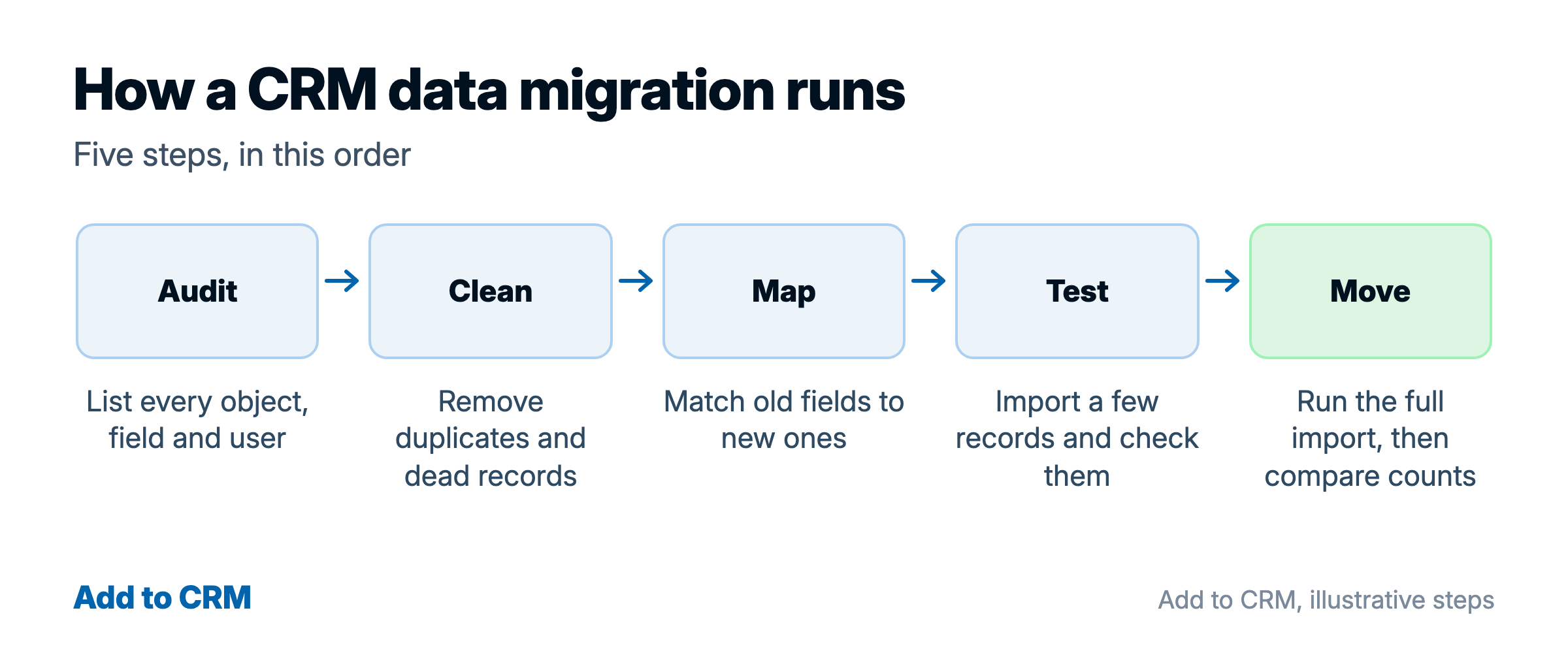
- Audit. List every object, field and user in the old CRM.
- Clean. Merge duplicates and drop dead records before you export.
- Map. Pair each old field with a field in the new CRM.
- Test. Import a handful of records and open them.
- Move. Import the rest, parents first (the records others point to).
Then check. Counts can match while links are broken, so open real records too. Freeze the old CRM on export day, or later edits will be missing.
Three ways to move the data
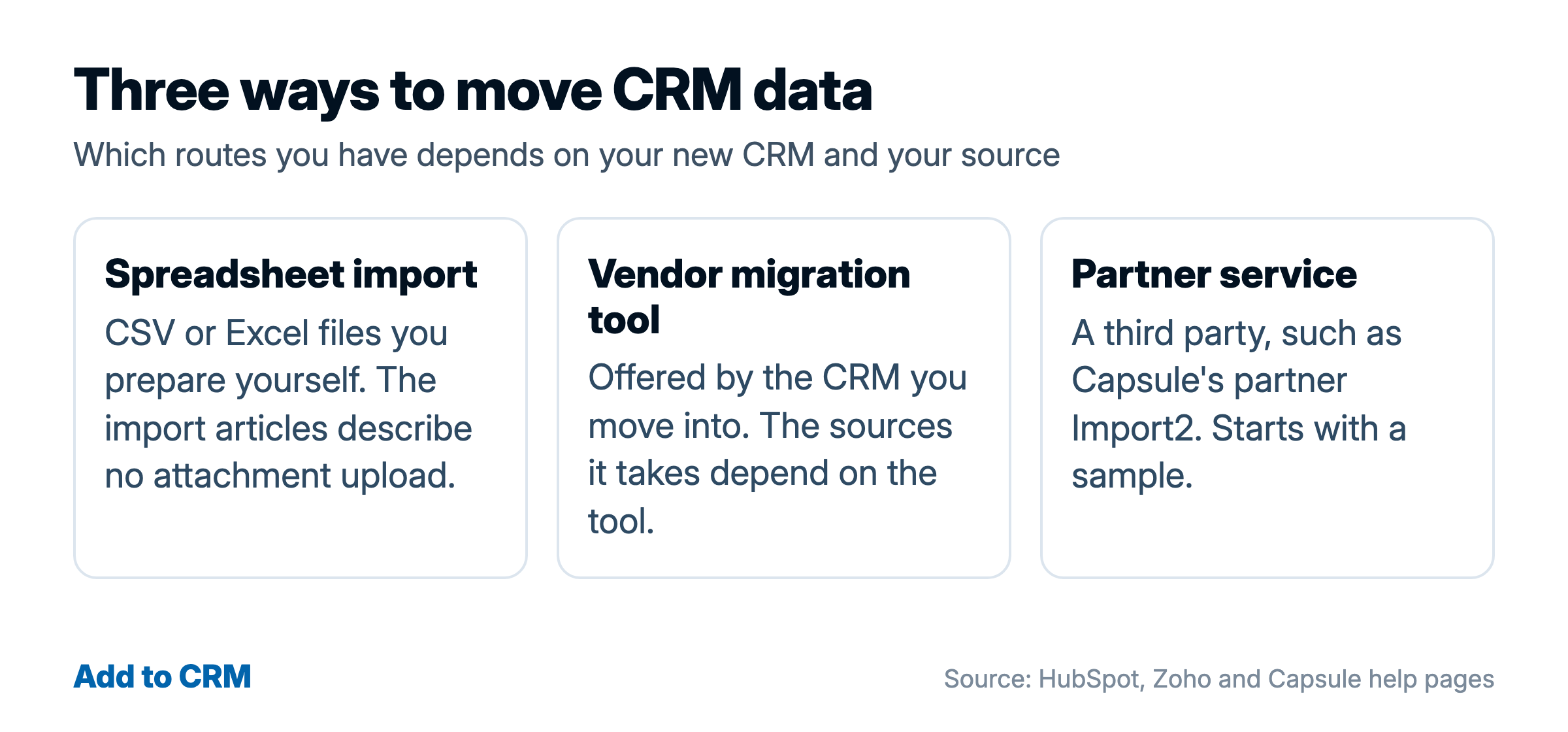
- Spreadsheet import. Export a CSV or Excel file, fix it, import it. It suits small or tidy data, but attachments stay out of the file.
- Vendor migration tool. These belong to the CRM you move into and can carry attachments, depending on the source app. HubSpot's Smart Transfer is built for a one-time migration, keeps syncing in the background after the first load and works only for apps on its supported list. Zoho's Data Migration wizard takes CSV files from other systems, or a direct transfer from Pipedrive, Capsule, HubSpot and others.
- Partner service. Capsule points to its partner, Import2, and says importing is free from over 25 CRM tools. It suits a move into Capsule, starts with a sample you review, and is a third party.
Add to CRM is not one of these routes. It does not move old records; it adds new people to the CRM you already use (see "After the move" below).
What each CRM's import accepts
This table was checked on each vendor's own help pages in October 2026. Limits change, so check yours before you start.
| CRM | File types | Size and row limits | How it handles duplicates |
|---|---|---|---|
| HubSpot | .csv, .xlsx, .xls | Smart CRM, Starter, Professional or Enterprise: 512 MB, 1,048,576 rows per file. HubSpot's free tools: 20 MB | Contacts by Email, companies by Company domain name, any object by Record ID |
| Zoho CRM | CSV, XLS, XLSX; VCF (a contact card file) for Leads, Contacts and Users | New import tool: 25 MB per file. Zoho's classic import page lists lower caps. Rows by edition: Free 1,000, Standard 20,000, Professional 50,000, Enterprise 100,000, Ultimate 200,000 | You pick a unique CRM field. "Add as new" skips matches, "Update existing only" needs that field, "Both" adds and updates |
| Pipedrive | XLS, XLSX, CSV; one tab per import | 200,000 rows, under 50 MB | People: same name and a match on organization, phone or email. Organizations: same name and a match on address. Deals: no check |
| Capsule | CSV or Excel. It reads CSV as UTF-8, a standard text encoding | Not stated on its contacts import page | Import all as new, ignore duplicates, or import and update duplicates |
| monday CRM | .xlsx, .xls, .csv (per monday's general Excel article) | Fewer than 50 columns and 8,000 rows, 10 MB or less (per monday CRM's import article). The general article gives 10,000 rows for an existing board | Add as new, Skip or Update, matched on a column you choose |
Step-by-step guides: Zoho CRM, Pipedrive, Capsule and monday CRM. On another CRM, check the same four things: file types, limits, duplicate matching and undo.
Will I lose customer history when I switch CRMs?
Some of it moves easily and some does not. Contacts, companies and deals move if the file has the columns each CRM requires: HubSpot needs Email for a contact, and Zoho CRM skips a record that misses a mandatory field. History varies:
- Notes and activities depend on the CRM. HubSpot's import can create activities such as calls, meetings, notes, tasks and emails, Zoho's takes notes, Pipedrive's takes activities and notes, and Capsule takes notes and emails only for brand-new contacts. monday CRM's import lists no activity type among its column types.
- Attachments are the weak spot (see the first question below). Moving into Pipedrive, Capsule or monday CRM? Keep a copy of the files outside the CRM.
How do I avoid duplicate data in a CRM migration?
Clean before you export, not after you import. Merge duplicates, drop dead records, and keep an untouched copy of the export. Our pages on contact deduplication and data hygiene go deeper.
Then decide how the import treats a match, because defaults can bite: monday CRM's "Add as new items" imports every row, even one already on your board. Pick a unique field first, such as an email, a domain or an ID.
Last, give every row its old ID, or its email, in its own column, to link records later. Pipedrive's HubSpot migration guide says to keep them for that job. In HubSpot, a custom property that requires unique values can act as the identifier, so it can hold an old ID (that idea is ours). In Pipedrive, an ID field you map on import can hold only a whole number, so put an alphanumeric old ID in a text custom field instead (also our suggestion).

Turn LinkedIn® profiles into CRM contacts
Add to CRM finds verified emails, phone numbers, and job titles on LinkedIn® — then adds them to your CRM in one click.
Start Free Trial


 Trusted by 2,500+ users4.7
Map fields and dropdown values
In field mapping, check each field's type, whether the new CRM requires it, and its dropdown options. Create custom fields and options before the import where you can; HubSpot and Pipedrive both say to create them first. Capsule (for an admin), Pipedrive (from the mapping screen), Zoho ("Create New Fields") and monday CRM ("Create new column", a Text column) can also create fields during the import.
Where a dropdown value is missing from the new field, the CRMs split:
- HubSpot imports the record with that property empty. It flags the values on the mapping screen (View errored values) and lists the error under Import errors, so read both.
- Capsule fails the row and lists it in a file of rows it could not import.
- Zoho is unclear. One line on its Data Migration page says values must exist first. Another says "It will be added even if the values are absent", which does not say whether that means the record or the value. Test a sample.
The Pipedrive and monday CRM articles we read do not say.
How do I migrate deals and contacts between CRMs?
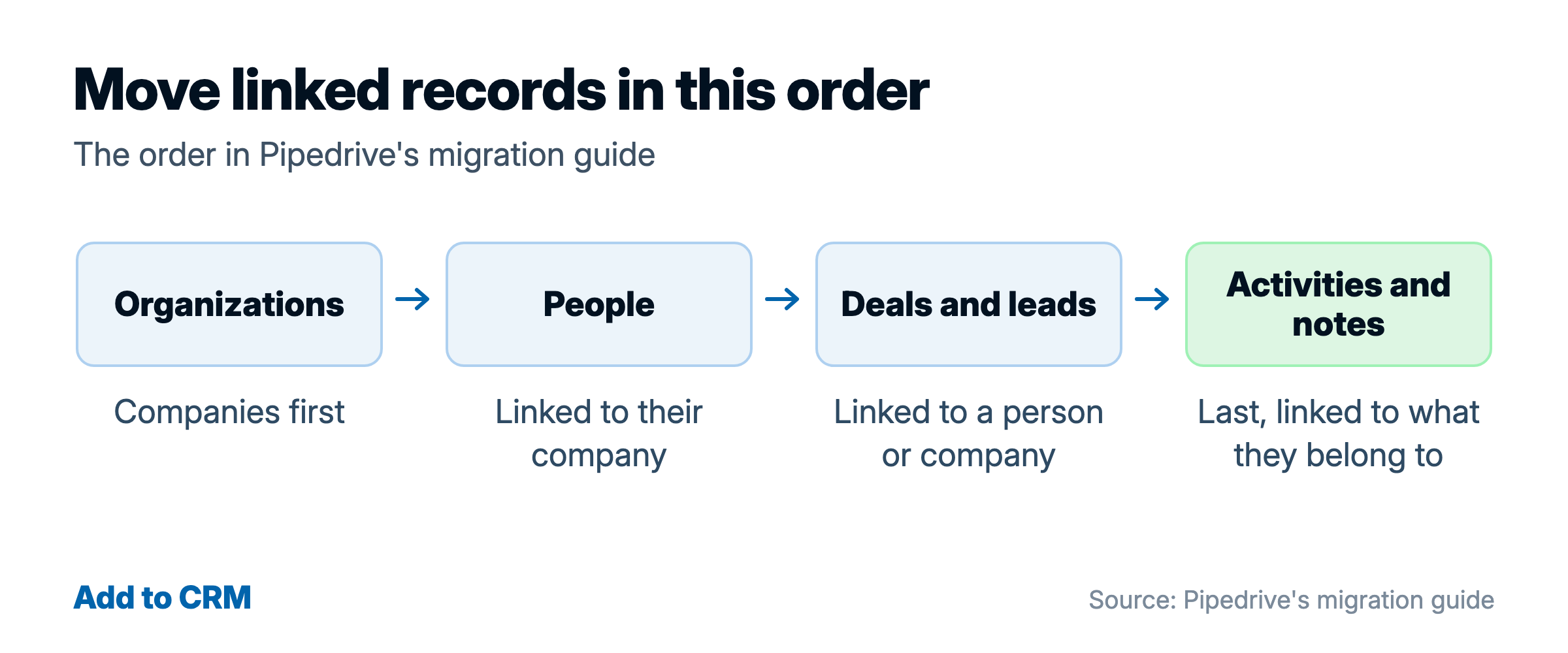
Move the parents first, the records others point to. Pipedrive's HubSpot migration guide gives this order: organizations, people, deals, leads, activities, then notes (optional). Create your pipelines and stages first: in HubSpot, a deal's pipeline and stage must already exist in your account. Each CRM links records in its own way:
- Pipedrive. A row with a person, an organization and a deal creates and links all three.
- HubSpot. Put a unique identifier for the record and one for the record it links to on each row, or the import creates duplicates instead of linking. To link one contact to two companies, repeat the row once per link.
- Zoho CRM. For a lookup field (one that points to another record, such as a contact's account), add a column that identifies that record. In Data Migration, move your users first, then map each record owner.
- Capsule. Add an Organization column to the person's row.
Dates and time zones
- Formats. In HubSpot, a date it cannot read imports empty, and one it misreads can import wrong, with day and month swapped. Check the date format the new CRM expects, and test one record with a date.
- Original dates move only if you supply them. HubSpot stamps an imported activity with the import date when it has no Activity date. Zoho's import tool cannot set Created Time or Modified Time, but its Data Migration tool keeps the old CRM's times when it adds and updates records in one pass.
- Time zones. HubSpot sets a missing time to midnight. We found no time zone statement in the Zoho CRM, Pipedrive, Capsule or monday CRM import articles, so test one record that has a time.
Test small, then move
Start with a handful of records. Pipedrive's HubSpot migration guide suggests a test import of 5 to 10 records.
Choose test records for their problems, not their tidiness: one with a company and a deal, one with a changed dropdown value, one with a date and time, and one you know is a duplicate. Then compare counts with the old CRM and open five records.
An example, ours and not a vendor's: moving 3,000 contacts and their deals into Pipedrive. Import the organizations first. Then import ten test people chosen as above, each with an Old ID in a text field, and open them. Only then import the rest of the people, then the deals.
Can I undo an import?
Zoho's and Capsule's undo remove only what an import added, not what it changed. Treat undo as a bonus and your saved export as the real safety net.
- Pipedrive. A global admin can revert an import within 48 hours.
- HubSpot. Deleting an import's records does not reverse its changes to existing ones. On the plans it lists, a Super Admin can use Restore CRM changes to roll records back up to 14 days.
- Zoho CRM. Its import article gives two windows, 30 days in one place and seven in another, so plan on seven. Zoho's Data Migration page describes a rollback only for data newly added when you re-upload missed files, and nothing for undoing a whole migration.
- Capsule. You can undo only the brand-new contacts and opportunities an import added.
Works with 29+ CRMs
Add to CRM finds verified emails, phone numbers, and job titles on LinkedIn® — then adds them to your CRM in one click.
Start Free TrialTrusted by 2,500+ users4.7How long does it take?
No vendor we checked promises a time for a whole migration. The timings we found cover parts of a move: Capsule says sample data from its partner route appears within 10 to 15 minutes, and HubSpot says a Smart Transfer sync can take several hours. The long part is yours: cleaning, mapping and checking.
File limits, not contact counts, tell you whether to split a file. A 12,000-row file is over monday CRM's limits but fits Pipedrive's 200,000.
After the move: keep new contacts clean
Contact data goes stale, and a migration copies stale records too. HubSpot's database decay page puts the yearly loss for email marketing databases at about 22.5%, crediting MarketingSherpa. It lists the 2013 and 2014 State of Inbound reports as sources and gives no date for the study, so treat the figure as old: a sign of direction, not a rate for your list. Decay hits records you already hold (see CRM data decay).
New contacts are a different job, and that is where Add to CRM fits. Add to CRM adds contacts from LinkedIn, Gmail and Outlook to your CRM. It is a Chrome extension that finds verified contact details and adds a person to your CRM in one click, and each contact is enriched with 20+ data points. A credit is used only when contact details are found.
You connect your CRM in the Add to CRM web app, not in the extension, and your credentials are stored encrypted on our servers. Check your CRM on the integrations page, then start the free 7-day trial from the pricing page. A card is required, and you can cancel any time.
Common questions
Can I move attachments?
None of the five CRMs' import articles describes uploading attachment files. HubSpot's Smart Transfer and Zoho's Data Migration tool can carry attachments, depending on the source app, but each moves data only into its own CRM, and Smart Transfer needs a Super Admin.
Do I need a migration service?
It depends on the size and the mess of your data. Capsule says importing through its partner, Import2, is free. A service may help when your data is large or messy, or your new CRM has no tool for your source. Ask what moves, what does not, and how links are kept.
Related terms
Start saving time and closing more deals.
Find verified contact info for your prospects on LinkedIn®, Gmail and Outlook — and add them to your CRM with 1-click.

 Loading...Trusted by 2,500+ founders, SDRs & more