What Is Sales Navigator, and How Do You Actually Use It?
What is Sales Navigator? A plain-English guide to its features, pricing, and how to use it step by step — plus how to get your leads into any CRM.
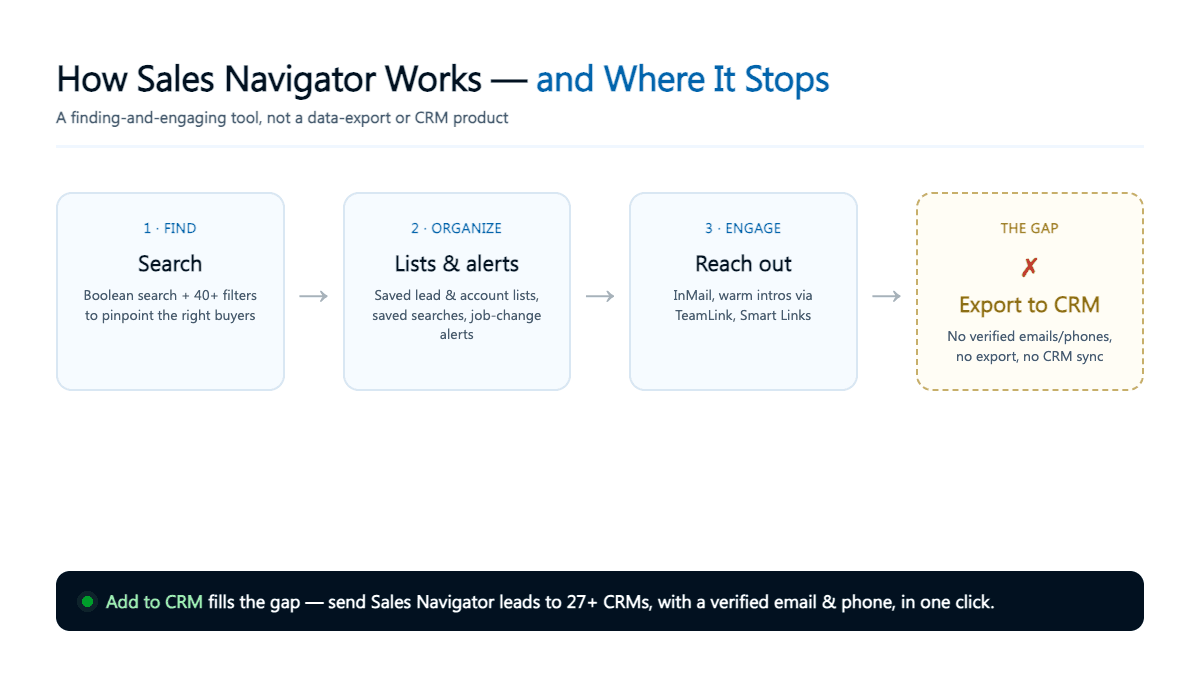
LinkedIn Sales Navigator is LinkedIn's premium prospecting product. It layers advanced lead and company search, saved lists, real-time alerts, and 50 monthly InMail messages on top of your LinkedIn account so sales teams can find the right buyers and start conversations. It is a finding-and-engaging tool — not a data-export product and not a CRM.
TL;DR: Sales Navigator is a premium search-and-outreach layer for LinkedIn: Boolean search, more than 40 filters, saved lead lists, and alerts that surface buyers at the right moment. It does not give you exportable emails or sync leads to your CRM — so pair it with a tool like Add to CRM to move contacts into your pipeline in one click.
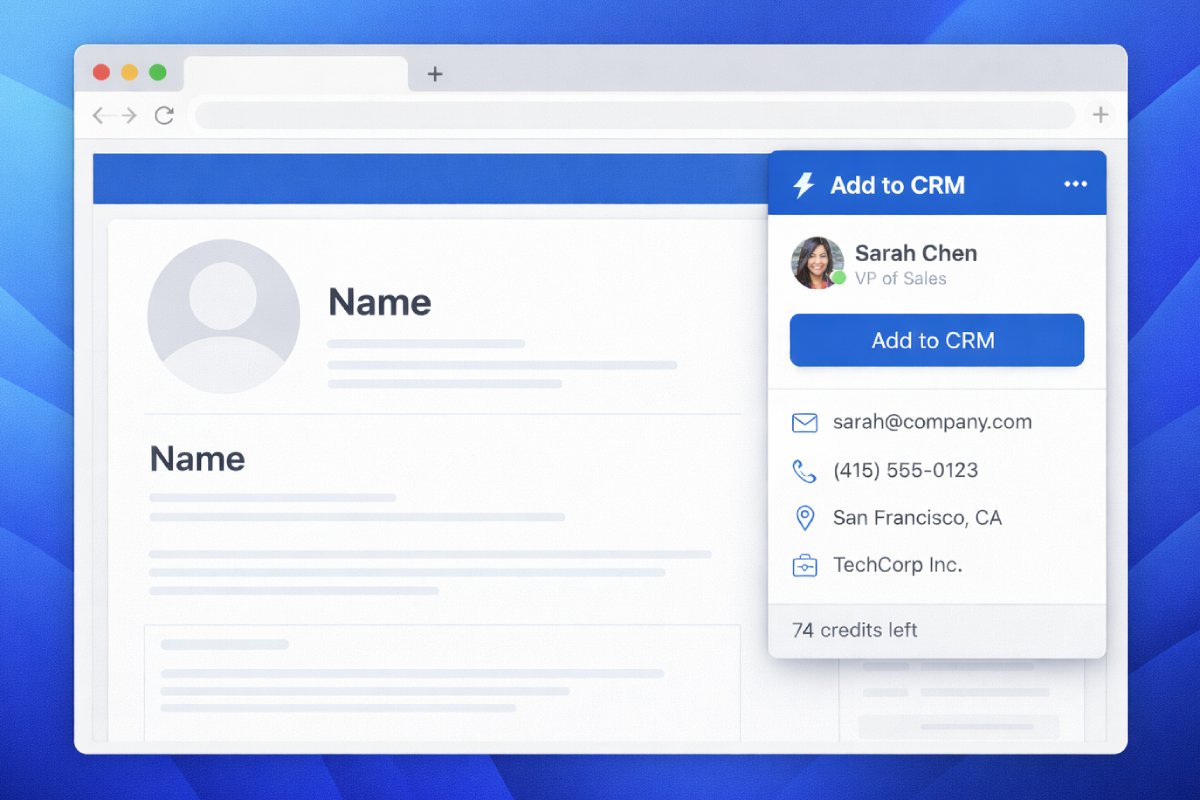
What is LinkedIn Sales Navigator?
LinkedIn Sales Navigator is a paid subscription that sits on top of a regular or Premium LinkedIn account and turns the network into a dedicated prospecting workspace. Standard LinkedIn caps how many searches you can run and hides most of the filters that matter to sellers. Sales Navigator removes those limits and adds a purpose-built interface for building targeted buyer lists, tracking accounts, and starting conversations.
It is easiest to understand as three jobs:
- Find — advanced lead and company search with far more filters than free LinkedIn.
- Organize — saved lead lists, account lists, and saved searches that keep working in the background.
- Engage — InMail, alerts, and warm-introduction paths to open conversations.
Here is what it is not: a database you can download. Sales Navigator shows you people and companies, but it deliberately does not hand you a spreadsheet of verified emails and phone numbers, and it does not push contacts into your CRM. That distinction is the single most important thing to understand before you buy — and we will come back to it.
What are the main Sales Navigator features?
The value of Sales Navigator lives in a handful of features that free LinkedIn simply does not offer. Here are the ones that matter most to a working seller.
| Feature | What it does |
|---|---|
| Advanced lead & company search | Boolean keyword search plus more than 40 filters — job title, seniority, function, company headcount, geography, industry, and signals like recent job changes or headcount growth. |
| Saved lead & account lists | Bucket prospects and target companies into named lists you can revisit, filter, and work through systematically. |
| Saved searches with alerts | Save a filter set once; Sales Navigator notifies you when new people or companies start matching it. |
| Job-change & buyer-intent alerts | Get flagged when a saved lead changes roles or an account shows engagement signals — natural moments to reach out. |
| InMail (50 per month) | Message people you are not connected to, without sending a connection request first. |
| Smart Links | Bundle sales content into a single trackable link and see who opened and viewed what. |
| TeamLink (Advanced tier) | Surface warm-introduction paths through your colleagues' networks. |
Two of these deserve extra attention. The advanced search is the engine of the whole product: Boolean logic (AND, OR, NOT) in the keyword box combined with 40-plus structured filters lets you describe an ideal buyer with real precision instead of guessing. And saved searches with alerts turn prospecting from a one-off chore into a system — Sales Navigator keeps watching the network and tells you when a fresh match appears or a saved lead changes jobs, which is often the best possible moment to send a message.
How much does Sales Navigator cost?
Sales Navigator comes in three tiers — Core, Advanced, and Advanced Plus. Core starts at $119.99 per month as of mid-2026, and the price climbs as you move up: Advanced adds team features such as TeamLink warm introductions, and Advanced Plus is aimed at larger organizations. LinkedIn adjusts its pricing periodically, so check the vendor's site for current pricing before you commit.
That is a meaningful jump from standard LinkedIn Premium, so it is worth doing the math against your actual outbound volume. We break down every tier, the annual-versus-monthly trade-off, and whether it pays for itself in a dedicated guide: how much does Sales Navigator cost.
Who should use Sales Navigator?
Sales Navigator earns its price when prospecting is a repeated, deliberate activity. It is a strong fit if you are:
- A founder or solopreneur running your own outbound and account research.
- An SDR or BDR building targeted lists and sending high volumes of personalized outreach.
- A sales manager who wants the team tracking accounts, sharing warm intros via TeamLink, and catching job-change triggers.
- An account-based team that needs to map buying groups inside target companies.
It is probably overkill if you close a handful of large deals a year through referrals, or if all you really want is a list of verified emails to drop into a spreadsheet — a dedicated data provider is a cheaper answer for that narrow job. The people who get the most out of Sales Navigator are the ones who live in LinkedIn every day and treat it as their prospecting home base.

Turn LinkedIn® profiles into CRM contacts
Add to CRM finds verified emails, phone numbers, and job titles on LinkedIn® — then adds them to your CRM in one click.
Start Free Trial


 Trusted by 2,500+ users4.7
How to use Sales Navigator: a step-by-step walkthrough
Enough theory. Here is how you actually use Sales Navigator, using a running example: say you sell a sales-onboarding platform, and your best customers are mid-market B2B SaaS companies. Your ideal buyer is a VP of Sales.
Step 1 — Build a filtered lead search. Open Lead search and describe your buyer with filters: Geography = United States; Industry = Software Development; Company headcount = 51–200; Seniority = VP with Function = Sales. Then add a timing signal such as "Changed jobs in the last 90 days" or an account filter like recent headcount growth. Sharpen the keyword box with Boolean logic — for example ("VP Sales" OR "Head of Sales") NOT assistant. Sales Navigator returns a tight list of people who match every condition.
Step 2 — Save the best leads to a list. Create a named lead list, for example "Q3 – Mid-market SaaS VPs." As you scan the results, save the strong fits into it. Do the same with an account list for the target companies, so you can track the whole buying group and add more contacts from each one later.
Step 3 — Save the search and turn on alerts. Save your filter set. Now Sales Navigator will notify you whenever a new person starts matching those criteria — your list keeps filling itself without you re-running anything. Switch on job-change and buyer-intent alerts too, so you are told the moment a saved lead moves companies or an account shows activity.
Step 4 — Engage. Warm up before you pitch: view a few profiles, engage with a recent post, or find a warm path through TeamLink if you are on the Advanced tier. When you reach out, personalize with the context Sales Navigator surfaces — a new role, a shared connection, a company milestone. Use one of your 50 monthly InMails to message people you are not connected to, and share collateral through a Smart Link so you can see exactly who opened it.
Step 5 — Move qualified leads into your workflow. Once a lead is worth pursuing, you want them logged in your CRM with an email and phone number attached — and this is precisely where Sales Navigator stops. More on that next.
Sales Navigator pros and cons
No tool is all upside. Here is the honest ledger.
| Where Sales Navigator shines | Where it leaves you stuck |
|---|---|
| Precision targeting with 40+ filters and Boolean logic | No exportable emails or phone numbers |
| Saved searches and alerts that surface buyers automatically | Leads live inside LinkedIn, not in your CRM |
| Warm-introduction paths via TeamLink (Advanced) | Logging a contact elsewhere means manual copy-paste |
| InMail to reach people outside your network | Noticeably pricier than standard LinkedIn Premium |
| Rich account and lead context in a single view | Data goes stale unless you re-check profiles |
The pattern is clear: Sales Navigator is excellent at finding and engaging, and intentionally silent on exporting and syncing. That is by design — but it leaves a real gap in your workflow.
The gap: your leads are stuck in Sales Navigator
You have built a pristine list of buyers. But Sales Navigator will not give you their verified email addresses or phone numbers, and it will not drop them into your CRM. To actually work those leads, you have three options.
The manual, native way. Open each profile, copy the details, and type them into your CRM by hand. It is fully compliant and costs nothing extra, but at even 30 leads it becomes hours of tedious data entry — the exact task most reps quietly skip, which is how good lists rot.
Bulk scraping — avoid it. Be clear-eyed here: bulk-scraping Sales Navigator violates LinkedIn's Terms of Service and can get your account restricted or permanently banned. Tools that promise to harvest thousands of profiles automatically put the very account you rely on at risk. It is not worth it.
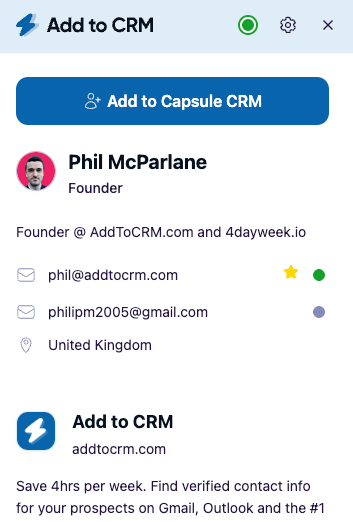
The compliant shortcut. Add to CRM's Pro tier connects your own LinkedIn account (through Unipile) so you can resolve Sales Navigator profiles and searches and add them to your CRM — using your account, the way LinkedIn intends, rather than scraping. As it adds each contact, Add to CRM enriches it with a verified business email, phone number, and 20+ data points (96% email verification accuracy), then writes it to any of 29+ CRMs in one click. That fills exactly the export-and-sync gap Sales Navigator leaves open — and it hands you the email and phone Sales Navigator never showed you.
If you want the detailed how-to, read our step-by-step guide on how to export your Sales Navigator list, or add the Add to CRM Chrome extension and try it on your own pipeline.
29+ CRMs supported. Try free for 7 days
Add to CRM finds verified emails, phone numbers, and job titles on LinkedIn® — then adds them to your CRM in one click.
Start Free TrialTrusted by 2,500+ users4.7Frequently asked questions
Is Sales Navigator worth it? If you run consistent outbound and live inside LinkedIn, yes — the targeting and alerts save real prospecting time and surface buyers you would otherwise miss. If you only need a list of emails to export, a dedicated data tool is a cheaper fit. Weigh the subscription against your actual outbound volume before committing.
What is the difference between LinkedIn Premium and Sales Navigator? LinkedIn Premium (Career or Business) adds perks like who-viewed-your-profile and a small number of InMails. Sales Navigator is the seller-specific tier: advanced lead and company search, saved lists, saved searches with alerts, and 50 InMails a month. If prospecting is your job, Sales Navigator is the one built for it.
Can you export leads or emails from Sales Navigator? Not natively. Sales Navigator has no built-in export to a spreadsheet or CRM, and it does not display verified personal emails or direct phone numbers. The compliant way to get contacts out is through your own connected account with a tool like Add to CRM, or by copying them across manually.
Does Sales Navigator include email addresses and phone numbers? No. It shows LinkedIn profile data — role, company, location, and activity — but not a verified business email or direct phone. You need a separate enrichment step to attach those before a lead is genuinely outreach-ready.
Can Sales Navigator connect to my CRM? The standard Core and Advanced plans do not push leads into your CRM for you — they are built for finding and engaging, not syncing. For a reliable one-click path from a profile to a CRM record, most individual reps add a tool such as the Add to CRM extension.
Is there a free version of Sales Navigator? There is no permanently free version, but LinkedIn usually offers a time-limited free trial so you can test it before paying. Check the vendor's site for the current trial terms and pricing.
From Sales Navigator to your CRM in one click
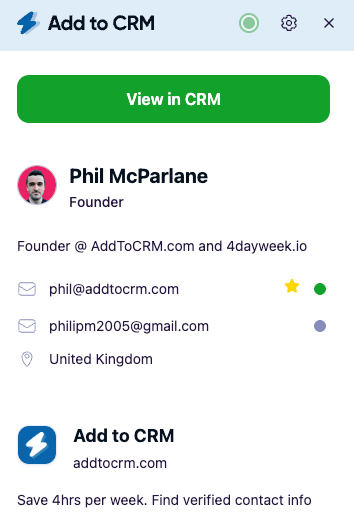
Sales Navigator is genuinely good at what it is built for: helping you find the right people and start the right conversations. The catch is that all that value stays trapped inside LinkedIn until you get those leads into the system where you actually run your deals.
That last step is what Add to CRM handles. Find your prospects in Sales Navigator, then let Add to CRM's Pro tier — working through your own connected account, never scraping — enrich each one with a verified email, phone number, and 20+ data points and file them into any of 29+ CRMs in a single click. No copy-paste, no risk to your account, no leads lost between tools. You can add the Add to CRM Chrome extension and start a 7-day free trial to move your first Sales Navigator list into your CRM today.
Start saving time and closing more deals.
Find verified contact info for your prospects on LinkedIn®, Gmail and Outlook — and add them to your CRM with 1-click.

 Loading...Trusted by 2,500+ founders, SDRs & more