How to Export Your Business-Network Connections to Any CRM
How to export your LinkedIn connections to a CRM — the native export, its big limitation (no emails), and a faster one-click way to add contacts with verified data.
TL;DR: You can export your LinkedIn connections as a CSV in a couple of minutes — but the file no longer includes email addresses for most people, so it's only half a contact list. If the goal is a usable CRM, the faster route is to enrich and add contacts one click at a time (with verified emails and phone numbers) as you work through your network. Here's how to do both.
Your professional network is one of the most valuable prospect lists you own — people who already know you, already accepted your connection, and are far warmer than a cold list. The problem is that this list lives inside a platform, not your CRM, so it does nothing for your pipeline until you get it out. This guide covers the three practical ways to move your connections into a CRM, what each one does well, and the limitation of the native export that catches most people out.
Why bother exporting your connections at all?
A connection sitting in a social network is a name. A connection in your CRM is a contact you can sequence, task, tag, and report on. Moving them across lets you:
- Follow up systematically instead of scrolling a feed and hoping to remember.
- Enrich them with real contact data — a verified work email and phone number, not just a job title.
- See who's already in your pipeline so you don't double-add or pitch an existing customer.
- Run campaigns to a warm audience you actually have permission to email.
The question is only how — and the answer depends on whether you want the whole list at once or the right contacts done properly.
Option 1: Export your connections from LinkedIn (and the catch)
LinkedIn lets you download your own data, including your connections list, as a CSV. The steps:
- Open Settings & Privacy from your profile menu.
- Go to Data Privacy → Get a copy of your data.
- Choose Connections (a smaller, faster export than "the works").
- Request the archive; you'll get an email with a download link, usually within minutes.
- Open the
Connections.csv— you'll see first name, last name, company, position, and the date you connected.
Here's the catch, and it's a big one: the export no longer includes email addresses for most of your connections. In recent years the platform made the email column opt-in, so it's blank unless a connection has explicitly chosen to share their email with connections. In practice, that means a typical export gives you names and job titles but not the one field you actually need to reach people.
So the native export is genuinely useful for a snapshot of who you know — but on its own it's not a usable outreach list, and importing 3,000 email-less rows into your CRM mostly creates cleanup work.
Option 2: Enrich and add contacts one at a time (the click-per-contact route)
For the connections that matter, the better workflow is to enrich and add them individually — which sounds slower but usually isn't, because you skip the export, the missing-email problem, and the manual import.
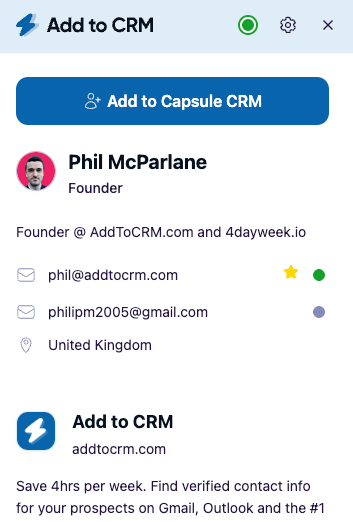
With an enrichment browser extension, you open a connection's profile, and the tool finds their verified work email and phone number plus 20+ data points (job title, seniority, company, industry, size, location, and more). One click adds the whole record to your CRM with every field mapped correctly.
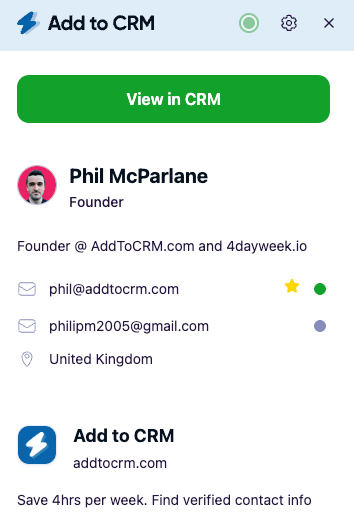
This is what Add to CRM does. Instead of a CSV of names with no emails, you get complete, verified contacts landing straight in your CRM — the version of "export" that's actually ready to sell to. It's the same core move covered in our guide to finding anyone's professional email address, applied to the people you already know.
When it's the right choice: when you care about data quality over raw volume — you'd rather have 200 complete, verified contacts than 3,000 half-empty rows.
Option 3: Build a list, then add in bulk
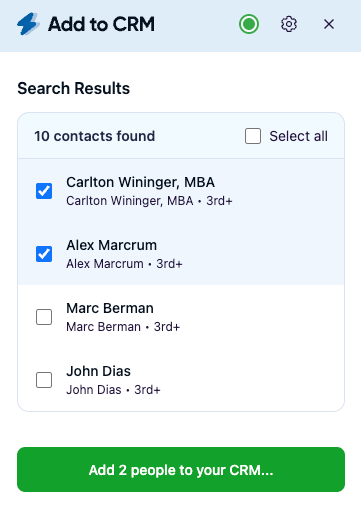
If you do want volume, combine the two ideas: work through a segment of your network (say, everyone with "Head of" in their title at companies you target), and add them in a batch rather than one by one. You keep the verified-data quality of Option 2 but move faster across a defined list.
The key is to segment first. "Add everyone I've ever connected with" produces a noisy CRM; "add the 150 decision-makers in my ICP" produces a pipeline.

Turn LinkedIn® profiles into CRM contacts
Add to CRM finds verified emails, phone numbers, and job titles on LinkedIn® — then adds them to your CRM in one click.
Start Free Trial


 Trusted by 2,500+ users4.7
Which connections should you add first?
You don't need to move your entire network at once — and you shouldn't. A focused first pass beats a bulk dump every time. Prioritise in roughly this order:
- Recent connections. Anyone you've connected with in the last few months is warm and top-of-mind. Add them while the context is fresh, so you remember why you connected in the first place.
- People in your ICP. Filter for the job titles, industries, and company sizes you actually sell to. One "Head of Sales at a 50–200 person SaaS company" is worth ten generic connections.
- Warm intros and past conversations. Event contacts, referrals, and ex-colleagues you've actually spoken to convert far better than cold names. Get them into a nurture sequence first.
- Champions who've changed jobs. Someone who liked your product at their last company is a warm lead at their new one — their profile shows the move, so enrich them at the new company and add them.
Working a prioritised shortlist keeps your CRM clean and your follow-up meaningful, instead of burying good prospects under thousands of names you'll never action.
What you actually get when you add a connection
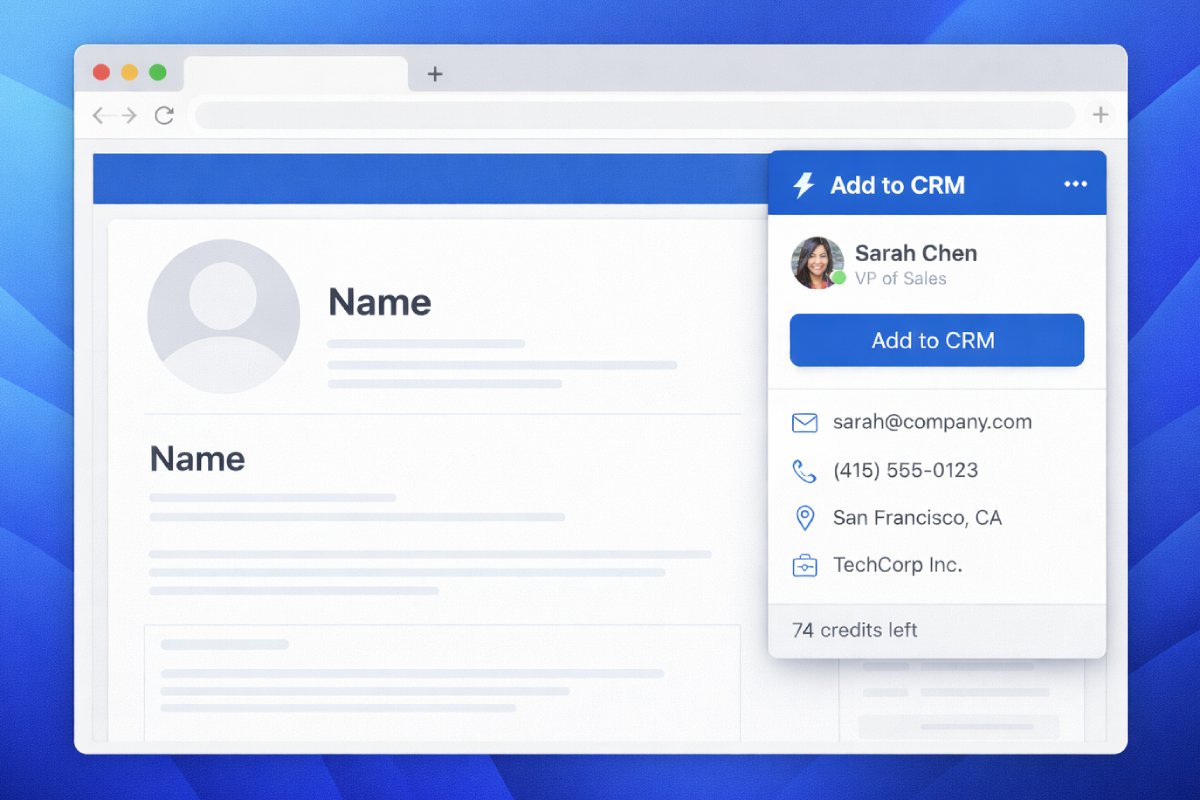
The difference between a CSV row and a real CRM contact is the data attached to it. When you add a connection with an enrichment tool, you don't just move a name — you capture a complete record:
- A verified work email and, where available, a direct phone number — the fields the native export leaves blank.
- Job title, seniority, and department, so you can route, score, and segment.
- Company details — industry, size, location, and website — for account context.
- 20+ data points in total, mapped to the right CRM fields automatically.
That's the gap between "I have 3,000 connections somewhere" and "I have 200 sales-ready contacts in my pipeline, each one I can email today."
Keep your CRM clean while you do it
The fastest way to ruin a CRM is to bulk-import duplicates. Whichever route you choose:
- Add tools should detect duplicates. Add to CRM shows a green tick when a contact already exists, so you enrich and update instead of creating a second record.
- Standardise as you go. Consistent job titles, company names, and tags at the point of entry save hours of reporting pain later.
- Enrich, don't just import. A contact with a verified email and phone is worth ten with only a name.
If you also need to move contacts out of one CRM into another, that's a different job — our how-to-export-contacts guides cover the native export for each major CRM.
29+ CRMs supported. Try free for 7 days
Add to CRM finds verified emails, phone numbers, and job titles on LinkedIn® — then adds them to your CRM in one click.
Start Free TrialTrusted by 2,500+ users4.7Which CRMs can you add your connections to?
One of the advantages of doing this with a dedicated tool rather than a CRM-specific import is breadth. Add to CRM works with 29+ CRMs — not just the big names but the ones smaller teams actually run on:
- Popular picks: Capsule, Pipedrive, HubSpot, Zoho, Copper, Close, Salesforce, monday, Attio, Nutshell, Salesflare, Freshworks, and more.
- One extension, any CRM. You don't need a different tool or a different export for each — connect your CRM once and add contacts to it from anywhere you prospect.
That matters if your CRM isn't one of the two or three that every tool supports — the long-tail CRMs are exactly where a one-click add saves the most time, because they rarely have a slick native importer.
Frequently asked questions
Can I export my LinkedIn connections with their email addresses? Usually not. LinkedIn's connections export makes the email column opt-in, so it's blank for most people. To get usable emails, enrich each connection with a tool that finds and verifies their work email.
What's the fastest way to get my connections into a CRM? For a warm shortlist, enrich and add them one click at a time with a browser extension — you skip the export, the missing emails, and the manual import, and each contact arrives complete and verified.
Does exporting my connections break any rules? Downloading your own data is a standard, supported feature. Enriching a contact you're viewing for legitimate B2B outreach is also fine — just avoid bulk-harvesting tools that violate a platform's terms, and follow email rules (CAN-SPAM, GDPR/PECR) when you reach out.
How many CRMs does Add to CRM support? 29+, including many that most enrichment tools ignore. You connect your CRM once and add contacts to it from professional networks, Gmail, and Outlook.
Turn your network into pipeline. Add to CRM enriches your connections with verified emails and phone numbers and adds them to any of 29+ CRMs in one click. Start a 7-day free trial and add your first contact in under two minutes.
Start saving time and closing more deals.
Find verified contact info for your prospects on LinkedIn®, Gmail and Outlook — and add them to your CRM with 1-click.

 Loading...Trusted by 2,500+ founders, SDRs & more