How to Use Add to CRM with Zoho
Add LinkedIn, Gmail, and Outlook contacts to Zoho in one click.
Get started with Zoho in 2 minutes

Sync leads from professional networks to Zoho.
Save 4hrs per week on CRM data entry.
Learn more...Free Zoho integration
Zoho CRM is a comprehensive CRM platform with sales automation, analytics, multichannel communication, and AI-powered insights for businesses of all sizes.
Add to CRM is a Chrome extension that lets you add contacts, companies, and leads to Zoho directly from LinkedIn, Gmail, and Outlook — with one click. It enriches profiles with verified emails, phone numbers, job titles, and company data before saving them to your CRM, so you spend less time on manual data entry and more time selling.
This guide walks you through setting up Add to CRM and using it with Zoho.
Step 1: Install the Chrome Extension
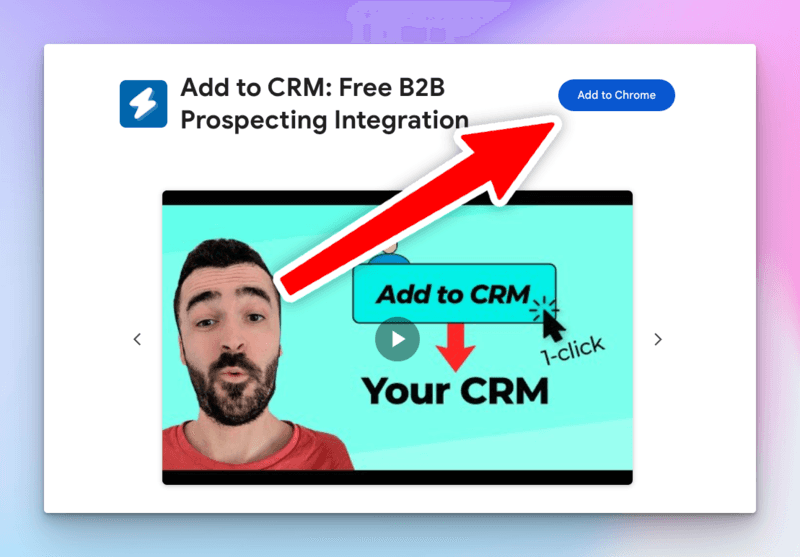
- Visit the Add to CRM for Zoho listing on the Chrome Web Store.
- Click Add to Chrome and confirm the installation.
- Once installed, you'll see the Add to CRM icon in your Chrome toolbar. Click the puzzle piece icon in your toolbar to pin it for easy access.
Step 2: Create Your Account
- After installing, click the extension icon or go to addtocrm.com/signup?software=zoho.
- Sign up with Google (recommended for fastest setup) or create an account with your email and password.
- Zoho will be pre-selected as your CRM during signup.
Step 3: Connect Your Zoho Account
Connecting your Zoho account is quick and secure using OAuth:
- In the Add to CRM connection settings, click Connect to Zoho.
- You'll be redirected to Zoho's official login page.
- Sign in and approve the connection.
- You'll be redirected back to Add to CRM, and your Zoho account will be connected.
Your credentials are handled securely through OAuth — Add to CRM never sees your password.

Find verified contact data for Zoho
Add to CRM finds verified emails, phone numbers, and job titles on LinkedIn® — then adds them to Zoho in one click.
Start Free Trial


 Trusted by 2,500+ users4.7
Step 4: Using Add to CRM on LinkedIn
Once connected, you can start adding contacts from LinkedIn:
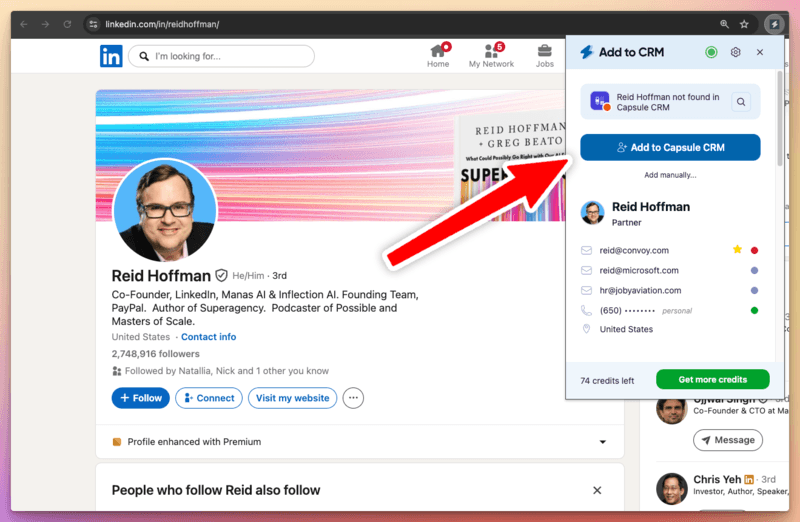
- Navigate to any LinkedIn profile.
- You'll see a floating Add to CRM button on the right side of the page.
- Click the button to open the side panel, which displays the person's enriched profile — including verified email addresses, phone numbers, job title, company info, and more.
- Choose whether to save the contact as a Contact or Lead in Zoho.
- Click Add to Zoho to save the record.
- A green checkmark confirms the contact was added successfully.
You can also click View in Zoho to jump directly to the newly created record in your CRM.
If the contact already exists in your CRM, Add to CRM will detect the duplicate and let you update the existing record instead.
Step 5: Using Add to CRM in Gmail and Outlook
Add to CRM also works inside Gmail and Outlook:
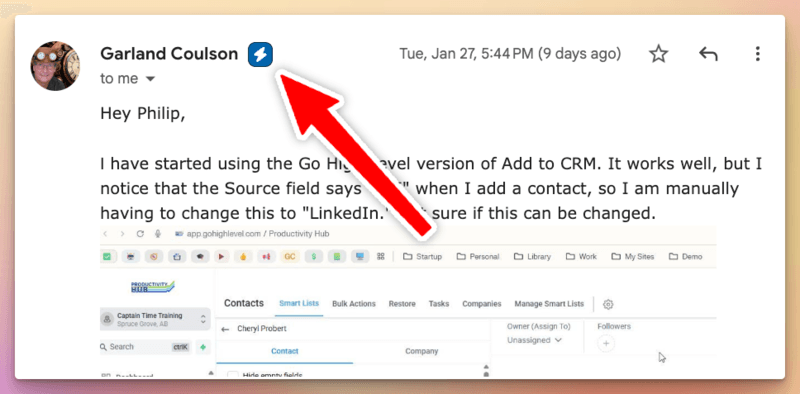
- Open any email in Gmail or Outlook.
- You'll see an Add to CRM button next to the sender's name and email recipients.
- Click the button to open the side panel with the contact's enriched data.
- Click Add to Zoho to save the contact — the same flow as LinkedIn.
This works for both incoming and outgoing emails, so you can capture contacts from any conversation.
Key Features
Data Enrichment
Every time you view a contact, Add to CRM automatically enriches their profile with data from multiple providers. You get verified email addresses, phone numbers, job titles, company details, social profiles, and more — all without leaving LinkedIn, Gmail, or Outlook.
One-Click CRM Entry
Add contacts, companies, and leads to Zoho with a single click. Add to CRM handles the formatting and field mapping so the data arrives in your CRM exactly how you need it.
Duplicate Detection
Before adding a contact, Add to CRM checks if they already exist in Zoho. If a match is found, you can update the existing record instead of creating a duplicate.
Custom Field Mapping
Map enrichment data to any field in Zoho — including custom fields. Go to the Field Mapping page in your Add to CRM dashboard to configure which data points map to which CRM fields.
CRM Activities
Log notes, calls, and meetings directly to Zoho from the extension's Activity tab. Keep a record of every interaction without switching between apps.
Text Expander with Dynamic Variables
Create reusable text snippets with dynamic variables like {first_name}, {company}, and {job_title}. Type a shortcut to instantly expand personalized messages in any text field on any website.
AI Message Generation
Generate personalized outreach messages with AI. Based on the contact's profile data, Add to CRM can draft connection requests, follow-up emails, and other messages tailored to each person.
Supercharge your Zoho workflow
Add to CRM finds verified emails, phone numbers, and job titles on LinkedIn® — then adds them to Zoho in one click.
Start Free TrialTrusted by 2,500+ users4.7Watch the Setup Video
See Add to CRM with Zoho in action:
Get Started
Ready to streamline your Zoho workflow? Sign up for Add to CRM and start adding contacts from LinkedIn, Gmail, and Outlook in minutes.
For more information, visit the Add to CRM for Zoho page.
 Zoho Integration
Add contacts to Zoho from LinkedIn®
Enrich profiles with verified emails and phone numbers. Sync to Zoho in one click.
Try Zoho Extension7-day free trial · Cancel anytime
Save 4+ hrs / week on Zoho data entry.
Find verified contact info for your prospects on LinkedIn®, Gmail, Outlook & company websites. Add them to your Zoho with 1-click.
 Loading...Trusted by 2,500+ founders, SDRs & more