How to Get Email Addresses From a Business-Network Profile
Four ways to get a verified email from a business-network profile — one-click enrichment, format inference, connection export, and manual research.
There are four reliable ways to get an email address from a business-network profile, and which one you should use depends on how many contacts you need and how quickly you need them:
- One-click enrichment — a browser extension that returns a verified work email for the profile you're viewing, in place.
- Email-format inference — work the address out from the person's name and their company's email pattern.
- Export your connections, then enrich — use the platform's native data export for people you're already connected to.
- Manual triangulation — piece the address together from the company website, signatures, and other public sources.
TL;DR: If you're already looking at the person's profile, an enrichment extension is the quickest and most accurate route — it matches the profile against licensed B2B data and returns a verified email without you leaving the page. Format inference and manual research are free but slower, and every address they produce is a guess until you verify it. Exporting your connections works well for people you already know. The one approach to avoid entirely is bulk scraping: it breaches platform terms, produces stale data, and puts your account at risk.
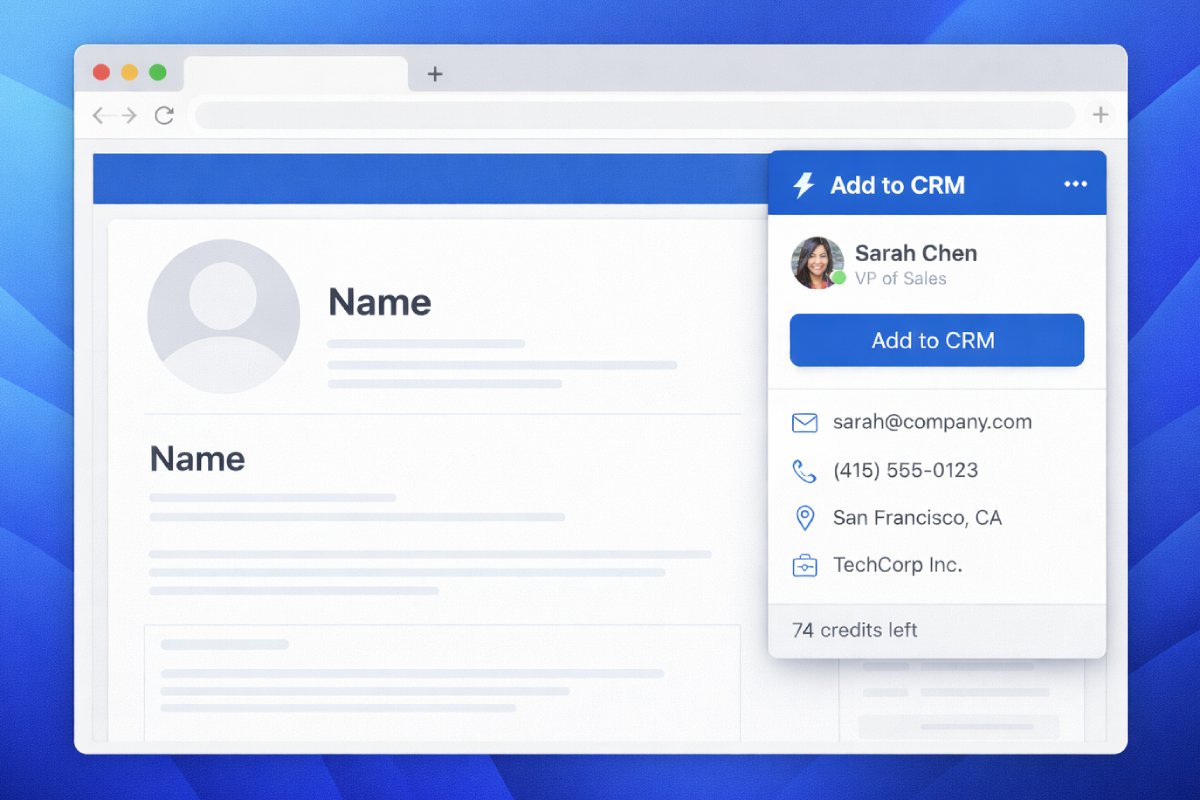
Method 1: Enrich the profile you're viewing (one click)
This is the method to reach for when you're prospecting one person at a time — which, in practice, is how most good outbound starts. You've found the right decision-maker on LinkedIn or another business network, and you want their work email without opening six tabs.
A contact-enrichment extension does the job in place: it matches the person you're currently viewing against licensed professional-data providers and returns a verified work email along with the rest of the contact record — job title, company, location, phone where available. No separate database to search, no exporting anything.
Add to CRM is built around exactly this workflow. On a profile — or on an email in Gmail or Outlook — it enriches the person you're viewing with 20+ data points drawn from multiple B2B data sources, verifies the email in real time (95%+ verification accuracy), and then adds the whole contact to your CRM in one click, with fields mapped and duplicates detected. It works with 29+ CRMs, including HubSpot, Pipedrive, Zoho, Capsule, Close, Monday, Attio, and even Notion, Airtable, and Google Sheets.
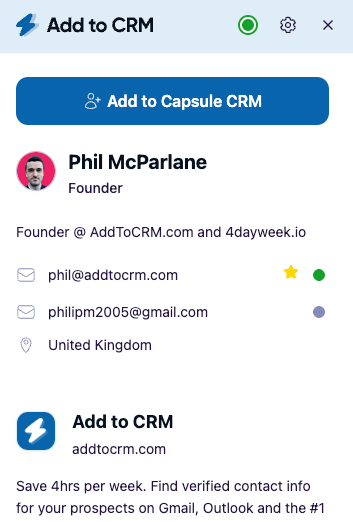
Two honest caveats:
- It uses credits. Each contact you enrich costs a credit. The Standard plan includes 250 credits per month per seat (about $29 / £23 / €25 a month as of July 2026 — check our pricing page), and Pro includes 1,000. Phone reveals come out of the same pool — there's no separate, more expensive phone currency.
- No tool finds everyone. Coverage is strong for people with a real professional footprint, weaker for very junior roles, brand-new companies, or profiles with almost no public information. A good extension tells you clearly when it can't find a verified address rather than handing you a guess.
One point on compliance: enrichment is not scraping. The extension doesn't bulk-collect profile data — it looks up the single person you're viewing in licensed third-party datasets, which keeps the workflow on the right side of platform rules. We cover the distinction properly in what's actually allowed when getting emails from a business network.
If you want to compare the tools that do this — how they source data, what verification really means, and how the credit models differ — our complete guide to email finders for business networks goes deep.
Method 2: Work it out from the company's email format
When you know the person's name and where they work, you can often deduce the address, because most companies standardise on a single pattern. The three you'll see most often are firstname.lastname@company.com, firstname@company.com, and firstinitiallastname@company.com — between them they cover the large majority of business addresses.
The trick is knowing which pattern a given company uses. Two shortcuts:
- Find one known address at the company — on a contact page, in a press release, in a colleague's signature — and copy its format for the person you're after.
- Look the company up directly. Our free email-format lookup shows the dominant email pattern for thousands of companies, so you can skip the detective work.
The catch: an inferred address is a hypothesis, not a contact. People go by nicknames, companies change domains after rebrands, and some domains are "catch-alls" that appear to accept any address and then silently discard the message. Never send to an inferred address without verifying it first — a hard-bounce rate above roughly 2% is enough to start damaging your domain's sender reputation. Format inference is free and works at any scale; just budget the extra time for verification, and expect a meaningful miss rate compared with enriched, verified data.
Method 3: Export your connections, then enrich the list
If the people you want to email are your existing connections, you don't need to look anything up profile by profile — the platform will hand you a list. LinkedIn, like most business networks, offers a native data export: request a copy of your data, tick connections, and you'll get a CSV of everyone in your network with names, companies, and job titles.
There's a well-known limitation: the email column in that export is mostly empty. Connections only appear with an email address if they've explicitly allowed connections to see it, and most people haven't. So the export gives you an excellent who — a clean list of your network — but not the how to reach them.
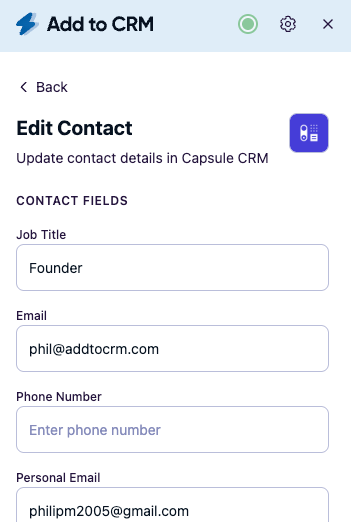
That's why the export is step one of two. Step two is enrichment: prioritise the contacts worth pursuing and enrich each one to get a verified, current work email — for example by revisiting their profile with an enrichment extension. Our full walkthrough, how to export your business-network connections, covers the export click-by-click and what to do with the file afterwards.
This method shines for a specific job: activating a network you already have. If you've been connecting with prospects, customers, and partners for years and none of them are in your CRM, the export-then-enrich route turns that dormant network into a working pipeline — compliantly, because exporting your own connections is a feature the platform provides, not a workaround.

Turn LinkedIn® profiles into CRM contacts
Add to CRM finds verified emails, phone numbers, and job titles on LinkedIn® — then adds them to your CRM in one click.
Start Free Trial


 Trusted by 2,500+ users4.7
Method 4: Manual triangulation
Sometimes you need one specific address and no tool has it. Manual research still works; it's just slow. The places worth checking, in rough order of hit rate:
- The company website — team pages, "about" pages, and contact pages sometimes list direct addresses, and even a generic
info@address confirms the domain and often the format. - Email signatures — if anyone at the company has ever emailed you (or a colleague), their signature usually reveals the pattern for everyone else.
- Press releases and news coverage — media contacts listed at the bottom of releases are real, current addresses at the company.
- Personal websites and portfolios — founders, consultants, and developers frequently publish a contact address on their own site.
- Conference and webinar pages — speaker profiles sometimes include direct contact details.
Combine what you find — a name from the profile, a domain from the website, a format from a colleague's signature — and you've triangulated a probable address. Then, same rule as Method 2: verify before you send. Manual triangulation costs nothing but time; for one or two high-value contacts a week it's fine, but for a pipeline it doesn't scale — an afternoon of manual research typically produces what an enrichment extension returns in a few minutes.
What not to do: bulk scraping
You'll find no shortage of tools promising to extract hundreds of profiles at a time from business networks. Skip them, for three practical reasons:
- Platform terms prohibit it. Business networks' user agreements bar automated collection of member data, and enforcement is real — accounts that run scraping automation get restricted or banned. Losing the account you prospect from is an expensive way to save a few credits.
- The data is worse. Scraped lists start decaying immediately — people change jobs constantly, and a scraped email is a guess based on what was visible on the page, not a verified, deliverable address. The bounces that follow damage your sender reputation.
- The compliance picture is murky. Under GDPR and similar regimes, you need to know where your contact data came from and be able to justify holding it. "A scraper pulled it" is a poor answer. Licensed enrichment data, sourced and verified by providers with documented compliance programs, gives you a defensible trail. (This is general information, not legal advice.)
The compliant alternative isn't slower in any way that matters: enrich the contact you're viewing, one at a time, at the moment they become relevant to you. We've written a full, neutral explainer on what's allowed when collecting emails from business networks — including what platform terms actually say and how data-protection rules apply to B2B outreach.
29+ CRMs supported. Try free for 7 days
Add to CRM finds verified emails, phone numbers, and job titles on LinkedIn® — then adds them to your CRM in one click.
Start Free TrialTrusted by 2,500+ users4.7Which method should you use?
A quick way to decide:
- You prospect regularly and live in your CRM → Method 1. Verified emails in the workflow, straight into the CRM, no copy-paste.
- You need one address and won't pay for it → Method 2 or 4, plus a free verifier.
- Your best prospects are already your connections → Method 3, then enrich the shortlist.
- You're tempted by a "500 profiles in one click" tool → don't. See above.
Most people end up combining them: enrichment for day-to-day prospecting, format inference for the occasional long shot, and an export when it's time to bring an existing network into the CRM.
Frequently asked questions
Can you see someone's email directly on their profile?
Only if they've chosen to share it. On LinkedIn, an email appears in the Contact info section only when the person has added it and their settings allow you (usually a connection) to see it. Most profiles show no email at all — which is why the four methods above exist.
How do I find an email from a LinkedIn profile?
The fastest route is an enrichment extension: with the profile open, it matches the person against licensed B2B data and returns a verified work email in one click. If you'd rather not use a tool, infer the address from the company's email format and verify it before sending, or check public sources like the company website and press releases.
Is it legal to get email addresses from a business network?
Using a compliant method — enrichment of licensed data, the platform's own export, format inference from public information — for legitimate B2B outreach is generally lawful, though GDPR and PECR expect a lawful basis (typically legitimate interest), transparency about your data source, and an easy opt-out. Bulk scraping is a different story: it breaches platform terms regardless of what you do with the data. Full details in our guide to what's allowed. None of this is legal advice.
Can I get emails from a business-network profile for free?
For small numbers, yes: format inference and manual triangulation cost nothing, and free email verifiers will confirm whether a guessed mailbox exists. There's no free plan of Add to CRM, but the 7-day free trial lets you test verified enrichment on your real prospects before paying anything.
How accurate are the emails an enrichment tool returns?
It depends on the tool's verification step, not just its database. A "found" email is a candidate; a verified one has been checked against the mail server at lookup time. Add to CRM verifies emails in real time and holds a 95%+ verification accuracy rate — and when no verified address exists, it says so rather than serving a guess. Whatever tool you use, treat unverified results as hypotheses.
What's the difference between enrichment and scraping?
Scraping bulk-collects whatever is visible on profile pages, in breach of platform terms. Enrichment looks up one person — the profile you're viewing — in licensed third-party datasets and returns verified contact data. Same starting point, entirely different mechanics, data quality, and compliance posture.
Found the email? Don't let it die in a spreadsheet. Add to CRM returns a verified work email for the profile you're viewing and adds the contact to any of 29+ CRMs in one click — fields mapped, duplicates caught. Try it free for 7 days and see how much of your prospecting fits into the page you're already on.
Start saving time and closing more deals.
Find verified contact info for your prospects on LinkedIn®, Gmail and Outlook — and add them to your CRM with 1-click.

 Loading...Trusted by 2,500+ founders, SDRs & more