How to Capture Trade-Show and Event Leads in Your CRM
A practical playbook for trade-show and event lead capture — turn a stack of cards and new connections into enriched, sequence-ready CRM contacts.
To capture trade-show and event leads in your CRM, grab each contact fast in the moment — a badge scan, a business card, or a new connection request — then within 24 to 48 hours find each person, enrich a verified email and phone, and add them to your CRM in one click before the follow-up window closes.
TL;DR: Event leads die when they sit in a pile of cards or a phone's notes and never get followed up. Capture fast on the day, then within 48 hours turn each name into a verified CRM contact — with a per-event tag — and start your sequence while the conversation is still warm.
You flew to the conference, worked the floor for two days, and came home with forty business cards, a badge-scanner export, and a phone full of "email this person" notes. Three weeks later most of those leads have gone cold and you've followed up with maybe five. It's the quiet failure mode of every trade show and networking event: the leads were real, the intent was real, and almost none of it reached a system where you could act on it. The fix isn't a better scanner or a bigger stack of cards — it's a repeatable follow-up workflow that gets every lead into your CRM, with real contact data, inside 48 hours. Here's the playbook.
Why do most trade-show and event leads never get followed up?
Event leads don't die because they were bad — they die from friction between the conversation and the CRM. Every extra step between "great chat at booth 12" and "this person is a contact in my pipeline" is a place the lead leaks out.
The usual failure points:
- The pile. A stack of business cards on the corner of your desk is a to-do list you can't sort, search, or sequence. It generates guilt, not follow-ups, and eventually gets swept into a drawer.
- The orphaned CSV. Badge and lead-retrieval scanners give you a clean export — which then sits in your downloads folder because importing it, de-duping it, and enriching it is a chore nobody schedules.
- The buried note. "Met Sarah, VP Ops, wants a demo in Q3" is gold. Typed into your phone's notes app, it's invisible within a week.
- The connection that isn't a contact. You sent a connection request on the spot, they accepted — and now they live in your professional network, not your CRM. Warm intent, wrong place.
Behind all four is the same clock: the follow-up window. An event lead's value decays fast — on day one you're a memorable face and a specific conversation; by day ten you're "someone I think I met at that conference." Good trade show lead capture is really a race against forgetting. The teams who win aren't the ones who collected the most cards; they're the ones who processed them fastest.
How do you capture event leads in the moment?
Event lead capture on the show floor has one job: grab the contact fast and keep moving. Don't do data entry at your booth — every second typing into a CRM on your phone is a second you're not talking to the next person. Pick a low-friction method and clean it up later. Four actually get used, each with a trade-off:
Badge and lead-retrieval scanners. If you're exhibiting, the official scanner is the fastest capture there is — one tap grabs the attendee's registration details. The catch: the email is whatever they registered with, often generic or personal, and quality varies by event. A great raw list, not a finished one.
Business cards. Universal and no app required, with a job title and company you can trust. But cards are a physical backlog — they don't sync, they get lost, and a card with only an info@ address still needs work before it's a usable contact.
Phone notes and voice memos. The best way to capture context — what they asked for and what to say next. A ten-second voice memo after a good chat beats any scanner. The weakness: context without contact details isn't a lead yet, and notes are easy to forget.
A new connection request. Connecting on a business network gets you a live, self-updating profile that's easy to find again — but it sits in your network, not your pipeline, until you take a deliberate step. (Leaving with a batch of them? Our guide on exporting your business-network connections covers turning them into contacts efficiently.)
The pattern that matters: none of these puts a lead in your CRM by itself. Each is a capture, not a contact — which is why the follow-up move is where events are won or lost.
| Capture method | Effort in the moment | What you actually get | Lands in your CRM? |
|---|---|---|---|
| Badge / lead-retrieval scan | Low — one tap at your booth | Name, company, and the email the attendee registered with | No — exports to a CSV you still have to import |
| Business card | Low — take the card | Whatever's printed, often a generic or personal address | No — manual entry, and the pile grows |
| Phone note or voice memo | Medium — type or talk | Your context ("booth 12, wants a Q3 demo") | No — and it's easy to forget it exists |
| New connection request | Low — send on the spot | A live, self-updating professional profile | No — it sits in your network, not your pipeline |
The 24–48 hour move: turn each lead into a real CRM contact
This is the step that separates reps who close event pipeline from the ones who say they'll "get to it." Within a day or two of getting home — before the pile goes cold — you process every capture into a proper contact.
To be clear about what this is and isn't: Add to CRM does not scan business cards. There's no OCR, no photograph-the-card magic. What it does is the part that actually creates pipeline — taking a name you already have (from a card, a badge scan, a note, or a new connection) and turning it into a complete, verified CRM contact in one click. The card is your starting point; the tool does the finding, enriching, and adding.
The loop, per lead, takes under a minute:
- Find the person. Use whatever you captured as the lead — search their name and company on a business network, or open the profile of someone you connected with at the event.
- Enrich the record. The Chrome extension finds a verified work email and phone number plus 20+ data points — job title, seniority, company, industry, company size, and location. Emails are verified before they're handed to you (Add to CRM reports 96% email verification accuracy), so you're not building a sequence on bounces.
- Add it in one click. Every field maps to the right CRM field automatically, across 29+ CRMs — from the big names to the ones smaller teams actually run, like Capsule, Pipedrive, Copper, Close, and Nutshell.
- Tag as you go. Apply a per-event tag on the way in so the whole batch becomes one clean segment.
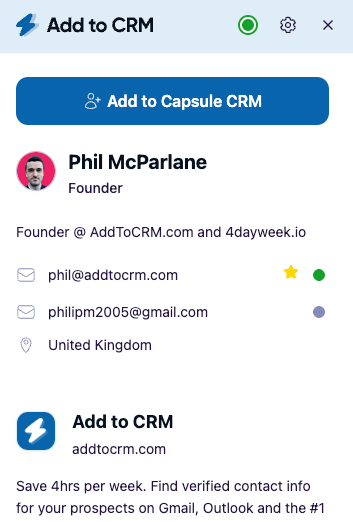
The difference is a stack of cards versus a working pipeline. A card gives you a name and a title; this gives you a verified email you can actually send to, a direct phone number, firmographics for scoring and routing, and a CRM record you can sequence today — turning "I met some people at a conference" into "I have thirty sales-ready contacts, tagged and ready to work." It also fixes the orphaned-CSV problem: rather than importing a raw badge-scan export full of generic addresses, you enrich each lead to a verified email at the point of entry.

Turn LinkedIn® profiles into CRM contacts
Add to CRM finds verified emails, phone numbers, and job titles on LinkedIn® — then adds them to your CRM in one click.
Start Free Trial


 Trusted by 2,500+ users4.7
How to organize business contacts after an event
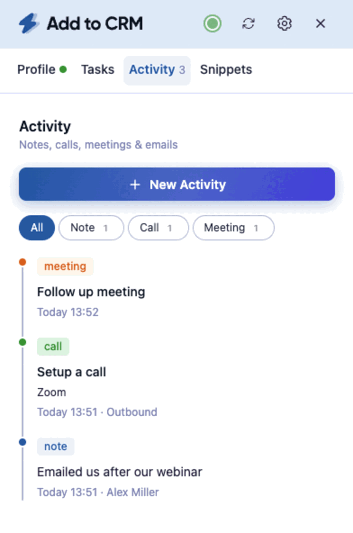
Speed is only half the job. Dump forty leads into your CRM with no structure and you've traded a pile of cards for a mess of records — and a messy CRM is its own reason follow-ups stall. A few habits keep an event batch clean and make your CRM the networking CRM your follow-up runs on:
- Use one per-event tag. Give every contact from the same event an identical tag —
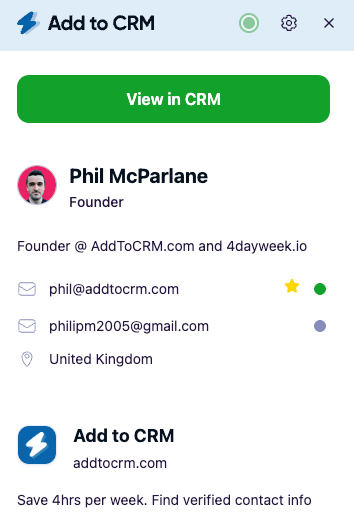
event:saastr-2026ortradeshow-2026-q3. That single tag lets you pull the batch as a segment, report on the event's pipeline weeks later, and sequence to that specific room. Highest-leverage habit here, and it costs one field per contact. - De-duplicate on the way in. The fastest way to ruin a CRM is re-adding contacts already in it. A good add tool flags existing records — Add to CRM shows a green tick — so you update instead of creating a conflicting second copy. Vital at events, where you'll often scan someone a colleague already knows.
- Standardize the fields that matter. Consistent company names, titles, and lead source at the point of entry save hours of reporting pain later — and enriched data arrives clean rather than however someone hand-wrote it on a card.
- Keep the context, not just the contact. Move that voice-memo detail into a note — "booth 12, evaluating in Q3, cares about onboarding time." The verified email tells you how to reach them; the context tells you what to say.
Knowing how to organize business contacts after an event is what turns a one-time scramble into a repeatable system: every show feeds the same tagged, enriched, de-duplicated pipeline, and you can measure which events are actually worth the booth fee.
A 48-hour post-event playbook
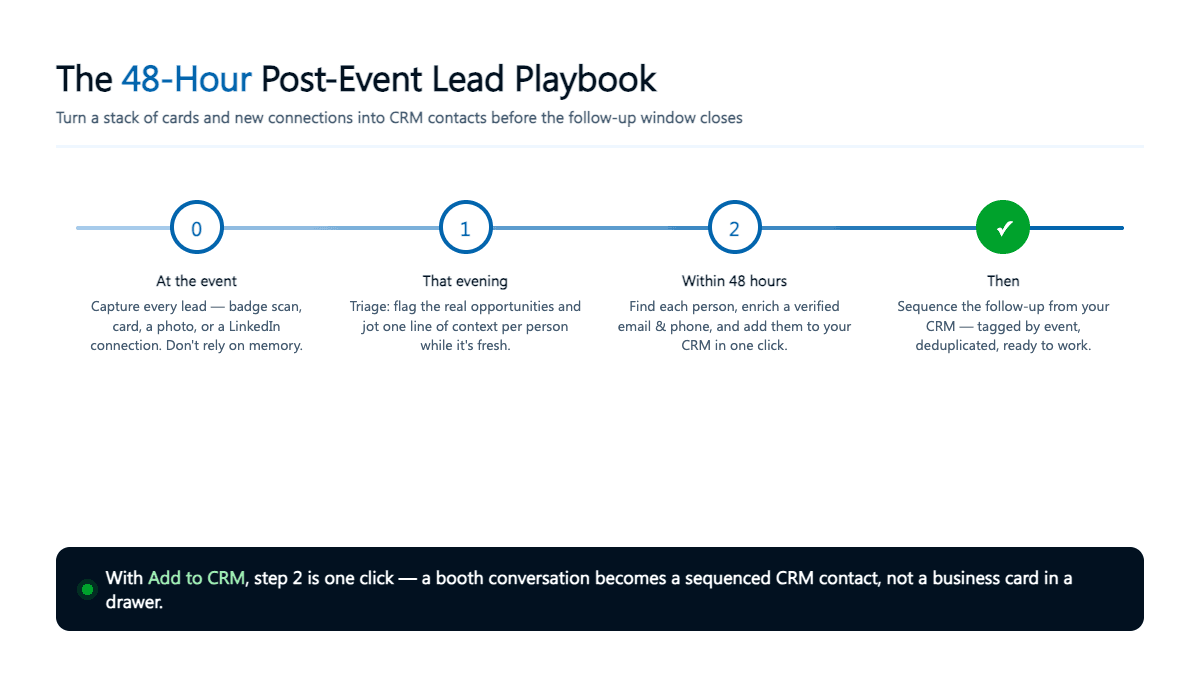
Run this after your next event to compress the gap between the conversation and the CRM — the gap where leads die.
- During the event (hour 0). Capture only. Scan badges, take cards, record a ten-second voice memo after good conversations, and send connection requests to people worth staying in front of. Don't touch your CRM on the floor.
- That evening (0–12 hours). Empty everything into one list while it's fresh — names, companies, and context notes. Triage only, no enriching yet. Flag the hot ones ("asked for a demo") to process first.
- Next morning (12–24 hours). Process the list. Per lead: find the person, enrich a verified email and phone, add to your CRM in one click, apply the per-event tag, paste the context note. Thirty leads at under a minute each is well under an hour.
- Within 48 hours (first touch). Follow up while you're still a memorable face, and reference the real conversation — "great chat at booth 12 about cutting onboarding time," not a generic "nice to meet you." This is why the context note beats the business card.
- Day 3–7 (the sequence). Move non-repliers into a short, event-specific sequence off the per-event tag — two or three value-led touches, then hand over to your normal cadence.
Do this once and it becomes muscle memory. The reps who run it get compounding returns: cleaner data, faster follow-up, and an honest answer to "was that event worth it?"
29+ CRMs supported. Try free for 7 days
Add to CRM finds verified emails, phone numbers, and job titles on LinkedIn® — then adds them to your CRM in one click.
Start Free TrialTrusted by 2,500+ users4.7Frequently asked questions
What's the best way to capture leads at a trade show? Capture fast with whatever has the least friction — a badge scan if you're exhibiting, a business card, or a connection request — plus a quick voice memo for context. Then do the real work within 48 hours: enrich each lead into a verified CRM contact. How fast you process matters more than the capture method.
Does Add to CRM scan business cards? No — Add to CRM does not scan or OCR business cards. It handles the follow-up step: you use the name from the card (or a badge scan, note, or new connection) to find the person, and it enriches a verified email, phone, and 20+ data points and adds them to your CRM in one click. The card is your input; the tool builds the contact.
How quickly should I follow up with event leads? Within 24 to 48 hours, while you're still a specific face attached to a specific conversation. After a week or two, response rates fall sharply because people forget which of the dozens of booths and hallway chats you were. Speed beats polish.
How do I add new connections from an event to my CRM? Open the profile of someone you connected with and use a browser extension to enrich their verified details and add them in one click. A new connection sits in your network, not your pipeline, until you take that step. Our guide on exporting business-network connections covers doing it at scale.
How do I avoid duplicate contacts after an event? Use an add tool that detects existing records first — Add to CRM shows a green tick when a contact already exists, so you update instead of duplicating. It matters at events, where the same prospect is often scanned by more than one person on your team, and where a single per-event tag lets you pull the whole batch as one segment later.
Turn your next event's cards into CRM contacts
The stack of business cards on your desk isn't a lead list — it's a to-do list that quietly expires. The win is closing the gap between the handshake and the CRM: capture fast on the day, then within 48 hours turn every name into an enriched, verified, tagged contact you can actually sell to.
Add to CRM is the follow-up engine for that workflow. It finds a verified email and phone plus 20+ data points for each person you met and adds them to any of 29+ CRMs in one click — no pile, no orphaned CSV, no cold leads. Start a 7-day free trial and turn your next event's contacts into pipeline before the follow-up window closes.
Start saving time and closing more deals.
Find verified contact info for your prospects on LinkedIn®, Gmail and Outlook — and add them to your CRM with 1-click.

 Loading...Trusted by 2,500+ founders, SDRs & more