How to Import Contacts into Zendesk Sell
Discover the easiest methods to import contacts into Zendesk Sell. Follow our comprehensive guide to enhance your CRM experience and improve productivity.
Zendesk Sell is a powerful CRM tool designed to streamline sales processes by offering robust contact and deal management features. Whether you’re migrating from another CRM, importing contacts from spreadsheets, or syncing data from external sources, importing contacts efficiently is crucial. This guide will walk you through all the available methods for importing contacts into Zendesk Sell.
Preparing Contacts for Import
Before starting the import process, it’s important to prepare your contact data to ensure a smooth import:
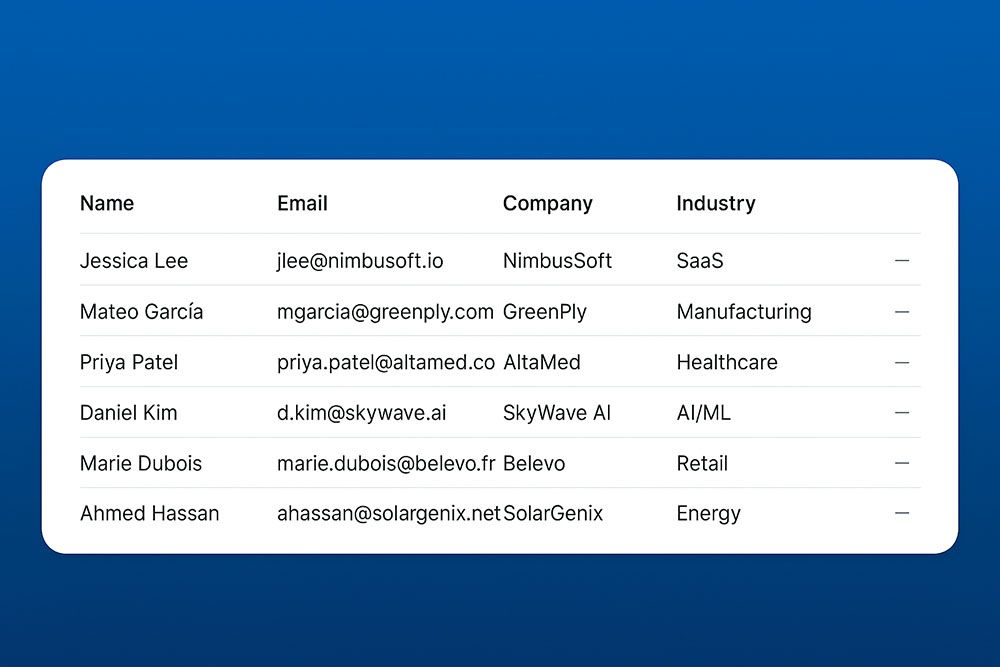
File Format:
- Zendesk Sell supports importing data in CSV (Comma-Separated Values) and VCF (vCard) formats.
- Ensure your file is saved in either of these formats before proceeding.
Column Headers:
- Ensure that your spreadsheet contains clear headers in the first row, such as “First Name,” “Last Name,” “Email,” and “Phone Number.” You can find more details on formatting headers in Zendesk Sell’s creating a CSV file guide.
- Remove any unnecessary or blank columns to reduce errors during the import.
One Contact Per Row:
- Each row should represent a single contact with all relevant information, such as name, email, phone number, and company.
Custom Fields:
- If your data includes columns that don’t match Zendesk Sell’s default fields, create custom fields in Zendesk Sell before starting the import.
Importing Contacts from a CSV or VCF File
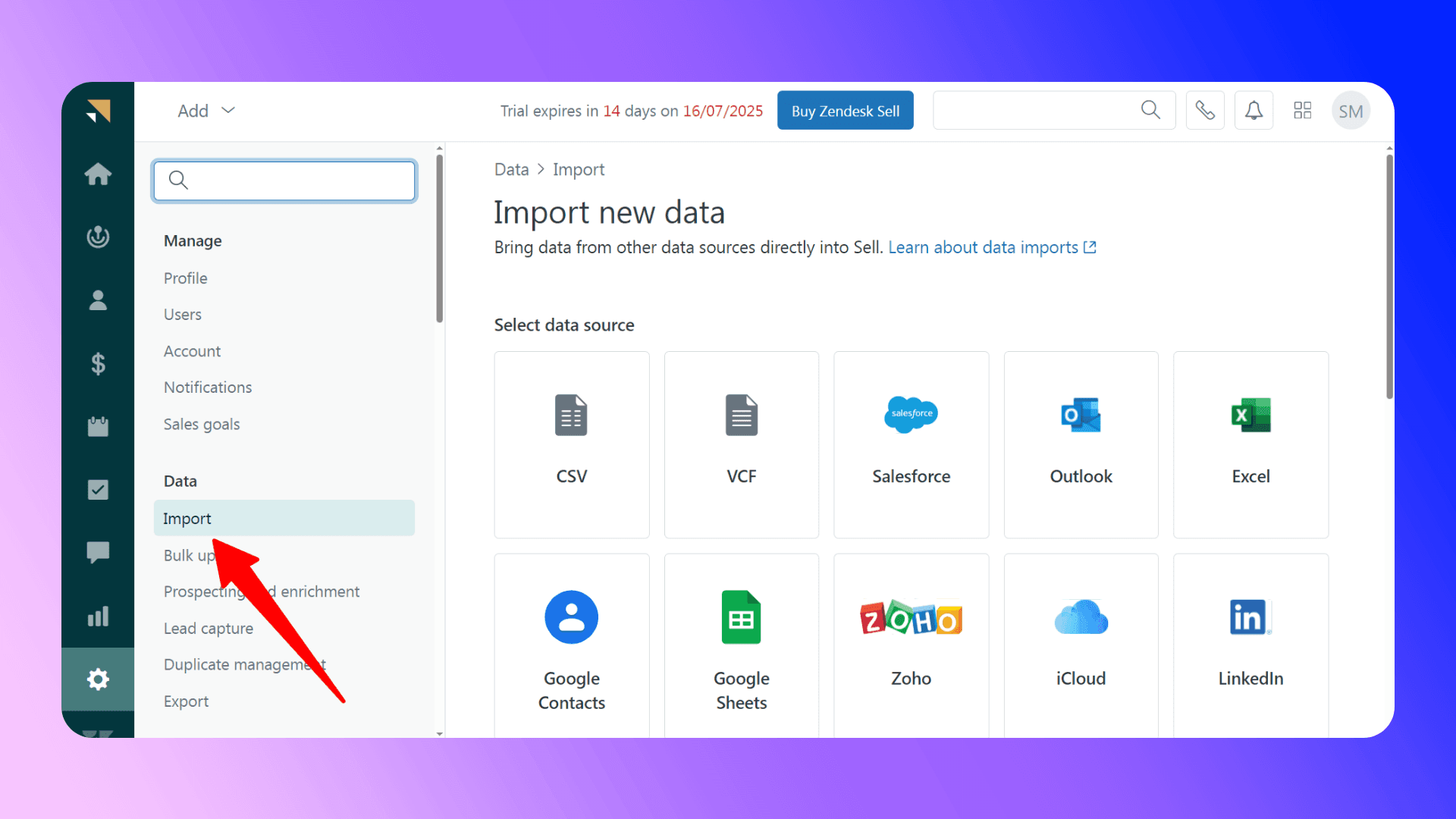
Follow these steps to import contacts into Zendesk Sell:
- Navigate to the Import Tool:
- On the Zendesk Sell sidebar, click Settings and then select Data > Import.
- Select File Type:
- Choose either CSV or VCF as the file type.
- Upload Your File:
- Drag and drop your file into the import window or click Select File to manually upload it.
- Select Data Type:
- Choose whether you are importing Contacts, Leads, or Deals & Contacts.
- Map Your Fields:
- Zendesk Sell will attempt to auto-map your file’s columns to its fields. Verify and adjust the mappings as necessary by referring to Zendesk Sell’s field mapping guide.
- Handle Duplicates:
- Zendesk Sell provides options to either:
- Add only new contacts.
- Add new contacts and update existing ones.
- Only update existing contacts with new data.
- Review and Import:
- Review the import summary and click Import. Depending on the size of your file, this process may take a few minutes.
Migrating from Other CRMs
If you are migrating from another CRM such as Salesforce, Zoho, or HubSpot, you can export your data from those platforms as a CSV file and import it into Zendesk Sell:
- Export Data from Your Current CRM:
- Follow the instructions specific to your CRM to export contacts into a CSV file.
- Format the File:
- Ensure the exported file meets Zendesk Sell’s formatting requirements.
- Import the Data:
- Follow the steps outlined in the previous section to import the data into Zendesk Sell.
Zendesk Sell also supports direct integrations and two-way sync with certain platforms like Google Contacts, which can further simplify the migration process.

Skip the CSV. Import contacts to Zendesk Sell from LinkedIn®
Add to CRM enriches LinkedIn® profiles with verified emails and phone numbers, then syncs them to Zendesk Sell instantly.
Start Free Trial


 Trusted by 2,500+ users4.7
Importing from LinkedIn
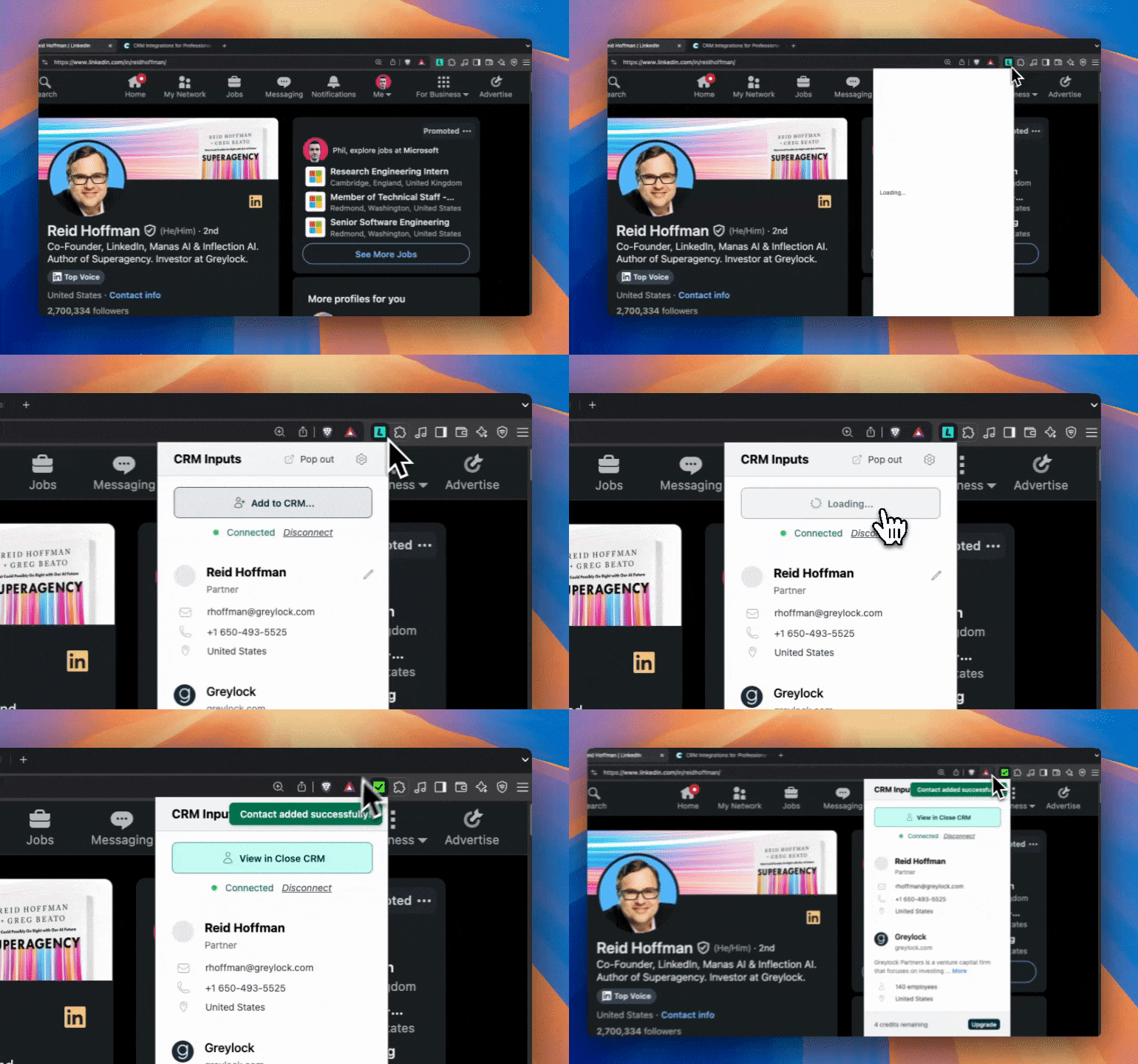
Another option for importing contacts is to use third-party tools that integrate directly with Zendesk Sell. One such tool is LinkZen, a Chrome extension designed to import contacts directly from LinkedIn into Zendesk Sell.
With LinkZen, you can:
- Get Verified Email Addresses:
- Collect accurate and up-to-date contact information directly from LinkedIn profiles.
- Add Contacts in One Click:
- When viewing a LinkedIn profile, click the “Add to CRM” button to instantly create a new contact in Zendesk Sell.
- Streamline Data Entry:
- Eliminate manual data entry by syncing contacts directly from LinkedIn.
This tool is particularly useful for sales reps who frequently source leads from LinkedIn.
Troubleshooting Import Issues
Here are some common issues you might encounter during the import process and how to resolve them:
- Duplicate Contacts:
- Ensure that your import settings are configured correctly to avoid creating duplicate records.
- Unmapped Columns:
- Double-check that all necessary columns have been mapped to fields in Zendesk Sell.
- Improper Field Types:
- Verify that the data type in each column matches the field type in Zendesk Sell (e.g., phone numbers should be mapped to phone fields).
- Import Limits:
- It’s recommended not to import more than 5,000 records at a time to avoid errors. If you have more than 5,000 contacts, split your file into smaller batches. You can refer to Zendesk’s best practices for large data imports for more detailed guidance.
If you encounter persistent issues, Zendesk Sell’s support team can provide assistance.
Verified emails, straight into Zendesk Sell
Add to CRM enriches LinkedIn® profiles with verified emails and phone numbers, then syncs them to Zendesk Sell instantly.
Start Free TrialTrusted by 2,500+ users4.7Post-Import Actions
Once your import is complete, consider taking the following actions:
- Organize Contacts:
- Add imported contacts to specific groups or pipelines.
- Assign Ownership:
- If you have multiple users in Zendesk Sell, assign contacts to the appropriate sales reps.
- Review Data:
- Check a sample of imported contacts to ensure data accuracy.
- Undo an Import:
- If you notice a significant error after the import, you can revert the import from the Import History page by following Zendesk’s reverting an import guide for step-by-step instructions.
Conclusion and Next Steps
Importing contacts into Zendesk Sell is a crucial step in setting up your CRM for success. By following this guide, you can ensure a smooth and efficient import process. Whether you’re importing contacts from a CSV file, migrating from another CRM, or using a third-party tool like LinkZen, Zendesk Sell offers flexible options to meet your needs.
Happy importing!
How to import contacts into Zendesk Sell directly from LinkedIn®, Gmail and Outlook

Save 4+ hrs / week on Zendesk Sell data entry.
Find verified contact info for your prospects on LinkedIn®, Gmail, Outlook & company websites. Add them to your Zendesk Sell with 1-click.
 Loading...Trusted by 2,500+ founders, SDRs & more