How to Find Your API Key in Pipeline CRM
Learn how to easily find your API key in Pipeline CRM. Follow our step-by-step instructions to optimize your CRM integrations and boost productivity.
Watch this 45 sec video on how to Find Your Pipeline CRM API Key

To integrate Pipeline CRM with third-party tools like the Add to CRM Chrome extension, you’ll need two pieces of information: your API Key and your App Key. This guide explains how to find and use both to set up your integration.
Steps to Access Your API Key in Pipeline CRM
Log into Your Pipeline CRM Account
Go to Pipeline CRM and sign in using your credentials.Navigate to the API Settings
In the top-right corner of the dashboard, click on your profile picture or name, and select Settings from the dropdown menu. In the Settings page, look for the API Keys tab in the navigation menu.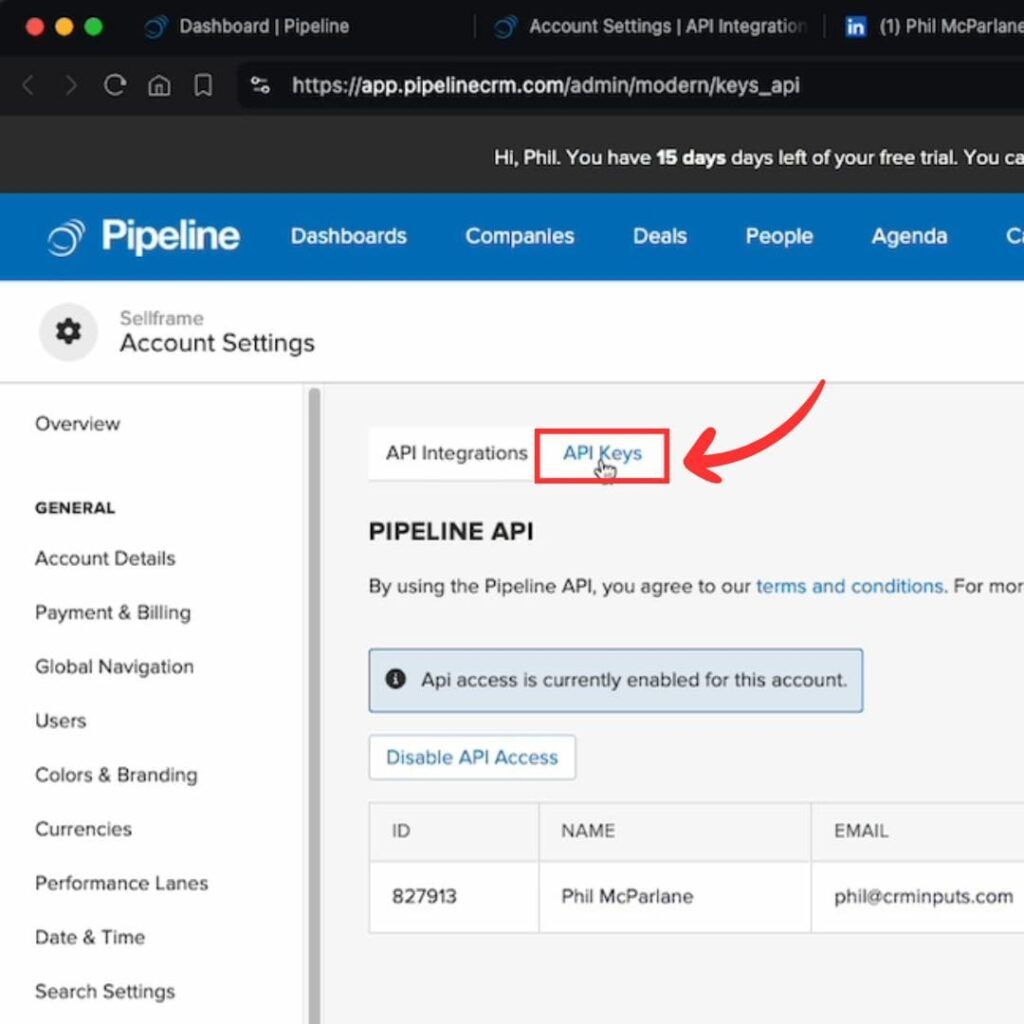
Enable API Access
If API access is not already enabled, you may be prompted to enter an email address to activate it. Follow the on-screen instructions to enable API access.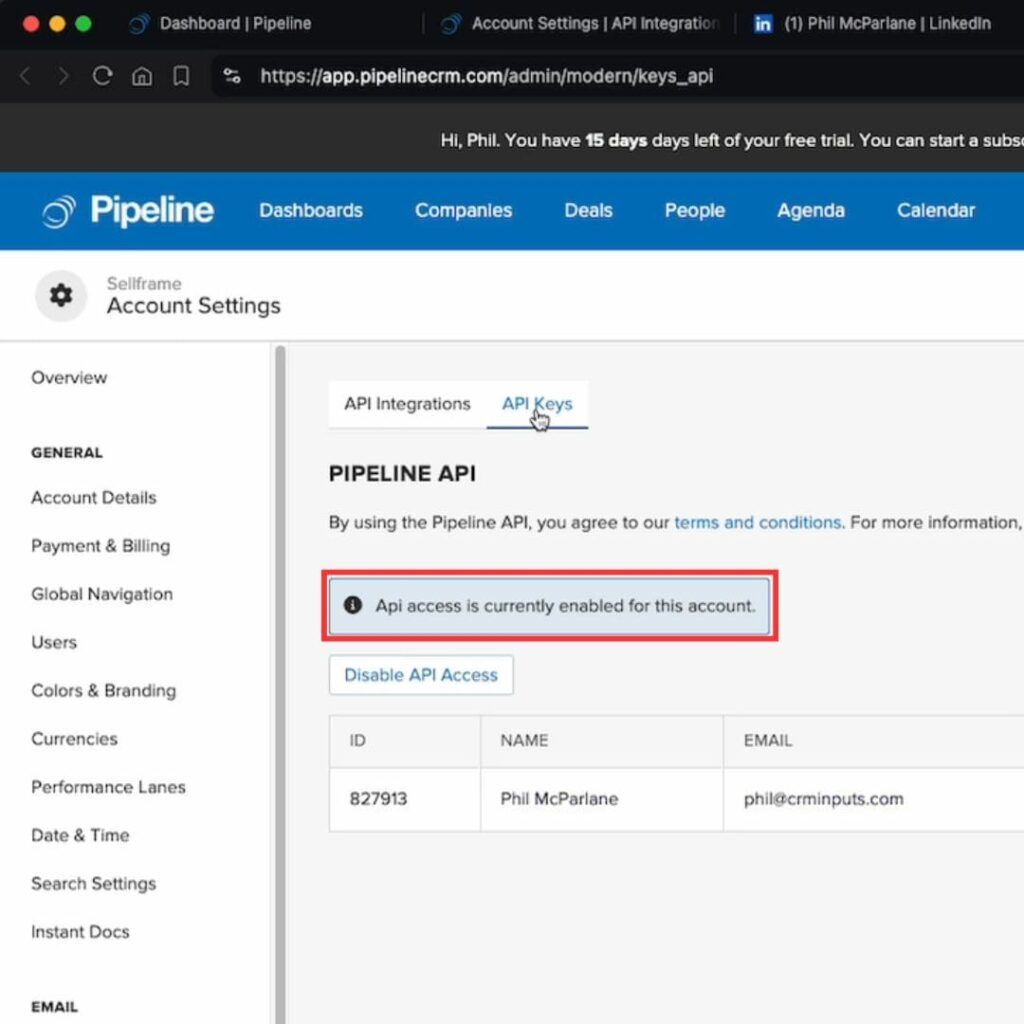
Copy the API Key
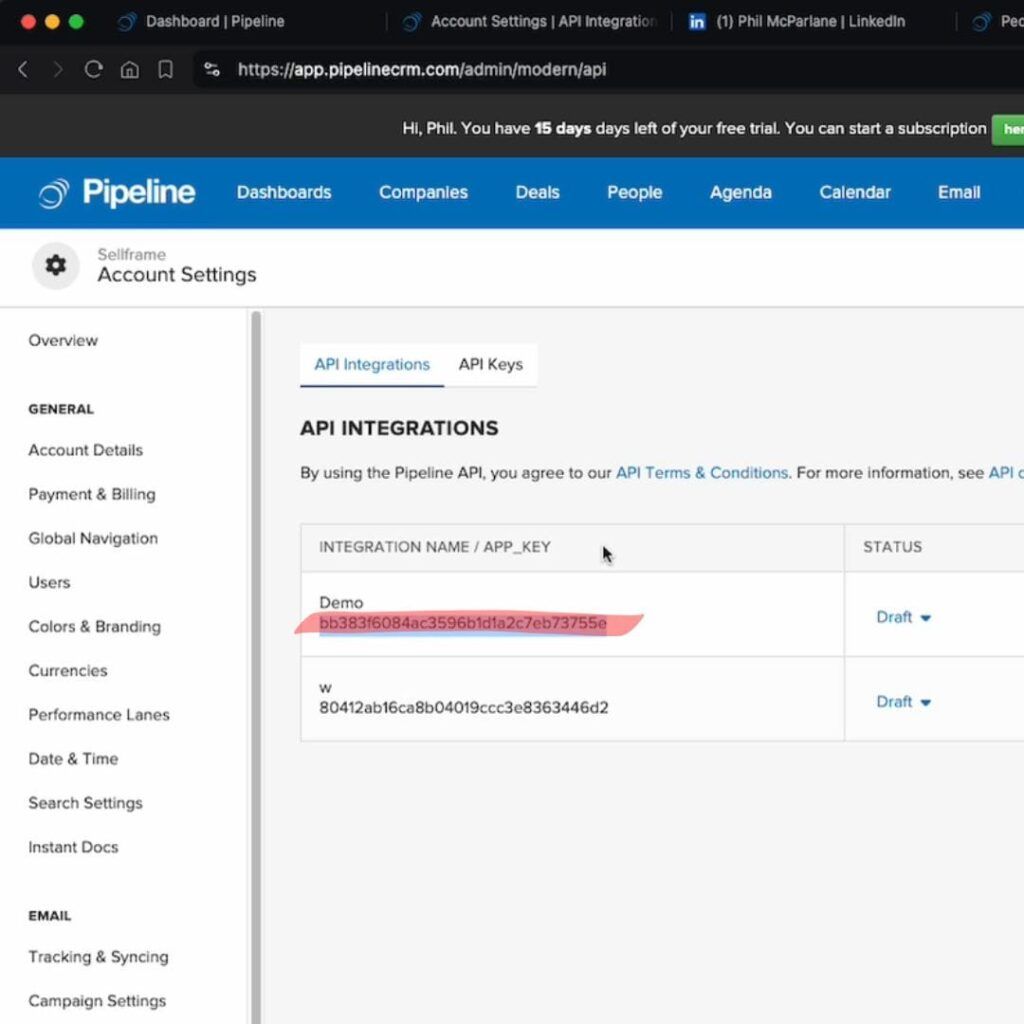
Once API access is enabled, you’ll see your API key listed in the API Keys section. Click Copy to copy the key to your clipboard.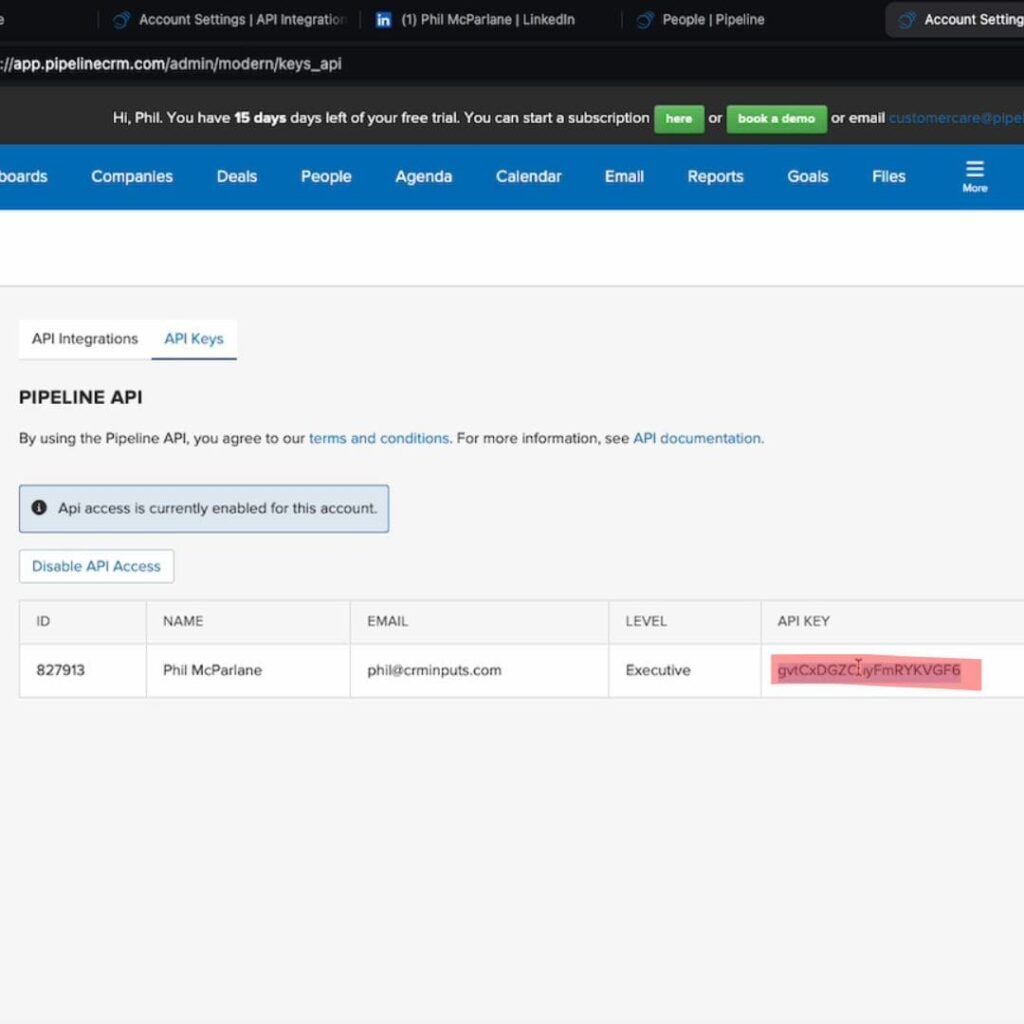
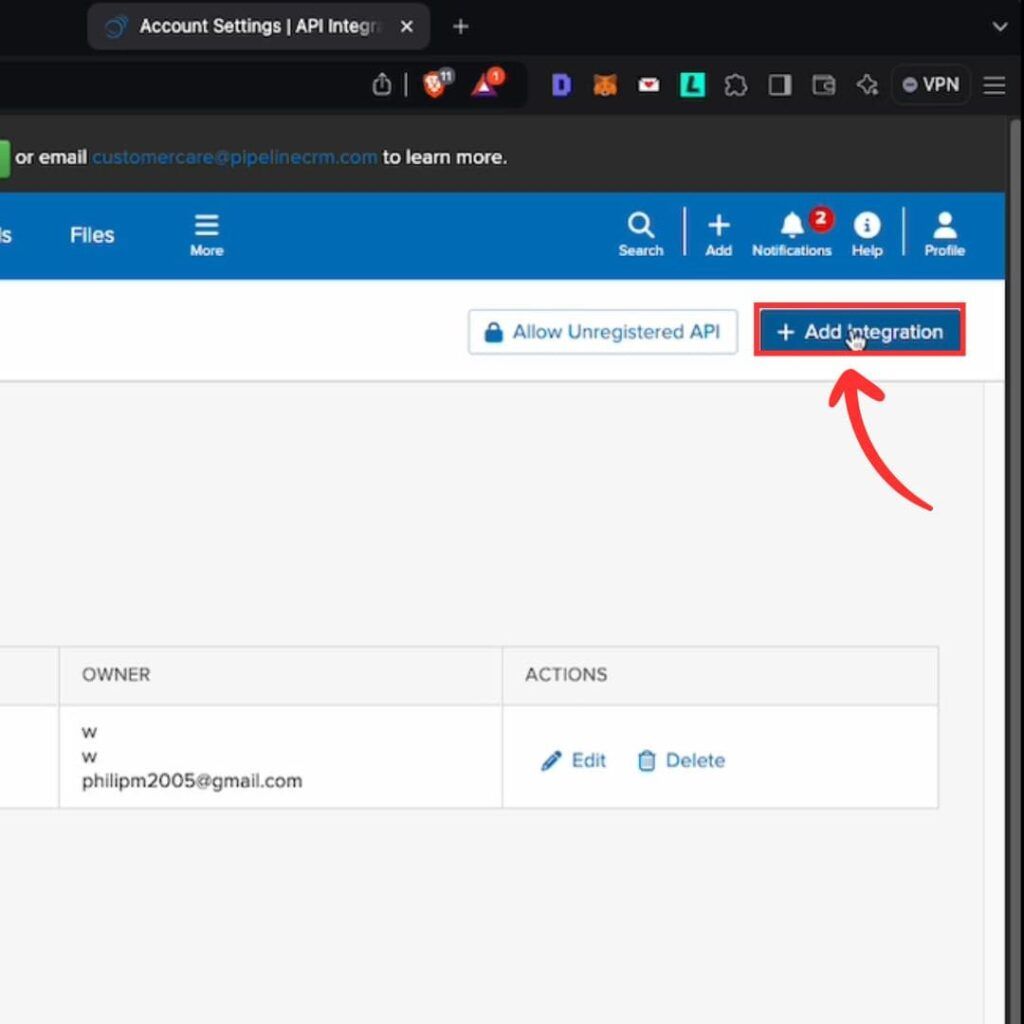
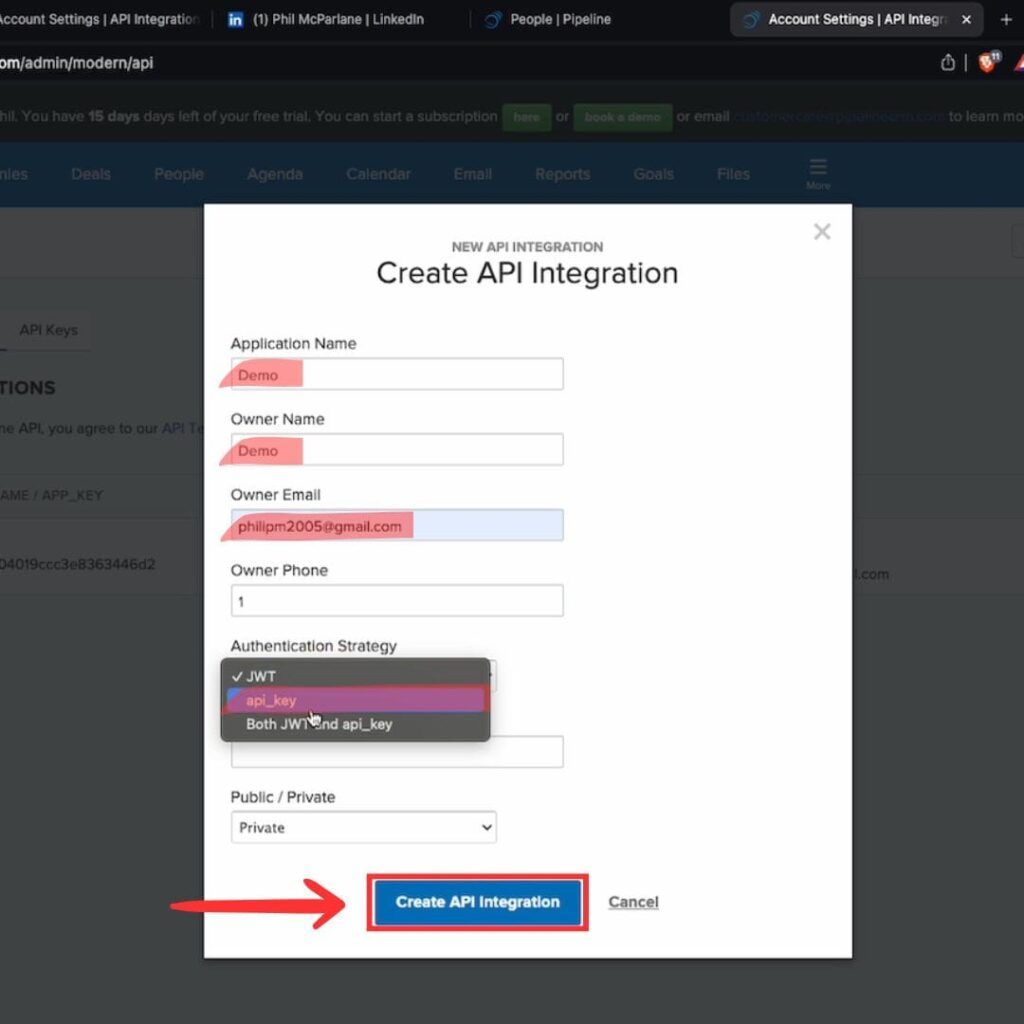
Create an App Key
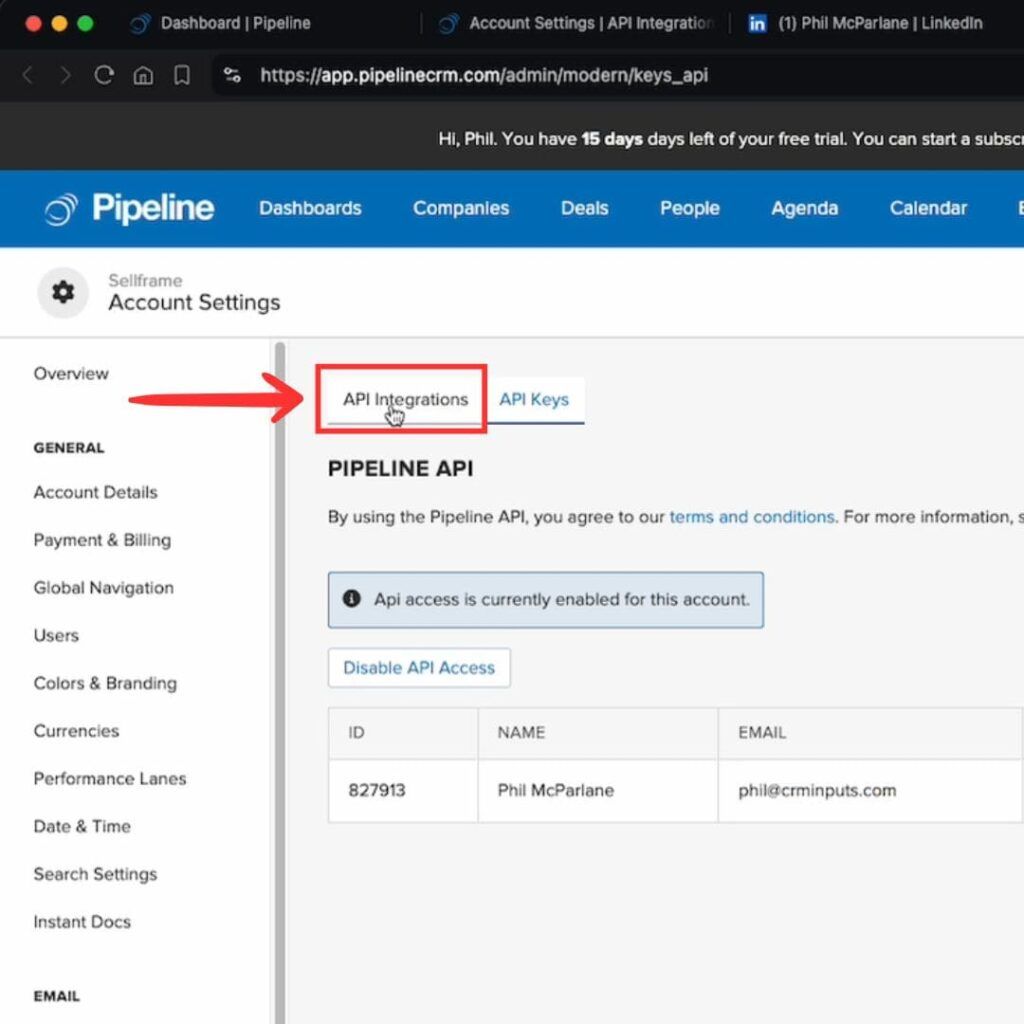
Navigate to the Apps tab in your Pipeline CRM settings. Click Create New App, give it a name (e.g., “Add to CRM Integration”), and ensure API Key is selected.- Privacy: You can keep the app private.
- Key Usage: Select API Key for secure access.
Once the app is created, you’ll receive an App Key (or App ID). Copy this key as well.
Enter the Keys in Add to CRM Extension
Open the Add to CRM Chrome extension, and paste the API Key and App Key into the respective fields in the settings menu. Save the changes to finalize the integration.Verify the Integration
Now, when you visit a LinkedIn profile, you’ll see the Add to Pipeline CRM button for new contacts or View in Pipeline CRM for existing ones.
That’s it! You’ve successfully accessed your API and App keys and completed the integration setup.
For direct access to API and App settings in Pipeline CRM, visit:
 Pipeline CRM Integration
Add contacts to Pipeline CRM from LinkedIn®
Enrich profiles with verified emails and phone numbers. Sync to Pipeline CRM in one click.
Try Pipeline CRM Extension7-day free trial · Cancel anytime
Save 4+ hrs / week on Pipeline CRM data entry.
Find verified contact info for your prospects on LinkedIn®, Gmail, Outlook & company websites. Add them to your Pipeline CRM with 1-click.
 Loading...


 Trusted by 2,500+ founders, SDRs & more